
How to Integrate an API in WordPress: Step-by-Step Guide
Introduction
Many WordPress websites need more than basic content pages today. Business owners use different tools for sales, payments, leads, bookings, emails, reports, and customer support. These tools often need to share data with the website. This is where WordPress API integration becomes useful.
If you want to learn how to integrate an API in WordPress, you first need to understand its purpose. An API helps WordPress communicate with another system. It can send data, receive data, or update records automatically.
For example, a contact form can send leads to a CRM. A booking form can check available slots from another platform. A WooCommerce store can send order data to a shipping service. These actions save time and reduce manual work.
API integration also helps make a website more dynamic. It allows WordPress to show live data from external tools. This can include prices, product details, user details, reports, or service updates.
A well-planned API setup improves website function and user experience. It also helps business owners manage data more smoothly.
What API Integration Means in a WordPress Website
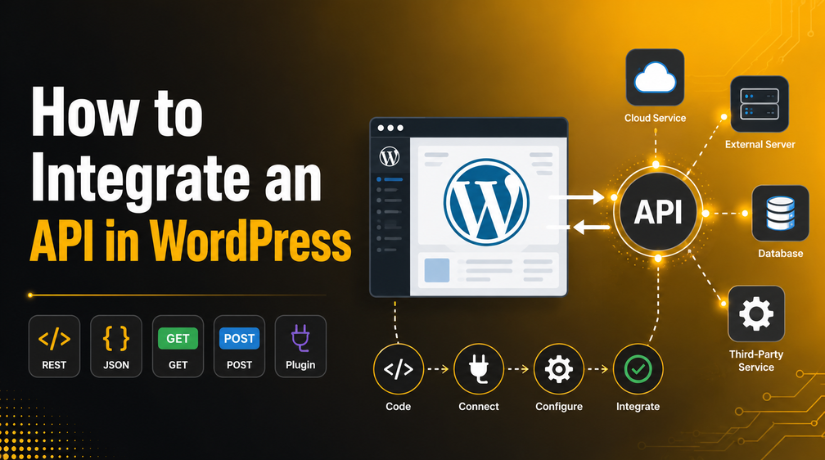
API integration means connecting WordPress with another software or service. The connection allows both systems to exchange useful information. WordPress sends a request to the external service. The service then sends a response back to WordPress.
For example, you may add external API to WordPress for payment data. You may also connect it with email marketing tools. Some websites use APIs for maps, weather data, stock updates, or customer records.
When you connect WordPress to third-party API, WordPress becomes more flexible. It can work with tools that are not built inside WordPress. This helps you add custom features without building everything from scratch.
Most API requests use simple methods like GET and POST. A GET request asks for data from another system. A POST request sends data to another system. WordPress can handle both request types using proper code.
In simple words, API integration works like a secure data bridge. It helps WordPress and external tools work together smoothly. This makes your website more useful, automated, and business-ready.
Things You Need Before Starting the API Integration
Before starting any WordPress API integration, collect the required API details first. These details help WordPress send correct requests to another platform. Without them, the connection may fail or return wrong data.
The first thing you need is the API endpoint URL. This URL works like the address of the external service. WordPress sends the request to this exact URL.
You also need an API key or access token. This key proves that your website can use the service. Many tools use keys to protect private data.
You should also check the request method. Most APIs use GET or POST methods. A GET request receives data from another service. A POST request sends data from WordPress to another service.
Before you add external API to WordPress, confirm these details:
- API endpoint URL
- API key or token
- Request method
- Required headers
- Required parameters
- Response format
- API documentation
Headers and parameters are also important. Headers may include the API key, content type, or token. Parameters may include user IDs, product IDs, dates, or search values.
You should also know the response format. Most APIs return data in JSON format. WordPress can read this data and use it inside your website.
Always read the API documentation before writing code. Good documentation explains endpoints, errors, limits, and examples.
Step 1: Choose the Right Place to Add the API Code
The next step is choosing where to place the code. This choice affects safety, updates, and long-term control.
You can add API code in a child theme file. Many users place code inside the functions.php file. This method can work for small changes. However, it is not always the best option.
A better option is a custom plugin. A custom plugin keeps your API code separate from your theme. This means theme updates will not remove your work.
You can also create a site-specific plugin. This is useful when the API feature belongs to the website. It keeps the code clean and easy to manage.
For a stable setup, use a custom plugin approach. It gives better control over future updates. It also helps developers manage errors and security checks.
When you connect WordPress to third-party API, avoid placing secret keys in frontend code. Keep sensitive details inside secure backend files. This helps protect your website and user data.
Step 2: Call the External API Using WordPress HTTP Functions
After preparing the API details, you can call the external API. WordPress includes safe functions for sending API requests from the backend. These functions help your website connect with outside services properly.
The most common function is wp_remote_get(). This function is used for GET requests. A GET request asks another service to send data back. For example, your website may request product prices, booking slots, or user records.
Another useful function is wp_remote_post(). This function is used for POST requests. A POST request sends data from WordPress to another service. For example, a contact form may send lead details to a CRM.
This step is important when learning how to call external API in WordPress. You must send the right URL, headers, and values. A small mistake can stop the API from working.
A basic API request usually includes these parts:
- API endpoint URL
- Request method
- API key or token
- Required headers
- Request parameters
- Timeout value
When you add external API to WordPress, keep your code simple first. Test one request before adding advanced logic. This helps you find errors quickly.
You can pass the API key inside the request headers. Some APIs may require a bearer token. Others may need a custom key name. Always follow the provider’s API documentation.
A basic GET request may fetch data from another tool. WordPress then receives the response from that service. After that, your code can read and use the data.


A POST request works differently. It sends information from your WordPress website. The external service then processes that information. It may return a success message or error response.
A good WordPress API integration should never show private keys publicly. Do not place secret keys in JavaScript files. Do not print tokens inside page source code.
Keep API calls on the server side whenever possible. This protects your website and user information. It also keeps the integration cleaner and safer.
Once the API call works, you can move forward. The next step is handling the response correctly. This ensures WordPress uses the received data safely.
Step 3: Handle the API Response Correctly
After calling the API, WordPress receives a response from the service. This response may include data, success messages, or error details. Your code must handle this response carefully before using it.
First, check whether the request returned an error. WordPress may return an error when the API is down. It may also happen when the endpoint is wrong. Network issues can also stop the request from working.
Next, check the response status code. A successful request often returns a 200 status code. Other codes may show access, server, or request problems. This step helps you find issues quickly.
After that, get the response body from the API. The body contains the actual data sent by the service. Most APIs return this data in JSON format. WordPress can decode JSON and convert it into usable data.
You should only use the data your website needs. Do not show full API responses on public pages. Raw responses may include private or technical details.
A safe response handling process includes:
- Checking request errors
- Reading the response status
- Getting the response body
- Decoding JSON data
- Using only required fields
- Hiding raw error messages
Good response handling improves website safety and user trust. It also makes WordPress API integration more stable and professional.
Step 4: Display API Data on the WordPress Website
Once the response is ready, you can display the data. The display method depends on your website goal. Some sites show API data on pages. Others show it inside dashboards or admin screens.
You can use a shortcode for simple frontend output. A shortcode allows users to place data anywhere. This works well for pages, posts, or landing pages.
You can also display API data inside a custom template. This option is useful for advanced layouts. Developers can control the design, structure, and content flow.
Another option is a custom plugin page. This works well for admin reports or private data. You can show API data only to approved users.
Common display methods include:
- Shortcode output
- Custom template section
- Admin dashboard widget
- Custom plugin settings page
- Block-based content output
Always format API data before showing it to users. Keep the layout clean, simple, and readable. Also escape output to prevent security issues.
A clean display improves user experience. It helps visitors understand the information quickly. This makes the integration more useful for real business needs.
Step 5: Secure the API Integration Properly
Security is important in every WordPress API integration. API connections may handle private website data. They may also send customer, order, or business details.
Never show API keys on public pages. Do not place secret tokens inside JavaScript files. Keep sensitive details inside secure backend code only.
You should also clean all user input before using it. This process helps block unsafe data. Always escape output before showing API data on pages.
Important security steps include:
- Hide API keys from frontend users.
- Sanitize all submitted form data.
- Escape API output before display.
- Use nonces for admin forms.
- Check user roles before saving settings.
These steps help protect your website from common risks.
Step 6: Test and Troubleshoot the API Connection
Testing helps you find errors before users see them. Always test the API on a staging website first. This keeps your live website safe.
When you connect WordPress to third-party API, check the endpoint URL carefully. Also check the API key, headers, method, and required values.
If the API fails, review the response status code. A wrong key may return an access error. A wrong endpoint may return a not found error.
WordPress REST API Integration: When It Is Needed
WordPress REST API integration is useful in a different case. It helps external apps access WordPress website data. For example, a mobile app may read posts from WordPress. A custom dashboard may update WordPress records.
This is different from calling an outside API. Both methods help systems share data smoothly.
Conclusion
Now you know how to integrate an API in WordPress safely and correctly. A good setup starts with clear API details, secure request handling, and proper testing. You should always protect API keys, check responses, and display only required data. This makes your WordPress API integration more stable, useful, and secure for real website needs. If your website needs a custom API setup, 24×7 WP Support can guide you with safe planning, testing, and implementation.






Brian is a WordPress support specialist and content contributor at 24×7 WP Support. He writes practical, easy-to-follow guides on WordPress troubleshooting, WooCommerce issues, plugin and theme errors, website security, migrations, performance optimization, and integrations. With a focus on solving real website problems, Brian helps business owners, bloggers, and online store managers keep their WordPress sites running smoothly.
