
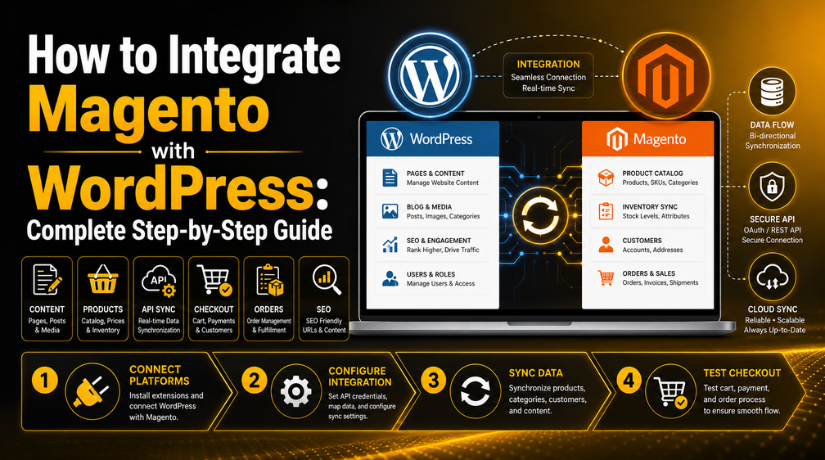
How to Integrate Magento with WordPress: Complete Step-by-Step Guide
Introduction
Many businesses want a website that sells and educates users. WordPress helps them create blogs, pages, guides, and landing pages. Magento helps them manage products, checkout, orders, and stock. This is why Magento WordPress integration is useful for growing online stores. It brings content and commerce into one better user journey. Customers can read helpful content first. Then, they can visit product pages and make a purchase. This flow feels simple, smooth, and more trusted.
When you integrate Magento with WordPress, both platforms can support different business needs. WordPress can attract users through search-friendly content. Magento can handle the full buying process with strong store tools. This setup works well for brands that need advanced eCommerce features. It also helps teams manage content without changing store functions. A strong Magento eCommerce integration can improve sales, trust, and website growth.
Magento and WordPress are both powerful in different ways. WordPress gives simple control over content and marketing pages. Magento gives deep control over products and online selling. Together, they can build a stronger digital experience. This is why many developers choose Magento CMS integration for larger websites. It helps connect useful content with a powerful store system.
What Is Magento In WordPress?
Magento in WordPress does not always mean one system is inside another. It usually means both platforms are connected in a planned way. WordPress may handle content, blog posts, and landing pages. Magento may handle products, cart, checkout, payments, and orders. This connection can happen through plugins, APIs, custom code, or links. A WordPress Magento connector may also help join both systems.
In simple words, Magento works as the store engine. WordPress works as the content and marketing engine. When both systems connect, users get one smooth experience. They may read a product guide on WordPress first. Then, they may click a button and visit Magento checkout. This setup can support better SEO and better customer flow. It also helps businesses manage different parts more easily.
Why Do WordPress Websites Need Magento For Advanced Online Selling?
Not every WordPress website needs Magento for online selling. A small store may work well with simple plugins. But growing stores often need stronger eCommerce control. This is where Magento WordPress integration becomes helpful. Magento can manage large products, custom prices, orders, stock, and checkout. WordPress can manage content, blogs, pages, and SEO materials. Together, both platforms can support a better business setup.
Magento Helps WordPress Websites Manage Large Product Catalogs
Large stores need better control over products and categories. Magento can manage many products, options, and product variations. It can also handle product attributes and complex catalog structures. This is useful for stores with thousands of products. It also helps stores that sell different sizes, colors, models, or bundles.
Magento Supports Advanced Checkout Needs For WordPress Stores
Checkout is one of the most important store areas. A weak checkout flow can reduce sales quickly. Magento supports advanced checkout rules for growing online stores. It can manage taxes, coupons, shipping rules, and payment options. It can also handle guest checkout and customer account checkout.
Magento Gives Better Inventory And Order Control
Inventory and order control become harder as stores grow. Store owners need clear stock updates and order tracking. Magento can manage stock status, invoices, shipments, and returns. It also helps teams handle order changes more smoothly. This can reduce errors during busy sales periods.
Magento Works Well For B2B And Wholesale Selling
Many businesses sell products to companies or bulk buyers. These stores often need special rules and pricing. Magento can support customer groups, bulk orders, and custom pricing. It can also support company accounts and buyer-specific rules. These features are useful for wholesale and B2B websites.
Magento Supports Store Growth And Long-Term Scalability
A business website should support future growth plans. A small store may become larger within a few years. It may add more products, locations, offers, and sales channels. Magento can support this kind of long-term growth. It is built for larger and more complex store needs.
Does Magento Integrate And Work With WordPress Smoothly?
Yes, Magento can integrate and work with WordPress. The setup can be simple, moderate, or fully custom. The right method depends on your store needs and budget. Some websites only need simple product and checkout links. Others need full product display, stock updates, or account sync.
A WordPress Magento connector can help with basic connection needs. Custom APIs can help with more advanced data sharing. Developers can also build a headless setup for larger projects. The best option depends on product count, traffic, speed, and security needs. A planned setup can make both platforms work smoothly.
Things To Plan Before Starting Magento WordPress Integration
Planning is the most important step before development starts. A poor plan can create technical and SEO problems later. It can also affect speed, checkout, and user trust. So, every business should review its needs first. A strong Magento WordPress integration starts with a clear goal. You should know what both platforms will manage. WordPress may handle content, blogs, and landing pages. Magento may handle products, checkout, stock, and orders. This clear separation keeps the setup clean and stable.
Define The Main Goal Of Magento And WordPress Integration
Every website has a different reason for integration. Some websites only need product links inside blog posts. Some need Magento products displayed on WordPress pages. Others need order, stock, or customer data sync. You should define this goal before choosing any method. This makes the full process more focused and useful.
Choose The Source Of Truth For Each Website Data Type
The source of truth means the main place for data. This is very important for Magento CMS integration. If both platforms control the same data, errors may happen. Product prices may mismatch between WordPress and Magento. Stock status may also display wrong information. Orders may become hard to track properly.
Decide The Best Website Structure Before Development
Website structure affects SEO, branding, and user experience. You should decide how both platforms will appear online. Some businesses use WordPress on the main domain. Magento may run on a shop folder or subdomain. Others keep Magento as the main store platform. WordPress may run as a blog or content section.
Plan SEO Before Starting The Integration Work
SEO planning must happen before technical work starts. Poor setup can create duplicate pages and weak rankings. Product content should not be copied across both platforms. If WordPress shows Magento product data, keep it limited. Use unique content on blogs, guides, and landing pages. This helps users get more value from every page.
Check Hosting, Speed, And Server Requirements
Magento and WordPress both need stable hosting. Magento can use more server resources than basic websites. WordPress can also slow down with heavy plugins. When both systems connect, speed becomes more important. Slow pages can affect visitors and sales. Slow API calls can also delay product display.
Review Security Requirements Before Sharing Data
Security should never be ignored during integration. Magento may handle customer, order, and payment-related data. WordPress may display selected store data through APIs. If access is not controlled, private data can be exposed. This can create serious risks for the business.
Plan Design Consistency Across Both Platforms
Users should feel they are using one trusted website. If WordPress and Magento look very different, users may feel confused. They may leave before completing checkout. This can reduce sales and trust. Design consistency is very important during integration.
How to Integrate Magento with WordPress (Step By Step Guide)
Once planning is complete, you can start the integration process. Follow each step carefully. This helps avoid broken links, slow pages, data errors, and checkout issues. The main goal is simple. WordPress should manage content and user education. Magento should manage products, checkout, orders, and stock. This clear setup creates a smooth journey from content to purchase.
Step 1: Audit Both Magento And WordPress Platforms First
- Review your current WordPress website setup first.
- Check the active theme, plugins, pages, and menus.
- Review your Magento store setup in detail.
- Check products, categories, extensions, and checkout flow.
- Test website speed on desktop and mobile devices.
- Check if product links and pages work correctly.
- Remove unused plugins, themes, and old extensions.
- Fix major errors before starting the integration process.
- This creates a stable base for Magento WordPress integration.
Step 2: Select The Right Integration Method For Your Store


- Choose the method based on your business needs.
- Use manual links for a simple store connection.
- Use plugins for basic product display inside WordPress.
- Use APIs for custom product and data sharing.
- Use headless integration for advanced store experiences.
- Avoid complex development if your needs are simple.
- Choose scalable methods for large product catalogs.
- Match the method with budget, traffic, and store size.
- This helps you integrate Magento with WordPress properly.
Step 3: Prepare Safe Magento API Access
- Create Magento API access only when needed.
- Give only the required permissions for the task.
- Product display may need product and category access.
- Order and customer data need stronger security control.
- Never expose API keys in public frontend code.
- Store access keys safely on the server side.
- Test API endpoints before connecting WordPress.
- Use HTTPS for all API communication.
- This improves safe Magento 2 WordPress integration.
Step 4: Prepare WordPress For The Integration Work
- Create a staging website before making live changes.
- Test all integration work on the staging version first.
- Use a child theme for safe design changes.
- Use a custom plugin for integration-related code.
- Avoid adding complex code directly inside theme files.
- Keep WordPress core, plugins, and themes updated.
- Remove outdated plugins before starting the setup.
- Check if the REST API is working properly.
- This supports a cleaner Magento CMS integration process.
Step 5: Map Magento Data With WordPress Fields
- Decide which Magento data should appear in WordPress.
- Map product name, SKU, price, image, and URL.
- Add category, stock status, and short description if needed.
- Keep Magento as the main product data source.
- Avoid editing product prices manually inside WordPress.
- Do not show too much product data on one page.
- Keep product blocks light, clean, and useful.
- Test if mapped data displays correctly.
- This keeps Magento eCommerce integration accurate and reliable.
Step 6: Display Magento Products On WordPress Pages
- Show Magento products on selected WordPress pages.
- Use plugins, shortcodes, blocks, or custom templates.
- Display product name, image, price, and button clearly.
- Keep product layouts simple and easy to scan.
- Add only relevant products inside blog or landing pages.
- Avoid loading too many products at once.
- Make product sections mobile-friendly and fast.
- Link each product button to the correct Magento page.
- This improves the WordPress Magento connector experience.
Step 7: Connect Product Buttons With Magento Checkout
- Keep checkout inside Magento whenever possible.
- Magento should manage cart, payment, tax, and shipping.
- WordPress should guide users toward product pages.
- Product buttons can link to Magento product pages.
- Buttons may also link to cart or checkout pages.
- Test every button before making the setup live.
- Check coupon, shipping, tax, and payment behavior.
- Make sure checkout works on mobile devices.
- This step protects your Magento WordPress integration from sales loss.
Step 8: Connect WordPress Content With Magento Products
- Add product links inside useful WordPress content.
- Link blog posts to related Magento product pages.
- Link buying guides to useful product categories.
- Link FAQ pages to helpful store sections.
- Keep links natural and helpful for readers.
- Do not add product links in every paragraph.
- Use content to answer customer questions first.
- Guide users from learning to buying smoothly.
- This makes Magento CMS integration more useful for SEO.
Step 9: Test Login And Customer Account Flow
- Test registration on both platforms if required.
- Check login, logout, and password reset flows.
- Make sure users understand where to manage orders.
- Keep account links clear and easy to find.
- Test customer dashboard links after login.
- Check if users are redirected to the correct page.
- Avoid confusing users with two separate account areas.
- Fix account issues before public launch.
- This improves trust and reduces support requests.
Step 10: Test The Complete Purchase Journey
- Start testing from a WordPress blog page.
- Click a product link from the WordPress page.
- Visit the connected Magento product page.
- Add the product to the shopping cart.
- Continue to checkout and complete a test order.
- Check payment, shipping, tax, and coupon settings.
- Confirm order emails, invoices, and admin records.
- Test the same journey on mobile and desktop.
- This confirms your Magento eCommerce integration works properly.
Step 11: Launch The Integration In Small Phases
- Avoid launching every feature at the same time.
- Start with simple product links or product displays.
- Test user behavior after the first launch phase.
- Check speed, checkout flow, and product clicks.
- Fix early issues before adding advanced features.
- Add stock sync or account features later if needed.
- Keep a backup before each major update.
- Inform the team before making live changes.
- This reduces risk during Magento 2 WordPress integration.
Step 12: Monitor Performance And Errors After Launch
- Monitor website speed after the integration goes live.
- Check WordPress and Magento error logs regularly.
- Track API failures and broken product links.
- Review checkout errors and failed order attempts.
- Check mobile layout after new product blocks load.
- Watch SEO changes after the integration launch.
- Update plugins, extensions, and access keys on time.
- Fix small issues before they become major problems.
- This keeps Magento WordPress integration stable long term.
Common Problems During Integrating Magento with WordPress
A Magento WordPress integration can improve store performance and user flow. But the setup can also create problems without proper planning. These issues may affect speed, SEO, checkout, and customer trust. Many problems happen because both platforms work differently. Magento manages eCommerce features, while WordPress manages content and pages. When both systems connect, every feature must be tested carefully. A small mistake can create broken buttons or wrong product details. This is why every business should review common problems before launch.
Slow Product Loading Can Affect User Experience And Sales
Slow product loading is a common issue during Magento eCommerce integration. It often happens when WordPress requests live product data from Magento. If every page load calls Magento directly, speed can drop. Users may wait longer for product images or prices. This can affect trust and reduce sales. Search engines may also notice slow page performance. To avoid this issue, product data should be cached properly. Developers should also limit unnecessary API requests. Product images should be compressed before display. A fast setup helps users move smoothly from content to checkout.
API Authentication Errors Can Break The Data Connection
API errors can stop data from moving between both platforms. These errors may happen because of wrong keys or expired tokens. Blocked endpoints can also stop product data from loading. Sometimes, permissions are not set correctly inside Magento. This can break product feeds, stock updates, or category display. When you integrate Magento with WordPress, API access must be tested first. Developers should use limited permissions for better safety. They should also keep all access keys private. A secure API setup protects data and improves stability.
Duplicate Product Content Can Create SEO Problems
Duplicate content is another major problem during integration. It happens when the same product content appears on both platforms. WordPress may show product details already available on Magento. This can confuse search engines and weaken ranking signals. A good Magento CMS integration should avoid copied product pages. WordPress should create helpful content around products instead. This can include guides, FAQs, reviews, and comparison pages. Magento should remain the main place for product pages. Proper internal linking can connect both systems without duplication. This keeps SEO cleaner and more useful for users.
Checkout Redirect Confusion Can Reduce Customer Trust
Checkout redirection should feel simple and natural for users. Problems happen when WordPress and Magento designs look different. Users may feel they have reached another website suddenly. This can create doubt during the buying process. Some users may leave before completing the order. A strong Magento WordPress integration should keep branding consistent. Colors, buttons, menus, fonts, and messages should look similar. Product buttons should clearly explain where users will go next. This helps customers feel safe during checkout. A smooth checkout path can improve trust and conversions.
Plugin Compatibility Issues Can Create Technical Errors
Many websites use plugins for faster integration work. A WordPress Magento connector can help with basic connections. But every plugin must be checked before use. Some plugins may not support the latest WordPress version. Others may not work well with Magento updates. Poor plugins can slow pages or create security risks. They can also break after PHP or server changes. Always check update history, support, reviews, and compatibility. Test the plugin on staging before using it live. This prevents major problems on the public website.
Inventory Sync Delay Can Show Wrong Stock Information
Inventory sync delay can create confusion for store visitors. WordPress may show a product as available. But Magento may already show that product as out of stock. This mismatch can hurt user trust and order accuracy. It can also increase support requests after failed purchases. During Magento 2 WordPress integration, stock data should come from Magento. If sync is delayed, the website should show safe messages. Real-time stock display may need a stronger API setup. Cached stock data should refresh at proper time intervals. Accurate stock display improves user confidence before checkout.
Security Risks Can Affect Customer Data And Website Safety
Security is very important in any integration project. Magento may handle orders, payments, and customer account data. WordPress may display selected product or customer information. Weak API permissions can expose private data. Outdated plugins can also open security gaps. A safe Magento eCommerce integration needs strong access control. API keys should never appear in public code. Both platforms should use HTTPS for secure data transfer. Admin users should use strong passwords and limited roles. Regular updates also reduce security risks. A secure setup protects both business data and customer trust.
Mobile Design Issues Can Hurt The Buying Journey
Many users visit websites from mobile devices. So, mobile testing is very important before launch. Product blocks may look good on desktop screens. But they may break on smaller mobile screens. Buttons may become hard to tap or read. Product images may load too large for mobile users. This can reduce engagement and sales. A strong Magento WordPress integration should work across all devices. Test pages on phones, tablets, and different browsers. Make sure product cards, buttons, and checkout links look clear. A mobile-friendly setup gives users a better shopping experience.
Conclusion
Magento and WordPress can create a powerful website setup together. WordPress helps businesses publish content, guides, blogs, and landing pages. Magento helps manage products, carts, checkout, orders, and stock. When both platforms work together, users get a better journey. They can learn from helpful content before making a purchase. Then, they can move smoothly to Magento products or checkout pages. This makes Magento WordPress integration useful for growing online stores.
However, the right method depends on your business needs. Small websites may only need simple product and checkout links. Growing stores may need a plugin or API-based setup. Larger stores may need custom or headless Magento 2 WordPress integration. The main goal should always stay clear. WordPress should support content and customer education. Magento should support store operations and secure checkout. With proper planning, both platforms can support better sales and growth.
Need help to integrate Magento with WordPress without technical confusion? 24x7wpsupport can review your website and suggest the right method. Our team can help with planning, setup, performance checks, and technical fixes. We can also review speed, security, SEO, and checkout flow. Visit 24x7wpsupport to get expert support for WordPress, Magento planning, and smooth website integration.

Brian is a WordPress support specialist and content contributor at 24×7 WP Support. He writes practical, easy-to-follow guides on WordPress troubleshooting, WooCommerce issues, plugin and theme errors, website security, migrations, performance optimization, and integrations. With a focus on solving real website problems, Brian helps business owners, bloggers, and online store managers keep their WordPress sites running smoothly.
