
WordPress Default Admin Login: Credentials, URL, and Complete Access Guide 2026
Introduction
Every WordPress website has an admin login area — a secure gateway that gives you full control over your content, plugins, themes, and settings. But if you’re new to WordPress, or you’ve inherited a site from someone else, figuring out where to log in and what the default credentials are can feel confusing. This guide covers everything you need to know about the WordPress default admin login in 2026: the default URL, what credentials to use, how to recover access if you’re locked out, and how to keep your admin area safe from attackers.
What Is the WordPress Admin Login URL?
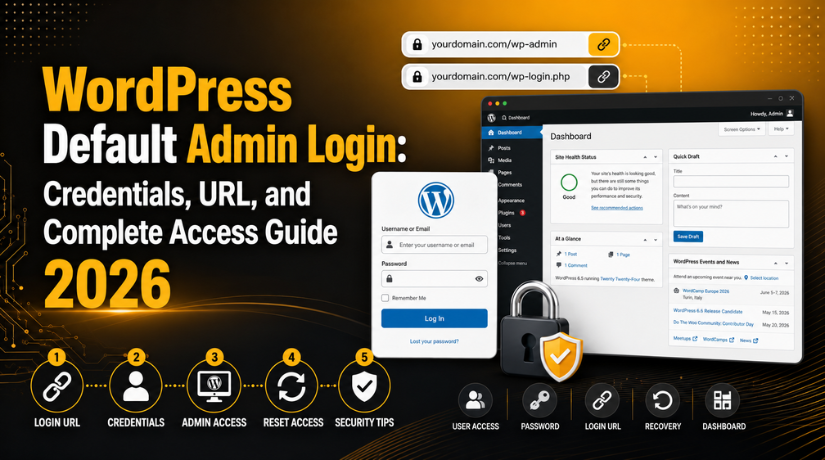
The WordPress admin login page is located at a predictable URL on every self-hosted WordPress site. By default, you can reach it using any of these three addresses:
- yoursite.com/wp-admin
- yoursite.com/wp-login.php
- yoursite.com/login
All three routes point to the same login screen. If you’re already logged in, visiting /wp-admin will take you directly to the WordPress dashboard. If you’re not logged in, you’ll be redirected to the login form first.
Just replace yoursite.com with your actual domain name. For example, if your site is mybusiness.com, your login URL is https://mybusiness.com/wp-admin.
What the WordPress Login Page Looks Like
The default WordPress login screen is clean and minimal. It shows the WordPress logo (or your site’s custom logo if one has been set), a username or email field, a password field, a “Remember Me” checkbox, and a blue “Log In” button. Below the form you’ll find a “Lost your password?” link — which is useful if you’ve forgotten your credentials.
What Are the Default WordPress Admin Credentials?
This is one of the most common questions new WordPress users have — and the honest answer might surprise you: WordPress does not have a universal default password.
When you install WordPress, the setup wizard requires you to create your own username and password before the installation is complete. There is no preset password that works across all WordPress installations out of the box.
Default Username
During a standard WordPress installation, the default suggested username is admin. Many older or quickly set-up sites still use this username — which is a security risk because it’s the first thing attackers try in brute force attempts. If you’re managing an existing site, check whether the admin username is still “admin” and consider changing it.
Credentials Set by Hosting Providers
Some managed WordPress hosting providers — like Bluehost, SiteGround, or WP Engine — set up WordPress for you automatically. In these cases, they may assign temporary login credentials that are emailed to you, or they create the account tied to your hosting account’s email address. Check your welcome email from your hosting provider if you’re unsure what credentials were set during setup.
One-Click Installs via cPanel
If your host uses Softaculous, Installatron, or a similar one-click installer, WordPress is installed with the username and password you specified in the installer form. Again, there’s no universal default — it’s whatever you entered at setup time.
How to Log In to the WordPress Admin Area
Logging in is straightforward once you know the URL and your credentials:
- Open your browser and navigate to yoursite.com/wp-admin.
- Enter your username (or the email address associated with your account) in the first field.
- Enter your password in the second field.
- Check the “Remember Me” box if you’re on a trusted private device.
- Click the blue Log In button.
You’ll land on the WordPress dashboard — your control centre for the entire site. From here you can write posts, manage plugins, customise your theme, and configure every aspect of your site.
Can’t Log In? Common WordPress Login Problems and Fixes
Sometimes the login process doesn’t go smoothly. Here are the most frequent issues and how to resolve them in 2026.
Forgotten Password
The easiest fix: click the “Lost your password?” link on the login page, enter your email address, and WordPress will send you a reset link. Click the link in your email to create a new password. If the email doesn’t arrive within a few minutes, check your spam folder.
For a detailed step-by-step walkthrough of password recovery options — including resetting via phpMyAdmin if you don’t have email access — see our full guide: How to Reset Password in a Self-Hosted WordPress Website.
Incorrect Username or Email
WordPress accepts either your username or the email address linked to your account. If one doesn’t work, try the other. If you’re still stuck, your hosting provider’s control panel (cPanel or similar) usually lets you look up or reset your admin credentials through phpMyAdmin.
Cookies Are Blocked
WordPress requires cookies to maintain your login session. If you see an error like “Cookies are blocked or not supported by your browser,” check your browser’s cookie settings. Clearing your browser cache and cookies often resolves this issue. You should also temporarily disable any caching plugins to rule them out as the cause.
Locked Out by a Security Plugin
If you’ve entered the wrong password multiple times, security plugins like Wordfence, Sucuri, or iThemes Security may have temporarily blocked your IP address. Most blocks lift automatically after 15–30 minutes. If you need immediate access, log in to your hosting control panel and whitelist your IP address in the plugin’s settings via phpMyAdmin or by temporarily deactivating the plugin through FTP.


The /wp-admin URL Redirects or Doesn’t Load
If your /wp-admin or /wp-login.php URL isn’t loading correctly, it could mean the login URL has been changed by a security plugin, your .htaccess file has an error, or there’s a plugin conflict. Check your site’s .htaccess file via FTP and ensure it contains the standard WordPress rewrite rules. You can also try deactivating plugins by renaming the plugins folder via FTP to isolate the issue.
How to Find the Login URL If It’s Been Changed
Many WordPress site owners change their login URL as a security measure (more on that below). If you’ve inherited a site or forgotten the custom URL, here’s how to find it:
- Check any documentation or notes left by the developer who set up the site.
- Search your email for “WordPress login” — setup emails often include the login URL.
- Log in to your hosting account and look for any security plugin settings in the database via phpMyAdmin, particularly in the
wp_optionstable for entries likewps_hide_login. - Temporarily rename or deactivate the security plugin via FTP, which will restore the default
/wp-login.phpURL.
How to Secure Your WordPress Admin Login in 2026
The default WordPress login URL (/wp-admin and /wp-login.php) is publicly known, which means bots and attackers constantly probe these URLs across the web. Securing your admin login is one of the most important things you can do for your WordPress site. Here are the most effective measures you should implement this year.
Use a Strong, Unique Password
Your admin password should be at least 16 characters long and include a mix of uppercase and lowercase letters, numbers, and symbols. Never reuse a password from another account. WordPress’s built-in password generator creates strong passwords automatically — use it, and store the result in a password manager like Bitwarden or 1Password.
Change the Default “Admin” Username
If your WordPress username is still “admin,” change it immediately. WordPress doesn’t let you rename users directly, but you can create a new administrator account with a unique username, log in with the new account, and then delete the old “admin” user (assigning its content to the new account). This removes one of the two pieces of information attackers need to gain access.
Enable Two-Factor Authentication (2FA)
Two-factor authentication adds a second layer of verification beyond your password. Even if an attacker discovers your password, they still can’t log in without access to your second factor (typically a time-sensitive code from an authenticator app on your phone).
In 2026, 2FA is considered the minimum security standard for any WordPress admin account. Plugins like WP 2FA or Two Factor (both available free from the WordPress plugin directory) make this easy to set up. Authenticator apps like Google Authenticator or Authy are the most reliable methods. For a broader look at protecting your site, check out our guide to Everything You Need to Know About WordPress Security.
Limit Login Attempts
By default, WordPress allows unlimited login attempts, making it vulnerable to brute force attacks. A security plugin that limits login attempts — such as Wordfence, Loginizer, or Limit Login Attempts Reloaded — will block an IP address after a set number of failed tries. This dramatically reduces the effectiveness of automated brute force tools.
Change or Hide Your Login URL
Using a plugin like WPS Hide Login, you can change your WordPress login URL from the well-known /wp-login.php to a custom path (e.g., yoursite.com/my-secret-access). This won’t stop determined attackers, but it does eliminate the vast majority of automated bot traffic that targets the default login URL. Think of it as one layer in a multi-layer security strategy rather than a standalone solution.
Use a Security Plugin
A dedicated WordPress security plugin handles many of the above protections in one package — login limits, firewall rules, malware scanning, IP blocking, and 2FA. Our comparison of the Top 5 WordPress Security Plugins to Protect Your Website will help you choose the right one for your needs.
Protect the wp-admin Directory with HTTP Authentication
Adding HTTP authentication (a browser-level username/password prompt) to your /wp-admin directory means visitors must pass through two separate login barriers — the server-level prompt and then the WordPress login form. This is especially effective at stopping bots. You can set this up through your hosting control panel or by editing your .htaccess file.
Keep WordPress, Themes, and Plugins Updated
Many attacks exploit vulnerabilities in outdated WordPress core files, themes, or plugins. In 2026, enabling automatic updates for minor WordPress releases is standard practice. Review major updates before applying them on a staging site, then roll them out to production. Keeping everything updated closes the security gaps that attackers rely on.
What to Do Immediately After a Successful Login
Whether you’ve just set up WordPress for the first time or you’ve regained access after being locked out, there are a few things you should do immediately after logging in:
- Update your password to something strong and unique if you haven’t already.
- Set up 2FA before closing the browser session.
- Review user accounts under Users → All Users and remove any accounts you don’t recognise.
- Check installed plugins and themes for anything unfamiliar or out of date.
- Run a security scan using your security plugin to check for malware or unauthorised changes.
WordPress.com vs. WordPress.org — Different Login URLs
It’s worth noting that WordPress.com (the hosted service) and WordPress.org (the self-hosted software) have different login processes. If your site is hosted on WordPress.com, you log in at wordpress.com/log-in — there’s no /wp-admin URL tied to your domain. This guide covers self-hosted WordPress.org sites, which is the most common setup for businesses and independent websites.
Get Expert Help With Your WordPress Admin Access
WordPress admin login issues — whether you’re locked out, dealing with a hacked site, or simply trying to tighten your security — can be stressful and costly if left unresolved. At 24×7 WP Support, our team of WordPress experts is available around the clock to help you recover access, harden your admin area, and keep your site running securely in 2026 and beyond. Whether it’s a forgotten password, a compromised admin account, or a full security audit, we’ve got you covered. Reach out to us today and let’s get your WordPress site protected.

Brian is a WordPress support specialist and content contributor at 24×7 WP Support. He writes practical, easy-to-follow guides on WordPress troubleshooting, WooCommerce issues, plugin and theme errors, website security, migrations, performance optimization, and integrations. With a focus on solving real website problems, Brian helps business owners, bloggers, and online store managers keep their WordPress sites running smoothly.
