
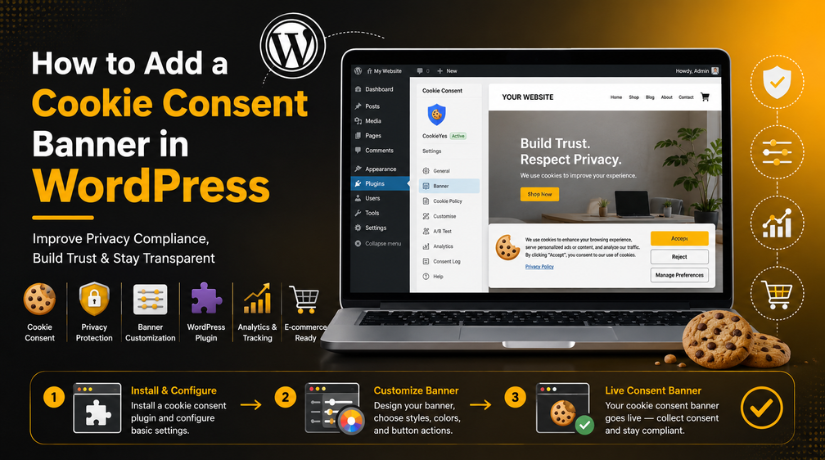
How to Add a Cookie Consent Banner in WordPress
Introduction
A cookie consent banner is now important for many WordPress websites. It helps visitors understand how your website uses cookies. Many sites use cookies for login sessions, forms, comments, analytics, ads, and shopping carts. These cookies can support better website functions and smoother browsing.
For example, a WooCommerce store may use cookies for cart items. A blog may use cookies for comments or user sessions. A business website may use cookies from Google Analytics or marketing tools. So, website owners should clearly inform visitors about cookie usage.
If you want to know how to add cookie consent banner in WordPress, the first step is understanding its purpose. A cookie banner is not only a small notice. It also helps build trust with visitors. It shows that your website respects user privacy and data choices.
A clear cookie banner can help users know:
- Why your website uses cookies
- What type of cookies may be active
- How visitors can accept or manage them
- Where they can read your Privacy Policy
This makes your website more transparent and user-friendly.
What Is a Cookie Consent Banner in WordPress?
A cookie consent banner is a brief notice that appears on your website. It usually appears at the bottom, top, or center. It informs users that cookies are used on your website. Additionally, it might prompt users to alter, accept, or reject cookie settings.
Many website owners use a WordPress cookie banner plugin for this feature. It helps create the banner without custom coding. Some plugins also allow cookie categories and preference settings.
A cookie consent banner may cover different cookie types, such as:
- Analytics cookies
- Marketing cookies
- Login cookies
- Shopping cart cookies
- Security cookies
- Preference cookies
A good banner should be simple and easy to read. It should not confuse visitors with complex text. It should also include a clear link to your Privacy Policy page. This helps users understand your website’s cookie practices better.
Does WordPress Use Cookies by Default?
Many website owners want to know if WordPress uses cookies by default. Indeed, WordPress employs cookies for a few fundamental website features. These cookies help WordPress manage user sessions, login access, comments, and admin activity.
For example, when an admin logs into WordPress, cookies help keep that session active. They also help WordPress confirm the logged-in user. The dashboard is now safer and more user-friendly.
WordPress may also use cookies when visitors leave comments. These cookies can remember a visitor’s name, email, and website. This makes future commenting easier for the same visitor.
However, WordPress core cookies are not the only cookies used. Your plugins, themes, and third-party tools may add more cookies. These tools often support analytics, ads, forms, chat boxes, and store features.
Common sources of extra cookies include:
- Google Analytics or tracking tools
- Facebook Pixel or ad scripts
- Contact forms and popup tools
- Live chat or support widgets
- WooCommerce cart and checkout features
- Embedded videos from third-party platforms
So, every WordPress website may use cookies differently. Website owners should check their active plugins and tracking tools. This helps them understand what cookies are present.
Does WordPress Need Cookie Consent?
Many users also ask, does WordPress need cookie consent for every website? The type of website you have and how you use cookies will determine the answer. Additionally, it relies on the location of your visitors.
A simple blog may only use basic functional cookies. But a business website often uses analytics and marketing tools. These tools may collect visitor behavior and browsing data.
Cookie consent becomes more important when your website uses:
- Analytics tracking
- Advertising pixels
- Remarketing scripts
- Embedded videos
- Live chat tools
- WooCommerce tracking features
A cookie consent banner helps visitors make informed choices. It also makes your website more clear and trustworthy. This is useful for USA businesses serving different user locations.
You should not treat this section as legal advice. Rules can change based on location and website activity. Still, adding a cookie banner is a smart step. It supports transparency and helps visitors control their cookie choices.
Best Ways to Add a Cookie Consent Banner in WordPress
A cookie consent banner can be added in a few easy methods. Your website setup and level of expertise will determine the best approach. Most WordPress users prefer an easy setup without custom coding. So, choosing the right method can save time and reduce mistakes.
Below are the most common ways to add a banner.
- Use a WordPress Cookie Consent Plugin
Using a WordPress cookie consent plugin is the easiest method. It is also the best choice for most beginners. Plugins can be installed using the WordPress dashboard. Then you can set the banner text, buttons, colors, and position.
A plugin can help you add useful banner options, such as:
- Accept button
- Reject button
- Manage Preferences option
- Privacy Policy link
- Cookie category controls
Many plugins also support mobile-friendly layouts. This helps your banner look clean on every screen. Additionally, some plugins assist in preventing tracking scripts prior to authorization. This feature can be useful for analytics and marketing tools.
A plugin is a smart option for blogs, business websites, and stores. It keeps the setup simple and easier to manage.
- Add a Cookie Banner Through Theme or Builder Settings
Some WordPress themes include cookie notice settings. Some page builders also provide banner or popup options. You can check your theme panel, customizer, or builder settings. This method works well when the feature already exists.
However, you should avoid adding two cookie banners. Duplicate banners can confuse visitors and hurt user experience. Before using this method, check your active plugins first.
When you merely need a basic notice, this option is helpful. It may not include advanced cookie controls or script blocking.
- Add Custom Cookie Banner Code Manually
Developers can also add a cookie banner with custom code. This approach might make use of JavaScript, HTML, and CSS. It gives more design control and flexible placement options.
However, this method needs technical knowledge and careful testing. A manual banner may only show a notice. It may not stop third-party cookies before consent. For this reason, a lot of people still like plugins.
Also, how to add cookies in WordPress is different from adding consent. Adding cookies creates browser data for functions. Adding consent informs users and manages their choices.
How to Add a Cookie Consent Banner Using a Plugin
For the majority of WordPress users, using a plugin is the simplest approach. It helps you create a banner without editing website code. A plugin also gives you control over text, buttons, layout, and settings.


Step 1: Choose a Reliable Cookie Consent Plugin
Start by choosing a trusted cookie consent plugin. First, look at its support choices, update history, and reviews. A good plugin should be compatible with the version of WordPress you are using. It should also offer simple settings for beginners.
Many users search for the best free cookie consent plugin WordPress option. Free plugins can work well for basic cookie notices. However, advanced websites may need more consent control features.
Step 2: Install and Activate the Plugin
The plugin can be installed via the WordPress dashboard. It’s an easy and beginner-friendly approach.
Follow these steps:
- Go to your WordPress Dashboard.
- Click Plugins from the left menu.
- Click Add New Plugin.
- Search for a cookie consent plugin.
- Click Install Now.
- Click Activate after installation.
After activation, the plugin usually adds a settings page. You can open it from the dashboard menu.
Step 3: Configure the Cookie Banner Text
Now write a clear cookie banner message. Keep the text short, honest, and easy to understand. Tell visitors that your website uses cookies for better browsing. You can also mention analytics, ads, or store functions.
Avoid long legal text inside the banner. Instead, link users to your Privacy Policy page.
Step 4: Add Buttons and Cookie Preferences
Next, add clear action buttons for visitors. Most banners include Accept, Reject, and Manage Preferences buttons. These buttons help users control their cookie choices.
If your plugin supports categories, enable them carefully. Common categories include essential, analytics, marketing, and preferences cookies.
Step 5: Link the Privacy Policy Page
Your banner should include a working Privacy Policy link. This page should explain your cookie usage clearly. It should also mention third-party tools, tracking scripts, and data use.
A clear policy page builds trust with website visitors. It also supports better transparency for your WordPress website.
Step 6: Test the Banner on Desktop and Mobile
Finally, test the banner before keeping it live. Visit your website on mobile, tablet, and desktop devices. Check the banner layout, buttons, and policy link.
Also test it on major browsers, such as:
- Chrome
- Safari
- Edge
- Firefox
Clear your cache after plugin setup. Then reload the website and check the banner again.
What to Check Before Choosing a Cookie Banner Plugin
Before choosing any WordPress cookie banner plugin, check its basic quality first. A poor plugin can slow your site or confuse visitors. A good plugin should be simple, updated, and easy to manage.
Check these points before installing one:
- It has recent updates and active support.
- It works with your current WordPress version.
- It has clear settings for banner controls.
- It supports mobile-friendly cookie notices.
- It allows a Privacy Policy page link.
- It does not add heavy scripts to your website.
- It supports Accept, Reject, and Manage Preferences buttons.
A reliable plugin should also fit your website needs. A blog may need a simple banner. A WooCommerce site may need better consent controls.
Final Tips Before Publishing Your Cookie Banner
Review your banner before showing it to visitors. Small mistakes can affect user trust and website experience. Keep your banner short, clear, and helpful.
Use these final checks:
- Check all banner buttons properly.
- Test the Privacy Policy link.
- View the banner on mobile screens.
- Clear cache after making changes.
- Avoid duplicate cookie banners.
- Review cookies after adding new tools.
Also check your analytics, ad scripts, and chat widgets. These tools may add extra cookies later.
Conclusion
It’s easy to add a cookie consent banner to WordPress.You can use a plugin, theme setting, or custom code. A plugin is the simplest option for the majority of users. It saves time and reduces setup mistakes.
A clear banner improves trust and supports better transparency. It also helps visitors manage their cookie choices easily. Always keep your cookie message simple and honest.
Need help setting up a cookie banner correctly? Contact 24×7 WP Support for expert WordPress help. Our team can configure your banner, check cookies, and improve your website setup.
FAQs
1. How do I add a cookie consent banner in WordPress?
You can add a cookie consent banner with a plugin. Go to your WordPress dashboard and open Plugins. Click Add New Plugin and search for a cookie consent plugin. Install it, activate it, and configure the banner settings.
2. Does WordPress use cookies by default?
Yes, WordPress uses cookies for basic website functions. These include login sessions, admin access, authentication, and comments. Plugins, themes, analytics tools, and ads may also add more cookies.
3. Does WordPress need cookie consent?
It depends on your website and cookie usage. If your site uses analytics, ads, tracking pixels, or marketing tools, cookie consent may be needed. A banner also helps visitors understand their choices clearly.
4. What is the best free cookie consent plugin for WordPress?
The best plugin depends on your website needs. Choose a plugin with good reviews, recent updates, simple settings, and mobile-friendly design. Also check if it supports Accept, Reject, and Manage Preferences buttons.
5. Can I add a cookie banner in WordPress without a plugin?
Yes, you can add a cookie banner with custom code. This method needs HTML, CSS, and JavaScript knowledge. For most users, a plugin is easier and safer.

Brian is a WordPress support specialist and content contributor at 24×7 WP Support. He writes practical, easy-to-follow guides on WordPress troubleshooting, WooCommerce issues, plugin and theme errors, website security, migrations, performance optimization, and integrations. With a focus on solving real website problems, Brian helps business owners, bloggers, and online store managers keep their WordPress sites running smoothly.
