
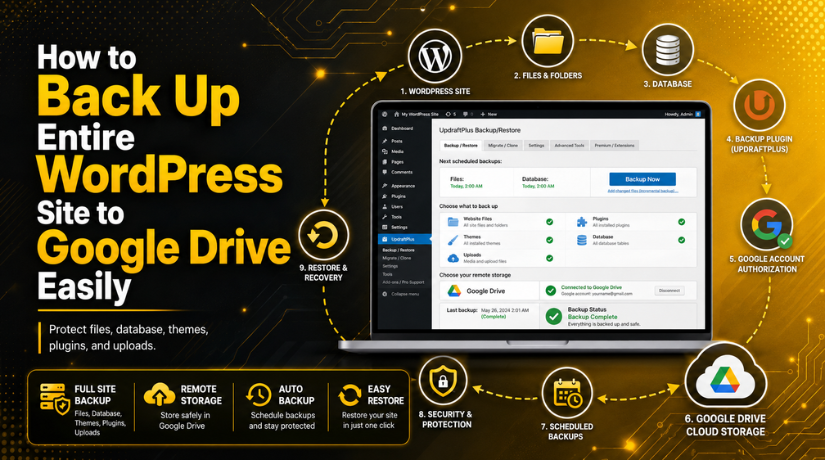
How to Back Up Entire WordPress Site to Google Drive Easily
Introduction
A website can stop working at any time. A plugin update may fail. A theme change may break the layout. A server issue may remove important files. A malware attack may damage your website data. These problems can happen without any warning. That is why a WordPress backup is very important for every website owner.
A backup gives you a safe copy of your website. You can restore this copy when something goes wrong. It helps protect your pages, images, settings, forms, plugins, and design. Without a backup, you may lose important business data. You may also spend more time fixing the issue.
Many website owners depend only on hosting backups. This is not always safe. If your hosting server fails, your backup may also become unavailable. Sometimes hosting backups are old or incomplete. In some cases, users cannot restore them quickly. So, you need a better backup plan.
A Google Drive backup is a useful option for WordPress users. It stores your backup away from your hosting server. This makes your website data safer. You can access your backup files from anywhere. You only need your Google account. This makes Google Drive simple for beginners and business owners.
A good WordPress cloud backup helps you avoid big problems. It keeps your website data safe in remote storage. You can use a trusted WordPress backup plugin to create this backup. The plugin can save your complete website to Google Drive. This makes the process easy and fast.
This guide will help you understand the first important step. Before you backup WordPress website files, you must know what a complete backup includes. This helps you avoid partial or weak backups.
What Does a Complete WordPress Backup Include?
A complete backup is more than saving a few pages. It is also more than downloading images from the media library. A full WordPress backup includes two main parts. These parts are your website files and your website database. Both parts work together to run your website. If one part is missing, the backup may not restore properly.
Many beginners make this mistake during backup setup. They save only files and forget the database. Some users save only the database and ignore uploads. This creates an incomplete backup. A complete WordPress website backup should include all important website data. It should save your posts, pages, themes, plugins, images, settings, and users. A good WordPress backup plugin can help with this process.
It allows you to choose full website backup options. It can also send files to Google Drive automatically. This makes the backup process easier for beginners.
Why Use Google Drive for WordPress Backups?
Google Drive is a useful place to store website backups. It keeps your backup files away from your hosting server. This gives your site better safety. If your hosting fails, your backup stays safe. A Google Drive backup also helps during malware attacks, update errors, or server issues. Many users save backups only on hosting. This can be risky. If the hosting account breaks, backups may also be lost. A WordPress cloud backup gives you a separate copy. You can access it anytime from your Google account.
Google Drive Keeps Backups Away From Hosting
Hosting backups are helpful, but not enough. They often stay on the same server. If that server fails, your backup may not work. Google Drive stores your files in another location. This makes your WordPress backup safer. You can download the backup when needed. You can also keep many backup copies by date.
Easy Access From Any Device
Google Drive works on computers, phones, and tablets. You only need your Google login details. This helps when your site needs quick recovery. You can open Drive and find your backup files easily. A good WordPress backup plugin can send backup files there automatically. This saves time and reduces manual work.
Useful for Small and Medium Websites
Google Drive works well for blogs, business sites, and service websites. It is also useful for small WooCommerce stores. You can backup WordPress website files without technical steps. The plugin can handle files and database backups together. However, large websites need more storage. Big media files can make backups heavy.
Before You Start: Things You Need for the Backup Process
WordPress Admin Login Access
You need WordPress admin access before starting the backup process. Admin access allows you to install and manage a WordPress backup plugin. You can also check backup settings from the dashboard. Without admin access, you cannot connect Google Drive properly. Make sure your username and password are working before you begin.
Active Google Account
You need an active Google account for storing backup files. This account will connect your website with Google Drive. The backup plugin will ask permission to access Google Drive. Always use the correct account for your Google Drive backup. Do not use an account that you may lose later.
Enough Google Drive Storage Space
Check your Google Drive storage before starting the backup. A large WordPress website backup can take more space. If your Drive storage is full, the backup may fail. Delete old files or unused backups before uploading new files. This helps the backup process finish without storage errors.
Reliable WordPress Backup Plugin
Choose a trusted WordPress backup plugin for the process. A good plugin can back up files and databases together. It can also send backup files directly to Google Drive. This makes the process simple for beginners. Always check plugin reviews, updates, and support before installing it.
Stable Internet Connection
A stable internet connection helps during account setup. You need internet access to connect Google Drive with WordPress. A weak connection may stop the permission process. It may also create errors during setup. Make sure your connection is stable before starting the WordPress cloud backup process.
Enough Hosting Server Resources
Your hosting server must support the backup process properly. Large backups need memory, storage, and processing power. Weak hosting may stop the backup before completion. This can happen because of timeout or memory limits. If your website is large, run backups during low-traffic hours.
Clean Website Files Before Backup
Clean your website before creating the backup. Remove unused themes, inactive plugins, and old backup files. You should also clear cache files if possible. This reduces the final backup size. A clean backup is easier to upload, download, and restore later.
Updated Website Details and Login Records
Keep your website details ready before creating a backup. Save hosting login, WordPress login, and Google account details safely. These details may be needed during restore work. Also note the backup date and plugin name. This helps you manage your backup WordPress website process better.


Steps to Back Up Entire WordPress Site to Google Drive Using a Plugin
Using a plugin is the easiest way to create a WordPress backup. You do not need coding or server knowledge. A good WordPress backup plugin can save your files and database together. It can also upload the backup to Google Drive. This creates a safe WordPress cloud backup outside your hosting server.
Step 1: Choose a Reliable WordPress Backup Plugin
- Choose a trusted WordPress backup plugin for your website.
- Popular options include UpdraftPlus, Duplicator, BackWPup, WPvivid, and Backup Migration.
- Make sure the plugin supports Google Drive backup.
- Check plugin reviews, updates, and restore options.
- Avoid outdated plugins because they may cause backup errors.
Step 2: Install and Activate the Plugin
- Log in to your WordPress dashboard.
- Go to Plugins > Add New.
- Search for your selected backup plugin.
- Click Install Now.
- After installation, click Activate.
- Open the plugin settings page from your dashboard.
Step 3: Select Google Drive as Remote Storage
- Open the backup plugin settings.
- Find the remote storage option.
- Select Google Drive as your storage location.
- This keeps your WordPress website backup away from hosting issues.
- Remote storage is safer than saving backups only on your server.
Step 4: Connect Your Google Account
- Click the Google Drive authorization link.
- Select the correct Google account.
- Allow the required permissions.
- This lets the plugin upload backup files to Google Drive.
- After approval, return to your WordPress dashboard.
- Check if the connection shows success.
Step 5: Select Full Website Backup Options
- Select the database backup option.
- Select plugins, themes, uploads, and other website files.
- A full backup WordPress website process needs both files and database.
- Do not select only the database backup.
- Do not select only the file backup.
- Missing any part can create restore problems later.
Step 6: Start the Backup Process
- Click the Backup Now button.
- The plugin will create backup files first.
- Then it will upload them to Google Drive.
- Do not close the browser during the process.
- Avoid making major website changes during backup.
- Wait until the plugin shows a success message.
Step 7: Check Backup Files in Google Drive
- Open your Google Drive account.
- Find the backup folder created by the plugin.
- Check that all backup files are uploaded properly.
- Look for databases, plugins, themes, and upload files.
- Keep at least two or three recent backups.
- Do not delete backup files without checking them first.
Step 8: Set Automatic Backup Schedule
- Set automatic backups for regular protection.
- Use weekly backups for small blogs.
- Use daily backups for business websites.
- Use more frequent backups for WooCommerce stores.
- Create a backup before major updates.
- Automatic WordPress cloud backup helps protect your site easily.
Common Problems When Backing Up WordPress to Google Drive
Creating a WordPress backup is usually simple with a plugin. Still, some problems can happen during the backup process. These issues may come from storage, hosting, plugin settings, or Google access. You should understand these problems before they affect your website. This helps you fix errors quickly and safely.
Google Drive Storage Is Full
Google Drive backup may fail when storage is full. A full WordPress website backup can use more space. This happens when your site has many images or videos. Old backup files can also fill your Google Drive. You should check storage before starting the backup. Delete old backups that you no longer need. You can also upgrade Google storage if needed. Enough storage helps the backup upload without errors.
Backup Process Gets Stuck
Sometimes, the backup process may stop or run slowly. This often happens because of weak hosting resources. Large media files can also slow the backup process. Heavy plugins may increase server load during backup. Timeout errors can stop the backup before completion. You can try running backups during low-traffic hours. You can also remove cache files before backup. A clean website makes the WordPress cloud backup process smoother.
Google Drive Connection Fails
Google Drive connection may fail during setup or upload. This can happen when plugin permission expires. It may also happen after changing your Google password. In this case, reconnect your Google account again. Open your WordPress backup plugin settings. Remove the old Google Drive connection first. Then connect the account again with fresh permission. Always use a Google account you can access later.
Backup File Size Is Too Large
Large backup files can create upload problems. This is common for image-heavy WordPress websites. Old backups, cache files, and unused media increase size. Inactive themes and unused plugins also add extra files. Before you backup WordPress website data, clean unnecessary files. Delete old themes that are not active. Remove unused plugins and unwanted media files. This makes the backup smaller and easier to manage.
Only Database Backup Was Created
Some users create only a database backup by mistake. This backup stores posts, pages, users, and settings. But it does not include themes, plugins, or uploads. Your images and design may not restore properly. A complete WordPress backup must include both files and database. Always check backup settings before starting the process. Select database, plugins, themes, uploads, and other files.
Restore Option Does Not Work Properly
A backup is useful only when restore works correctly. Sometimes, restore fails because files are missing. It may also fail because the backup file is damaged. You should test important backups before any emergency. If possible, test restore on a staging website. Also keep more than one recent backup copy. This gives you another option during website recovery.
Conclusion
A complete WordPress backup gives your website better protection during errors, updates, malware issues, or hosting problems. Your backup should include both website files and database. Files protect your themes, plugins, uploads, and media. The database protects your posts, pages, users, settings, and records. A Google Drive backup is useful because it stores your data outside your hosting server.
This makes recovery easier when your website faces an unexpected issue. You should also check backup files after upload. Regular testing helps confirm that your backup can restore the website properly. Automatic backups are also helpful for active websites, blogs, and WooCommerce stores.
Do you need help with backup setup, Google Drive connection, restore testing, or WordPress errors, you can contact 24×7 WP Support for guidance. They provide support for self-hosted WordPress websites and list the toll-free phone number +1-888-818-9916 for the United States and Canada on their website.






Brian is a WordPress support specialist and content contributor at 24×7 WP Support. He writes practical, easy-to-follow guides on WordPress troubleshooting, WooCommerce issues, plugin and theme errors, website security, migrations, performance optimization, and integrations. With a focus on solving real website problems, Brian helps business owners, bloggers, and online store managers keep their WordPress sites running smoothly.
