
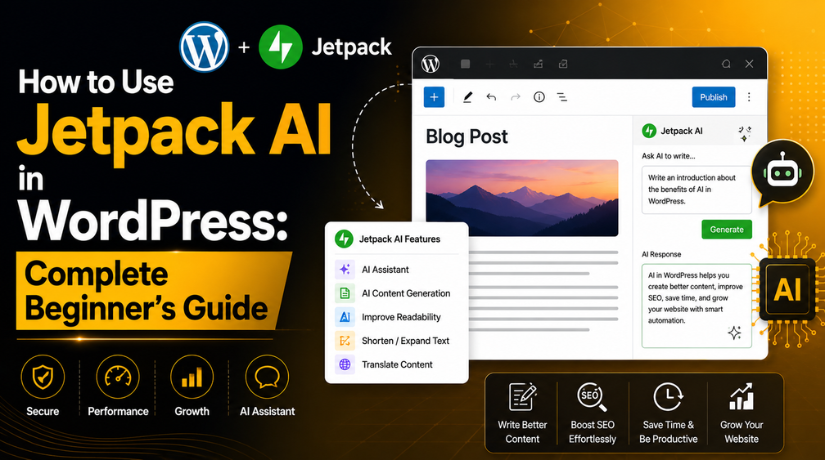
How to Use Jetpack AI in WordPress: Complete Beginner’s Guide
Introduction
WordPress users now need faster and smarter content workflows. Website owners often manage blogs, service pages, landing pages, and updates. This work can take many hours each week. A helpful AI tool can make this process easier and faster. This is why Jetpack AI WordPress tools are getting more attention today.
Jetpack AI helps users write and improve content inside WordPress. You do not need to open another writing tool. You can create drafts, rewrite text, prepare summaries, and improve ideas from the editor. This makes it useful for bloggers, small businesses, agencies, and content teams.
Many users want to know how to use Jetpack AI for daily tasks. They want help with blog writing, page content, product text, and SEO drafts. Jetpack AI can support these tasks with simple prompts. It can also help create titles, tables, lists, and short summaries.
In this guide, you will learn the basic meaning of Jetpack AI. You will also understand how it helps WordPress users. Later sections will explain its features, setup needs, usage steps, problems, and best practices.
What Is Jetpack AI in WordPress and How Does It Help Users?
Jetpack AI is an AI-powered tool built for WordPress users. It works inside the WordPress block editor. It helps users create, rewrite, translate, summarize, and improve content. You can use it while writing posts or pages.
The Jetpack AI Assistant WordPress feature works like a writing helper. You give it a prompt, and it creates content for you. A prompt is a short instruction that tells AI what you need. For example, you can ask it to write an introduction. You can also ask it to create FAQs or a comparison table.
Jetpack AI can be useful for new and existing content. If you are starting a new blog, it can create a draft. If you already have content, it can improve the text. It can make paragraphs shorter, clearer, or more professional. This makes it a helpful WordPress AI writing tool for many users.
The tool is also useful when you feel stuck. Many website owners know their topic but struggle with wording. Jetpack AI can give a starting point within seconds. You can then edit the content and make it more personal.
Some important Jetpack AI features include content writing, tone changes, summaries, lists, and translations. It can also support images and titles in some workflows. Because of this, many users see it as an AI content generator WordPress site owners can use directly.
Features of Jetpack AI in WordPress That Make Content Work Easier
Jetpack AI gives WordPress users many helpful writing tools. These tools work inside the WordPress block editor. You can create content without leaving your website dashboard. This makes the writing process faster and more organized. Many users choose Jetpack AI WordPress tools because they save time.
AI Content Generation for Blog Posts, Pages, and Website Text
One of the most useful Jetpack AI features is content generation. You can ask Jetpack AI to write blog sections, page content, or summaries. It can help with introductions, conclusions, service descriptions, and product text. This makes it useful for bloggers and business owners.
Tables, Lists, and Forms for Better Content Structure
Jetpack AI can also create tables, lists, and forms. This helps when your content needs clear structure. For example, you can create comparison tables for plugins. You can also create checklists for WordPress maintenance tasks. Lists make content easy to scan and understand.
Grammar and Spelling Support for Cleaner Writing
Jetpack AI can help improve grammar and spelling. This is useful before publishing any post or page. Small mistakes can make content look less professional. A good WordPress AI writing tool helps reduce these issues. It can improve sentence flow and remove unclear wording.
Tone Adjustment for Different Website Audiences
Different pages need different writing styles. A business page may need a professional tone. A blog post may need a friendly tone. A support guide may need a simple tone. Jetpack AI can adjust content tone based on your request. You can ask it to make content formal, friendly, simple, or confident.
Translation Support for Wider Website Reach
Jetpack AI can help translate content into other languages. This is useful for websites with global audiences. It can help create multilingual drafts faster. You can translate blog sections, page text, and short messages. However, translation still needs careful review.
AI Images and Featured Images for Better Visual Appeal
Jetpack AI can also support image-related content tasks. It can help create images for posts and pages. This is useful when you need visual support quickly. Featured images can make blog posts look more attractive. AI image tools can also help with captions and image ideas.
Requirements Before Using Jetpack AI in WordPress
Active WordPress Website Access
You need an active WordPress website before using Jetpack AI. You should also have admin dashboard access. Admin access allows you to install and manage plugins. Without this access, you cannot activate Jetpack properly. This is the first step before using any Jetpack AI WordPress feature.
Official Jetpack Plugin Installed
You must install the official Jetpack plugin on your website. Go to the WordPress dashboard and open the plugin section. Search for Jetpack, then install and activate it. Always use the official plugin source for better safety. This helps the Jetpack AI Assistant WordPress feature work correctly.
WordPress.com Account Connection
Jetpack needs a WordPress.com account connection to work properly. After activation, Jetpack may ask you to connect your website. Follow the setup process and log in with your account. This connection allows Jetpack services to run on your site. Without this step, some Jetpack AI features may not appear.
WordPress Block Editor Enabled
Jetpack AI works best inside the WordPress block editor. The block editor gives access to modern content tools. If you use Classic Editor, AI options may not show. So, check your editor settings before starting. This is important when learning how to use Jetpack AI correctly.
Updated WordPress and Jetpack Version
Keep WordPress, Jetpack, themes, and plugins fully updated. Older versions may cause feature or display problems. Updates also improve security and plugin compatibility. A current version gives better support for AI tools. This helps your WordPress AI writing tool run more smoothly.


Stable Internet and Website Connection
Jetpack AI needs a stable connection to generate content. A poor connection may stop requests or delay results. Your website should also load properly in the dashboard. If the dashboard is slow, AI tools may respond slowly. A healthy website improves the full writing process.
Jetpack AI Free or Paid Usage Limit
Jetpack AI may include limited free usage for users. After that, you may need a paid plan. Check your available request limit before using it heavily. This is helpful for agencies and regular content teams. It helps you plan your AI content generator WordPress workflow better.
Clear Content Goal Before Starting
You should know what content you want before using AI. A clear goal helps Jetpack AI create better results. Decide if you need a blog, summary, title, or table. Clear prompts save time and reduce repeated editing. This makes Jetpack AI more useful for daily WordPress work.
How to Use Jetpack AI in WordPress (Step By Step)
Learning how to use Jetpack AI is easy for beginners. You can use it directly inside the WordPress editor. It helps you write posts, improve pages, create summaries, and adjust tone. Follow these simple steps to use Jetpack AI WordPress tools correctly.
Step 1: Log In to Your WordPress Dashboard
- Open your WordPress login page in your browser.
- Enter your username and password carefully.
- Click the login button to access your dashboard.
- Make sure you have admin access before setup.
- Admin access helps you install and manage plugins.
Step 2: Install the Official Jetpack Plugin
- Go to Plugins > Add New from your dashboard menu.
- Search for the official Jetpack plugin in the search box.
- Click Install Now when the plugin appears.
- Wait until WordPress completes the plugin installation.
- Click Activate to enable Jetpack on your website.
- This step adds Jetpack tools to your WordPress site.
Step 3: Connect Jetpack With WordPress.com
- After activation, Jetpack will show a setup screen.
- Click the button to connect your WordPress website.
- Log in with your WordPress.com account when asked.
- Follow the setup instructions shown on the screen.
- This connection helps Jetpack services work correctly.
- Without this connection, some Jetpack AI features may not appear.
Step 4: Open a New Post or Existing Page
- Go to Posts > Add New to create a blog post.
- You can also open an existing post or page.
- Use Pages if you want to edit website pages.
- Jetpack AI works inside the WordPress block editor.
- This makes it a useful WordPress AI writing tool.
- You can create and improve content without leaving WordPress.
Step 5: Add the Jetpack AI Assistant Block
- Click the plus icon inside the block editor.
- Search for the AI Assistant block in the search field.
- Click the block to add it to your content area.
- You can also type /AI Assistant inside the editor.
- This opens the Jetpack AI Assistant WordPress tool quickly.
- Now you can start writing prompts for AI content.
Step 6: Write a Clear Prompt for Better Results
- Enter a clear prompt inside the AI Assistant block.
- Add the topic, tone, length, and content goal.
- For example, write: “Create a 150-word introduction about WordPress backups.”
- You can also write: “Rewrite this paragraph in simple words.”
- Clear prompts help Jetpack AI understand your exact needs.
- This makes the AI content generator WordPress tool more useful.
Step 7: Review the Content Generated by Jetpack AI
- Jetpack AI will create content inside your editor.
- Read the generated content carefully before using it.
- Check facts, grammar, tone, and sentence flow.
- Make sure the content matches your brand voice.
- Check whether keywords are used naturally in the content.
- AI can help with drafts, but human review is important.
Step 8: Rewrite, Expand, or Summarize Existing Content
- Select the paragraph that needs better wording.
- Ask Jetpack AI to rewrite the selected paragraph.
- You can also ask it to expand short sections.
- Use the summarize option for long content sections.
- These Jetpack AI features help improve old content.
- This step saves time during regular content updates.
Step 9: Use Jetpack AI for Image and Content Support
- Jetpack AI can support image-related content tasks.
- You can use it for image ideas or supported tools.
- Always check image quality before publishing content.
- Review image alt text, captions, and topic relevance.
- Make sure images match your website design style.
- Good visuals make your blog post more attractive.
Step 10: Add Final Human Editing Before Publishing
- Add your own experience, examples, and useful details.
- Include screenshots when they help readers understand steps.
- Add internal links to related posts or service pages.
- Check all facts before publishing the final content.
- Remove repeated lines and unclear sentences.
- Make sure the content is helpful, trusted, and reader-friendly.
Common Problems When Jetpack AI Does Not Work Properly
Sometimes, Jetpack AI WordPress tools may not work as expected. This can happen due to setup issues, plugin conflicts, or usage limits. The good part is that most problems are easy to check. You should always start with basic settings first. Then you can review plugin updates and connection status.
Jetpack AI Assistant Block Is Not Showing in WordPress Editor
The Jetpack AI Assistant WordPress block may not appear sometimes. This usually happens when Jetpack is not connected properly. It may also happen if your site uses Classic Editor. Jetpack AI works best with the WordPress block editor. So, first check your editor setup. Then confirm that Jetpack is active and connected.
Jetpack AI Requests Are Not Working After Setup
Jetpack AI requests may stop working for a few reasons. Your free usage limit may be finished. Your Jetpack connection may also have a temporary issue. Sometimes, security plugins can block required Jetpack requests. Hosting limits may also affect the editor’s response. First, refresh your WordPress.com connection.
Generated Content Looks Too Generic or Weak
AI content may look weak when prompts are unclear. A short prompt gives very basic content. This is common with any AI content generator WordPress users try. To improve results, give more details in your prompt. Add the topic, audience, tone, and word count. For example, ask for simple content for beginners.
AI Image Option Is Missing or Not Working
Some users may not see the AI image option. This can happen due to plan limits or plugin settings. It may also happen when WordPress is outdated. First, check your Jetpack plan and active features. Then update WordPress, Jetpack, and your theme. If the option still does not show, check for plugin conflicts.
Jetpack AI Output Has Incorrect Information
AI tools can sometimes create wrong or outdated details. This is why review is very important. Never publish AI content without checking facts first. This is especially important for technical content. If you use Jetpack AI for guides, test each step yourself. Add real examples and screenshots where possible.
Best Practices for Using Jetpack AI Safely and Smartly
Jetpack AI can save time, but it needs careful use. Treat it as a support tool, not a full writer. A good WordPress AI writing tool should support your work. It should not replace your own knowledge. You should always review, improve, and personalize the final content.
Review Every AI Draft Before Publishing on Your Website
Always check the full AI draft before publishing it. Review facts, examples, tone, spelling, and formatting. Remove repeated lines and weak points. Make sure the content matches your website’s purpose. This step protects your content quality. It also helps readers trust your website more.
Add Real Experience, Examples, and Useful Website Details
AI content becomes stronger when you add real experience. Share practical examples from your own work. Add screenshots, steps, or small case details where useful. This makes the content more original and helpful. It also improves trust for readers. Good content should solve real user problems clearly.
Use Keywords Naturally Without Stuffing the Content
You can use keywords like how to use Jetpack AI naturally. You can also use terms like Jetpack AI features where needed. But avoid repeating keywords too often. Keyword stuffing makes content hard to read. It can also reduce content quality. Use keywords only where they fit the sentence.
Keep Your Brand Voice Clear Across Every Page
Every website has its own tone and style. Your AI draft should match that voice. A business website may need a professional tone. A blog may need a friendly tone. A support guide should be simple and direct. Edit the AI draft until it matches your brand.
Keep WordPress, Jetpack, and Plugins Updated Regularly
Updates help Jetpack AI work better inside WordPress. Old plugins can create errors or missing options. Old themes may also affect editor tools. Keep WordPress, Jetpack, and related plugins updated. Always take a backup before major updates. This keeps your site safer and more stable.
Conclusion
Jetpack AI can make WordPress content creation easier and faster. It helps users write drafts, improve paragraphs, create summaries, and build better content ideas. It also supports users who need quick help inside the WordPress editor. Still, every AI-generated result should be reviewed before publishing. You should check facts, improve clarity, add real examples, and match your website’s tone. This makes your content more useful and trustworthy for readers.
For users who are unsure about Jetpack AI setup, plugin settings, or WordPress editor issues, 24×7 WP Support can help explain the process and check the technical side of your website. You can visit 24x7wpsupport or call 888-818-9916 for WordPress support guidance.


Brian is a WordPress support specialist and content contributor at 24×7 WP Support. He writes practical, easy-to-follow guides on WordPress troubleshooting, WooCommerce issues, plugin and theme errors, website security, migrations, performance optimization, and integrations. With a focus on solving real website problems, Brian helps business owners, bloggers, and online store managers keep their WordPress sites running smoothly.
