
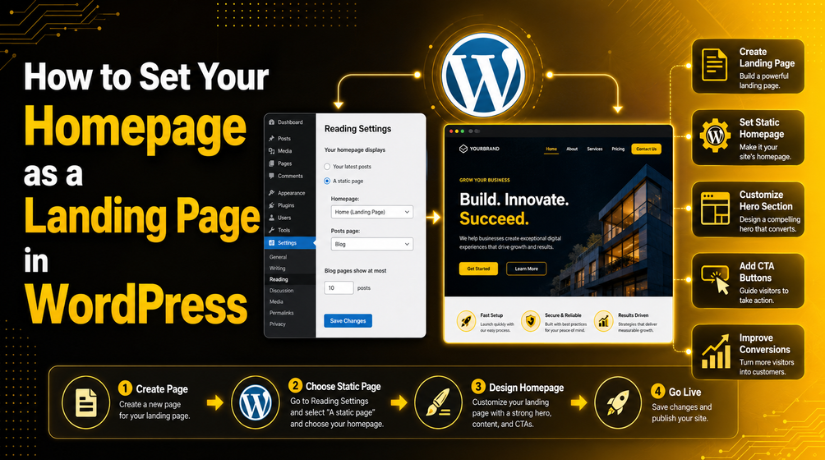
How to Set Your Homepage as a Landing Page in WordPress
Introduction
Your homepage is often the first page users see. It creates the first impression of your website. A weak homepage can confuse visitors quickly. A clear homepage can guide them toward action. This is why many website owners now use a WordPress landing page as their homepage.
By default, WordPress may show your latest blog posts. This setup works well for personal blogs and news websites. But it may not work for business websites. A company website needs a focused message. It should explain the offer, build trust, and guide visitors.
A landing-style homepage makes this process easier. It gives your users one clear path. They can understand your service without searching too much. They can also find the next step quickly. That step may be calling you, filling a form, booking a service, or buying a product.
A custom homepage WordPress setup is useful for many websites. It works for service websites, local businesses, agencies, consultants, and online stores. It also helps websites that need more leads, calls, and signups.
In this guide, you will learn the basic meaning first. You will understand how a landing homepage works in WordPress. You will also learn why WordPress homepage settings matter during this setup. This will help you prepare before making any changes.
What Does It Mean to Set a Homepage as a Landing Page in WordPress?
Setting a homepage as a landing page means using a focused page as your main website page. When users visit your domain, they will see that page first. For example, when someone opens yourwebsite.com, they see your landing page.
A normal homepage may show many things together. It can include blog posts, categories, banners, menus, images, and general links. This can be useful for some websites. But it may not always guide visitors clearly.
The landing page WordPress setup is different. It focuses on one main goal. The page may ask users to contact you, buy a product, book a call, or submit a form. Every section supports that goal. This makes the page more useful for business growth.
WordPress allows users to create a WordPress static homepage. This means you can choose one fixed page for your homepage. It will not change whenever you publish a new blog post. Your homepage stays the same until you edit it.
When Should You Use a Landing Page as Your WordPress Homepage?
Use a Landing Homepage When You Want More User Action
You should use a landing homepage when your website needs action from visitors. A normal homepage may show many links and sections. But a landing homepage gives users one clear direction. It helps them understand what to do next. A WordPress landing page works well for calls, leads, bookings, sales, and signups.
Use It for Service-Based Business Websites
Service websites need visitors to trust them quickly. A landing homepage can show your services, benefits, reviews, and contact options. This works well for agencies, consultants, repair services, coaches, and local businesses. A clear landing page WordPress setup helps users understand your services faster.
Use It for Local Business Websites
Local business websites need clear and quick information. Users often look for phone numbers, locations, service areas, and reviews. A landing homepage can show these details in a simple way. It can also include a contact button near the top. This makes the website easier to use. A custom homepage WordPress layout can improve local trust and user response.
Use It for WooCommerce or Product-Based Websites
WooCommerce websites can also use a landing-style homepage. It can highlight top products, best offers, categories, and trust badges. This helps shoppers find important products faster. You can also promote one main product or seasonal deal. A focused homepage can improve product clicks and sales. It also makes the store look more professional.
Use It for Lead Generation Websites
Lead generation websites need forms, calls, and user details. A landing homepage can explain the offer clearly. It can also show benefits, proof, and a simple form. This helps visitors take action with less doubt. When you set a homepage in WordPress as a landing page, you can guide every visitor toward one strong lead goal.
Things to Plan Before Creating a WordPress Landing Homepage
Before you set the homepage in WordPress, you should plan the page first. A landing homepage should not be created randomly. Every section must support your main business goal. This planning step helps you build a clear user journey. It also makes the design easier to manage later.


Decide One Main Goal Before Creating the Homepage
Your homepage should focus on one clear goal. Too many goals can confuse visitors. For example, do not ask users to call, buy, subscribe, and download together. Choose the action that matters most for your website. This can be a phone call, contact form, service booking, or product purchase. A clear goal makes your WordPress front page setup more effective.
Create a Strong Hero Section That Explains Your Offer Fast
The hero section is the first visible part of your homepage. It should tell users what your website offers. It should also explain why they should care. Use a clear headline, short text, and strong button. The button should match your main goal.
Add Trust Sections That Make Visitors Feel More Confident
Visitors need proof before they take action. Trust sections help remove doubt from their mind. You can add reviews, client logos, testimonials, awards, or project numbers. These details show that real people trust your business. They also make your WordPress static homepage more reliable and useful.
Explain the Problem and Show Your Solution Clearly
A good landing homepage connects with visitor problems. First, explain the issue they may face. Then show how your service or product solves it. This helps users feel understood. It also makes your offer more meaningful.
Show Benefits Instead of Only Listing Features
Features explain what your service includes. Benefits explain how users gain from those features. Both are useful, but benefits create stronger interest. For example, “fast WordPress support” is a feature. “Your website issue gets fixed quickly” is a benefit.
How to Set Homepage as a Landing Page In WordPress (Step By Step)
Step 1: Create a New Page for Your Landing Homepage
- Log in to your WordPress dashboard first.
- Go to Pages > Add New from the left menu.
- Add a simple title like Home, Homepage, or Landing Page.
- This page will become your main WordPress landing page.
- Add your content using the WordPress editor.
- You can add headings, text, images, buttons, and forms.
- Keep the design simple, clean, and easy to read.
- Focus the page on one main user action.
- Click Preview before publishing the page.
- Check the page on desktop and mobile.
- If everything looks correct, click Publish.
Step 2: Add Important Landing Page Sections
- Complete your page content before you set the homepage in WordPress.
- Start with a strong hero section at the top.
- Add a clear heading that explains your main offer.
- Write a short text that supports your headline.
- Add one clear CTA button for user action.
- Add your services or main offer below the hero section.
- Explain your benefits in simple and clear words.
- Add reviews, testimonials, or trust points.
- Add contact details or a short contact form.
- Add FAQs near the end of the page.
- A good landing page WordPress setup should feel clear.
- It should guide visitors toward one simple action.
Step 3: Open WordPress Homepage Settings
- Go back to your WordPress dashboard.
- Click Settings from the left menu.
- Then click Reading.
- This area controls your WordPress homepage settings.
- Find the option called Your homepage displays.
- WordPress usually shows two homepage display options.
- One option shows your latest blog posts.
- The second option lets you choose a static page.
- For a landing homepage, select A static page.
- This setting lets WordPress show one fixed homepage.
Step 4: Select Your Landing Page as the Homepage
- After selecting A static page, find the Homepage dropdown.
- Choose the landing page you created earlier.
- This is the main step in the WordPress front page setup.
- Click Save Changes after selecting the page.
- Open your website in a new browser tab.
- Your main website URL should show your landing page.
- This means your WordPress static homepage is now active.
- If the old page still appears, clear browser cache.
- Also clear your website cache from the caching plugin.
- Check the homepage again after clearing cache.
Step 5: Create a Separate Blog Page If Needed
- Create a separate blog page if you publish posts.
- Go to Pages > Add New again.
- Add the page title as Blog, Articles, or News.
- You do not need to add content there.
- WordPress will show your latest posts on this page.
- Click Publish after creating the page.
- Go back to Settings > Reading.
- Select your new page under Posts page.
- Keep your landing page selected under Homepage.
- This creates a clean custom homepage WordPress setup.
- Your homepage stays focused on leads or sales.
- Your blog posts remain available on another page.
Step 6: Use a Block Theme or Page Builder If Required
- Some WordPress websites use block themes or page builders.
- For block themes, go to Appearance > Editor.
- Open the homepage or front page template.
- Edit the layout using WordPress blocks.
- Add sections like hero, services, benefits, FAQs, and CTA.
- For page builders, create a new page first.
- Open the page with Elementor, Divi, SeedProd, or another builder.
- Choose a landing page template if available.
- Edit the text, images, buttons, and forms.
- Publish the page after completing the design.
- Then set it as homepage from Settings > Reading.
- Avoid heavy sliders, videos, and too many animations.
- A fast homepage gives users a better experience.
Step 7: Test Your New Homepage Properly
- Open your homepage after completing the setup.
- Check the page on desktop, mobile, and tablet.
- Make sure every section looks clean and readable.
- Test all CTA buttons on the page.
- Submit the contact form to check delivery.
- Check your menu links and footer links.
- Make sure all images load correctly.
- Review the page speed and loading time.
- Check that your blog page works properly.
- Clear cache if new changes do not appear.
- Fix any issue before sharing the website.
- A final test makes your WordPress landing page ready.
Common Problems When Setting WordPress Homepage as a Landing Page
Sometimes, users face small issues after changing the homepage. These issues are usually easy to fix. You only need to check the right settings. A proper WordPress front page setup helps your homepage work correctly. It also keeps your website clean and user-friendly.
Landing Page Is Not Showing as the Homepage
This is a common issue for many beginners. It usually happens when the wrong page is selected. It can also happen when settings are not saved properly. First, go to Settings > Reading in your dashboard. Then check your WordPress homepage settings again. Make sure a static page is selected. After that, choose the correct landing page under Homepage. Click Save Changes before leaving the page.
Blog Posts Still Appear on the Homepage
Sometimes, WordPress still shows the latest blog posts. This means the static homepage option is not active. To fix this, go to Settings > Reading again. Select A static page under homepage display settings. Then choose your WordPress landing page from the homepage dropdown.
Homepage Design Looks Broken After Publishing
Your homepage design may look different after publishing. This can happen due to theme settings. It can also happen because of page builder conflicts. First, check the page template settings. Choose a full-width or landing page template if available. Then clear your website cache and reload the page
Contact Form or CTA Button Is Not Working
A landing homepage needs working buttons and forms. If they fail, users may leave without contacting you. Test every button after publishing the page. Also submit the contact form yourself. Check the receiver email in your form settings. If emails are not coming, use SMTP setup.
Homepage Is Not Mobile-Friendly
Many users visit websites from mobile devices. So your landing page WordPress design must work well on small screens. Check font size, button size, image width, and section spacing. Avoid large images and wide columns. Keep content easy to read and tap.
Conclusion
Setting your homepage as a landing page in WordPress is simple. But it can make a strong difference. A focused homepage helps visitors understand your offer quickly. It also guides them toward one clear action. You can use it to get more leads, calls, sales, or signups. Start with a clean layout and strong message. Add trust points, benefits, forms, and clear CTA buttons. Then set it as your WordPress static homepage from the Reading settings. Always test your homepage on desktop and mobile. Check forms, buttons, links, speed, and page design carefully.
If you need help creating a professional WordPress landing homepage, 24x7wpsupport can help. Our team can set up your homepage, fix design issues, improve speed, optimize SEO, and make your website more user-friendly. Visit 24x7wpsupport today and get expert WordPress support for a better-performing website.

Brian is a WordPress support specialist and content contributor at 24×7 WP Support. He writes practical, easy-to-follow guides on WordPress troubleshooting, WooCommerce issues, plugin and theme errors, website security, migrations, performance optimization, and integrations. With a focus on solving real website problems, Brian helps business owners, bloggers, and online store managers keep their WordPress sites running smoothly.
