
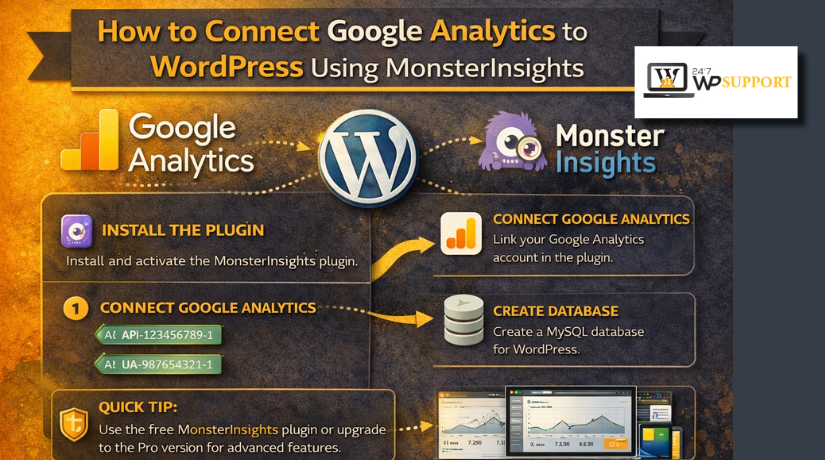
How to Connect Google Analytics to WordPress Using MonsterInsights (Complete Guide)
Introduction
Clear visitor data is necessary if you manage a WordPress website. That data helps you understand what people read, click, and ignore. Additionally, it displays your daily traffic source. Many site owners want to connect Google Analytics to WordPress but feel confused by the setup steps. The platform looks technical at first for many beginners. That is why many users choose MonsterInsights for easier tracking. It simplifies a challenging activity into a dashboard procedure. This guide is made for bloggers, business owners, store owners, and beginners. It explains the basics before the setup starts. It also works well as a MonsterInsights setup guide for first-time users. If you want simple WordPress analytics integration without editing code, this method is a smart place to begin.
What Is MonsterInsights and Why Use It for Google Analytics?
MonsterInsights is a plugin made for WordPress websites. It helps connect your website to Google Analytics in a simpler way. Instead of adding tracking code by hand, you can manage many steps inside WordPress. This reduces the likelihood of errors and saves time. Many users see it as a useful Google Analytics WordPress plugin because it makes setup easier for non-technical website owners. It also brings key reports into the WordPress dashboard. That means you can check traffic details without leaving your site panel. For beginners, this makes website tracking feel less stressful. For growing websites, it helps save time and keeps analytics easy to manage from one place.
MonsterInsights serves as a conduit between Google Analytics and WordPress. Google Analytics collects the visitor data from your site. MonsterInsights helps send that data correctly and shows reports clearly. This is why many beginners use it first. They do not want to touch theme files or site code. They want a smoother process inside the admin panel. MonsterInsights helps with that. It gives users a guided method to connect Google Analytics to WordPress with less confusion. It also supports useful tracking features for content websites and online stores. If you are learning how to install MonsterInsights and use it well, understanding this role is the first important step.
Difference Between MonsterInsights and Google Analytics in WordPress
- Google Analytics is the primary tracking tool. Data is gathered from visitors to your website. It tracks page views, traffic sources, user actions, and conversions. It is the system that stores and shows your website data.
- MonsterInsights is a WordPress plugin that links Google Analytics to your website. It does not replace Google Analytics. It helps you connect Google Analytics to WordPress in a simpler way. This is why many beginners use it first.
- Google Analytics and MonsterInsights do different jobs. Google Analytics works as the tracking engine. MonsterInsights works as the connector and report helper inside WordPress. One collects the data, and the other makes that data easier to use.
- Google Analytics works outside your WordPress dashboard. You normally log in to your Google Analytics account to see full reports. MonsterInsights brings important parts of that data into WordPress. This saves time for website owners.
- MonsterInsights makes WordPress analytics integration easier for non-technical users. You don’t have to manually add tracking code or modify theme files. The plugin gives you a guided process. That makes setup safer and easier for beginners.
- Google Analytics gives deep reports and full tracking details. It helps you understand where visitors come from. It also shows what pages they visit and how they behave. This helps you improve content, marketing, and sales decisions.
- MonsterInsights focuses on easy setup and simple reporting. It helps users connect the correct Google account and property. It also shows useful reports in the WordPress admin area. That is why it is a popular Google Analytics WordPress plugin.
- Many beginners think MonsterInsights and Google Analytics are the same. This is a common mistake. MonsterInsights only helps you use Google Analytics more easily in WordPress. You still need a Google Analytics account for proper tracking.
- A simple way to understand this difference is very helpful. Google Analytics is the system that tracks and stores data. MonsterInsights is the tool that helps bring that system into WordPress. This clear difference makes the setup process easier to understand.
- If you want an easy MonsterInsights setup guide, this point matters most. Google Analytics does the real tracking work. MonsterInsights helps manage that setup in a user-friendly way. Together, they make website tracking easier for WordPress users.
What You Need Before Connecting Google Analytics to WordPress with MonsterInsights
Before you start the setup, keep a few things ready. This saves time and avoids small mistakes later. Many users rush into the process and get stuck midway. A little prep makes the full job much easier. It also helps you connect Google Analytics to WordPress without confusion. If you want smooth WordPress analytics integration, this section matters first.
A Google Account That You Can Access During the Full Setup Process
A Google account is a prerequisite. Google Analytics works inside your Google account. A property or stream cannot be created until you have logged in. If you already use Gmail, you can use that account. Try using the same account for the entire setup. This maintains your tracking access organised and easy to use in the future.
A WordPress Website with Admin Access and a Working Dashboard
You also need access to your WordPress website. The site should be live or ready for setup. More importantly, you need admin access to the dashboard. Without admin access, you cannot install the plugin properly. You also cannot finish the plugin connection settings. This step sounds basic, but many users miss it. A working dashboard is important for a clean setup flow.
A Google Analytics 4 Property for Your Website Tracking Data
You need a Google Analytics property for your website. In GA4, the property holds your website reporting data. Google says properties are the containers for your reports. This is where your site data will be collected. It is also where later reports will appear. If you do not create this first, tracking cannot start. That is why this step is a must for beginners.
A MonsterInsights Plugin Ready to Install on Your WordPress Website
You also need the MonsterInsights plugin for WordPress. This is the Google Analytics WordPress plugin used in this guide. It helps connect your site without manual code changes. It also adds a guided setup inside WordPress. That is why many beginners prefer it over manual methods. It is built to make the connection easier and faster. If you want a simple MonsterInsights setup guide, this plugin is the center of it.
Important Website and Account Details You Should Keep Ready Before Setup
Keep your website URL ready before you begin. You will need it while adding the web stream. Also keep your site or business category in mind. Google asks for reporting details during property setup. These include your reporting time zone and currency. Google notes that the time zone affects report day boundaries. That means the wrong setting can confuse your reports later. Small setup details like these matter more than many users think.
Helpful Checks to Make Before Starting the Connection Process
Do a few simple checks before the real setup starts. First, confirm that your website opens correctly in a browser. Next, make sure you are using the correct Google account. After that, check whether another analytics plugin is active. Using more than one plugin can create tracking confusion. It can also make your data less clean later. A quick check now saves rework after setup. This keeps your WordPress analytics integration easier from the start.
How to Connect Google Analytics to WordPress Using MonsterInsights (Step By Step Guide)
Now you can begin the actual setup process. This part covers the first three steps only. These steps happen before you connect the plugin in WordPress. They prepare the tracking side inside Google Analytics first. Once this is done, the MonsterInsights side becomes much easier. This is the cleanest way to connect Google Analytics to WordPress.
Step 1: Create Your Google Analytics Account Before Starting the WordPress Connection
- Go to the Google Analytics website.
- Sign in with your Google account.
- If you do not have an Analytics account, create one.
- Enter your account name carefully.
- Continue to the next setup screen.
- Make sure you use the correct Google account.
- Try to use the same account for the full setup.
- This helps avoid confusion later.
Step 2: Create a Google Analytics Property for Your WordPress Website
- Make a new property after the account has been created.
- Enter the name of your company or website as the property name.
- Choose the appropriate reporting time zone.
- For your reports, choose the appropriate currency.
- If prompted, enter your business information.
- Continue through the property setup process.
- This property will store your website tracking data.
Step 3: Add a Web Data Stream for Your WordPress Site Tracking
- Choose the Web as your platform.
- Enter your full website URL.
- Add a stream name for your site.
- Review the website details once again.
- Save the web data stream.
- This stream helps send website data into Google Analytics.
- Without this stream, tracking will not work properly.
Step 4: Install and Activate the MonsterInsights Plugin in WordPress
- Log in to your WordPress dashboard.
- Go to Plugins and click Add New.
- Search for MonsterInsights in the plugin search box.
- Find the correct plugin in the results.
- Click Install Now.
- After installation, click Activate.
- The plugin will now appear in your WordPress dashboard.
Step 5: Open the MonsterInsights Setup Wizard and Start the Plugin Setup
- After activation, go to the Insights menu.
- Open the setup wizard from there.
- The connecting process will be guided by the setup wizard.
- Pick your website type wisely.
- You may see options like blog, business website, or online store.
- Select the one that matches your website best.
- This helps the plugin apply the right tracking settings.
Step 6: Connect MonsterInsights with the Correct Google Account
- Click the button to connect MonsterInsights.
- A Google sign-in window will open.
- Choose the same Google account used for Analytics setup.
- Sign in and continue.
- Allow the required permissions.
- Confirm the access request.
- Return to WordPress after approval.
- This step links the plugin with your Google Analytics account.
Step 7: Select the Correct Google Analytics Property for Your Website
- After connecting your account, a list of properties will appear.
- Find the property created for your website.
- Check the property name carefully.
- Make sure you don’t select the incorrect website.
- Go through the list methodically if you oversee several websites.
- Proceed after selecting the appropriate property.
- For accurate tracking, this step is crucial.
Step 8: Complete the MonsterInsights Setup and Save the Main Settings
- Follow the remaining setup wizard steps.
- Review the recommended plugin settings.
- Save the setup when prompted.
- Let MonsterInsights finish the connection process.
- The plugin will now add the tracking code for you.
- You do not need to edit files manually.
- This makes the setup easier for beginners.
Step 9: Check If Google Analytics Is Tracking Your WordPress Website Properly


- Launch a new tab in your browser to access your website.
- Go through a few of your website’s pages.
- Return to your Google Analytics account.
- Check the realtime report area.
- See whether your visit is showing there.
- You can also review the plugin status in WordPress.
- This step helps confirm that tracking is active.
- Testing early helps catch small issues fast.
Step 10: Review Important Tracking Settings After the Main Connection
- Open the MonsterInsights settings area.
- Review the tracking options available there.
- Enable outbound link tracking if needed.
- Enable file download tracking if useful for your site.
- Enable affiliate link tracking if relevant.
- If you run WooCommerce, enable eCommerce tracking.
- Check admin tracking settings too.
- These options help improve your WordPress analytics integration.
Step 11: View Key Website Reports Inside the WordPress Dashboard
- Go to the MonsterInsights reports section.
- Open the main overview report.
- Check top posts and pages.
- Review traffic source details.
- Check device and visitor data.
- If enabled, review WooCommerce or sales reports.
- Use these reports to understand site performance better.
- This is one of the biggest benefits of using MonsterInsights.
Manual setup usually means adding code by hand. MonsterInsights explains that manual code goes in the header area. That is not easy for many WordPress beginners. The plugin avoids that step and uses a guided path instead. It also keeps the setup inside the admin dashboard.
Common Mistakes to Avoid When Connecting Google Analytics to WordPress with MonsterInsights
Using the Wrong Google Account During the MonsterInsights Connection Process
This is one of the most common setup mistakes. Many users create Google Analytics in one Google account, then connect the plugin with another account later. When that happens, the correct property may not appear in the setup wizard. Google’s setup flow starts inside the Google account that owns the Analytics account and property, so using the same login from start to finish keeps the process clean and simple.
Choosing the Wrong Google Analytics Property for the Website You Want to Track
This mistake happens often when one Google account manages many websites. A user may see several properties and choose the wrong one by mistake. Then the site may connect, but the reports will not match the correct website. Google Analytics setup is based on creating the right property for the right site, so it is important to check the property name carefully before you finish the connection.
Forgetting to Create the Web Data Stream Before Connecting WordPress to Analytics
Some users make the property and account, then quit too soon. A web data stream is also required for Google Analytics for websites. A data stream, according to Google, is the data flow from your website or application to Analytics. Your site tracking won’t be prepared for an appropriate WordPress analytics integration if the web stream is absent. For this reason, you should never omit this step when setting up.
Installing More Than One Google Analytics WordPress Plugin on the Same Website
It is not a good idea to use multiple Google Analytics WordPress plugins. It may add tracking codes more than once and cause errors in your numbers. It is made very clear by MonsterInsights that it installs the Google Analytics tracking code on your website, and that using multiple trackers can affect your results. Use a single plugin and simplify the setup if you want tidy reporting. When attempting to link Google Analytics to WordPress without tracking issues, this is crucial.
Leaving Old Google Analytics Code Inside Theme Settings or Header Script Areas
Some users installed Analytics manually in the past. Later, they add MonsterInsights but forget to remove the old code. MonsterInsights notes that duplicate code is often hidden in theme options or header and footer script areas. If that old code stays active, the site may count visits twice. This can make reports look confusing and less useful. Always check for old code if your numbers look too high or strange.
Expecting Full Google Analytics Reports to Appear Right After Setup
Many beginners expect full reports within a few minutes. That usually does not happen. Google says data processing can take 24 to 48 hours, and report values may change during that time. Google also explains that Realtime data usually appears within a few minutes, while other data types take longer. So if your setup is new, be patient before assuming something is broken.
Ignoring the Value of Realtime Testing After the Main Setup Is Finished
A quick test after setup can save a lot of time. Open your website in another tab and visit a few pages. Then check Realtime in Google Analytics. Since Realtime updates much faster than standard reports, it is the best first check after setup. This is a smart way to confirm that your MonsterInsights setup guide steps were completed correctly.
Not Reviewing the Main Plugin Features After You Finish the Basic Connection
Some users stop right after the site connects. That is not always enough. The WordPress plugin page for MonsterInsights says the plugin can show reports inside WordPress and support advanced tracking features with a few clicks. These include reports for audience, content, ecommerce, forms, landing pages, and more. If you do not review the settings and reports after setup, you may miss useful tracking options that improve your WordPress analytics integration.
Thinking MonsterInsights Replaces Google Analytics Instead of Working with It
This is another common misunderstanding. MonsterInsights is not a replacement for Google Analytics. It is the connector that helps WordPress work with Google Analytics more easily. The official WordPress plugin page describes MonsterInsights as a Google Analytics plugin for WordPress that helps properly connect your site and show useful reports inside the dashboard. That means both tools work together, and both are needed for the full setup.
Conclusion
If you want a simple way to connect Google Analytics to WordPress, MonsterInsights is a very practical option. It helps reduce manual work, keeps setup inside the dashboard, and makes reporting easier for beginners. It also supports a cleaner workflow than manual code for many users, because the plugin is built to help properly connect WordPress with Google Analytics and show useful reports inside WordPress. That makes it a strong choice for site owners who want a smoother MonsterInsights setup guide from start to finish.
The main goal is not only to finish setup. The real goal is to get clean and useful data. When you use the right Google account, choose the correct property, create the web data stream, and avoid duplicate tracking, your reports become much more reliable. That is what makes better decisions possible for content, traffic, leads, and sales. Google’s setup process is based on creating an account, property, data stream, and tracking code, so following those steps in the right order matters a lot.
If you still feel confused during setup, that is completely normal. Many website owners struggle with account selection, property setup, data stream issues, or duplicate tracking code. If you want help from a real WordPress support team, 24x7wpsupport can help you connect Google Analytics to WordPress correctly, review your Google Analytics WordPress plugin setup, fix reporting issues, and make sure your tracking is working the right way. Whether you need help with how to install MonsterInsights or a full WordPress analytics integration review, the 24x7wpsupport team can help you handle it with less stress.




Brian is a WordPress support specialist and content contributor at 24×7 WP Support. He writes practical, easy-to-follow guides on WordPress troubleshooting, WooCommerce issues, plugin and theme errors, website security, migrations, performance optimization, and integrations. With a focus on solving real website problems, Brian helps business owners, bloggers, and online store managers keep their WordPress sites running smoothly.
