
How to Fix the ERR_TOO_MANY_REDIRECTS Error on Your Website (Complete Guide)
Introduction
The ERR_TOO_MANY_REDIRECTS error is a common website loading issue. It appears when your browser cannot reach the final page. Instead, the website keeps sending the browser between different URLs. This creates a repeated redirect cycle that never ends. Finally, the browser stops loading and shows the error message. This issue can affect any type of website. It can happen on WordPress sites, business websites, WooCommerce stores, blogs, or custom websites. When this error appears, visitors cannot access the page properly. They may leave your website and choose another option.
This can reduce traffic, leads, sales, and user trust. Too many redirect errors can also affect your SEO performance. Search engines may fail to crawl the affected page. If important pages stop loading, rankings may slowly drop. That is why you should fix this issue as soon as possible. Many website owners think this error is only browser-related.
But that is not always true. The problem can come from WordPress settings, SSL setup, plugins, server rules, cache, or CDN settings. A small setting conflict can create a large website redirect error. The good news is that this issue can be fixed. You need to find where the redirect loop starts. Then you can remove the wrong rule or setting. This guide will help you understand the problem clearly. It will also help you identify the error before applying fixes.
What Does ERR_TOO_MANY_REDIRECTS Mean?
The ERR_TOO_MANY_REDIRECTS message means your website has a redirect loop. A redirect sends users from one URL to another URL. This is normal when done correctly. For example, your old page may be redirected to a new page. Your HTTP version may redirect to your HTTPS version. Your non-www version may redirect to your www version. These redirects help users reach the correct page. But the problem starts when redirects move in circles. One URL sends the browser to another URL. Then the second URL sends it back again. This keeps repeating without reaching a final page.
The browser waits for a clear final destination. When it does not find one, it stops the process. Then it shows the too many redirects error. In simple words, your website is confusing the browser. It keeps giving different directions again and again. The browser cannot decide which page should open. This is why the page does not load properly.
How To Identify ERR_TOO_MANY_REDIRECTS Error on Your Website
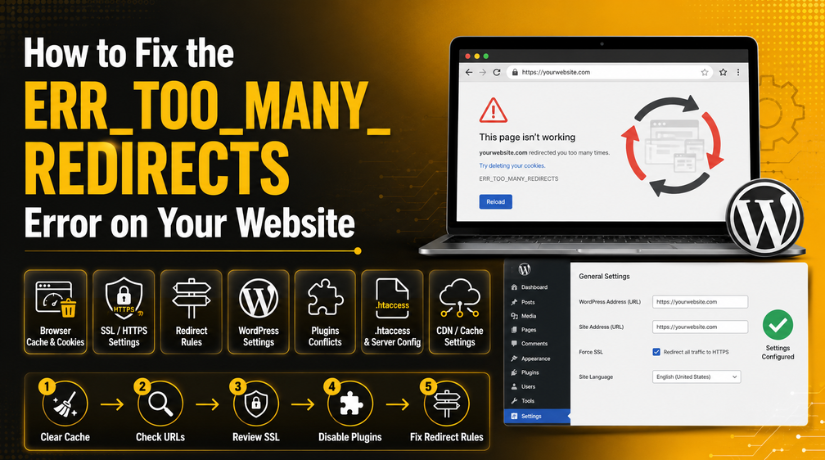
You can identify this issue by checking the browser message. In Google Chrome, the message often says the page is not working. It may also say the website redirected you too many times. Below that message, Chrome shows ERR_TOO_MANY_REDIRECTS. Firefox may show that the page is not redirecting properly.
Safari may say it cannot open the page due to many redirects. Microsoft Edge may show a similar website loading error. These messages mean your browser cannot reach the final page. So, you should treat it as a website redirect error.
Check Whether the Error Appears Only in One Browser
First, test the website in another browser. Open the same URL in Chrome, Firefox, Edge, or Safari. You should also test the page in incognito mode. Incognito mode avoids some saved browser data. If the website opens there, cookies may be the cause. You can also test the site on a mobile phone. Try another internet connection if possible. Use mobile data instead of office or home Wi-Fi. This helps confirm if the issue is local or website-wide. If the error appears everywhere, the website needs deeper checking.
Check Whether the Error Affects the Full Website or One Page
Next, check if the error affects the whole website. Open the homepage, service pages, blog posts, and login page. If every page shows the same error, the issue may be global. It may come from SSL, hosting, CDN, or WordPress URL settings. If only one page shows the error, the issue is likely page-specific. It may come from a redirect plugin or custom redirect rule. A WooCommerce site may show this on cart or checkout pages. A membership site may show it on login or account pages. This difference helps you find the cause faster.
Check Recent Website Changes Before You Start Fixing It
Recent changes often create the ERR_TOO_MANY_REDIRECTS issue. Think about what changed before the error started. Did you install a new plugin recently? Did you update an SSL or security plugin? Did you change your domain from HTTP to HTTPS? Did you add Cloudflare or another CDN service? Did you change hosting or migrate the website?
Did you update permalink settings in WordPress? Any of these changes can create a WordPress redirect issue. They can also create duplicate or opposite redirect rules. Write down these changes before applying fixes.
Main Causes of the ERR_TOO_MANY_REDIRECTS Error on Your Website
The ERR_TOO_MANY_REDIRECTS error does not appear without a reason. It usually starts when two redirect rules work against each other. One rule sends the browser to one version of your site. Another rule sends it back to the first version. This creates a redirect loop error and blocks the page. The issue can come from WordPress, hosting, SSL, CDN, plugins, or browser cache. Before you try to fix ERR_TOO_MANY_REDIRECTS, you must understand the main causes. This helps you find the correct problem faster. It also prevents wrong changes that may break the website further.
Incorrect HTTP to HTTPS Redirect Setup Can Create a Loop
Many websites use HTTPS to protect user data. This is good for trust, security, and SEO. But wrong HTTPS rules can create a website redirect error. For example, your server may send HTTP traffic to HTTPS. At the same time, another setting may send HTTPS back to HTTP. The browser then moves between both versions again and again. This creates too many redirect errors. This issue often appears after SSL installation or migration. It can also happen after enabling forced HTTPS in hosting. Website owners should check all HTTPS rules carefully. Only one clear HTTPS redirect should control the final URL.
Wrong WordPress Address and Site Address Can Break Redirects
A common WordPress redirect issue starts inside WordPress settings. WordPress uses two important URL fields. These are WordPress Address and Site Address. Both fields should use the same domain version. If one uses HTTP and another uses HTTPS, redirects may conflict. If one uses www and another does not, issues may appear. This mismatch can confuse WordPress and the browser. The website may keep sending users between different versions. This causes the ERR_TOO_MANY_REDIRECTS error on the site. You should always keep both URLs clean and matching. This small setting can solve many redirect problems quickly.
WWW and Non-WWW URL Conflicts Can Trigger Redirect Loops
Every website should use one preferred domain version. You can use either www or non-www. Both options are fine when configured correctly. The problem starts when rules conflict with each other. One rule may force visitors to www.example.com. Another rule may remove www from the same URL. The browser then keeps switching between both domain versions. This creates a clear redirect loop error. It may affect the full website or selected pages. This issue can happen in WordPress, hosting, CDN, or server files. To avoid this, choose one final domain version. Then use that same version across every setting.
Cloudflare or CDN SSL Settings May Cause Redirect Problems
A CDN can improve speed, security, and website delivery. Cloudflare is one common CDN used by many websites. But wrong CDN settings can also cause too many redirect errors. This often happens when SSL settings do not match properly. The CDN may handle HTTPS one way. Your origin server may handle HTTPS another way. If both systems force different redirects, the browser gets stuck. This creates the ERR_TOO_MANY_REDIRECTS message. Website owners should check CDN SSL mode, page rules, and redirect rules. They should also review “Always Use HTTPS” settings. Duplicate HTTPS rules should not run in many places.
Redirect Plugin Conflicts Can Create Duplicate Redirect Rules
WordPress plugins make redirect management easy for many users. But multiple plugins can create problems when used together. SEO plugins, SSL plugins, cache plugins, and redirect plugins may add rules. Security plugins may also force certain page redirects. If two plugins control the same URL differently, conflict starts. This can create a WordPress redirect issue quickly. One plugin may redirect HTTP to HTTPS. Another plugin may handle www or login redirects. These rules may not work well together. The result is a website redirect error for users. You should avoid using many plugins for the same task. Always keep redirect control simple and clear.
Wrong .htaccess Rules Can Cause Apache Redirect Errors
Many WordPress websites run on Apache servers. Apache uses the .htaccess file for important rules. This file can control permalinks, redirects, and security settings. A wrong rule inside this file can cause trouble. Duplicate HTTPS rules may create a redirect loop error. Old domain redirects may also point back incorrectly. Plugin-added rules can remain there after plugin removal. This can keep causing the ERR_TOO_MANY_REDIRECTS error. You should never edit this file without a backup. A small mistake can make the website unavailable. Always check this file carefully during troubleshooting.
Precautions Before You Start Fixing the ERR_TOO_MANY_REDIRECTS Error
Before you fix ERR_TOO_MANY_REDIRECTS, take some important safety steps. Redirect fixes may involve WordPress settings, server files, or SSL settings. A wrong change can make the website harder to access. It can also create new errors on the live website. Precautions help you work safely and avoid more damage. They also help you track what changed during troubleshooting. You should never rush when fixing redirect problems. A calm and step-by-step process works better. Start with backup, notes, cache clearing, and safe testing.
Take a Full Website Backup Before Making Any Changes
Always create a full backup before editing anything. Your backup should include website files and databases. This is very important for WordPress websites. Redirect issues may require changes in important files. You may need to edit .htaccess, wp-config.php, or plugin settings. If something goes wrong, backup helps you restore quickly. Without backup, recovery can become difficult and costly. You should also confirm the backup is complete. Store it safely before starting the troubleshooting process. This gives you a safe starting point for every fix.
Save Copies of Important Website and Server Files
Some files control important website behavior. You should save copies before making edits. Important files include .htaccess, wp-config.php, and theme files. For Nginx websites, server config files are also important. These files may contain redirects, SSL rules, or WordPress settings. One wrong line can create a bigger website redirect error. Keeping a copy helps you restore the previous version. This is useful if the new change does not work. Always download the original file before editing it. This simple step can prevent serious downtime.
Note Recent Website Changes Before Troubleshooting
Recent changes often point to the real problem. Write down what changed before the error appeared. Check plugin installs, plugin updates, and theme updates. Also check SSL setup, hosting changes, and CDN changes. Domain migration and permalink changes should also be listed. This list helps you find the cause faster. For example, if the error started after Cloudflare setup, check CDN rules first. If it started after an SSL plugin update, check that plugin first. This saves time and prevents unnecessary changes. Troubleshooting becomes easier when you know the timeline.
Avoid Changing Too Many Settings at the Same Time
Many website owners make this mistake during troubleshooting. They change several settings together and then test the website. This makes it hard to know what actually worked. It can also create new problems during the process. You should always change one setting at a time. Then test the website after each change. If the error disappears, you know the exact cause. If it remains, move to the next step carefully. This method keeps the process clean and controlled. It also helps when you need to explain the issue later.
Clear All Cache After Each Troubleshooting Step
Cache can hide the real result after making changes. This is why cache clearing is very important. Clear your browser cache after every major change. Also clear WordPress cache from your cache plugin. If your hosting has cache, clear that too. If you use Cloudflare, purge the CDN cache as well. Old redirect data can stay active in cache. This can make the error appear unchanged. Clearing cache helps you test the latest website response. It also prevents confusion during the fixing process.
How to Fix ERR_TOO_MANY_REDIRECTS Error (Step By Step)
The ERR_TOO_MANY_REDIRECTS error needs a careful fixing process. You should not change every setting at once. Start with simple browser checks before editing website files. Then move to WordPress, plugin, SSL, CDN, and server settings. This step-by-step process helps you find the real cause. It also helps you avoid more damage to your website. The goal is to stop the redirect loop error safely. Follow each step carefully and test the website after every change.
Step 1: Clear Website Cookies From Your Browser First
Start with the easiest fix before changing website settings. Browser cookies can store old website session data. Sometimes, this data keeps loading the wrong redirect path. This can create the ERR_TOO_MANY_REDIRECTS message again. Open your browser settings and find cookies or site data. Search for your website domain in the saved data list. Delete cookies only for that website domain. Then close the browser and open it again. Now visit your website in a fresh browser window. If the site loads, cookies caused the redirect loop error.
Step 2: Clear Browser Cache to Remove Old Redirect Data
Browser cache can also store old redirect responses. Your website may be fixed, but cache may show old data. This makes the too many redirects error appear again. Open your browser settings and clear cached files. You can also use a hard refresh on the affected page. After that, open the website in incognito mode. Incognito mode avoids many saved browser files. Also test the website in another browser. If the website works there, cache was the problem. This step helps before changing WordPress or server settings.
Step 3: Clear WordPress, Hosting, and CDN Cache
A website redirect error may stay active because of cache. WordPress cache plugins can save old redirect responses. Hosting cache can also serve outdated website rules. CDN cache may deliver old redirects to visitors globally. First, clear cache from your WordPress cache plugin. Then clear cache from your hosting control panel. If you use Cloudflare, purge the CDN cache too. Also clear object cache if your website uses it. After clearing cache, test the website in incognito mode. This shows the latest website response after your changes.
Step 4: Check WordPress Address and Site Address Settings
Wrong WordPress URLs can create a WordPress redirect issue. Go to your WordPress dashboard and open Settings. Then click the General settings option. Check WordPress Address and Site Address carefully. Both URLs should use the same website version. They should also use the same HTTPS format. For example, both should use https://example.com. Do not use HTTP in one field only. Do not use www in one field only. Save changes only when both URLs match correctly. Then clear cache and test the website again.
Step 5: Fix WordPress URL From wp-config.php If Dashboard Fails
Sometimes, the WordPress dashboard will not open. In that case, fix URLs from wp-config.php. Open your website root folder through cPanel or FTP. Find the wp-config.php file and download a backup. Then add this code before the final editing stop line. Replace the sample domain with your real website URL. Use the same final domain version your website needs.


define(‘WP_HOME’, ‘https://example.com’);
define(‘WP_SITEURL’, ‘https://example.com’);
Save the file and upload it again carefully. Then clear browser, WordPress, hosting, and CDN cache. Open the website in private browsing mode. If the website opens, your URL settings caused the error. This can help you fix ERR_TOO_MANY_REDIRECTS when admin access fails.
Step 6: Disable WordPress Plugins Temporarily
Plugins are a common cause of ERR_TOO_MANY_REDIRECTS. SSL plugins, cache plugins, and redirect plugins can conflict. SEO plugins and security plugins may also add redirects. Login and membership plugins can redirect users repeatedly. Start by disabling redirect-related plugins first. Then test the website after each plugin change. If the error disappears, the last disabled plugin caused it. Check that plugin settings before activating it again. Avoid using many plugins for the same redirect task. This keeps your redirect setup simple and safe.
Step 7: Disable Plugins Using FTP or cPanel
You may not access the dashboard during this error. In that case, disable plugins using FTP or cPanel. Open your website files and go to wp-content. Find the folder named plugins. Rename it to plugins-old for temporary testing. This will disable all active plugins together. Now test the website in your browser again. If the website opens, one plugin caused the issue. Rename the folder back to plugins. Then activate plugins one by one from WordPress. This helps you find the exact plugin conflict.
Step 8: Check .htaccess Redirect Rules Carefully
Apache servers use the .htaccess file for redirect rules. A wrong rule can create a serious website redirect error. Open this file using cPanel File Manager or FTP. First, download a backup copy before editing anything. Check for duplicate HTTP to HTTPS redirect rules. Also check www and non-www redirect conflicts. Old domain redirects may also remain after migration. Plugin-added redirect rules may still exist there too. Remove only wrong or duplicate redirect rules carefully. Save the file and test your website again. This step can solve many WordPress redirect problems.
Step 9: Reset the WordPress .htaccess File
If .htaccess looks confusing, reset it safely. First, save a copy of the current file. Then replace the WordPress section with default WordPress rules. This can fix broken permalink and redirect rules. Use this code for a normal WordPress setup.
# BEGIN WordPress
RewriteEngine On
RewriteRule .* – [E=HTTP_AUTHORIZATION:%{HTTP:Authorization}]
RewriteBase /
RewriteRule ^index\.php$ – [L]
RewriteCond %{REQUEST_FILENAME} !-f
RewriteCond %{REQUEST_FILENAME} !-d
RewriteRule . /index.php [L]
# END WordPress
After saving, open your WordPress dashboard. Go to Settings and then Permalinks. Click Save Changes without changing any setting. This refreshes WordPress permalink rules correctly. Now clear all cache and test your website. If the error disappears, old rules caused the issue.
Step 10: Check Cloudflare SSL/TLS Settings
Cloudflare settings can create the too many redirects error. This often happens when SSL settings do not match. Open Cloudflare and select your website domain. Go to the SSL/TLS settings section. Check the current SSL mode very carefully. If your hosting has SSL, use Full or Full Strict. Avoid Flexible SSL when your server already forces HTTPS. Flexible SSL can conflict with server HTTPS rules. Also check Always Use HTTPS, Page Rules, and Redirect Rules. Remove duplicate or opposite redirect rules from Cloudflare. Then purge Cloudflare cache and test the website again.
Step 11: Check HTTP and HTTPS Redirect Rules Everywhere
Your website should have one clean HTTPS redirect rule. Problems start when many tools force HTTPS together. Hosting may force HTTPS from the control panel. WordPress may force HTTPS through plugins or settings. Cloudflare may also force HTTPS from its dashboard. The server file may contain HTTPS redirect rules too. These duplicate rules can create ERR_TOO_MANY_REDIRECTS. Check each platform and keep one clear rule. All versions should reach one final HTTPS URL. Then clear every cache layer and test again. This helps remove the hidden redirect conflict.
Step 12: Check WWW and Non-WWW Redirect Settings
Your domain should use one final version only. You can choose www or non-www for your website. The important part is using the same version everywhere. Check WordPress settings, hosting redirects, CDN rules, and server files. One tool should not force www while another removes it. This conflict can create a redirect loop error quickly. Choose one final version before changing rules. For example, use https://example.com as the final version. Then redirect every other version to this one. Test HTTP, HTTPS, www, and non-www versions carefully.
Step 13: Check Nginx Redirect Rules If Needed
Some websites use Nginx instead of Apache. Nginx does not use the .htaccess file. It uses server block settings for redirects. Wrong server block rules can create repeated redirects. One block may send HTTP traffic to HTTPS. Another block may send HTTPS traffic back again. This creates a difficult website redirect error. Reverse proxy settings can also confuse WordPress HTTPS detection. If you do not manage Nginx, contact hosting support. Ask them to check SSL and redirect server blocks. This is safer than guessing with server rules.
Step 14: Check Redirect Plugin Rules One by One
Redirect plugins can also cause ERR_TOO_MANY_REDIRECTS. Open your redirect plugin and review all active rules. Check if any page redirects to itself. Also check if Page A redirects to Page B. Then check if Page B redirects back to Page A. This creates a direct redirect loop error. Broad regex rules can also catch too many URLs. Disable suspicious redirect rules and test the website again. Keep only important and correct redirects active. Remove old, duplicate, or confusing redirect rules. This helps keep the website redirect setup clean.
Step 15: Check Login, Account, Checkout, and Membership Pages
Some redirect loops affect only special website pages. Login, account, checkout, and membership pages often use redirects. A login page may redirect users to the account page. The account page may redirect them back to login. This creates a WordPress redirect issue for users. WooCommerce checkout pages may also loop due to account rules. Membership plugins may block pages and redirect users repeatedly. Test each important page separately after every change. Disable role-based redirects if they create problems. Check plugin settings for login and account redirects. This can restore important user pages quickly.
Step 16: Review Custom Redirect Code in Theme Files
Custom code can create hidden redirect loops. Developers may add redirect code inside theme files. It may also be added inside a custom plugin. Check the functions.php file for redirect code. Look for functions like wp_redirect() or header(“Location:”). Also check code using the template_redirect hook. Redirect code should not run on every page. It must include proper conditions before redirecting users. Wrong code can create a serious too many redirects error. Ask a developer to review it if you are unsure.
Step 17: Check Hosting Panel Redirects and Domain Forwarding
Hosting dashboards often include redirect and forwarding tools. These tools can work outside your WordPress website. Open your hosting control panel and check redirect settings. Review cPanel Redirects, Plesk redirects, and domain forwarding. Also check parked domains, addon domains, and subdomains. Your hosting may force HTTPS from the control panel. It may also forward one domain version to another. These rules can conflict with WordPress or Cloudflare settings. Remove duplicate or opposite rules very carefully. Then clear hosting cache and test your website again.
Step 18: Test the Website After Every Fix Step
Testing is important when fixing this error. Do not change many settings before checking results. Open your website in incognito mode after each step. Test the homepage, service pages, blog posts, and login page. Also test cart and checkout pages on WooCommerce websites. Use a redirect checker to see the redirect path. Look for repeated URLs or opposite redirect directions. If the same URLs repeat, the loop still exists. If one final URL loads properly, the issue is fixed. This method helps you fix ERR_TOO_MANY_REDIRECTS safely and confidently.
How to Prevent ERR_TOO_MANY_REDIRECTS Error in the Future
Use One Final Website Version Across All Settings
The best prevention starts with one final website version. Your website should not confuse browsers with many versions. Choose one main version for your website address. You can use https://example.com or https://www.example.com. Both options are fine when settings match everywhere. The problem starts when different tools use different versions. WordPress may use the non-www version in settings. Cloudflare may force the www version through rules.
Avoid Adding Duplicate Redirect Rules in Many Places
Duplicate redirect rules often cause a redirect loop error. Many website owners add the same rule in several places. They add HTTPS redirects in WordPress, hosting, Cloudflare, and .htaccess. This can make the browser follow too many paths. One rule may send users to one location. Another rule may send them back again.
Keep SSL and HTTPS Settings Consistent Everywhere
SSL settings must match across your full website setup. If settings do not match, redirects may break. Your hosting, WordPress, and CDN should use HTTPS correctly. WordPress Address and Site Address should both use HTTPS. Your SSL certificate should be active and valid. Cloudflare SSL mode should match your hosting SSL setup. If your server has SSL, avoid conflicting CDN settings. Wrong SSL settings can create a WordPress redirect issue quickly.
Review Redirect Rules Every Month for Better Website Health
Redirect rules should not be added and forgotten forever. Old rules can create problems as your website changes. A deleted page may redirect to another old page. A product page may redirect to a removed product. A blog URL may redirect through several old paths. These chains can slow loading and confuse browsers. In some cases, they can create ERR_TOO_MANY_REDIRECTS. Review your redirect plugin rules every month. Remove broken, duplicate, and self-redirecting rules.
Test Redirects After Every Important Website Change
Every major website change can affect redirect behavior. You should test redirects after SSL updates or plugin changes. Also test them after domain migration or hosting migration. CDN setup can also change how redirects work. Permalink changes in WordPress may affect URL handling too. After each change, open your website in incognito mode. Test your homepage, service pages, posts, and login page.
Avoid Long Redirect Chains on Important Website Pages
Long redirect chains can create slow and confusing page loading. A URL should not pass through many steps. It should go directly to the final page. For example, old page A should redirect to new page D. It should not go through page B and page C first. Long chains can waste crawl time and slow users down. They may also create too many redirect errors later. This becomes worse after many website updates. Keep important pages clean, direct, and easy to reach.
Conclusion
The ERR_TOO_MANY_REDIRECTS error usually comes from redirect conflicts. It can happen because of WordPress settings, plugins, SSL, or CDN rules. It may also come from .htaccess, Nginx, hosting, or cache. The best way to fix ERR_TOO_MANY_REDIRECTS is careful testing. You should find where the loop starts first. Then remove duplicate rules and keep one final URL version. Clear all cache after every important change. Also test your website on different browsers and devices. Once fixed, keep your redirect setup simple and consistent. This will reduce future errors and protect your website traffic.
If your website still shows too many redirect errors, expert help can save time. Redirect issues can become risky when server files are involved. A wrong change can break your website or admin access.24x7wpsupport can check your WordPress settings, SSL setup, plugins, CDN rules, and server redirects. Our team can find the exact cause and fix the issue safely. We can also help prevent the same WordPress redirect issue from returning later. Visit 24x7wpsupport and get professional WordPress support anytime.
Related posts:

Does SurveyMonkey Work With WordPress? Embed Guide

How to Use Jetpack AI in WordPress: Complete Beginner’s Guide

How to Fix WooCommerce Local Pickup Not Showing at Checkout Page
Your Guide to Understanding WordPress Hooks and Getting Started with them

How to Integrate Facebook Login With Your WordPress Website

Brian is a WordPress support specialist and content contributor at 24×7 WP Support. He writes practical, easy-to-follow guides on WordPress troubleshooting, WooCommerce issues, plugin and theme errors, website security, migrations, performance optimization, and integrations. With a focus on solving real website problems, Brian helps business owners, bloggers, and online store managers keep their WordPress sites running smoothly.
