WordPress Default Themes in 2026: How Many Come Included and Which to Use
Every new WordPress site starts with a theme already in place. You did not pick it. It came in the box. These are the default themes, and the core team builds them. Most have a year in the name, like Twenty Twenty-Five.
So how many do you get? And which one should you keep? This guide gives the count for 2026. It lists every default theme made so far. It also shows how to add, swap and remove them in a safe way.
How Many Default Themes Come With WordPress in 2026?
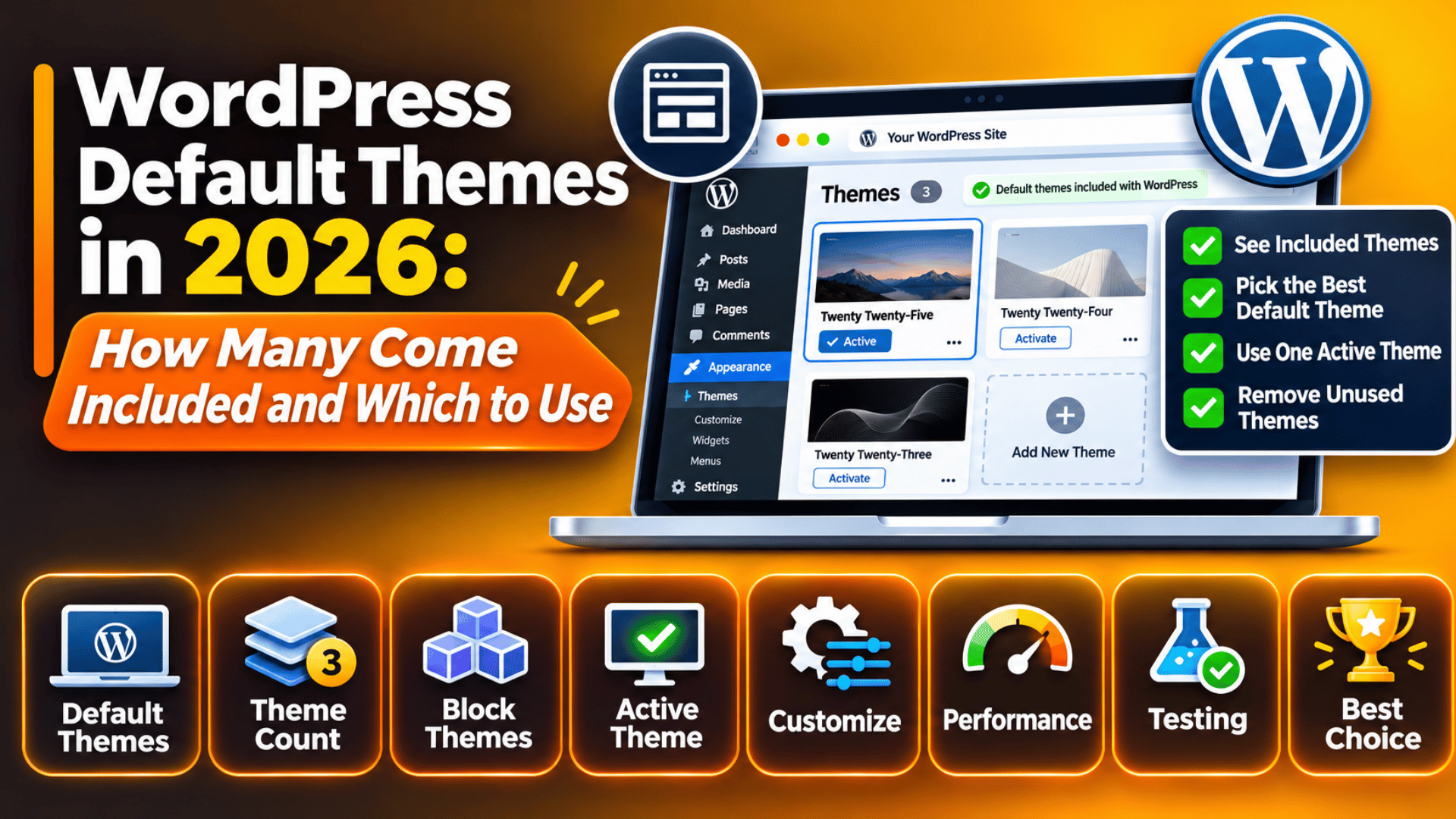
A fresh copy of WordPress has long shipped with three default themes. The core team packs the three newest ones into each download. Today the newest three are Twenty Twenty-Five, Twenty Twenty-Four and Twenty Twenty-Three. Twenty Twenty-Five is the one that is switched on at first.
That number can differ on your own site. Many hosts use their own one-click setup tool. Some of them add extra themes. Some strip the list down to one. An old site may also hold themes from years ago, since updates do not remove them.
It takes a minute to check what you have. Log in and go to Appearance → Themes. Each tile is one theme on your server. The first tile is the active one. You can also look in the wp-content/themes folder with your file manager. Each theme has its own folder there, such as twentytwentyfive.
There is a second way to read the question. How many default themes exist in total? The answer is fifteen. The first was Twenty Ten, and the latest is Twenty Twenty-Five. Only three ship in the box, but all fifteen are still free to install.
Why There Is No Twenty Twenty-Six Theme
You may have looked for a theme named Twenty Twenty-Six. It does not exist. For most of its life, WordPress gave us one new default theme each year, with the last big release. That did not happen at the end of last year.
WordPress 6.9 came out in early December last year with no new theme. The core team said so months ahead, in the summer. They gave two reasons. The release was moving fast. And block themes had grown up enough that a new one was not needed that year.
This is not the first gap. There was no Twenty Eighteen theme either. Back then the team was busy with the new block editor. So a skipped year is rare, but it has happened before.
The 2026 releases kept the same set. WordPress 7.0 came out on 20 May 2026. WordPress 7.1 followed on 19 August 2026. Neither one added a default theme. So Twenty Twenty-Five has stayed the newest for two years.
A new default theme is in the works. The plan is to ship it with WordPress 7.2, which is aimed at early December 2026. Treat that date as a target and not a promise. Release dates can move, and this one has not landed yet.
Every WordPress Default Theme From 2010 to Today
The yearly naming style began in 2010. Before that, WordPress shipped with two much older themes, named Classic and Default. Here is the full list of the fifteen that came after, with the release each one arrived in.
- Twenty Ten came with WordPress 3.0.
- Twenty Eleven came with WordPress 3.2.
- Twenty Twelve came with WordPress 3.5.
- Twenty Thirteen came with WordPress 3.6.
- Twenty Fourteen came with WordPress 3.8.
- Twenty Fifteen came with WordPress 4.1.
- Twenty Sixteen came with WordPress 4.4.
- Twenty Seventeen came with WordPress 4.7.
- Twenty Nineteen came with WordPress 5.0.
- Twenty Twenty came with WordPress 5.3.
- Twenty Twenty-One came with WordPress 5.6.
- Twenty Twenty-Two came with WordPress 5.9.
- Twenty Twenty-Three came with WordPress 6.1.
- Twenty Twenty-Four came with WordPress 6.4.
- Twenty Twenty-Five came with WordPress 6.7.
The older themes did not vanish when they left the box. All fifteen still sit in the free theme list on WordPress.org. You can add any of them from your dashboard. The core team still sends out fixes for them from time to time. So an old default theme is not a dead theme. It is just no longer packed in by default.
Block Themes and Classic Themes: Two Kinds of Default Theme
The fifteen themes fall into two groups. The split matters, because it changes how you edit your site. It also changes which menu items you see under Appearance.
Twenty Ten through Twenty Twenty-One are classic themes. They build pages with PHP template files. You change their look in the Customizer, at Appearance → Customize. Menus and widgets have their own screens. This is the way WordPress worked for most of its life.
Twenty Twenty-Two and all later ones are block themes. They are built from blocks, top to bottom. You edit the header, the footer and each page layout in the Site Editor, at Appearance → Editor. The Customizer link is gone on these themes. Colours, fonts and spacing are set in one file. You can read more in our guide on what theme.json does.
All three themes in the box today are block themes. So a new site in 2026 starts in the Site Editor. If you came from an older site, the menus will feel new. Our post on where theme settings are stored shows what moved and where it went.
Which Default Theme Should You Use?
All three bundled themes are free, light and kept up to date. None of them is a wrong choice.
Still, each one was made with a different kind of site in mind. Pick the one that sits closest to what you plan to build. You can try each with Live Preview first.
Twenty Twenty-Five: Best for Blogs and Simple Sites
This is the newest theme, and it is the safe pick for most new sites. It was made to be simple and easy to bend. It comes with a wide set of ready page parts, called patterns. There are patterns for a blog home page, a photo page, an events list and more.
It also has a good range of style sets, so you can change the whole colour and font mix in one click. Choose it for a personal blog, a writer site or a small brochure site. It is also the theme that will get the most care in new releases for now.


Twenty Twenty-Four: Best for Small Business Pages
This theme aims to suit many site types at once. The team built it around three users. The first is a small firm that needs a home page, a services page and a contact page. The second is an artist or photo maker who wants a clean way to show work. The third is a writer.
It ships with full page layouts, so you can drop in a whole About page and then swap the words. Choose it if you want a business look fast and do not want to build each page from an empty screen.
Twenty Twenty-Three: Best as a Blank Canvas
This is the plainest of the three, and that is on purpose. It gives you a bare, tidy base with very little set style. It then adds ten style sets made by people in the WordPress community. Each one changes the mood of the site, from soft and light to dark and bold.
Choose it if you like to design things your own way in the Site Editor. It is also a handy theme to keep for tests, since it adds almost nothing of its own to the page.
How to Install, Switch or Remove a Default Theme
You do all of this from one screen, and you do not need any code. Still, a theme switch changes how the whole site looks.
Take a full backup before you switch or delete a theme on a live site. Our guide on how to back up and restore a WordPress site walks through it. Better still, test the change on a staging copy first.
To add a default theme, go to Appearance → Themes and click Add Theme at the top. Type “Twenty” in the search box. The default themes show up in the results. Hover on the one you want and click Install.
To switch to it, click Live Preview on its tile. This shows your own site in the new theme, and no one else can see it yet. If it looks right, click Activate. Then check your menus, your home page and your footer. These parts are the ones that tend to shift in a switch.
To remove one, first make sure it is not the active theme. Click its tile to open Theme Details. The Delete link sits in the lower right corner. Click it and confirm. A deleted theme takes its saved style choices with it, so be sure before you click. There is more on this in our post on how to stop using a theme safely.
Should You Keep Default Themes You Do Not Use?
Keep one, and remove the rest. That is the short rule, and here is the reason. WordPress needs a theme to fall back on.
If your active theme breaks or goes missing, WordPress looks for a default theme and tries to load that. With no fallback, you may see a blank page where your site should be.
So leave the newest default theme in place, even if you never turn it on. Today that means Twenty Twenty-Five. It also helps when you hunt for a fault. Switch to it for a minute, and see if the problem goes away. If it does, the fault is likely in your main theme.
The other spare themes are just weight. Each one is code on your server that needs updates. An old theme that no one updates can be a way in for an attack, even when it is not active. WordPress flags this for you. Go to Tools → Site Health and look for the note on inactive themes. It tells you which ones you can remove.
Keep the one you save up to date as well. Go to Dashboard → Updates and look under Themes. See our steps on how to update a WordPress theme if you have not done it before.
Are Default Themes Good Enough for a Real Site?
Yes, for many sites they are. A default theme is not a demo or a toy. The same people who build WordPress build these themes.
Each one is tested with each new release, so it is rare for an update to break it. They load fast, since they carry no extra sliders or bulky scripts. They are also built with care for screen readers and keyboard use.
They do have limits. A default theme looks plain until you shape it. Many other sites use the same one, so yours may not stand out at first. They also do not ship with layouts for a big shop or a members area. You can still build those, but it takes more work in the Site Editor.
If you plan to change theme code, do not edit the default theme itself. The next update will wipe your work. Make a child theme and put your changes there. Our guide on what a child theme is and when to use one shows how. And if you want more choice than three, see our list of the best free WordPress themes.
Not sure which theme fits your site, or stuck after a theme switch? The team at 24×7 WP Support works on theme setup, theme changes and layout faults every day. If you would like someone to take a look, get in touch with us at any hour.


Brian is a WordPress support specialist and content contributor at 24×7 WP Support. He writes practical, easy-to-follow guides on WordPress troubleshooting, WooCommerce issues, plugin and theme errors, website security, migrations, performance optimization, and integrations. With a focus on solving real website problems, Brian helps business owners, bloggers, and online store managers keep their WordPress sites running smoothly.