
What Is AJAX in WordPress and How admin-ajax.php Works (2026)
Last updated on September 2nd, 2026 at 01:04 pm
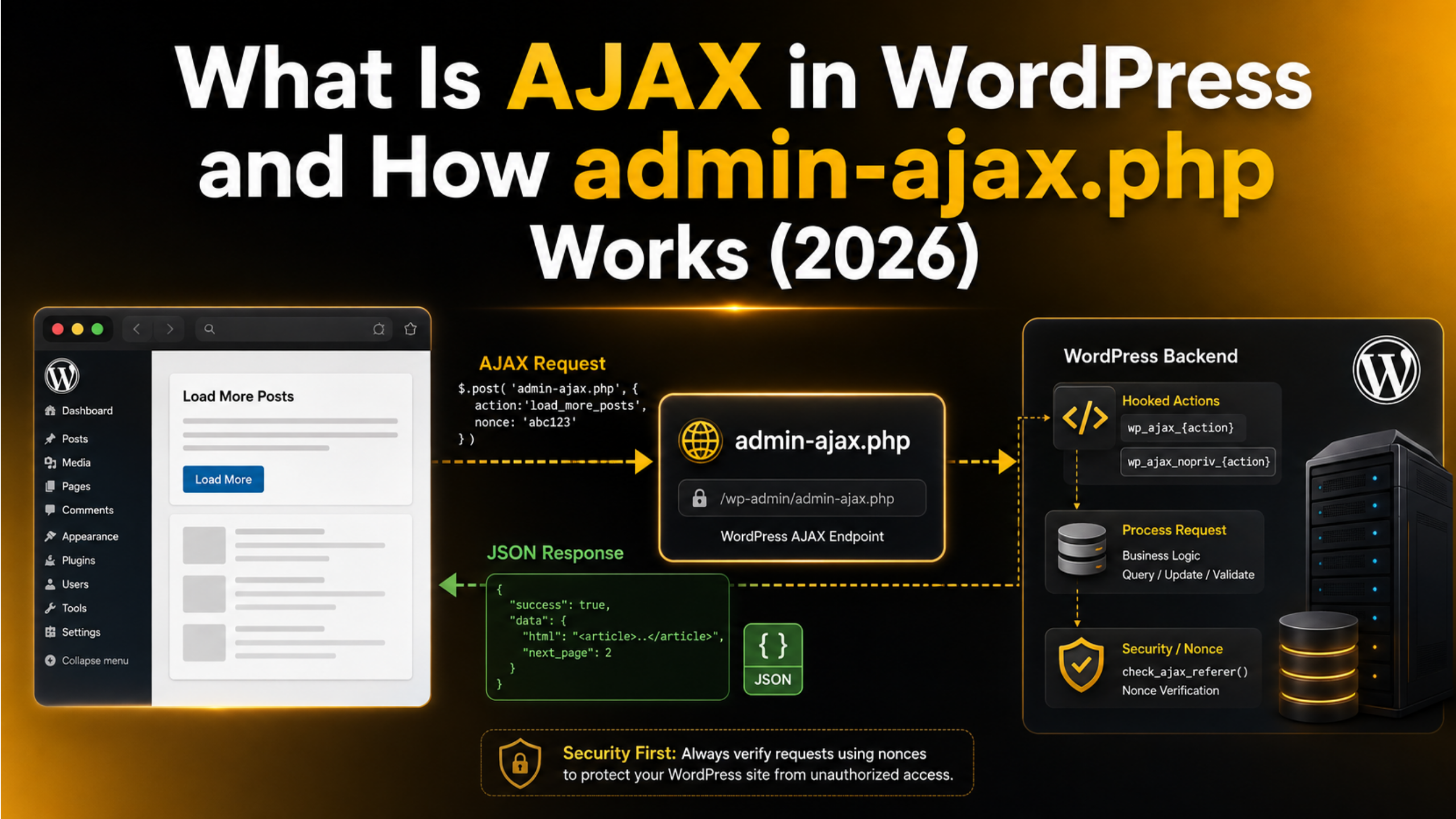
Click “Load More” on a blog roll and new posts appear. The page never reloads. That smooth behaviour is AJAX at work, and in WordPress most of it runs through a single core file called admin-ajax.php.
This guide explains what AJAX is, what that file does, and how a request travels from your browser to your server and back. You will also learn how to write your own handler, secure it, debug it when it breaks, and decide whether the REST API is the better tool in 2026.
What AJAX Really Means in WordPress
AJAX stands for Asynchronous JavaScript and XML. The name is dated now. Very few requests send XML any more. Almost all of them send and receive JSON instead. The core idea has not changed, though, and it is simple.
AJAX lets a page talk to the server without reloading. Your JavaScript sends a small request in the background. The server replies with just the data you asked for. Your script then updates one part of the page. The rest of the page stays exactly where it was.
You already use this every day inside WordPress. The block editor autosaves your draft this way. The media library loads more images as you scroll. On the front end, live search boxes, star ratings, filter menus, and infinite scroll all rely on it.
The benefit is speed and comfort. A full page load asks the server to rebuild everything, including the header, menu, sidebar, and footer. An AJAX call asks for one small piece. The visitor never loses their scroll position.
Meet admin-ajax.php: The Built-In AJAX Endpoint
WordPress ships with a dedicated file for handling these background requests. It sits at /wp-admin/admin-ajax.php in every single install. Despite living in the wp-admin folder, it is not restricted to logged-in users. It is a public endpoint, and front-end scripts are meant to use it.
The file is deliberately lightweight. It loads WordPress core, your active plugins, and your theme’s functions.php. It does not run the main query. It does not load a template file, and it never renders a header or footer. It simply boots enough of WordPress for your code to run, then hands control to you.
You should never hard-code the path to it. Site URLs change, and some installs live in a subdirectory. Always build the URL with admin_url('admin-ajax.php') in PHP. That function returns the correct address for the current site every time.
One more detail matters. Every request must include a parameter named action. That value is how WordPress knows which piece of your code to run. Without it, the request goes nowhere useful and you get an empty reply.
How a Single AJAX Request Moves Through WordPress
Understanding the path a request takes makes debugging far easier. Here is the full journey, step by step, from click to response.
- Your JavaScript sends a POST request to
admin-ajax.php. It includes anactionvalue, plus any data your handler needs. - WordPress loads. Core files, active plugins, and the theme’s functions file all run.
- WordPress reads the
actionvalue from the request. - It checks whether the visitor is logged in.
- For a logged-in user, it fires the hook
wp_ajax_{action}. For a logged-out visitor, it fireswp_ajax_nopriv_{action}. - Your callback function runs. It does the work and prints a response.
- Execution stops, and the reply travels back to your script.
Step five is where most beginners get caught. The two hooks are separate on purpose. If you only register the first one, your feature works perfectly while you are logged in as an administrator and silently fails for every visitor. That is the single most common AJAX bug in WordPress.
Step seven matters too. Your callback must stop execution when it finishes. If it does not, WordPress appends a 0 to your response and your JSON breaks. Using wp_send_json_success() or wp_send_json_error() handles this for you, because both print the JSON and then exit.
Building Your First AJAX Handler
A working AJAX feature needs three pieces that fit together. You need a PHP function that does the work. You need a hook that connects your action name to that function. And you need JavaScript that knows where to send the request. Miss any one of them and nothing happens.
The Two Action Hooks That Register Your Code
Both hooks follow a strict naming pattern. Take the literal prefix and add your own action name to the end. If your action is get_latest_posts, your hooks are wp_ajax_get_latest_posts and wp_ajax_nopriv_get_latest_posts.
add_action( 'wp_ajax_get_latest_posts', 'my_get_latest_posts' );
add_action( 'wp_ajax_nopriv_get_latest_posts', 'my_get_latest_posts' );
Register both only when logged-out visitors genuinely need the feature. A public post filter needs both. A tool that saves an admin setting should register the first hook alone. Adding nopriv to an admin-only action opens it to the whole internet, so treat that decision as a security choice rather than a formality.
Passing the Endpoint URL to Your Script
Your JavaScript file cannot call a PHP function, so it has no way to work out the endpoint on its own. You have to hand it the address. WordPress gives you wp_localize_script() for exactly this job. It attaches a small data object to a script you have already enqueued.
wp_localize_script( 'my-script', 'myAjax', array(
    'url'   => admin_url( 'admin-ajax.php' ),
    'nonce' => wp_create_nonce( 'my_ajax_nonce' ),
) );
Your script can now read myAjax.url and myAjax.nonce. Note that the object name must be unique across the whole site. A generic label like ajax risks being overwritten by another plugin, which breaks both features at once.
Nonces: The Security Step You Cannot Skip
Because admin-ajax.php is public, anyone can send a request to it. That includes people who never visited your site. A nonce is the token that proves the request came from a real page on your site, and not from somewhere else.
You create the token in PHP with wp_create_nonce() and pass it to your script, as shown above. Your JavaScript then sends it along with every request. Inside your callback, verify it before you touch a database or change a single option. The usual line is check_ajax_referer( 'my_ajax_nonce', 'nonce' ), which stops the request cold if the token is wrong.


A nonce is not a permission check, though, and this trips people up. It confirms intent, not authority. A logged-in subscriber can hold a perfectly valid nonce. If your handler changes settings or deletes content, add a capability check as well, such as current_user_can( 'edit_posts' ).
One last quirk is worth knowing. Nonces expire after 24 hours and start regenerating at the 12-hour mark. If a visitor leaves a tab open overnight, their token can go stale and the next request fails. Returning a clear error, rather than failing in silence, saves you a confusing support ticket later.
Why admin-ajax.php Can Slow a Site Down
Every call to this file boots the whole of WordPress. Core loads, every active plugin loads, and the theme’s functions file loads. That happens for a request that might only return a single number. On a busy site, the cost adds up quickly.
Page caching does not help here either. Cache layers serve saved HTML for normal page views, but admin-ajax.php requests are dynamic by design and skip the cache entirely. Every one of them reaches PHP and usually the database too.
The most common culprit is the Heartbeat API. It polls this file on a timer to handle autosaves and post locking. In the editor it runs roughly every 15 seconds. Elsewhere in the dashboard it slows to about 60 seconds. Leave several editor tabs open and those requests pile up fast.
There are practical fixes. Lengthen the Heartbeat interval with the heartbeat_settings filter. Debounce live search so it fires after the visitor stops typing, not on every keystroke. Store expensive results in a transient so repeat calls skip the heavy query. If your host reports high CPU, this file is one of the first places to look. Our guide on how to check your WordPress site performance walks through spotting the pattern.
admin-ajax.php vs the REST API in 2026
WordPress has a second, newer way to handle background requests. The WordPress REST API lives at /wp-json/ and works on named routes instead of a single shared file. Both approaches are fully supported, so the question is which one suits the job.
The REST API is the stronger choice for structured data. You register a route, define the arguments you accept, and attach a permission_callback that runs before your code. It returns proper HTTP status codes, so a failure looks like a failure to your script. GET routes can also be cached by a CDN, which admin-ajax.php can never be.
The older endpoint still earns its place. It is quicker to set up for a small job, such as saving one option or returning a short block of HTML. It also has enormous plugin support behind it, so you will keep meeting it in existing code for years yet.
A simple rule works well. Building something new that returns data, or anything a mobile app or third-party service might consume? Choose the REST API. Adding one small interaction to an existing theme? admin-ajax.php is perfectly fine and far less work.
How to Debug an AJAX Request That Fails
AJAX failures feel mysterious because nothing appears on screen. The fix is to stop guessing and look at the actual request. Your browser records every one of them.
Open your browser’s developer tools and select the Network tab. Filter by Fetch or XHR to hide images and stylesheets. Now trigger the feature. A new row appears for admin-ajax.php. Click it and check three panels in order: Headers for the status code, Payload for what you sent, and Response for what came back.
That response panel answers most questions immediately. If you expected JSON and see raw HTML, PHP threw an error before your JSON was printed. If the response is empty, your action name probably never matched a hook. Compare the action value in the Payload against your hook name, character for character. A single typo breaks the connection.
For server-side problems, turn on debug logging. Set WP_DEBUG and WP_DEBUG_LOG to true in wp-config.php, and set WP_DEBUG_DISPLAY to false so notices do not leak into your JSON. Errors then collect quietly in /wp-content/debug.log. Our post on what WP_DEBUG does and how to use it covers the settings in detail.
The Errors You Will Meet Most Often
A handful of responses come up again and again. Learning to read them saves hours.
A plain 0 means WordPress ran but found no handler for your action. Either the hook is missing, the name is misspelled, or you forgot the nopriv version for logged-out visitors. A plain -1 means a nonce or referer check failed. Your token is missing, wrong, or expired.
A 400 status usually means a required parameter never arrived, most often action itself. Security rules on the server can also strip fields before PHP sees them. Our walkthrough on fixing the admin-ajax.php 400 Bad Request error covers each cause.
A 403 points to a firewall or security rule blocking the request outright. A 500 means PHP crashed inside your callback, so the log file will name the line. And if the browser console reports that a function is not defined, your script loaded before its dependency did. That specific pattern is explained in our guide to the jQuery is not defined error.
AJAX is one of those features that works invisibly until it does not. When a filter stops responding or your server load spikes for no clear reason, the cause is often buried in a handler you never wrote. Tracking that down takes time most site owners would rather spend elsewhere. The team at 24×7 WP Support handles exactly this kind of work, from debugging broken requests to tuning a site that has grown slow. Reach out any time and we will take a look.





Brian is a WordPress support specialist and content contributor at 24×7 WP Support. He writes practical, easy-to-follow guides on WordPress troubleshooting, WooCommerce issues, plugin and theme errors, website security, migrations, performance optimization, and integrations. With a focus on solving real website problems, Brian helps business owners, bloggers, and online store managers keep their WordPress sites running smoothly.
