
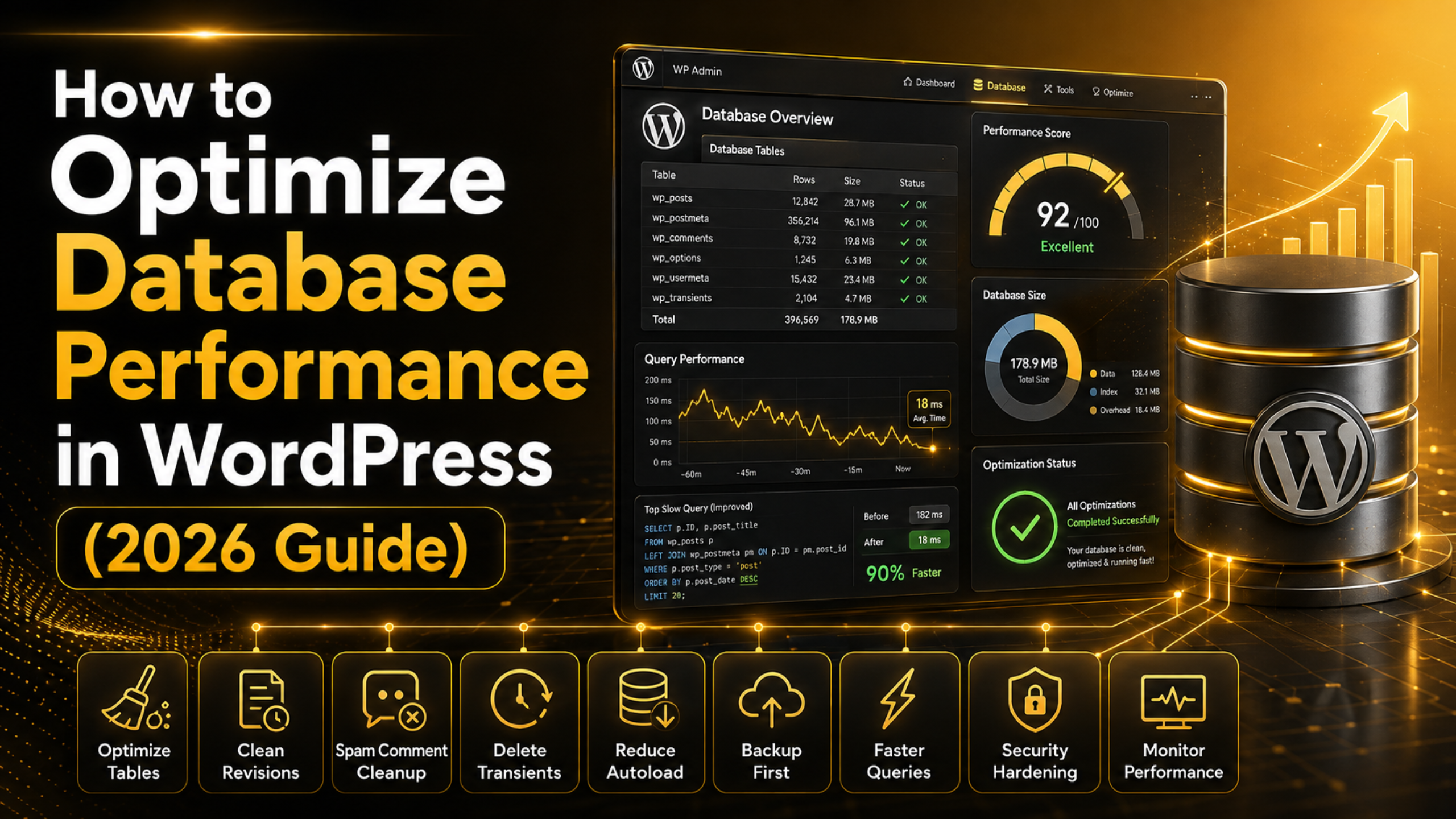
How to Optimize Database Performance in WordPress (2026 Guide)
How to Optimize Database Performance in WordPress (2026 Guide)
Your WordPress database is the heart of your website. Every post, comment, and setting lives inside it. Each time someone opens a page, WordPress asks the database for data. When the database is clean, it answers fast. When it is full of junk, it answers slowly. And a slow answer means a slow page.
Here is the good news. Cleaning your database is simple. It is also one of the best ways to speed up a site in 2026. This guide shows you why databases slow down. It shows you how to clean them safely. And it shows you the habits that keep them fast.
Why Your WordPress Database Slows Down
A brand new WordPress site runs fast. Its database is almost empty. But your site grows over time. And the database fills up with more than just your posts.
Every draft you save adds data. Every edit adds a new copy. Every plugin you turn on leaves its own records. Bit by bit, this clutter builds up.
Tables that once held a few rows now hold thousands. To find one item, the database must dig through all of them. Your visitor never sees this work. But they feel it. The page just takes longer to load.
The main culprits are easy to name. Old post revisions. Auto-drafts. Trashed posts. Spam comments. Expired temporary data. Leftover settings from plugins you removed. None of these are harmful on their own. Together, they slow you down.
What Takes Up the Most Space
It helps to know where the clutter hides. A few tables do most of the damage. The posts table is one. It holds your content, but also every revision and auto-draft. The comments table is another. It stores approved comments, spam, and trash alike.
The options table is a third one to watch. It keeps your settings and plugin data. Some of that data loads on every page. The postmeta table can grow large, too. It holds extra details tied to each post. Plugins often add rows here and forget to clean them up.
You do not have to memorize these names. Just know that a few tables carry most of the weight. When you clean, you are mostly trimming these. That is why a small, focused cleanup can make such a big difference.
Always Back Up Before You Clean
Make a full backup before you delete anything. This step is not optional. Cleaning removes data for good. If you make a mistake with no backup, that data is gone.
A backup is your safety net. It only takes a few minutes to make one. You can export the database from your hosting panel. You can also use a standard tool like phpMyAdmin. Or you can use a trusted backup plugin that saves your files and database on a set schedule.
Whatever you choose, check that the backup file saved. Store it off your server, too. New to database files? Our guide on how to repair a WordPress database walks you through the tools step by step.
Clean Up Post Revisions and Auto-Drafts
WordPress saves a new revision each time you edit a post. This helps you roll back to an older version. But it also piles up copies fast. One post can hide dozens of them. A site with a few hundred posts can carry thousands.
You do not need to keep them all. Clearing old revisions frees up a lot of space in one go. You can also cap how many WordPress keeps. Just add one line to your setup file. A limit of three to five per post works well.
Auto-drafts and trashed posts are the same story. WordPress makes an auto-draft the moment you start a new post. If you never finish it, that empty record just sits there. Empty the trash. Clear old auto-drafts. Your content tables stay neat.
Remove Spam Comments and Unused Data
Spam comments are a quiet weight on your database. You may never approve them. But they still sit in the comments table. On a busy site, they can climb into the thousands in weeks. Empty your spam and trash folders often to free that space.
Temporary cached values are worth a look, too. These are called transients. WordPress and many plugins use them to speed up repeat tasks. Most clear out on their own. But some hang around after they expire. Clearing stale transients is safe and helpful. Our guide on how to manage and delete transients in WordPress covers this step in full.
Signs Your Database Needs Attention
You do not need fancy tools to spot trouble. A few clues give it away. Pages that once loaded fast start to drag. This shows up most on busy pages, like archives and search results.
The dashboard is often the first warning sign. Does saving a post take several seconds? Does the post list crawl? A bloated database is a likely cause. You may also see database errors during traffic spikes. That happens when slow queries pile up.
Watch your backup size, too. Say you added only a few posts. But your backup file has doubled. Hidden clutter is almost surely to blame. Take these signs as a nudge to run a cleanup.
Optimize Your Database Tables
Deleting rows does not always free the space they used. It leaves small gaps behind. Experts call this overhead. These gaps make tables bigger and slower than they need to be.
An optimize command fixes this. It packs the tables back down. It reclaims the wasted space. And it reorders the data so it reads faster. In phpMyAdmin, you just pick your tables. Then you choose optimize from a menu. It finishes in seconds. You do not need any special skill.


Make this a regular habit. A table you optimize often stays quick. A table you never touch slowly gets worse. That is true even when the live data stays the same.
Reduce Autoloaded Data
The options table holds your site settings. Some of these values load on every single page. This is called autoloaded data. It is meant to stay small. But some weak plugins dump large amounts here and set it to autoload. When that happens, every page carries the extra weight.
Checking your autoloaded data is a smart move. You may find big entries from plugins you no longer use. Removing them can give a real speed boost. This means editing the options table, so work from a backup. Change values with care.
Use a Cleanup Plugin the Smart Way
Does phpMyAdmin feel scary? A good cleanup plugin can do the work for you. It gives you a simple screen inside your dashboard. From there you can clear revisions. You can remove spam. You can delete expired transients. And you can optimize tables with a few clicks.
Use these tools with care, though. Run the cleanup. Review what it plans to remove. Then turn the plugin off if you only need it now and then. Too many active plugins add their own weight. A lean setup protects the very speed you want.
Keep Your Database Healthy Long Term
Cleaning is not a one-time job. Small, steady habits beat rare deep cleans. Run a light cleanup each month. Cap post revisions from the start. And remove plugins you no longer use so they cannot leave data behind.
Watch how your site feels, too. Is the admin area getting slow? The database is often the reason. Our guide on how to fix a slow WordPress admin dashboard pairs well with this work. A clean database and a quick dashboard go hand in hand.
Keep an eye on storage as well. A database that grows unchecked can hit your server limit. Knowing how to handle a WordPress database disk full error can save you from a stressful outage.
How Often Should You Clean?
There is no single answer for every site. The right pace depends on how busy you are. A blog that posts daily and gets many comments fills up fast. A small site that rarely changes fills up slowly.
As a rule, a light cleanup once a month suits most sites. That means clearing revisions, emptying spam, deleting old transients, and optimizing tables. Busy stores and high-traffic sites may want a weekly pass. Their databases grow quickly. And small delays add up across many visitors.
The key is to stay steady. A short, regular routine stops clutter before it hurts. It is far less work than one huge cleanup after months of neglect.
Common Mistakes to Avoid
The biggest mistake is skipping the backup. It is tempting to jump straight to deleting. But one wrong click with no backup can cost you real content. Always back up first. Every single time.
The next mistake is being too aggressive. Some tools offer to strip out data your site still needs. Read what a tool plans to remove before you approve it. When in doubt, remove less rather than more.
The last mistake is stacking too many tools. Do not run several cleanup or caching plugins at once. They can clash. They can repeat each other’s work. And they add weight that cancels the gain. One good tool, used well, beats a pile of them.
Do You Need a Faster Host or a Cleaner Database?
Many site owners blame their host for slow speeds. Sometimes that is fair. But often the real problem is the database. A cluttered database will feel slow on any server. Even a strong host cannot hide the drag.
So try the free fix first. Clean your database before you pay for more power. You may find that the speed you wanted was there all along. It was just buried under old data. If the site is still slow after a good cleanup, then look at your host and caching.
The Payoff of a Faster Database
A clean database rewards you in every way. Pages load faster. Visitors stay longer. Your search rankings get a lift. The dashboard feels snappy, so editing is more fun. Backups run quicker because there is less to copy. And your hosting plan stretches further.
Best of all, none of this needs a developer. It just needs care and a routine. Back up first. Clear out the clutter. Pack down your tables. Build a light monthly habit. Do that, and your site will feel much quicker in 2026 and beyond.
Does database upkeep feel like one job too many? Our team can handle it for you. At 24×7 WP Support, we tune, clean, and guard WordPress databases every day. We keep your site fast and steady around the clock. Reach out, and let us keep your engine running at full speed.

Brian is a WordPress support specialist and content contributor at 24×7 WP Support. He writes practical, easy-to-follow guides on WordPress troubleshooting, WooCommerce issues, plugin and theme errors, website security, migrations, performance optimization, and integrations. With a focus on solving real website problems, Brian helps business owners, bloggers, and online store managers keep their WordPress sites running smoothly.
