
How to Fix a WordPress Site Stuck in Maintenance Mode (Step By Step Guide)
Introduction
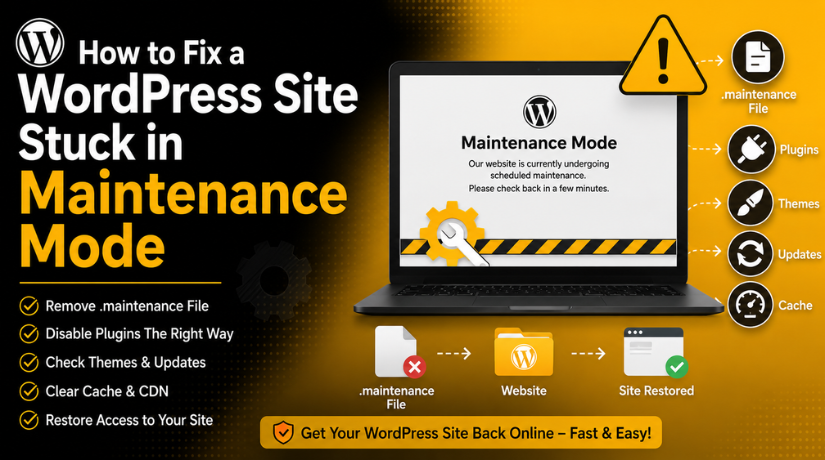
WordPress stuck in maintenance mode issues can feel stressful. Your website may stop loading after a simple update. Visitors may only see a plain message on the screen. The common message says, “Briefly unavailable for scheduled maintenance. Check back in a minute.” This message usually appears during plugin, theme, or core updates. In most cases, WordPress removes it automatically after updates finish. But sometimes, the update process stops before it completes. Then your website can stay locked in maintenance mode. This can affect your homepage, blog posts, service pages, and admin area.
This issue often happens when a WordPress update stuck on a problem interrupts the process. It may happen because of slow hosting, server timeout, or connection failure. It may also happen when many plugins update together. As a result, your WordPress site not loading after update becomes a serious problem. Visitors may think your website is broken or offline. Business websites may lose leads, calls, forms, and customer trust. Online stores may also lose orders during this downtime.
This guide explains the issue in simple steps. It will help you understand the cause first. Then you can follow the right method to fix WordPress maintenance mode safely. Before making changes, you should understand what maintenance mode means. This helps you avoid deleting the wrong file or folder.
What Does WordPress Maintenance Mode Mean?
WordPress maintenance mode is a temporary update screen. WordPress uses it while updating core files, plugins, or themes. This mode protects your website during the update process. It stops visitors from seeing broken pages or incomplete files. It also prevents users from using features during important changes. In normal cases, maintenance mode lasts only a short time.
When WordPress starts an update, it creates a file named .maintenance. This file is placed inside the WordPress root folder. The root folder also contains files like wp-config.php. It also contains folders like wp-admin, wp-content, and wp-includes. The .maintenance file tells WordPress to show the maintenance message. After the update finishes, WordPress deletes this file automatically.
WordPress maintenance mode error happens when this file remains active. This usually means the update process did not finish correctly. WordPress may fail to delete the file after a broken update. Because of this, your site keeps showing the maintenance message. The website may look offline, even though files still exist.
Common Signs That Show WordPress Site Is Stuck in Maintenance Mode
Maintenance Message Appears on Every Page
This is the most common sign of the issue. Your homepage, blog posts, service pages, and product pages may show the same message. The message usually says, “Briefly unavailable for scheduled maintenance. Check back in a minute.” This means your WordPress stuck in maintenance mode issue is active.
WordPress Admin Area Does Not Open
Sometimes, the WordPress dashboard also shows the maintenance message. You may try opening the login page or admin panel. But WordPress may still display the same error message. This can feel stressful for beginners. However, your website files are usually still available.
Issue Starts After a WordPress Update
This issue often appears after a plugin, theme, or core update. You may update one plugin and suddenly lose access. You may also face it after updating many items together. A WordPress update stuck problem can stop the update process midway. When this happens, WordPress may fail to finish cleanup.
Refreshing the Website Does Not Fix the Message
A normal maintenance message should disappear quickly. But if refreshing does not help, the issue may be stuck. You may reload the page many times. Still, the same message may appear again. This usually means the temporary file still exists.
Website Looks Offline to Visitors
When this issue happens, visitors cannot see your content. They may think your website is broken or unavailable. This can affect trust, traffic, and user experience. Business websites may lose calls, leads, and form submissions. If your WordPress site is not loading after updating, you should fix it quickly.
WooCommerce Store Pages Stop Working
WooCommerce websites can face bigger problems during this error. Product pages, cart pages, and checkout pages may stop loading. Customers may not complete orders during this time. Payment attempts may also fail if checkout is unavailable. This makes the WordPress maintenance mode error urgent for online stores.
Why WordPress Gets Stuck in Maintenance Mode After Updates
Interrupted WordPress Update Process
An interrupted update is the most common reason. WordPress starts maintenance mode before updating files. If the process stops suddenly, cleanup may not happen. This leaves the temporary .maintenance file inside the root folder. Because of this, the site keeps showing the maintenance message.
Updating Too Many Plugins at the Same Time
Bulk updates can create problems on some websites. Each plugin needs server memory and file access. When many plugins update together, the server may slow down. If one update fails, the whole process may stop. This can cause a WordPress update stuck problem. Updating plugins one by one is usually safer.
Low Server Resources During Updates
Low hosting resources can stop updates midway. Your server may have low PHP memory limits. It may also have short execution time settings. Large updates need enough memory and processing time. If the server cannot handle them, WordPress may stop suddenly.
Plugin or Theme Conflict
A plugin or theme conflict can break updates. Some plugins may not support your WordPress version. A theme update may also conflict with active plugins. When this happens, WordPress may fail during the update. The site may then show a WordPress maintenance mode error.
Incorrect File Permissions
WordPress needs correct file permissions to update files. It also needs permission to remove temporary files. If permissions are wrong, WordPress may not delete the maintenance file. Then the website may stay locked in maintenance mode.
Cache Showing the Old Maintenance Page
Sometimes, the issue is already fixed on the server. But the cache may still show the old maintenance page. Browser cache, plugin cache, hosting cache, or CDN cache can cause this. Cloudflare cache can also keep showing the old page. Clearing all cache layers can confirm the real status.
Failed WordPress Core Update
A failed WordPress core update can also cause this problem. Core updates change important WordPress files. If the update stops midway, WordPress may remain incomplete. This can trigger a serious WordPress maintenance mode error. Website owners should check updates after restoring access.


Important Steps Before You Fixing the Maintenance Mode Issue
Take a Website Backup Before Making Any File Changes
Before you fix the issue, try to take a backup. A backup protects your website files and database. You can use your hosting backup option for this. Some hosting panels offer one-click backup tools. If your dashboard opens, use a backup plugin.
Do Not Delete Random WordPress Files or Folders
You should not delete random files from your website. WordPress has many important files inside the root folder. Files like wp-config.php control key website settings. Folders like wp-admin, wp-content, and wp-includes are very important. Deleting them can break your website badly.
Use File Manager or FTP Very Carefully
You need file access to fix this issue. You can use cPanel File Manager, hosting File Manager, FTP, or SFTP. File Manager is easier for most beginners. FTP is useful when hosting tools are not available. Always open folders carefully before deleting anything. Check the file name properly before taking action.
Confirm the Correct WordPress Root Folder First
You must open the correct WordPress root folder. This is usually named public_html, www, or your domain folder. The correct folder contains wp-admin, wp-content, and wp-includes. It also contains the wp-config.php file. The .maintenance file should appear in this same area.
Remember Which Update Was Running Last
Try to remember the last update you started. It may be a plugin, theme, or WordPress core update. This helps you find the real cause later. A WordPress update stuck problem often starts during updates. After the website opens again, check that item first. Do not update everything together immediately.
Avoid Running More Updates Before Fixing the Website
Do not start more updates while the site is stuck. First, restore normal website access. Then check pending updates from the dashboard. Running more updates can make the issue worse. It may also create another failed update. This is important when your WordPress site is not loading after updating.
Steps to Fix a WordPress Site Stuck in Maintenance Mode (Detailed Guide)
Step 1: Access Your Website Files From Hosting
- Open your hosting account dashboard first.
- Go to File Manager or cPanel File Manager.
- You can also use FTP or SFTP access.
- Open the folder where WordPress is installed.
- This folder is usually named public_html or your domain name.
- Check for WordPress files and folders inside it.
- You are in the correct folder when you see:
- wp-admin
- wp-content
- wp-includes
- wp-config.php
Step 2: Enable Hidden Files or Dotfiles
- The .maintenance file starts with a dot.
- Many hosting panels hide dotfiles by default.
- Open the File Manager settings in your hosting panel.
- Enable Show Hidden Files or Show Dotfiles.
- Save the setting and reload the folder.
- If you use FTP, enable hidden files there.
- This step helps you find the hidden maintenance file.
Step 3: Find the .maintenance File in the Root Folder
- Open the correct WordPress root folder.
- Look for a file named .maintenance.
- It should appear near the wp-config.php file.
- This file controls the maintenance message.
- If this file remains, WordPress stays locked.
- This creates the WordPress stuck in maintenance mode issue.
- Make sure the file name is exactly .maintenance.
Step 4: Delete Only the .maintenance File Safely
- Right-click the .maintenance file.
- Choose the delete option from the menu.
- Confirm the delete action carefully.
- This file is temporary and safe to remove.
- Do not delete WordPress folders or plugin files.
- Do not remove wp-admin, wp-content, or wp-includes.
- This step helps fix WordPress maintenance mode quickly.
Step 5: Refresh Your Website in a New Browser Tab
- Open your website in a new browser tab.
- You can also test it in incognito mode.
- Check if the maintenance message disappears.
- If the site loads normally, the main issue is fixed.
- If the message still appears, the cache may be active.
- Do not start new updates immediately.
- First, confirm the website is loading correctly.
Step 6: Clear Browser, Website, Hosting, and CDN Cache
- Clear your browser cache first.
- Then clear your WordPress cache plugin.
- Clear hosting cache from your hosting dashboard.
- If you use Cloudflare, clear the CDN cache too.
- Test the website on another browser.
- You can also test it using mobile data.
- This confirms the WordPress maintenance mode error is removed.
Step 7: Log In and Check Pending WordPress Updates
- Log in to your WordPress dashboard.
- Go to Dashboard > Updates.
- Check for failed plugin, theme, or core updates.
- Update one item at a time.
- Avoid bulk updates after this issue.
- Check the website after every update.
- This helps avoid another WordPress update stuck problem.
Step 8: Check Extra Issues If Maintenance Mode Still Appears
- Confirm that hidden files are enabled.
- Check if you opened the correct root folder.
- Clear every cache layer again.
- Check if the .maintenance file returned.
- Ask hosting support to check file permissions.
- Also ask them to check server timeout limits.
- This helps fix deeper update or hosting issues safely.
How to Prevent WordPress From Getting Stuck Again
Update Plugins and Themes One by One for Better Safety
Bulk updates may look quick, but they can create problems. Each plugin or theme needs server power during updates. If one update fails, WordPress may stop midway. This can cause a WordPress stuck in maintenance mode issue again. Update one plugin or theme at a time. Then check your website after each update.
Use a Staging Website Before Major WordPress Updates
A staging website is a safe test copy. You can test updates there before changing your live site. This helps prevent a WordPress update stuck problem on your main website. You can check plugins, themes, and layouts safely. If something breaks, visitors will not see the issue.
Keep a Fresh Website Backup Before Every Update
A fresh backup gives you a safe recovery option. If the update fails, you can restore the website quickly. Backups protect your files, database, themes, and plugin settings. This is important when your WordPress site is not loading after updating. Use your hosting backup tool or a trusted backup plugin.
Do Not Close the Update Screen Too Early
WordPress needs time to finish updates properly. Closing the browser too early may interrupt the process. A slow server may need extra time during updates. Wait until WordPress shows the update completion message. This small step can help prevent a WordPress maintenance mode error.
Remove Unused Plugins and Themes From Your Website
Unused plugins and themes can create extra update risks. They may also slow your website over time. Delete tools that you do not use anymore. Keep only trusted plugins from reliable developers. This reduces conflicts during updates. It also lowers the chance that you must remove the .maintenance file WordPress creates after failure.
Use Reliable Hosting With Enough Server Resources
Poor hosting can cause update timeout issues. WordPress needs enough memory and processing time during updates. If your hosting is weak, updates may fail often. Choose hosting that supports WordPress properly. Good hosting helps updates complete without errors.
Check Plugin Compatibility Before Updating Important Tools
Before updating, check if the plugin supports your WordPress version. Some old plugins may not work with newer WordPress updates. A bad plugin update can break the process. It may also create a WordPress stuck in maintenance mode issue.
Keep WordPress Core Updated With Proper Planning
WordPress core updates are important for security and performance. But they should be done with care. Take a backup before updating core files. Then update during low-traffic hours if possible. After the update, test important pages and forms.
Conclusion
WordPress site stuck in maintenance mode usually happens after an incomplete update. WordPress creates a temporary .maintenance file during updates. When the update stops suddenly, this file may remain active. Then your website keeps showing the maintenance message instead of normal pages.
The safest fix is to open the WordPress root folder and delete only the .maintenance file. After that, clear all cache and review pending updates carefully. You should also check plugins, themes, and server limits. This helps prevent the same issue from returning during future updates.
When the maintenance message does not go away, deeper checking may be needed. A WordPress support expert can review the root files, failed updates, cache settings, plugins, and hosting setup. For guided help, you can visit 24×7 WP Support or call 888-818-9916.




Brian is a WordPress support specialist and content contributor at 24×7 WP Support. He writes practical, easy-to-follow guides on WordPress troubleshooting, WooCommerce issues, plugin and theme errors, website security, migrations, performance optimization, and integrations. With a focus on solving real website problems, Brian helps business owners, bloggers, and online store managers keep their WordPress sites running smoothly.
