
How to Troubleshoot and Fix a WordPress Critical Error Easily (Advanced Guide)
Introduction
WordPress critical errors can feel stressful for any website owner. It often appears without warning and stops the website from loading. Sometimes, the full website goes down. In other cases, only the dashboard, checkout page, login page, or one page stops working. This issue usually means WordPress cannot complete a request safely. A plugin, theme, PHP file, memory limit, or server setting may be causing the problem.
You may see a message like, “There has been a critical error on this website.” This message means something serious failed inside WordPress. It does not always mean your website is fully lost. In many cases, you can fix WordPress critical error issues with safe steps. You need to find the real cause first. Random changes can make the issue worse. That is why backup and careful checking are very important.
This guide will help you troubleshoot WordPress error issues step by step. You will learn what this error means. You will also understand where it can appear. Later parts will explain how to debug WordPress website errors safely. The goal is to help you restore your site without extra damage.
What Is WordPress Critical Error and Why Does It Happen?
WordPress critical error is a serious website error. It happens when WordPress cannot run an important file properly. Most times, this issue comes from a WordPress fatal error. A fatal error means a PHP script stopped working. WordPress uses PHP to load pages, plugins, themes, forms, and admin features. When PHP fails, WordPress may stop the whole request.
This type of WordPress website error can happen after a new update. It can also appear after installing a plugin. Sometimes, a theme file creates the issue. Custom code inside functions.php may also break the website. Server settings can also create problems. Low PHP memory, old PHP versions, and missing server modules may trigger this error.
Common Reasons That Cause a WordPress Critical Error On Website
A WordPress critical error can happen for many clear reasons. Most issues start after a website change or update. A plugin update may conflict with another plugin. A theme file may also stop working after changes. Sometimes, the server cannot handle the website request. These issues can create a serious WordPress website error.
Plugin Conflicts After a New Update or Installation
Plugins are a common reason behind this error. A plugin may not work with your WordPress version. It may also conflict with another active plugin. Sometimes, a new plugin adds broken PHP code. This can quickly create a WordPress fatal error. The problem often starts after a plugin update. It may also happen after installing a new plugin.
Theme File Errors or Broken Functions.php Code
Your active theme can also cause a critical error. Many themes use PHP files to control website functions. If one file breaks, the website may stop loading. The functions.php file is a common problem area. A small code mistake can break the full website. This often happens after adding custom code manually. It may also happen after a theme update.
Unsupported PHP Version or Server Compatibility Problems
WordPress depends on PHP to run website features. Plugins and themes also need compatible PHP versions. An old PHP version may not support new plugin code. A very new PHP version can also cause issues. Some plugins may not be ready for it yet. This mismatch can create a WordPress critical error. Server settings can also create problems.
PHP Memory Limit Exhaustion on Heavy WordPress Websites
A website may fail when PHP memory becomes too low. This often happens on WooCommerce or builder-heavy websites. Backup plugins, image tools, and import plugins need more memory. If memory runs out, WordPress may show a fatal error. This issue can affect checkout, admin pages, or imports.
Broken Custom Code, Failed Updates, or Malware Issues
Custom code can also create a serious website problem. Code added inside snippets, plugins, or theme files may fail. A failed WordPress update may leave broken core files. Malware can also inject unsafe code into website files. These problems may trigger a WordPress website error suddenly.
Important Safety Steps Before You Start Troubleshooting
Take a Full Website Backup First
Always create a full website backup before making changes. Your backup should include website files and database files. This protects your content, settings, plugins, and theme data. If something goes wrong, you can restore the website safely. You can use cPanel backup tools, hosting backup options, or a trusted backup plugin.
Avoid Deleting Plugin or Theme Files Directly
Do not delete plugin or theme files too quickly. Deleting files can make recovery harder later. Instead, rename the plugin or theme folder temporarily. This method safely disables the plugin or theme. It also keeps the original files available. If the issue is not related to that item, you can rename it back again.
Check the Last Change Made on the Website
Review the last change made before the error appeared. A WordPress critical error often starts after an update. Check recent plugin updates, theme updates, PHP changes, or new code. Also review new plugins, snippets, or server changes. This helps you find the cause faster.
Use FTP or cPanel File Manager Carefully
You may need FTP or cPanel access during troubleshooting. These tools help when wp-admin is not loading. However, file changes must be done very carefully. A wrong edit can create another WordPress website error. Always download a file copy before editing it. This makes it easier to restore the original version.


Enable Debugging Only When Needed
Debug mode can help you find the real error. It shows where the WordPress fatal error starts. However, never show debug errors publicly on a live website. Use debug logging instead of public error display. This helps you debug WordPress website issues safely. Turn debugging off after completing the fix.
Use a Staging Website If Available
A staging website is a safe testing copy. It lets you test fixes before changing the live website. You can disable plugins, change themes, and test updates there. This keeps visitors away from broken pages. It also reduces the risk of data loss. Staging is very useful for complex WordPress troubleshooting.
Do Not Make Many Changes at Once
Make only one change at a time. Then check if the website starts working again. This helps you identify the exact cause. If you change many things together, confusion increases. You may not know which change fixed the issue. Slow and careful testing gives better results.
How to Troubleshoot and Fix a WordPress Critical Error Safely
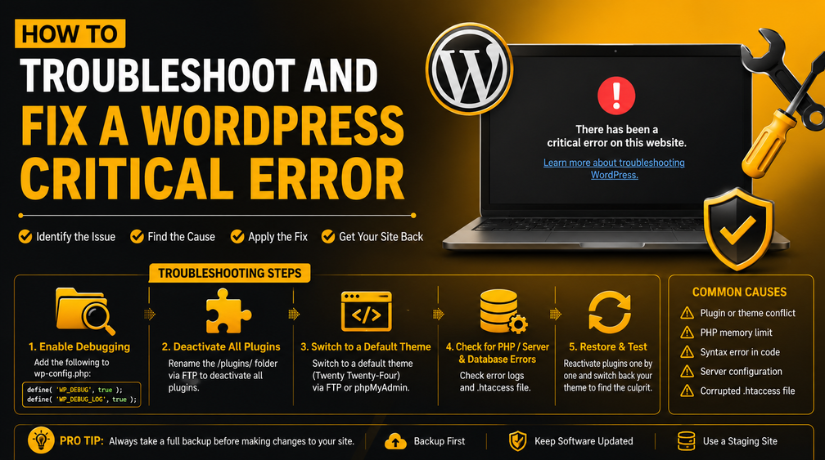
You should troubleshoot a WordPress critical error with careful steps. Do not change many things at the same time. First, find where the error starts. Then check plugins, themes, memory, PHP, and server logs. This process helps you fix WordPress critical error issues safely. It also protects your website from further damage.
Step 1: Check the WordPress Recovery Mode Email First
- Check your WordPress admin email inbox.
- Also check spam or junk folders.
- Open the recovery mode email.
- Check the plugin, theme, or file mentioned.
- Click the recovery mode link.
- Log in to your dashboard.
- Disable the faulty plugin or theme.
- Reload the website and test it again.
Step 2: Enable WordPress Debug Mode to Find the Error
- Open your website files using FTP or cPanel.
- Find the wp-config.php file.
- Take a backup before editing it.
- Add this code carefully:
- Check the debug file here:
- Look for fatal error, parse error, or memory error.
- Check the plugin, theme, file path, and line number.
- This helps you debug WordPress website issues clearly.
Step 3: Disable All Plugins Using FTP or cPanel
- Open FTP or cPanel File Manager.
- Go to public_html/wp-content/.
- Rename the plugins folder to plugins-old.
- Reload the website and test it.
- If the site works, one plugin caused the issue.
- Rename the folder back to plugins.
- Activate plugins one by one.
- The plugin that breaks the site is faulty.
- Update, replace, or remove that plugin.
Step 4: Switch to a Default WordPress Theme
- Open the wp-content/themes/ folder.
- Rename your active theme folder.
- WordPress may switch to a default theme.
- Reload the website and test it.
- If the site works, the theme caused the issue.
- Reinstall the theme or restore a clean backup.
Step 5: Increase the WordPress PHP Memory Limit
- Low memory can cause a WordPress website error.
- Open the wp-config.php file.
- Take a backup before editing it.
- Add this line:
- Save the file and reload the website.
- If memory causes the error, the site may open.
- If not, ask hosting support to increase memory.
Step 6: Check PHP Version and Server Settings
- Open your hosting control panel.
- Check the current PHP version.
- Compare it with plugin and theme requirements.
- If the error started after a PHP change, switch back.
- Also check PHP extensions and server resources.
- Wrong server settings can cause a WordPress fatal error.
Step 7: Restore or Reinstall WordPress Core Files
- Download a fresh WordPress copy.
- Replace only wp-admin and wp-includes.
- Do not replace wp-content.
- Do not replace wp-config.php.
- Reload the website and test it again.
- This can fix broken core files.
Step 8: Check Hosting Error Logs for More Details
- Open your hosting dashboard or cPanel.
- Check Error Log or PHP Error Log.
- Look for errors near the crash time.
- Check for memory, permission, or timeout errors.
- Logs help you troubleshoot WordPress error issues faster.
Step 9: Remove Faulty Custom Code Carefully
- Check the latest code added before the error.
- Review functions.php and snippet plugins.
- Remove only the recent code change first.
- Save the file and reload the website.
- If the site works, that code caused the issue.
Step 10: Scan for Malware or Suspicious Website Files
- Check for unknown PHP files.
- Review unknown plugins or admin users.
- Check wp-config.php for strange code.
- Run a trusted malware scan.
- Remove unsafe files after taking backup.
- Update WordPress, plugins, and themes after cleanup.
- Change all important passwords for safety.
How to Prevent WordPress Critical Errors in the Future
Keep WordPress, Plugins, and Themes Updated Carefully
Regular updates help protect your WordPress website from errors. Updates fix bugs, security gaps, and compatibility problems. However, never update everything without checking first. Update one plugin at a time when possible. Then test your website after each update. This helps you find problems quickly. If an update creates a WordPress critical error, you can identify it faster.
Use a Staging Website Before Major Website Changes
A staging website is a safe copy of your live site. You can test updates, plugins, themes, and code there. This helps you avoid breaking your live website. If a WordPress website error appears on staging, visitors will not see it. You can fix the issue before applying changes live. This is very useful for WooCommerce, membership, and business websites.
Avoid Installing Too Many Heavy WordPress Plugins
Too many plugins can slow down your website. They can also create conflicts with other tools. Heavy plugins may use more memory and server resources. This can lead to a WordPress fatal error later. Keep only useful and trusted plugins on your site. Remove inactive plugins that you no longer use.
Keep Automatic Website Backups Enabled
Backups help you recover quickly after website problems. A full backup should include files and database data. If you face a WordPress critical error, backup files can save time. You can restore the website to a working version. Use daily backups for active websites. Use real-time backups for WooCommerce and busy websites.
Monitor Site Health, Logs, and Server Resources Regularly
Regular monitoring helps you find issues before they grow. Check WordPress Site Health for basic technical problems. Also review error logs after updates or server changes. Logs can show hidden PHP, plugin, or memory issues. This helps you debug WordPress website problems early. Also check server memory, PHP version, and storage limits.
Avoid Editing Theme Files Directly on Live Websites
Direct theme file edits can break your website quickly. A small code mistake may create a serious error. Use a child theme for safe theme changes. You can also use a custom plugin for code snippets. Always test custom code before adding it live. This helps you troubleshoot WordPress error issues more easily later.
Conclusion
A WordPress critical error can stop your website, dashboard, checkout page, or important forms from working. It usually happens because of plugin conflicts, theme errors, PHP issues, memory limits, server problems, custom code, or malware. The safest way to handle it is to find the real cause first. Check the recovery email, debug logs, plugins, themes, PHP settings, and hosting logs before making major changes. Always keep a backup ready before editing website files.
For website owners who cannot access wp-admin or cannot find the exact error, 24x7wpsupport provides WordPress error help for self-hosted WordPress websites. You can visit 24x7wpsupport or call +1-888-818-9916 for United States and Canada toll-free support.


Brian is a WordPress support specialist and content contributor at 24×7 WP Support. He writes practical, easy-to-follow guides on WordPress troubleshooting, WooCommerce issues, plugin and theme errors, website security, migrations, performance optimization, and integrations. With a focus on solving real website problems, Brian helps business owners, bloggers, and online store managers keep their WordPress sites running smoothly.
