
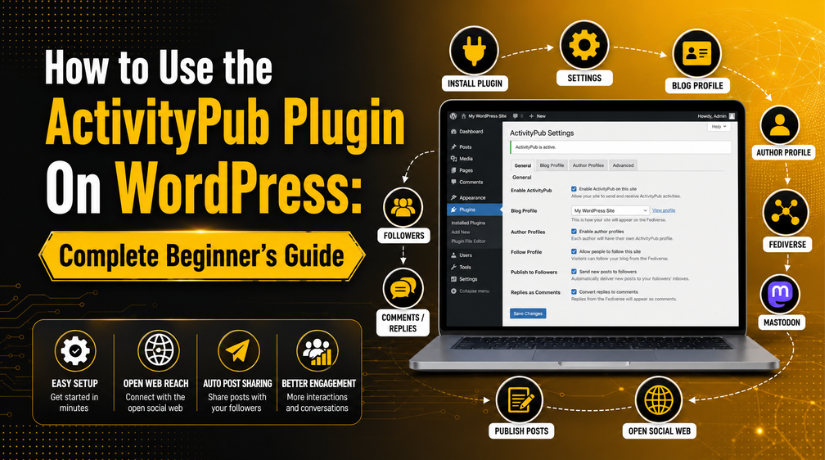
How to Use the ActivityPub Plugin On WordPress: Complete Beginner’s Guide
Introduction
WordPress is a powerful platform for publishing useful content online. Many website owners use it for blogs, news, and business updates. However, sharing content only through normal social media has limits. Platforms can change rules, reduce reach, or block visibility. This is why many users now look for open sharing options. The ActivityPub Plugin WordPress option helps with this need.
It connects your WordPress website with the Fediverse. The Fediverse is a group of open social platforms. Mastodon is one of the most popular examples. With this connection, people can follow your website like a social profile. They can see your new posts from their Fediverse account. This gives your content another useful way to reach readers.
It also helps you build a more open audience. The WordPress ActivityPub Plugin is helpful for bloggers, writers, publishers, and brands. It is also useful for websites that publish regular updates. In this guide, you will learn the basic meaning first. Then you will understand how the plugin connects WordPress with the Fediverse.
What Is the ActivityPub Plugin in WordPress and Why Does It Matter?
ActivityPub Plugin WordPress tool connects your website with federated social networks. It uses the ActivityPub protocol to share your content. This protocol helps different social platforms talk to each other. So, your WordPress posts can reach users outside your website. A person using Mastodon can follow your WordPress blog. They can receive new posts inside their Mastodon feed.
This makes your website work like a social profile. The plugin can create a profile for your whole blog. It can also support author profiles on multi-author websites. This is useful when each writer needs separate visibility. The WordPress ActivityPub Plugin does not replace your website.
It also does not replace full social media tools. Instead, it works as a smart bridge. It sends your new WordPress posts into the open social web. Readers can reply, react, and follow updates more easily. This makes ActivityPub for WordPress a useful tool for content reach. It is best for websites that publish fresh posts often. It also supports better community activity around your content.
Why Should You Use the ActivityPub Plugin on WordPress?
It Helps Your WordPress Blog Reach More Readers
The ActivityPub Plugin WordPress helps your blog reach users outside your website. People can follow your WordPress site from Mastodon and other Fediverse platforms. They do not need to visit your website every day. Your new posts can appear inside their social feed. This gives your content another strong sharing channel.
It Reduces Dependence on Big Social Media Platforms
Many website owners depend on platforms like Facebook, X, or LinkedIn. These platforms can change reach, rules, and visibility anytime. The WordPress ActivityPub Plugin gives you another open sharing option. It connects your website with a decentralized social network. This means your content is not limited to one platform.
It Makes Content Sharing More Automatic
Manual sharing takes time after every new blog post. The plugin makes this process easier and faster. After a proper ActivityPub WordPress setup, new posts can reach followers automatically. You can publish content on WordPress as usual. The plugin then shares it with your Fediverse followers.
It Supports Better Reader Engagement
The plugin helps readers interact with your content more easily. Fediverse users can reply to your posts from their accounts. Some replies may also appear as WordPress comments. This creates a better connection between your blog and readers. It also makes your website feel more active.
It Helps Build a Strong Open-Web Presence
Using ActivityPub for WordPress helps your website join the open social web. This gives your brand a modern and flexible presence. It also helps readers follow your updates from different platforms. You can grow your audience without depending only on closed networks.
Important Things to Know Before Installing the ActivityPub Plugin
Check Your WordPress and PHP Version First
Before installing the plugin, check your WordPress setup carefully. Your website should use a supported WordPress and PHP version. An outdated setup can create plugin errors or conflicts. Update WordPress, themes, and plugins before starting. This helps the WordPress ActivityPub Plugin work better.
Understand the Difference Between Blog and Author Profiles
The plugin can create a blog profile or author profiles. A blog profile is best for business websites and single-author blogs. It gives your whole website one Fediverse identity. Author profiles are better for multi-author websites. They allow each writer to have a separate profile.
Know That Old Posts May Not Show Automatically
Old posts may not appear in Fediverse feeds after setup. The plugin mainly shares new posts with current followers. This means followers receive posts published after they follow you. This is normal and not a plugin problem. You should publish a fresh test post after setup.
Make Sure Author Pages Are Working Properly
Author profiles need active author archive pages to work correctly. Some SEO plugins disable or redirect author pages. This can stop author profiles from working on the Fediverse. Check your SEO plugin settings before using author profiles. You can enable author pages and noindex them if needed.
Remember That New Posts May Take Some Time
New posts may not appear instantly on Mastodon or other platforms. WordPress cron jobs can delay the sharing process. Sometimes, posts may take a few minutes to appear. So, do not assume the plugin is broken quickly. Wait for some time and test again.
Review Your Security and Caching Plugin Settings


Security and caching plugins can sometimes block Fediverse requests. This may stop Mastodon from finding your WordPress profile. It may also affect replies, comments, or post sharing. Check firewall, cache, and REST API settings carefully. Clear your cache after changing ActivityPub settings.
How to Use the ActivityPub Plugin On WordPress Step by Step
Learning How to use ActivityPub Plugin on WordPress is simple. You only need to install the plugin, choose the right profile, and test the setup. A correct ActivityPub WordPress setup helps your website connect with Mastodon and other Fediverse platforms.
Step 1: Install the ActivityPub Plugin
- Log in to your WordPress dashboard.
- Go to Plugins > Add New Plugin.
- Search for ActivityPub in the search box.
- Click the Install Now button.
- After installation, click Activate.
- The WordPress ActivityPub Plugin will now add Fediverse support.
Step 2: Open the Plugin Settings
- Go to the plugin settings area after activation.
- Review all available options carefully.
- Check which settings match your website type.
- Avoid changing every setting without understanding it.
- Save changes only after checking the setup properly.
Step 3: Choose Blog Profile or Author Profile
- Choose a blog profile for single-author websites.
- Use this option for business websites and brand blogs.
- It gives your whole website one Fediverse identity.
- Choose author profiles for multi-author WordPress blogs.
- This allows each writer to have a separate profile.
- Make sure author pages are active before using this option.
Step 4: Customize Your Fediverse Profile
- Add a clear avatar, logo, or site icon.
- Write a short and simple profile description.
- Explain what your website publishes or offers.
- Add a header image if the option is available.
- Keep your branding clear and professional.
- A complete profile makes ActivityPub for WordPress look trusted.
Step 5: Add a Follow Option on Your Website
- Add a Fediverse follow option in visible areas.
- You can place it in the sidebar.
- You can also add it to the footer.
- Add it on the blog page for better visibility.
- Use the author bio section for author profiles.
- This helps visitors follow your WordPress posts easily.
Step 6: Test the Profile From Mastodon
- Open Mastodon or another Fediverse platform.
- Search for your WordPress Fediverse profile.
- Open the profile and check the details.
- Follow the profile from your Mastodon account.
- Publish a new test post on WordPress.
- Wait a few minutes after publishing.
- Check if the post appears in your Mastodon feed.
Step 7: Check Replies and Comments
- Reply to the test post from Mastodon.
- Open your WordPress dashboard.
- Go to the comments section.
- Check if the reply appears as a comment.
- If it does not appear, check the comment settings.
- Also check spam filters, cache, and security plugins.
- This final test confirms your ActivityPub WordPress setup.
Common ActivityPub Plugin Problems and Fixes
Mastodon Cannot Find Your WordPress Profile
Sometimes Mastodon may not find your WordPress Fediverse profile. First, check whether the plugin is active. Then check your website visibility and permalink settings. Your website should be public and accessible. Also, save your permalink settings again from WordPress. Security plugins can sometimes block Fediverse requests.
Author Profile Is Not Working Properly
Author profiles need active author archive pages. Some SEO plugins disable author pages by default. This can stop author profiles from working correctly. Check your SEO plugin settings before testing again. If needed, enable author archive pages on your website. You can also noindex them for SEO safety.
Old Posts Are Not Showing on Mastodon
Old posts may not appear after plugin setup. This is normal and not a plugin error. The WordPress ActivityPub Plugin mainly shares new posts with followers. Users will receive posts after they follow your profile. So, publish a fresh test post after setup. Then check if it appears on Mastodon.
New Posts Are Taking Time to Appear
New posts may not appear instantly on Fediverse platforms. Sometimes WordPress cron jobs create a small delay. Wait a few minutes before checking again. Also, clear your website cache after publishing. Check if caching plugins delay outgoing requests. A proper ActivityPub WordPress setup can reduce these issues.
Replies Are Not Showing as WordPress Comments
Fediverse replies may sometimes not appear as WordPress comments. First, check your WordPress comment settings. Then check the moderation queue and spam folder. Security plugins may also block incoming replies. Caching plugins can delay comment updates too. Disable conflicting rules and test again carefully.
Featured Image or Excerpt Looks Wrong
Your post preview may look different on Mastodon. Check your featured image before publishing any post. Also, write a clear and short excerpt. Some themes or plugins may change preview data. Clear your cache after updating the post preview. A clean excerpt improves the ActivityPub for WordPress sharing experience.
Conclusion
The ActivityPub Plugin WordPress is a useful option for website owners who want better content sharing. It connects your WordPress site with the Fediverse. This allows Mastodon users and other Fediverse users to follow your posts. It also helps your blog reach readers beyond normal social media platforms.
A correct ActivityPub WordPress setup can improve content visibility and reader engagement. Before using the plugin, check your WordPress version, author pages, comments, security settings, and caching rules. These checks help avoid common setup issues. Once everything works, you can publish new posts as usual and let followers receive updates through the open social web.
For WordPress plugin setup, configuration issues, theme errors, WooCommerce problems, hosting support, or website troubleshooting, 24×7 WP Support provides technical guidance for self-hosted WordPress websites. Their team can help review the ActivityPub Plugin WordPress setup, check related settings, and resolve common WordPress issues. Visit 24x7wpsupport or call +1-888-818-9916 for WordPress support in the United States and Canada.




Brian is a WordPress support specialist and content contributor at 24×7 WP Support. He writes practical, easy-to-follow guides on WordPress troubleshooting, WooCommerce issues, plugin and theme errors, website security, migrations, performance optimization, and integrations. With a focus on solving real website problems, Brian helps business owners, bloggers, and online store managers keep their WordPress sites running smoothly.
