
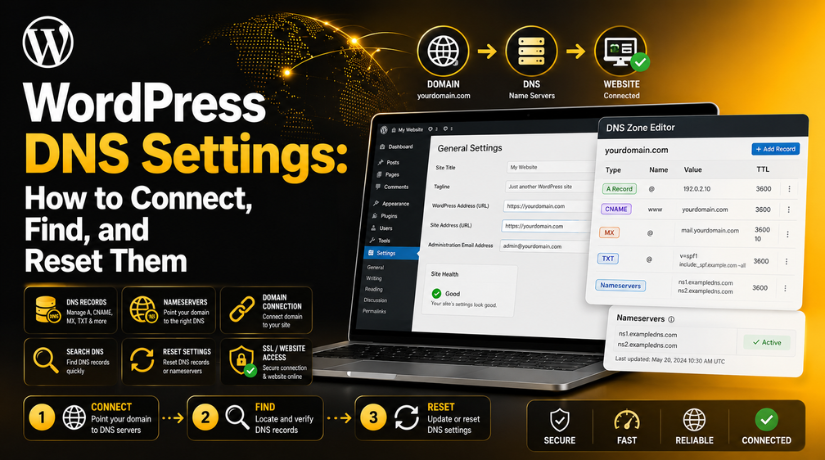
WordPress DNS Settings: How to Connect, Find, and Reset Them
Introduction
DNS settings play a very important role in your WordPress website. They help your domain open the correct website. When someone types your domain name, DNS tells the browser where to go. Without correct DNS settings, your website may not load properly.
Many website owners face this issue after buying a new domain. Some also face it after changing hosting providers. The domain may show an old website, parking page, or error message. This usually happens when DNS details are wrong or incomplete.
When you connect DNS to WordPress, you connect your domain with your website hosting. This helps visitors reach your actual WordPress website. It also helps search engines find the right website pages.
For business owners, wrong DNS can create serious problems. Customers may not reach your website. Your email may also stop working. Your SSL certificate may show a warning. These issues can affect trust and traffic.
That is why DNS should always be handled carefully. You should know where DNS settings are managed. You should also know which records control your domain. This helps you avoid downtime and website errors.
What DNS Settings Mean for a WordPress Website
DNS stands for Domain Name System. It works like an address book for websites. Your domain name is easy for people to remember. But servers use numbers called IP addresses. DNS connects your domain name with the correct server address.
For example, your domain may be yourbusiness.com. Your hosting server has a unique IP address. DNS tells browsers which server should load your website. This process happens in the background.
A WordPress website needs correct DNS settings to work properly. These settings may include different record types. These are called WordPress DNS records when used for your WordPress setup.
Common DNS records include:
- A Record: Connects your domain to a server IP address.
- CNAME Record: Connects one domain name to another domain.
- MX Record: Controls where your business emails are delivered.
- TXT Record: Helps with domain checks and email security.
- Nameservers: Decide where your DNS records are managed.
It is important to understand one key point. Self-hosted WordPress usually does not manage DNS inside WordPress. DNS is normally managed through your domain registrar or hosting account. WordPress.com users may manage domain settings inside their WordPress.com dashboard.
Correct DNS settings help your website load safely and smoothly. They also help protect your traffic, email, and online trust.
Where You Can Find DNS Settings for a WordPress Website
Finding DNS settings depends on your WordPress website setup. Many users look inside the WordPress dashboard first. However, DNS settings are not always managed inside WordPress. For most self-hosted websites, DNS is managed outside WordPress.
You can usually find DNS settings in your domain account. This is the place where you bought your domain name. It may be GoDaddy, Namecheap, Bluehost, Hostinger, or another provider. You need to log in there and check the domain management area.
In many cases, your hosting company also gives DNS details. These details may include server IP addresses or WordPress nameservers. You can use these details to connect your domain correctly. Your host may also provide a DNS zone editor.
If your domain uses Cloudflare, DNS records are managed there. Cloudflare works between your domain and hosting server. So, any DNS change must be made inside Cloudflare.
WordPress.com users have a different setup. They can manage domain settings inside their WordPress.com account. This applies when the domain is registered or connected there.
Before changing anything, confirm where DNS is active. This step prevents wrong updates and website connection errors.
Common Places Where DNS Is Managed
You can check these common places for DNS settings:
- Domain registrar account: This is where your domain was purchased.
- Hosting provider account: This may show nameservers or DNS tools.
- WordPress.com dashboard: This applies to WordPress.com websites only.
- Cloudflare dashboard: This applies when Cloudflare manages your domain.
Each platform may show DNS settings with different labels. You may see names like DNS Zone, Manage DNS, or Advanced DNS. These areas usually include WordPress DNS records like A, CNAME, MX, and TXT records.
Always save current records before making changes. This helps you restore settings if something breaks. It also protects email, SSL, and website access.
Important DNS Records Used for WordPress Websites
DNS records control how your domain works with WordPress hosting. Each record has a different role in the connection process. When these records are correct, your website loads properly. When they are wrong, visitors may see errors.
The most common record is the A Record. It connects your domain name with your hosting server IP address. This record is important when you want to point domain to WordPress using an IP address.
The CNAME Record connects one domain name to another domain name. It is often used for the www version. For example, www.yourdomain.com can point to yourdomain.com.
The MX Record controls your business email service. You should never remove it without checking first. Wrong MX records can stop emails from working.
The TXT Record is used for verification and security. Google tools, email services, and security platforms may use it. It can also support SPF, DKIM, and domain checks.
Nameservers decide where your DNS records are managed. If you update WordPress nameservers, your DNS control may move. This is common when connecting a domain to new hosting.
Before editing records, save your current DNS details. A screenshot can help if you need to restore them later.
How to Connect a Domain to a WordPress Website
You need correct hosting details before changing DNS settings. Your hosting company usually provides an IP address or nameservers. These details help you connect DNS to WordPress safely.


Start by logging in to your domain registrar account. This is usually where you bought your domain name. Look for options like Manage DNS, DNS Zone, or Advanced DNS.
Next, choose the correct connection method. Most WordPress websites use one of these methods:
- Nameserver method: Replace current nameservers with hosting nameservers.
- Manual DNS method: Update A Record and CNAME manually.
The nameserver method is easier for many beginners. It lets your hosting provider manage the DNS zone. The manual method gives more control over each record. It is useful when email or other tools stay elsewhere.
After choosing the method, enter the details carefully. Check the domain name, IP address, and record type. A small typing mistake can break the connection.
Now save the DNS changes in your account. Some platforms may ask for confirmation before saving. After saving, DNS propagation will begin.
DNS propagation means updates spread across the internet. It may take a few minutes or several hours. In some cases, it may take up to 48 hours. During this time, some users may see the old website.
Test both versions after the update finishes. Check yourdomain.com and www.yourdomain.com. This confirms your domain points to the correct WordPress website.
How to Reset DNS Settings for a WordPress Website Safely
Sometimes, DNS settings need to be reset for WordPress. This may happen after hosting changes or wrong updates. It may also happen when your domain shows errors. A safe reset can restore the correct website connection.
To reset DNS settings WordPress safely, do not change records quickly. First, check where your DNS is managed. It may be your domain registrar, hosting account, or Cloudflare. Once you find the correct place, review all active records.
Start by taking a screenshot of current DNS settings. You can also copy all records into a document. This backup helps you restore settings if anything goes wrong. It is a simple step, but very important.
Next, confirm the correct hosting details. Ask your hosting provider for the right IP address. Also confirm the correct nameservers if you need them. Do not use old hosting details during this step.
Now check for wrong or duplicate records. Duplicate A records can point your domain incorrectly. Wrong CNAME records can break your www version. Incorrect MX records can also affect business email delivery.
Follow these safe steps:
- Save current DNS records before editing anything.
- Confirm the correct server IP address.
- Check if nameservers need to be updated.
- Remove only wrong or duplicate records.
- Add the correct WordPress DNS records carefully.
- Save changes and wait for propagation.
- Test both www and non-www versions.
After saving changes, wait before making more edits. DNS changes may take time to update worldwide. Repeated changes can make troubleshooting harder.
What Resetting DNS Does Not Change
Resetting DNS does not delete your WordPress website content. It does not remove pages, posts, themes, or plugins. It only changes how your domain connects to hosting.
Your WordPress dashboard will remain the same. Your website files also stay on the server. DNS only controls the path between the domain and server.
After the reset, test your website carefully. Open the homepage, inner pages, and admin login. Also check email and SSL status. This confirms your DNS reset was completed safely.
Common Domain Connection Problems and Simple Fixes
A WordPress domain connection issue can happen for many reasons. Most issues start after changing hosting or domain settings. Sometimes, the domain still shows the old website. This usually means DNS propagation is still active. It can also mean the old IP address remains saved.
Your website may open without www, but not with www. This often happens when the CNAME record is missing. Add the correct www record, then test again.
Email may also stop working after DNS changes. This usually happens when MX records are removed by mistake. Always check email records before changing nameservers.
SSL warnings may appear after the domain starts pointing correctly. Wait for DNS propagation first. Then renew or reissue the SSL certificate.
Common DNS-related problems include:
- Domain showing the old website.
- www version not opening correctly.
- Email delivery suddenly stops working.
- SSL certificate warning appears.
- Domain shows a parking page.
- A Record has the wrong IP address.
- Nameservers were updated in the wrong account.
Final Checklist Before Changing WordPress DNS Settings
Before editing DNS, check every detail carefully. Small mistakes can break website access.
Use this simple checklist:
- Confirm where your DNS is currently managed.
- Save a copy of all current records.
- Get the correct hosting IP address.
- Check nameservers from your hosting provider.
- Protect MX records for business email.
- Update only the required DNS records.
- Wait for DNS propagation to complete.
- Test both www and non-www domain versions.
- Check SSL after the domain connects.
This checklist also helps when you reset DNS settings WordPress safely.
Conclusion
DNS settings control how your domain reaches WordPress hosting. Wrong records can affect traffic, email, and website trust. Always check the correct DNS location before changing anything. Save old records, then update only required details. If your domain still fails ,24×7 WP Support can help review and fix DNS issues safely.





Brian is a WordPress support specialist and content contributor at 24×7 WP Support. He writes practical, easy-to-follow guides on WordPress troubleshooting, WooCommerce issues, plugin and theme errors, website security, migrations, performance optimization, and integrations. With a focus on solving real website problems, Brian helps business owners, bloggers, and online store managers keep their WordPress sites running smoothly.
