
WordPress Media Library Features, Capabilities, and Supported File Types
Introduction
Every WordPress website needs strong and useful media files. Content is supported by images, PDFs, audio files, videos, and documents. They make pages more helpful, clear, and engaging for visitors. A blog post may need images to explain a topic. A service page may need icons, banners, or PDF files. A product page may need clear photos to build trust.
The primary storage space in WordPress is the media library. It keeps all uploaded files in one dashboard section. You can upload, find, edit, and reuse files from one place. This makes website work easier for beginners and business owners.
Without proper media control, a website can become messy. Duplicate files may increase storage use. Large images may slow down page speed. Missing image details may affect SEO and accessibility. That is why the Media Library is not just an upload area. It is a crucial component of managing a website on a daily basis.
A well-managed Media Library helps you:
- Keep images and files in one place.
- Reuse old files without uploading again.
- Improve page content with useful visuals.
- Support better website speed and SEO.
- Manage files more safely and clearly.
What Is the Media Library in WordPress?
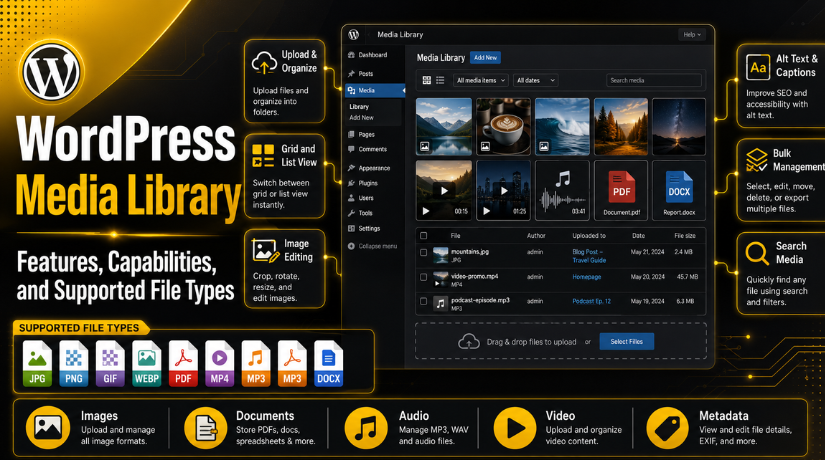
One of WordPress’s built-in features is the Media Library. The files you post to your website are stored there. It is accessible through the WordPress dashboard. It usually appears under the “Media” menu option.
This section shows your uploaded images, documents, videos, and audio files. They can be seen as a list or as a grid. You can also search files by name, date, or type. This helps you find files quickly when your website grows.
The Media Library also stores files uploaded through pages and posts. For instance, WordPress stores an image that you add to a blog post. You can later use the same image in another page. This saves time and avoids repeated uploads.
Good WordPress media management keeps your site clean and fast. It also helps users work better with content. You can update file titles, captions, descriptions, and image alt text. These small details make files easier to understand.
For website owners, the Media Library is very useful. It gives one clear place to manage all visual and downloadable content. It also supports better content planning, file control, and website performance.
Main Functions of the WordPress Media Library
The features of the WordPress media library make file management simple for users. Media files can be uploaded, viewed, edited, searched, and deleted. These functions keep your website files organized and easy to access. They also save time during blog, page, or product updates.
The most common function is uploading new media files. Videos, audio files, PDFs, and pictures can all be uploaded. WordPress then stores those files inside the Media Library. You can use them later across different website pages.
Additionally, uploaded files can be viewed in two straightforward layouts. Grid view shows media files as image cards. List view shows files with more details. It includes file name, author, date, and upload location. This helps website owners review files more clearly.
Additionally useful are the search and filter tools. You can search files by title or file name. You can filter files by date or media type. When there are a lot of uploads to your website, this is helpful.
The Media Library also lets you edit file details. The alt text, caption, description, and title are all editable. WordPress image alt text is very important for images. It helps search engines understand the image better. It also supports users who use screen readers.
You can also delete files that are no longer needed. But always check where the file is used first. Deleting a used image may break your page layout.
Main functions include:
- Uploading new media files.
- Viewing files in grid or list view.
- Searching files by name or title.
- Filtering files by date or type.
- Editing image titles and alt text.
- Removing unused files when safe.
Key Capabilities of the WordPress Media Library
The WordPress media library capabilities go beyond basic file storage. It helps you use media across your full website. You can insert images into posts, pages, and product pages. This makes content more visual and useful for readers.
A simple WordPress media upload can support many content needs. You can upload a banner image for a blog post. You can add a PDF guide for visitors. You can also upload product images for WooCommerce pages. This makes the Media Library useful for many websites.
The Media Library also helps you reuse old files. The same image does not need to be uploaded again. From the library, you can choose an already-existing file. This reduces duplicate files and saves storage space.
Another useful capability is copying file URLs. You can copy a direct media file link. This helps when sharing PDFs, documents, or downloadable files. You can also use file URLs in buttons or text links.
WordPress also provides basic image editing options. You can crop, rotate, scale, or flip an image. These tools are useful for quick changes. However, large design changes should use proper editing software.
The Media Library also stores useful file details. You can check upload date, file size, and file type. These details help with better media control and cleanup. This facilitates quicker, easier, and more structured website maintenance.
Supported File Types in WordPress
WordPress allows many common files through the Media Library. These WordPress supported file types help users build better content. You can upload images, documents, audio files, and videos. Each file type supports a different website need.
However, WordPress does not allow every file format by default. This rule helps protect your website from unsafe uploads. Some hosting providers may also block certain file types. So, file support can depend on WordPress settings, server rules, and security tools.
Image File Types Supported in WordPress
Images are the most used media files in WordPress. They help make pages more visual and useful. Blog posts, service pages, and product pages all need images.
Common image file types include:
- JPG
- JPEG
- PNG
- GIF
- WebP
- AVIF
- ICO
JPG and PNG files are common for website images. WebP and AVIF are better for modern website speed. GIF files are useful for simple moving images. ICO files are mostly used for site icons.


Document File Types Supported in WordPress
Document files are useful for downloads and resources. Many websites upload PDFs, forms, guides, and reports. These files help visitors access more detailed information.
Common document file types include:
- DOC
- DOCX
- PPT
- PPTX
- XLS
- XLSX
- ODT
PDF files are best for fixed document layouts. DOC and DOCX files work well for editable documents. PPT and PPTX files support presentation uploads. XLS and XLSX files are useful for spreadsheet files.
Audio and Video File Types Supported in WordPress
WordPress also supports common audio and video uploads. These files can improve learning, training, and product content. But large media files can affect website speed.
Common audio file types include:
- MP3
- M4A
- OGG
- WAV
Common video file types include:
- MP4
- MOV
- AVI
- WMV
- MPEG
- OGV
- WebM
MP4 is one of the most common video formats. It works well across many browsers and devices. MP3 is also a popular audio format. It is widely supported and easy to use.
These WordPress media library file types cover most website needs. Still, users should upload only safe and useful files. Large or unsupported files may cause upload errors.
Why File Type Support Matters for Website Owners
Knowing supported file types helps prevent common upload problems. A failed WordPress media upload can waste time during updates. It may also confuse beginners working inside the dashboard.
Correct file types also improve website performance. Optimized images load faster and use less storage. Safe document formats reduce security risks. Browser-friendly files also display better across devices.
For website owners, file type knowledge is very useful. It helps keep content clean, fast, and easy to manage. It also supports better SEO, user experience, and site safety.
Best Practices for Managing Media Files in WordPress
Good WordPress media management keeps your website clean and organized. It also helps your pages load faster for visitors. Media files can grow quickly on active websites. So, you should manage them with a clear process.
Start by naming files before uploading them. Use clear names that describe the image or document. For example, use “wordpress-media-library-guide.jpg” instead of “IMG_2026.jpg”. Clear names help you find files faster later.
You should also compress large images before uploading them. Website speed may be slowed by large image files. Slow pages may reduce user trust and search performance. Use lightweight image formats when possible.
Always add useful WordPress image alt text for important images. Alt text helps search engines understand image meaning. It also supports visitors using screen readers. Keep alt text short, clear, and useful.
Follow these simple practices:
- Rename files before uploading them.
- Compress large images for faster loading.
- Add helpful titles and alt text.
- Avoid uploading the same file twice.
- Remove unused files after checking usage.
- Keep document files clear and updated.
These small steps improve file control and website performance. They also make future updates faster and easier.
Common Media Library Mistakes to Avoid
Many website owners upload files without checking their size. This can make the Media Library heavy over time. Large files can also slow pages and affect users.
Another common mistake is leaving alt text empty. This can reduce accessibility and image SEO value. Unclear file names also create problems during future updates.
Avoid these common mistakes:
- Uploading very large image files.
- Using unclear or random file names.
- Leaving image alt text blank.
- Uploading unsupported file formats.
- Deleting files without checking page usage.
- Keeping duplicate files inside the library.
These mistakes may look small at first. But they can affect speed, SEO, and content control.
Conclusion
The WordPress Media Library is more than a file storage area. It helps users upload, organize, reuse, and manage website files. Its built-in WordPress media library capabilities support better content control. With proper use, your site stays cleaner and faster.
If your Media Library feels messy or hard to manage,24x7wpsupport can help. Our team can clean, optimize, and manage your WordPress media files properly.



Brian is a WordPress support specialist and content contributor at 24×7 WP Support. He writes practical, easy-to-follow guides on WordPress troubleshooting, WooCommerce issues, plugin and theme errors, website security, migrations, performance optimization, and integrations. With a focus on solving real website problems, Brian helps business owners, bloggers, and online store managers keep their WordPress sites running smoothly.
