
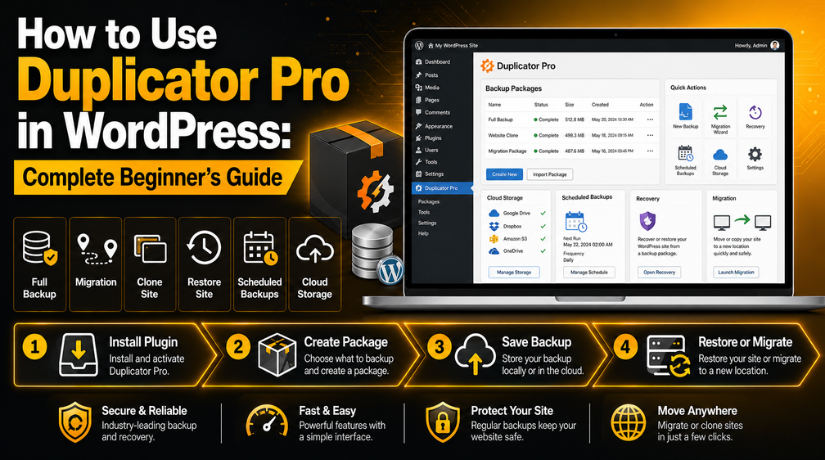
How to Use Duplicator Pro in WordPress: Complete Beginner’s Guide
Introduction
A WordPress website needs regular care and safe protection. Even a small issue can break an active website. A plugin update may stop a page from loading. A theme change may damage the design. A hosting issue may make the website unavailable. Malware can also damage files and database records. That is why every website owner needs a strong backup plan. A backup gives you a safe copy of your website. You can use it when something goes wrong. This is where Duplicator Pro WordPress becomes very useful.
It helps website owners create backups, move websites, and restore broken sites. It also saves time for beginners, agencies, and business owners. Many users want to learn How to use Duplicator Pro because manual backup feels hard. Manual backup needs database export, FTP access, and file handling. These steps can confuse beginners very quickly. The Duplicator Pro plugin makes this process easier.
It gives you a simple way to package your website. You can use that package for backup, restore, cloning, or migration. This guide will work like a simple Duplicator Pro tutorial. It will explain the plugin in clear and easy words. You will understand why this WordPress backup plugin is helpful. You will also learn why many users choose it as a WordPress migration plugin.
What Is Duplicator Pro in WordPress and How Does It Work?
Duplicator Pro is a WordPress plugin for backup and migration. It helps create a full copy of your WordPress website. This copy can include your files, database, themes, plugins, uploads, and settings. You can save this copy for future use. You can also move it to another server or domain. This makes Duplicator Pro WordPress useful for many website tasks. It is not only a backup tool.
It also works as a WordPress migration plugin for site moving. You can use it when changing hosting companies. You can also use it when moving from staging to live. A staging site is a test copy of your website. It helps you test changes before updating the live site. The Duplicator Pro plugin helps package your site safely. It creates a website copy that can be restored later.
This helps beginners avoid many manual steps. You do not need to download every file separately. You also do not need to export every database table manually. This is why many users search for a Duplicator Pro tutorial before starting. They want a clear process that feels safe and simple.
Why Does a Website Need Duplicator Pro for Better Safety?
Every website needs protection against sudden problems. WordPress websites depend on many moving parts. These include plugins, themes, hosting, database, and custom settings. If one part fails, the website may stop working. A backup helps you recover without starting again. Duplicator Pro gives website owners more control. It helps create a safe copy before major changes. It also helps when moving a website to another host. Many beginners do not understand FTP and database work.
To Protect the Website Before WordPress Updates
WordPress updates are important for security and performance. However, updates can sometimes create website issues. A plugin update may conflict with another plugin. A theme update may affect page layout or styling. A WordPress core update may create compatibility problems. These issues can happen even on well-managed websites. That is why you should create a backup first. Duplicator Pro helps create a fresh copy before updates. If the update breaks anything, you can restore quickly. This saves time and prevents longer website downtime. It also gives you peace of mind during changes. Beginners often update plugins without taking backups.
To Recover From Common WordPress Website Errors
WordPress websites can face many types of errors. Some errors appear after plugin or theme changes. Some errors happen because of server or database issues. A website may suddenly show a white screen. It may show a database connection error. It may also show a 500 internal server error. Sometimes pages stop loading without clear reasons. These problems can worry website owners and visitors. A backup can help restore the working version. Duplicator Pro helps you recover from saved website copies. This is useful when you cannot fix the issue quickly. Instead of rebuilding pages, you can restore the site. A backup also helps after accidental file deletion. It can help after wrong code changes too. That is why this WordPress backup plugin is useful.
To Move the WordPress Website to New Hosting
Many website owners change hosting for better speed or support. Some move because their current server becomes slow. Some move because they need better security or resources. Moving a WordPress website manually can be difficult. You must transfer files and export the database. You must also import the database on the new server. Then you need to update URLs and settings carefully. One small mistake can break the website. Duplicator Pro can make this process easier. It packages your site for migration. You can move the package to another server.
To Create a Safe Testing Copy Before Making Changes
A live website should not be used for risky testing. Any wrong change can affect real visitors. It can also affect forms, sales, bookings, or leads. A testing copy helps prevent these problems. You can create a copy of your website first. Then you can test changes on that copied version. This is helpful for redesigns and plugin testing. It is also useful before changing important settings. Duplicator Pro can help create this website copy. You can use the copied site as a staging website. A staging website lets you test without public risk. Once everything works, you can update the live website.
To Protect WooCommerce Store Data and Customer Records
WooCommerce websites need extra care and regular backups. Online stores change more often than normal websites. New orders can arrive at any time. Customers may create accounts and update addresses. Products, prices, coupons, and stock also change often. If a store breaks, sales may stop immediately. This can affect revenue and customer trust. Duplicator Pro can help protect important store data. You can create backups before major WooCommerce updates. You can also create backups before changing payment settings. This helps reduce risk during important store changes.
Benefits of Using Duplicator Pro for WordPress Website Owners
Duplicator Pro gives WordPress users a safer website management process. It helps create backups, move websites, and restore broken sites. Many beginners want a tool that feels simple and reliable. The Duplicator Pro plugin is useful because it reduces manual work. You do not need advanced server knowledge for basic tasks. You can create a backup from your WordPress dashboard. You can also use it during hosting changes or redesign work. This makes Duplicator Pro WordPress useful for many website owners. It works as a WordPress backup plugin and migration tool. If you are learning how to use Duplicator Pro, benefits matter first.
Easy Full Website Backup With Files and Database Included
A complete backup should include website files and database records. Website files include plugins, themes, images, and uploads. The database stores posts, pages, users, and settings. If any part is missing, restore may not work properly. Duplicator Pro helps create a full website package easily. This package can store all key website parts together. That makes the restore process easier during emergencies. Many beginners only download website files from hosting. But files alone do not include website content.
Saves Time During WordPress Website Migration
Manual WordPress migration can take a lot of time. You must download files from the old hosting account. Then you must export the database from phpMyAdmin. After that, you must upload everything to another server. You also need to update URLs and database details. These steps can confuse beginners and non-technical users. Duplicator Pro makes website migration easier and faster. It packages your website into a movable backup file. You can use that package on another hosting account.
Supports Automatic Backup Schedules for Better Safety
Regular backups are important for every WordPress website. However, many users forget to create them manually. Automatic backup schedules help solve this common problem. Duplicator Pro allows users to schedule backups in advance. You can choose backup timing based on website activity. A blog may need weekly backups in many cases. A business website may need daily or weekly backups.
Cloud Storage Support Helps Keep Backups Safer
Backups should not stay only on your website server. If the server fails, local backups may also become unavailable. Cloud storage helps keep backup copies in another location. Duplicator Pro supports cloud storage options for safer backup management. You can connect storage services based on your plan and need. These may include Google Drive, Dropbox, Amazon S3, and OneDrive.
Helps Restore a Broken Website During Emergencies
A website can break at the worst possible time. It may happen after a plugin update or code change. It may also happen after malware or database issues. A broken website can stop leads, sales, and traffic. Duplicator Pro helps by giving you a restore option. You can use a saved backup to recover the website. This helps reduce downtime and visitor frustration. It also saves money during emergency repairs.
Useful for Agencies, Freelancers, and WordPress Developers
Agencies and freelancers often manage many WordPress websites. They need faster ways to back up and move sites. Duplicator Pro helps them save time on repeated tasks. They can use it to create site copies for clients. They can also move websites between staging and live servers. This is helpful during redesigns, rebuilds, and new launches. Developers can test major changes on copied websites first.
Backup Limits Help Save Website and Cloud Storage Space
Website backups can take a lot of storage space. Large media files, videos, and databases increase backup size. Old backups can also fill hosting or cloud storage quickly. Duplicator Pro offers backup limit options for better control. These limits help remove older backups based on settings. This keeps your storage cleaner and more organized. It also helps prevent hosting space warnings.
Precautions Before You Start Using Duplicator Pro in WordPress
Before using Duplicator Pro, prepare your website properly. Good preparation helps avoid backup and migration problems. Many issues happen because users skip basic checks. A backup may fail if the website is too large. A migration may fail if hosting details are wrong. A restore may cause issues on active store websites. That is why precautions are important for beginners. Before following any Duplicator Pro tutorial, check your website setup. Make sure your hosting has enough resources.
Check Website Size Before Creating the First Backup
Website size affects backup speed and success. A small website usually creates backups more easily. A large website may need more server resources. Big image folders can increase the backup package size. Videos and old media files can also make backups heavy. Old backup files may also remain inside the website folders. These files can increase package size without any benefit. Before using Duplicator Pro, check your website storage. You can review uploads, plugins, themes, and backup folders.
Clean Unwanted Files Before Creating a Backup Package
A clean website creates better and faster backup packages. Unwanted files can increase backup size without adding value. You should remove old backup files before creating new ones. You should also clear unnecessary cache files from the website. Unused themes and plugins should be deleted carefully. Unused media files can also make backups very large. Temporary files may also stay inside hosting folders. These files may slow the backup process. Cleaning them helps Duplicator Pro build packages more smoothly.
Check Hosting Resources Before Using Duplicator Pro


Hosting resources play a major role in backup success. A backup process needs memory, disk space, and processing time. If hosting limits are too low, backup may fail. Some shared hosting plans have strict timeout limits. Large websites may face issues on low-resource servers. Before starting, check available disk space in hosting. Also check PHP memory limits and execution time. If resources are low, contact your hosting provider first. You may need temporary limit increases for large backups.
Create a Fresh Backup Before Any Major Website Change
Always create a fresh backup before major website work. This rule applies to updates, redesigns, and migrations. It also applies before editing code or database records. A fresh backup gives you a current recovery point. If something breaks, you can restore the latest version. Old backups may not include recent content or settings. They may also miss new orders, forms, or user data.
Store Backups Outside the Website Server for Better Protection
Local backups are useful, but they are not enough. A local backup stays on the same website server. If the server fails, your backup may disappear too. Malware can also damage local backup files in some cases. That is why offsite backup storage is important. Cloud storage gives your backup another safe location. You can use services like Google Drive or Dropbox. You can also use Amazon S3 or similar storage.
Keep Admin, Hosting, FTP, and Database Details Ready
Migration and restore work may need several login details. You may need your WordPress admin login first. You may also need hosting panel access. FTP or SFTP details can help during file uploads. Database details may be required during migration setup. Domain and DNS access may also be needed sometimes. Missing login details can delay the migration process. It can also make emergency restore work harder.
Avoid Restoring Old Backups on Active WooCommerce Websites
WooCommerce websites need extra care during restore work. An old backup may remove new orders and customers. It may also remove recent product or stock changes. Payment records and coupon updates may also be affected. This can create confusion for store owners and customers. Before restoring, check the backup date very carefully. Make sure you understand what data may be replaced.
How to Use Duplicator Pro in WordPress (Step By Step Guide)
Learning How to use Duplicator Pro is not difficult. You just need to follow the steps carefully. The Duplicator Pro plugin helps you create backups, restore websites, and move websites. It works as a WordPress backup plugin and also as a WordPress migration plugin. You do not need to handle every file manually. You also do not need to work deeply with the database. This makes Duplicator Pro WordPress useful for beginners. This simple Duplicator Pro tutorial will help you understand the process. You can use these steps before updates, hosting changes, or website fixes.
Step 1: Install the Duplicator Pro Plugin in WordPress
- Download the Duplicator Pro ZIP file from your account.
- Open your WordPress admin dashboard.
- Go to Plugins > Add New.
- Click the Upload Plugin button.
- Choose the Duplicator Pro ZIP file from your computer.
- Click the Install Now button.
- Wait until WordPress completes the installation process.
- Click the Activate Plugin button after installation.
- Check if the plugin appears in your WordPress dashboard.
- Always upload the ZIP file without extracting it first.
Step 2: Add and Verify Your Duplicator Pro License Key
- Open the Duplicator Pro settings area in WordPress.
- Find the license key section inside plugin settings.
- Copy your license key from your Duplicator account.
- Paste the license key into the license field.
- Make sure there are no extra spaces.
- Click the activate or verify license button.
- Wait until the license status shows active.
- A verified license helps unlock Pro features.
- It also allows plugin updates and support access.
- Complete this step before creating your first backup.
Step 3: Understand the Duplicator Pro Dashboard
- Open the Duplicator Pro WordPress dashboard section.
- Review the main plugin options before starting.
- The backup section helps create website backup packages.
- The storage section controls where backups are saved.
- The schedule section helps create automatic backups.
- The tools section may include import and recovery options.
- The settings section controls general plugin options.
- Do not change advanced settings without proper knowledge.
- Start with basic options if you are a beginner.
- This makes the Duplicator Pro tutorial easier to follow.
Step 4: Create Your First Website Backup
- Open the backup section inside Duplicator Pro.
- Click the option to create a new backup.
- Add a simple and clear backup name.
- Use your website name and current date.
- Choose where you want to save the backup.
- Select local storage or cloud storage.
- Cloud storage is better for important websites.
- Choose files and databases for a full backup.
- Run the website scan before creating the backup.
- Review any warning shown in the scan result.
- Click the build button when everything looks correct.
- Download the backup or confirm safe storage.
Step 5: Choose What to Add in the Backup
- A full backup should include all important website files.
- Include WordPress core files in the backup package.
- Include themes because they control website design.
- Include plugins because they add website features.
- Include uploads because they store images and media.
- Include the database because it stores website content.
- The database includes posts, pages, users, and settings.
- You can exclude cache folders to reduce backup size.
- You can also exclude old backup files if needed.
- Do not exclude important folders without full knowledge.
- Keep default settings if you are not sure.
Step 6: Set Up Cloud Storage for Safer Backups
- Open the storage section in the Duplicator Pro plugin.
- Choose your preferred cloud storage option.
- You may choose Google Drive, Dropbox, or OneDrive.
- You may also use Amazon S3, FTP, or SFTP.
- Follow the connection steps shown inside the plugin.
- Authorize your cloud account when asked.
- Choose the folder where backups should be saved.
- Save the cloud storage profile.
- Test the connection after saving settings.
- If the test is successful, storage is ready.
- Cloud storage protects backups from server failure.
Step 7: Create an Automatic Backup Schedule
- Open the schedule section in Duplicator Pro.
- Click the option to create a new schedule.
- Choose the backup type or backup template.
- Select where the scheduled backup should be saved.
- Choose cloud storage for better safety.
- Select how often the backup should run.
- Use weekly backups for small blog websites.
- Use daily or weekly backups for business websites.
- Use more frequent backups for WooCommerce stores.
- Choose a low-traffic time for backup creation.
- Save the schedule after checking all settings.
- Make sure the schedule is enabled properly.
Step 8: Restore a Website Backup When Needed
- Open the backup list inside Duplicator Pro.
- Choose the backup you want to restore.
- Check the backup date before continuing.
- Make sure it contains the data you need.
- Start the restore process from the plugin dashboard.
- Read every warning before confirming the restore.
- Remember that restore can replace current website data.
- Confirm the restore only when you are sure.
- Wait until the restore process is complete.
- Check the website after restoring.
- Test homepage, forms, images, links, and admin login.
Step 9: Migrate a WordPress Website Using Duplicator Pro
- Create a full backup on the old website first.
- Download the backup files to your computer.
- You can also save backup files in cloud storage.
- Prepare the new hosting account for migration.
- Create a new database if required.
- Keep database name, username, password, and host ready.
- Upload the backup files to the new server.
- Run the installer process as guided.
- Enter the correct database details during setup.
- Check the website URL during migration setup.
- Complete the migration process carefully.
- Log in to the new WordPress dashboard.
- Go to Settings > Permalinks and save settings.
- Test the migrated website before making it live.
Step 10: Test Your Website After Backup, Restore, or Migration
- Open the homepage and check if it loads correctly.
- Check all important service pages and blog posts.
- Make sure images and media files are loading.
- Test the WordPress admin login page.
- Check contact forms and email delivery.
- Test menu links and internal page links.
- If you use WooCommerce, test product pages.
- Check cart, checkout, and payment flow carefully.
- Make sure SSL is working correctly.
- Your website should open with HTTPS.
- Save permalinks again if pages show 404 errors.
- Clear website cache after final testing.
Common Duplicator Pro Problems and How to Fix Them Easily
The Duplicator Pro plugin is helpful for backups and migration. Still, beginners may face some common problems while using it. These problems mostly happen because of hosting limits, large files, wrong settings, or missing details. The good part is that most issues are easy to fix. You only need to understand the reason first. This section works like a simple Duplicator Pro tutorial for troubleshooting. It will help you fix common backup, restore, and migration issues. If you are learning How to use Duplicator Pro, this section is important. It helps you avoid mistakes and complete the process safely. A good WordPress backup plugin can protect your website.
Backup Build Fails During the Duplicator Pro Process
Sometimes the backup build may fail during the process. This is one of the most common beginner issues. It can happen because your hosting has low resources. The server may have limited memory or execution time. A large website can also stop the backup process. Big media files, videos, and cache folders create heavy backups. Some security plugins may also block the backup process. Server restrictions can also stop file packaging. First, check the scan report inside Duplicator Pro.
Website Backup File Becomes Too Large to Manage
A backup file can become too large sometimes. This usually happens when the website has many media files. Videos, high-size images, old backups, and cache files increase size. Large backups take more time to build and download. They may also fail on low-resource hosting plans. To fix this, clean your website before creating backups. Delete unused themes, unused plugins, and old backup files. Clear cache files from your cache plugin or hosting panel. Remove large videos if they are not needed. You can also store videos on external platforms. Then use Duplicator Pro file filters carefully. Exclude only folders that are not required for restore. Do not exclude important WordPress folders by mistake. A smaller backup is easier to manage and restore.
Cloud Storage Connection Fails in Duplicator Pro
Cloud storage is useful for safe backup storage. But sometimes the cloud connection may fail. This can happen because authorization expires or permissions are wrong. It may also happen if the storage account is full. Wrong folder selection can also create backup upload problems. First, open the storage settings inside Duplicator Pro. Check whether your cloud account is still connected. If not, reconnect your Google Drive, Dropbox, or other account. Give the required permissions during the connection process. Make sure the selected folder exists and allows uploads.
Migration Shows Database Connection Error After Setup
A database connection error can appear after migration. This problem usually means the database details are wrong. The database name may not match the new server. The database username or password may also be incorrect. Sometimes the database host value is different from localhost. Missing database user permissions can also create this issue. To fix this, open your hosting control panel. Check the database name, username, password, and host. Make sure the user has full database permissions. Then enter the correct details during the installer process. If the website is already migrated, check the wp-config.php file. Make sure it has the correct database details.
Website Shows 404 Errors After WordPress Migration
404 errors can appear after moving a WordPress website. This usually happens because permalink rules need refreshing. Your pages may exist, but links may not work. This issue is common after migration or restore work. To fix it, open your WordPress dashboard. Go to Settings > Permalinks from the dashboard menu. Do not change anything if your structure is correct. Just click the Save Changes button once. This refreshes the permalink rules on your website. After that, check your main pages again. Also test blog posts, service pages, and menu links. If 404 errors continue, check the .htaccess file. You may also need to clear the website cache.
Images Are Missing After Website Migration or Restore
Missing images can happen after migration or restore. This can make your website look broken or incomplete. The issue may happen because the uploads folder is missing. Wrong file paths can also stop images from loading. Incorrect URL replacement may also create broken image links. File permission problems can also block image loading. CDN cache can sometimes show old image paths too. First, check whether the uploads folder exists on the server. Then check if image files are available inside it. Next, check file and folder permissions carefully. You should also clear website cache and CDN cache.
Restore Does Not Work Properly After Backup Selection
Sometimes restore may not work as expected. This can happen if the backup is incomplete or damaged. It may also happen because of server timeout limits. A database import issue can also stop restore work. First, check whether the backup file is complete. Try restoring from another backup copy if available. If you stored backups in cloud storage, try that version. Make sure your hosting has enough space before restoring. You should also check memory and execution time limits. If the restore process stops again, contact your hosting support. Ask them to review server logs and resource limits. Never keep only one backup copy for important websites.
Conclusion
Duplicator Pro is a useful tool for WordPress website owners. It helps create backups, restore websites, and move websites safely. It works as a strong WordPress backup plugin for protection. It also works as a helpful WordPress migration plugin for site moves. Beginners can use it without handling every file manually. Still, careful setup and testing are very important. You should clean your website before creating large backups. You should also store backups outside your website server. Always check backup dates before restore or migration work. After every restore or migration, test your website fully. This includes forms, images, links, SSL, and checkout pages. If you follow each step carefully, Duplicator Pro becomes easier. This guide can help you understand How to use Duplicator Pro safely. With the right process, your website stays protected and ready.
If you are not sure how to use Duplicator Pro safely, expert help can save time. At 24x7wpsupport, our team helps with WordPress backups, migration, restore, plugin errors, malware cleanup, and website maintenance. We can help you create safe backups, move your website, fix restore issues, and protect your site from future problems. If your website is important for your business, do not take risks with incomplete backups or wrong migration steps. Visit 24x7wpsupport and get professional WordPress support for your website today.





Brian is a WordPress support specialist and content contributor at 24×7 WP Support. He writes practical, easy-to-follow guides on WordPress troubleshooting, WooCommerce issues, plugin and theme errors, website security, migrations, performance optimization, and integrations. With a focus on solving real website problems, Brian helps business owners, bloggers, and online store managers keep their WordPress sites running smoothly.
