
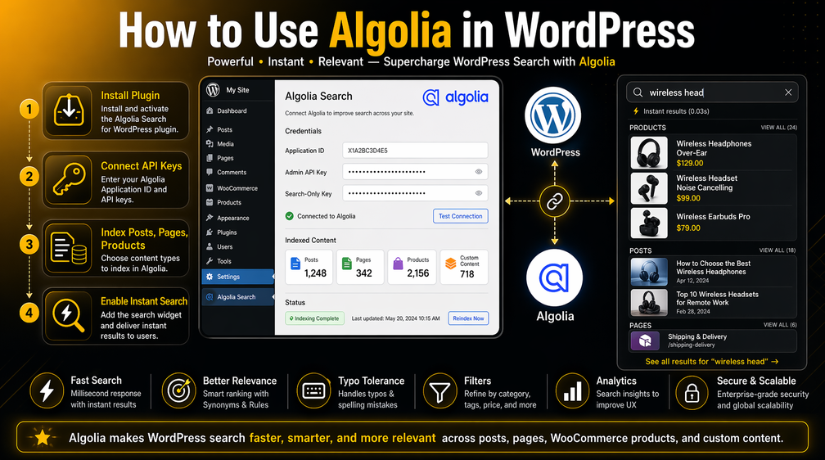
How to Use Algolia in WordPress: Step-by-Step Guide for Beginners
Last updated on April 29th, 2026 at 11:35 am
Introduction
Search plays a big role on any busy WordPress website. Visitors use it when menus do not help enough. They use it when they want quick answers. They use it when they need one product, one post, or one page fast. Sadly, the default WordPress search often feels limited on larger websites. It may show weak matches. It may miss useful pages. It may also feel slow when your website grows over time. That is why many site owners look for smarter search tools. One popular option is Algolia.
If you want to learn how to use Algolia in WordPress, this guide will help you start with the basics. It explains what Algolia is, how it works, and where it helps most. It also shows why many website owners choose it when they want to improve WordPress search results. Many blogs, business websites, and online stores need more than basic search. They want fast results. They want better matching.
They want visitors to see useful suggestions while typing. They also want people to find content without wasting time. This is where Algolia becomes helpful. A strong Algolia WordPress integration can make search feel more modern and more useful. It can also help visitors stay longer because they find what they need faster. Before moving into setup steps later, it is important to understand what this tool really does and why it matters.
What Algolia Is and Why It Matters for WordPress Search?
Algolia is a hosted search service. In simple words, it is a smart tool built for search. It does not work like the normal WordPress search system. Instead, it stores searchable content in its own fast index. Then it returns results very quickly when someone types a query. This helps websites deliver a cleaner and faster search experience. It is known for speed, better result matching, and useful features like suggestions and filters. That is why many website owners use it when default search no longer feels good enough.
For WordPress users, Algolia becomes valuable when content starts growing. A website with many blog posts, pages, products, or custom items can become harder to search. Visitors may search exact titles, short phrases, or even misspelled words. Default search often struggles in these cases. Algolia handles those searches better in many setups. It can show smarter matches and faster responses. This is one reason why the phrase WordPress search plugin Algolia has become common among users who want better search tools. They want a solution that feels smoother for both site owners and visitors.
What Are the Uses of Algolia in WordPress?
Faster Blog Post Search
Algolia is often used to improve blog search on WordPress websites. Many blogs have a large number of posts. Visitors may remember only a few words from a title. Default search may not always show the best result first. Algolia helps match search terms better and faster. This makes it easier for readers to find useful articles without wasting time.
Better Page Search for Business Websites
Many business websites have service pages, support pages, pricing pages, and landing pages. As the website grows, these pages become harder to find through normal search. Algolia helps users reach important pages more quickly. It improves the search experience by showing more relevant matches. This helps visitors move through the website with less effort.
Improved Product Search for WooCommerce Stores
Algolia is widely used for product search on WooCommerce websites. Online shoppers want quick and accurate results. They may search by product name, category, or simple keywords. Default search may miss useful matches or feel slow. Algolia helps show products faster and in a better order. This can improve shopping experience and help users find products more easily.
Search Support for Custom Post Types
Many WordPress websites use custom post types like events, courses, portfolios, listings, or team members. These content types often need stronger search support. Algolia helps include them in the search system in a cleaner way. This makes the website more organized for visitors. It also helps users find special content that default search may not handle well.
Real-Time Search While Users Are Typing
Algolia is also used for real-time search in WordPress. This means users can see search suggestions while typing in the search box. They do not need to finish the full word first. This makes search feel faster and more modern. It also helps users reach the right page with fewer clicks. Real-time search in WordPress improves both speed and user comfort.
Better Content Discovery Across the Website
Algolia helps visitors discover more useful content across the website. It is not only for finding exact matches. It can also guide users toward related posts, pages, products, or resources. This is very helpful on content-heavy websites. A strong search system keeps visitors engaged longer. It also helps improve WordPress search results in a more natural way.
Smarter Search Experience for Modern Websites
Today, many website owners want search to feel smooth, fast, and helpful. Algolia is used to create that type of experience. It turns the search box into a strong navigation tool. Instead of acting like a basic feature, search becomes a key part of the website journey. This is why many users look for how to use Algolia in WordPress and explore Algolia search setup in WordPress for better results.
Main Benefits of Using Algolia on WordPress Websites
Faster Search Performance Matters on Growing WordPress Websites
One of the biggest reasons people choose Algolia is speed. Search should help users, not slow them down. On a growing website, default WordPress search can feel weak. It may take longer to show useful matches. It may also depend too much on the site database. Algolia changes that experience by using its own indexed data. This helps many websites return results much faster. It also helps search feel smoother during busy traffic periods. If you want to improve WordPress search results, speed is often the first major win. Algolia is built around fast search experiences, including InstantSearch and autocomplete-style results as users type.
Algolia Helps Visitors Find Better and More Relevant Results
Fast search alone is not enough. Search also needs to show the right content. This is another strong benefit of Algolia. It is designed to handle relevance in a smarter way. It supports typo tolerance, strong matching, and better control over what appears first. This matters when visitors only remember part of a title. It also matters when they make small spelling mistakes. A good Algolia WordPress integration helps users reach the right page faster. That creates a smoother journey across the website. Instead of guessing what the user wants, search becomes more helpful and more accurate. Algolia also supports tools like filters, facets, and query suggestions, which make content easier to discover.
Real-Time Search Makes WordPress Feel More Modern
Modern users expect quick feedback while searching. They do not always want to type a full phrase, then wait. They want live suggestions while they type. This is where real-time search in WordPress becomes very useful. Algolia supports this type of experience through instant results and autocomplete features. That small change can make a website feel more advanced and easier to use. It reduces clicks and saves time. It also helps visitors feel confident that the website has what they need. When a search bar starts giving helpful suggestions early, users stay engaged longer. That is one reason why many site owners explore a WordPress search plugin Algolia option for better usability.
Algolia Supports Better Browsing on Content-Heavy Websites
Algolia is not only useful for direct search. It also improves browsing. Large blogs, stores, and resource websites often hold too much content for simple menus alone. Users may need filters to narrow results quickly. They may want to search by category, topic, or content type. Algolia supports filters and facets, which make this easier. This is helpful for product search, blog archives, help centers, and large service websites. A good Algolia search setup in WordPress can turn the search box into a strong navigation tool. It helps users move across the website without confusion. This improves the full website experience, not just one search result page.
Many WordPress Website Owners Choose Algolia for Better Search
Many website owners want more than a basic search bar. They want users to find blog posts faster. They want shoppers to find products quickly. They want support pages, guides, and landing pages to appear in the right order. That is why Algolia has become a strong option for WordPress search upgrades. The WP Search with Algolia plugin says it can quickly index website content and provide fast, accurate search results. It also highlights Autocomplete and InstantSearch support for WordPress users. So, for people learning how to use Algolia in WordPress, the main value is simple. It helps search feel faster, cleaner, and more useful on real websites.
Extra Cost Is One of the Main Disadvantages of Algolia
Algolia offers useful features, but it is not always the cheapest path. This is one of its main disadvantages. Its pricing is based on usage, including search requests and records. That means cost can stay manageable on smaller projects, but it can grow as the website grows. For some businesses, that cost is worth it because search matters a lot. For others, the added monthly expense may feel too high. This is especially true when a small website has only light search needs. So, before starting an Algolia WordPress integration, it is smart to check how much search traffic and indexed content your site may create over time.
Setup Process Is More Advanced Than Default WordPress Search
Another drawback is the setup process. Default WordPress search works right away. Algolia needs more work. You need an account, API keys, indexing, and search settings. You also need to decide what content should be searchable. In some cases, you may need to tune ranking, filters, or result design. This is not always hard, but it is more technical than basic WordPress search. Beginners can still use it, but they may need guidance. This is why some users start searching for help with Algolia search setup in WordPress after the first setup steps. The tool is powerful, but it works best when configured carefully.
What Are the Disadvantages of Algolia?
Algolia Can Add Extra Cost as Your Website Grows
Algolia is not always expensive at the start, but cost can grow with usage. Its pricing includes limits for search requests and records, so larger websites may need to watch usage more closely. This means Algolia may feel easier to justify for bigger sites than for small websites with light search needs.
The Setup Is More Advanced Than Default WordPress Search
Default WordPress search works without much setup. Algolia needs an account, API keys, indexing, and search configuration. The current WordPress integration also highlights relevance control, customization, and autocomplete features, which shows that setup is more involved than a basic search box.
You Depend on a Third-Party Search Platform
When you use Algolia, your search does not rely only on WordPress anymore. It depends on an outside service, its indexing system, and its API access. That can be a strong benefit, but it also means troubleshooting may involve both WordPress settings and Algolia account settings.
API Key Handling Must Be Done Carefully
Algolia uses different API keys for different jobs. Its documentation says the Admin API key is the most sensitive key and should remain confidential, while the Search-only API key is the safe choice for front-end search. This adds a security step that beginners may find confusing during setup.
Advanced Search Features May Need Developer Help
Algolia is flexible, but that flexibility can also create a learning curve. Its WordPress integration page describes the tool as giving full control over look, feel, and relevance, and says it is built by developers, for developers. That means advanced layouts, custom ranking, and deeper search tuning may need technical help.
Some WordPress and WooCommerce Setups Need Extra Attention
Algolia can work with WordPress and WooCommerce, but some setups are more technical than others. For example, Algolia’s WooCommerce integration says it is designed for developers building headless ecommerce solutions, and it will not submit products without a category. This means store owners may need more planning than expected for product search.
Support Can Be Less Direct Than Some Users Expect
This is another practical drawback. Algolia’s WordPress integration is presented through its developer exchange, and related exchange listings note that community-built integrations are not supported by Algolia. Older Algolia support policy pages also list the WordPress plugin among unsupported products. That can matter when users expect direct product support for WordPress-specific issues.
Algolia Is Powerful, but Not Always Necessary for Small Sites
Algolia offers fast and advanced search, but not every website needs that level of setup. Small sites with very little content may do fine with simpler search tools. Algolia becomes more useful when search is important to the visitor journey and the website has enough content, products, or traffic to benefit from stronger search performance. This is an inference based on Algolia’s feature set, pricing model, and setup requirements.
Does Algolia Work with WordPress?
Yes, Algolia can work well with WordPress when the setup is done properly. Today, many WordPress users connect Algolia through the WP Search with Algolia plugin, which is maintained by WebDevStudios. The plugin description says it can index WordPress content quickly and add fast, accurate search results with Autocomplete and InstantSearch support. Its FAQ also notes that Algolia no longer supports the original plugin, and WebDevStudios now maintains this fork.
What You Need Before Using Algolia in WordPress?
Working WordPress Website with Basic Search Needs
Before starting, you need a live and working WordPress website. Your website should already have content people want to search. This may include posts, pages, products, or custom content. Algolia works best when search matters to your visitors. A clear search goal makes the full setup much easier.


An Algolia Account to Manage Your Search Data
You also need an Algolia account before doing anything else. This account is where your search data will be stored. It also gives you access to the main setup area. Without this account, you cannot begin the Algolia WordPress integration process.
Your Algolia Application ID for the Main Connection
The Application ID is a key part of the connection. It tells WordPress which Algolia account to use. You will need this detail during the setup process. Without it, your WordPress website cannot connect correctly to Algolia.
The Admin API Key for Indexing Website Content
The Admin API key is needed for indexing your content. This key allows WordPress to send data to Algolia. It is used when posts, pages, or products are added. This part is very important during Algolia search setup in WordPress.
The Search-Only API Key for Frontend Search Requests
You also need the Search-only API key for safe search use. This key is used on the front side. It helps visitors run searches without giving full account access. This keeps your real-time search in WordPress more secure.
Access to Install and Manage a WordPress Plugin
You need admin access inside your WordPress dashboard as well. This is required to install the search plugin properly. It also helps you adjust settings during setup. A WordPress search plugin Algolia setup cannot begin without this level of access.
Clear Plan for What Content Should Be Searchable
Before indexing starts, decide what users should be able to find. You may want posts, pages, products, or custom post types. You may also want categories, tags, or special fields. This planning step helps improve WordPress search results later.
Enough Time to Test the Search Experience Properly
Setup alone is not the final step in this process. You also need time to test the search results. Search for titles, short phrases, and typing mistakes. Good testing helps you learn how to use Algolia in WordPress more effectively.
Basic Understanding of Your Visitor Search Needs
It is also smart to know what your visitors search most. Some users search blog topics. Others search products or support pages. When you understand user intent, the setup becomes stronger. This makes the Algolia WordPress integration more useful from the start.
Goal to Build a Faster and Smarter Search Experience
Finally, you should know why you are using Algolia at all. Some websites need better speed. Some need better relevance and filtering. Some want live suggestions while users type. A clear goal makes the full setup more focused and successful.
How to Use Algolia in WordPress (Complete Guide)
Step 1: Create Your Algolia Account First
- Go to the Algolia website.
- Create your account.
- Log in to your Algolia dashboard.
- Open the API keys section.
- Copy your Application ID.
- Copy your Admin API Key.
- Copy your Search-Only API Key.
Step 2: Keep the Right API Key for the Right Job
- Use the Admin API Key only for setup and indexing.
- Do not expose the Admin key on the front end.
- Use the Search-Only API Key for public search.
- Keep your keys safe in plugin settings.
- Double-check that you are using the correct key in the correct place.
Step 3: Install a WordPress Plugin That Supports Algolia
- Log in to your WordPress admin panel.
- Go to Plugins.
- Click Add New.
- Search for WP Search with Algolia.
- Click Install Now.
- Activate the plugin after installation.
- Confirm that the plugin is added to your dashboard menu.
Step 4: Open the Algolia Search Settings in WordPress
- After activation, go to the new Algolia Search menu.
- Open the plugin settings page.
- Check the fields for Application ID and API keys.
- Make sure the plugin is ready for connection.
- Keep your Algolia dashboard open so you can paste the values correctly.
Step 5: Add Your Application ID and API Keys Carefully
- Paste your Application ID into the correct field.
- Paste your Admin API Key into the plugin settings.
- Add the Search-Only API Key where needed.
- Save the settings.
- Check for any connection error message.
- Recheck every value if the plugin does not connect properly.
Step 6: Choose What WordPress Content You Want to Index
- Decide what content should appear in search.
- Select posts if you want blog content searchable.
- Select pages if you want static pages searchable.
- Include custom post types if your site uses them.
- Exclude weak or unnecessary content.
- Keep the index clean so search results stay useful.
Step 7: Run the First Indexing Process
- Start the first indexing process from the plugin.
- Let WordPress send content to Algolia.
- Wait until the sync finishes.
- Check whether records appear in your Algolia dashboard.
- Confirm that indexed content is ready for search.
- Repeat indexing if some important content is missing.
Step 8: Turn On Autocomplete and Instant Search Features
- Open the plugin search feature settings.
- Enable Autocomplete if you want live suggestions.
- Enable InstantSearch if you want faster search results.
- Save the new settings.
- Test the search box on the front end.
- Make sure users can see results while typing.
Step 9: Test the Search Box on the Front End
- Visit your website front end.
- Type an exact post or page title.
- Test a partial phrase.
- Test a word with a small spelling mistake.
- Check whether useful results appear first.
- Make sure the search feels fast and clear.
- Review the result quality from a visitor’s view.
Step 10: Improve Relevance to Get Better Search Results
- Review which content appears first in search.
- Give more importance to titles if needed.
- Remove weak content from the index.
- Adjust searchable fields if results feel messy.
- Improve matching so visitors find the right page faster.
- Keep testing until results feel accurate and helpful.
Step 11: Check Theme Styling and Search Display
- Open the search results on your website.
- Check whether the layout looks clean.
- Make sure the search box fits your theme design.
- Test search on desktop and mobile.
- Fix broken spacing or styling issues.
- Adjust the look if search suggestions appear unstyled.
Step 12: Maintain the Setup as Your Website Grows
- Recheck search after adding new content.
- Reindex content when needed.
- Test search regularly.
- Review result quality every few weeks.
- Update the plugin when new versions are available.
- Keep improving the setup as your website grows.
So, the basic process is clear. Create your Algolia account, collect your keys, install the plugin, connect WordPress, index your content, enable autocomplete, and test everything well. That is the practical step-by-step path for how to use Algolia in WordPress today.
Common Problems and Troubleshooting Tips When Using Algolia in WordPress
Some WordPress Websites Fail to Connect with Algolia at First
One common issue appears during the first connection step. The plugin may fail to connect with your Algolia account. In many cases, the reason is simple. The wrong Application ID may be added. The wrong API key may also be pasted into settings. Algolia’s guidance shows that your setup depends on the correct Application ID, Admin API key, and Search-only API key. The WordPress integration page also confirms that the plugin requires Algolia API keys to work. So, if your Algolia WordPress integration fails early, the first fix is checking every credential again very carefully.
Your WordPress Content May Not Index into Algolia Properly
Another common problem is missing content inside the Algolia index. Your posts, pages, or custom items may not appear in search. This often happens when indexing does not finish correctly. It can also happen when the wrong content type is selected during setup. The current WordPress integration page explains that the plugin works by indexing WordPress content and then using that indexed content for search. If that first sync is incomplete, the search result will also be incomplete. In simple words, if content is not sent to Algolia, it cannot appear in search results later.
Some Important Pages or Posts Do Not Show in Search Results
Sometimes the connection works, but search still feels incomplete. A visitor searches for a useful post, yet that post does not appear. This usually points to indexing or configuration choices. The wrong content may be included. The right content may be missing. Search can also feel weak when important fields are not given enough weight. Algolia’s WordPress page highlights that the integration gives control over look, feel, and relevance. That means result quality depends on more than simple activation. If you want to improve WordPress search results, you need to review both indexed content and relevance settings.
Search Results Can Feel Irrelevant Even When Search Is Fast
Fast search is useful, but speed alone is not enough. If the wrong result appears first, visitors still feel frustrated. This problem often comes from poor relevance tuning. Titles may not be prioritized enough. Weak fields may be included in the index. Search can also feel messy when too much low-value content is searchable. Algolia’s WordPress integration page clearly says it offers full control over relevance. That means search ranking needs active tuning for the best results. If users search often and still fail to find the right page, the issue may be relevance, not speed.
Autocomplete or Real-Time Search in WordPress May Not Show Correctly
Some website owners complete the setup but still do not see live search suggestions. In other cases, suggestions load badly or look broken. This can happen when the front-end display is not fully matched with the website theme. The WordPress integration page says autocomplete is included and gives control over look and feel. That is helpful, but it also means the display may need careful testing. A search system can work technically while still looking poor on the front end. If your goal is smooth real-time search in WordPress, test both function and design after setup.
Theme Styling and Front-End Layout Can Affect the Search Experience
Search results should not only work well. They should also look clean and easy to trust. If your search bar, result list, or live suggestions look broken, visitors may stop using them. This is why front-end testing matters after the plugin is installed. Algolia’s integration page makes it clear that users have control over look and feel, not just search speed. So, visual issues should be treated as part of the troubleshooting process. A polished search layout helps users feel comfortable while using your WordPress search plugin Algolia setup.
WooCommerce Product Search Can Need Extra Attention During Setup
WooCommerce websites often expect more from search. They want product titles, categories, stock details, and product data to work smoothly. But product search can fail if the setup is incomplete. Algolia’s WooCommerce integration page says the plugin sends WooCommerce products to Algolia, can be set to send only in-stock products, and will not submit products without a category. It also notes that this integration is designed for developers building headless ecommerce solutions. So, if product search feels incomplete, check categories, stock logic, and your store setup first.
Some WooCommerce Products Never Reach the Algolia Index
This issue is very important for store owners. If some products never appear in search, the category setup may be the reason. Algolia’s WooCommerce integration page clearly states that products without a category will not be submitted. It also says the plugin needs the Application ID, Admin API key, and Index Name to work. So, when store items are missing, you should not only blame search. You should also review your product structure and indexing rules. This is a key step in any strong Algolia search setup in WordPress for ecommerce websites.
Conclusion
A strong search experience can make a big difference on a WordPress website. When visitors can find the right post, page, product, or service quickly, they stay longer and engage more. That is why Algolia can be such a useful upgrade. It helps deliver faster results, better matching, and a smoother search journey for users. Instead of relying only on the default WordPress search, website owners can build a smarter system that feels more modern and more helpful.
At the same time, good results do not come from installation alone. The real value of Algolia comes from proper setup, clean indexing, smart search settings, and regular testing. If these steps are handled well, Algolia can greatly improve the way users interact with your site. It can help reduce frustration, improve content discovery, and support a better overall website experience. For blogs, business websites, and WooCommerce stores, this can become a strong long-term advantage.
If you want to use Algolia on your WordPress website but do not want to manage the setup alone, 24×7 WP Support is here to help. Our team can assist with Algolia integration, indexing setup, search improvement, troubleshooting, and overall WordPress support. Whether your website search feels slow, weak, or incomplete, we can help you build a faster and more reliable solution. Visit 24x7wpsupport today and get expert help to make your WordPress website search smarter, faster, and more effective for every visitor.
Related posts:
How to Increase Upload Size in WordPress Using the All-In-One WP Plugin
How to Fix WordPress Allowed Memory Size Exhausted Error in Websites
How to Integrate Magento with WordPress: Complete Step-by-Step Guide
10 Brilliant Ways to Take Screenshot on a Mac
How to Backup and Restore WordPress or WooCommerce Website?

Brian is a WordPress support specialist and content contributor at 24×7 WP Support. He writes practical, easy-to-follow guides on WordPress troubleshooting, WooCommerce issues, plugin and theme errors, website security, migrations, performance optimization, and integrations. With a focus on solving real website problems, Brian helps business owners, bloggers, and online store managers keep their WordPress sites running smoothly.
