
How to Fix WordPress Plugin Download Failed Error (Complete Guide)
Last updated on April 15th, 2026 at 07:44 am
Introduction
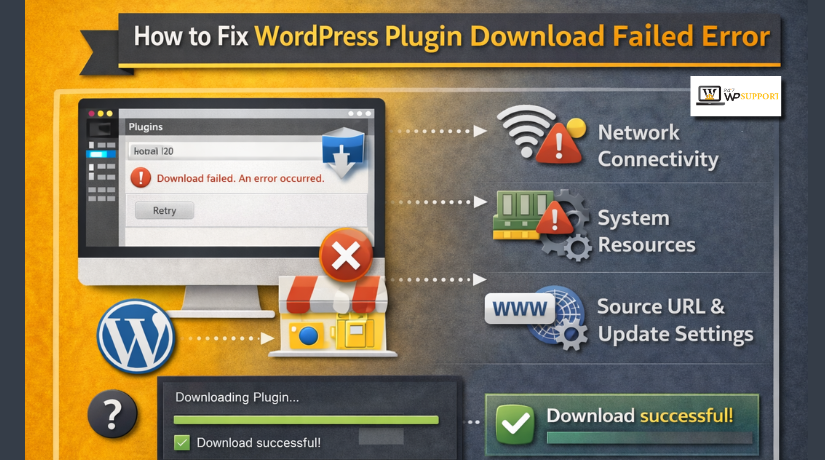
The WordPress plugin download failed error appears when WordPress cannot download a plugin package correctly. The install process starts, but something breaks before the files are saved. Because of that, the plugin does not install or update as expected. This problem is common, but it can feel confusing for beginners.
Most users see this issue while adding a new plugin from the dashboard. Some see it when updating an existing plugin. In many cases, the screen shows WordPress plugin install failed or a similar message. That message looks simple, but the real cause can be different on each site. It may come from the plugin file, the hosting server, or the WordPress setup itself.
This issue should be fixed quickly. A failed plugin install can stop important site features. It can also delay plugin updates that improve speed, security, or daily site work. That is why many site owners search for how to fix WordPress plugin download failed error as soon as it appears.
Understanding the WordPress Plugin Download Failed Error
When you install a plugin, WordPress first connects to the plugin source. Then it downloads the ZIP file, extracts it, and places the files in the right folder. If any part of that process fails, the installation stops. This is why you may see installation failed download failed WordPress plugin in the admin area.
This error is different from an activation problem. An install error means WordPress could not complete the setup. An activation error means the plugin was installed, but it could not run. The same download process is also used during updates. That is why WordPress plugin update failed fix steps often match install troubleshooting, especially when WordPress unable to install plugins becomes a repeated issue.
Common Causes of the Error
The WordPress plugin download failed error usually does not happen randomly. In most cases, WordPress starts the installation process correctly. Then one technical issue stops the file before setup finishes.
- Broken or Invalid Plugin ZIP File
A damaged plugin ZIP file is a common reason. WordPress downloads the file but cannot unpack it correctly. This often leads to a WordPress plugin install failed message inside the dashboard.
- Temporary Server Connection Problem
WordPress needs a stable server connection during installation. A short network break can interrupt the file request. When that happens, the plugin package may not download fully.
- Low PHP Memory Limit
Low memory is another common cause behind this issue. WordPress needs enough server memory to download and process plugin files. When memory is too low, the installation may stop midway.
- Incorrect File and Folder Permissions
WordPress must save plugin files in the correct folder. Wrong permissions can block that writing process completely. This makes the install fail even when the ZIP file is valid.
- Missing or Blocked Temporary Folder
WordPress uses a temporary folder during plugin installation. It stores and prepares the file before moving it. If that folder is missing or blocked, installation fails.
- Security or Firewall Restrictions
Some security plugins or firewall rules block plugin downloads. They may treat the request as suspicious and stop it. This can make WordPress unable to install plugins again and again.
- Hosting Limits and Timeout Issues
Hosting settings can also cause this problem. Low timeout values or strict server rules may stop larger downloads. The same issue can also affect updates, which is why a WordPress plugin update failed fix often starts with these checks.
How to Fix WordPress Plugin Download Failed Error
- Check Whether the Plugin ZIP File Is Valid
Start with the plugin file itself before changing server settings. A broken ZIP file often causes the WordPress plugin download failed error quickly. Download the plugin again from the original and trusted source. Do not use an incomplete file from a third-party website. Also check whether the ZIP opens correctly on your computer. If the file is damaged, WordPress cannot extract it. That often ends with WordPress plugin install failed during setup.
- Retry the Plugin Installation From the Dashboard
Sometimes the issue is only temporary and clears quickly. Refresh the WordPress dashboard and try the installation again. Log out once and then sign in again properly. This creates a fresh admin session for the install request. If the earlier request timed out, the next one may work. This is a simple step, but it often helps. It is worth trying before deeper troubleshooting starts.
- Clear Browser Cache and Test Again
Your browser can also affect admin actions in WordPress. Old cached files may load broken or outdated dashboard data. That can interrupt uploads and make errors appear worse. Clear the browser cache and then reopen the dashboard. You can also test the install in private browsing mode. This helps confirm whether the browser is causing the problem. If the error disappears, the issue was likely local.
- Increase the WordPress PHP Memory Limit
Low memory is a very common cause of install failures. WordPress needs enough memory to download and unpack plugin files. If the server runs out of memory, installation may stop early. This is one reason behind installation failed download failed WordPress plugin messages. You can increase the memory limit in wp-config.php carefully. Many site owners use this line for testing:
define(‘WP_MEMORY_LIMIT’, ‘256M’);
After saving the change, try installing the plugin again. If memory was the issue, the process may complete normally. This step is also useful when WordPress unable to install plugins becomes a repeated problem.


- Check the Server Temporary Folder Settings
WordPress uses a temporary folder during plugin installation. It stores the file there before moving everything properly. If that folder is missing, blocked, or not writable, installation fails. This often happens on restricted hosting environments. Ask your host to check the PHP temporary directory settings. They should confirm that the temp folder exists and works. Once fixed, how to fix WordPress plugin download failed error becomes much easier, especially when the problem is server-based.
- Review File and Folder Permissions
Wrong file permissions can block WordPress during plugin installation. The system needs access to write plugin files correctly. If that access is denied, the install process fails. This is one reason behind the WordPress plugin download failed error on many sites.
Check the permissions for the wp-content folder first. Then review the plugins folder inside it. In most cases, folders should allow proper server access. Files should also have safe and usable permission values. If you are unsure, ask your host to review them. A small permission problem can cause a full WordPress plugin install failed message.
- Temporarily Disable Security Plugins or Firewall Rules
Security plugins help protect your site, but they can block safe actions too. Some firewalls stop plugin downloads if they look suspicious. This can happen during plugin upload or update requests. The result may look like a WordPress issue, but the block starts elsewhere.
Temporarily disable the security plugin and test again. If your host uses a firewall, ask them to check it. Once the plugin installs correctly, turn security back on. Then adjust the rules if needed. This step often helps when WordPress unable to install plugins becomes a repeated problem.
- Update WordPress Before Installing the Plugin Again
An outdated WordPress version can also cause install failures. Older core files may not handle plugin requests properly. Some plugins need a newer WordPress version to work well. If your site is behind, the install may fail again.
Before updating, take a full backup of your website. Then update WordPress to the latest stable version. After that, retry the plugin installation from the dashboard. This step can also support a WordPress plugin update failed fix if updates keep breaking.
- Install the Plugin Manually Through FTP
If dashboard installation still fails, use manual upload instead. Download the plugin ZIP from the original source again. Extract it on your computer before moving forward. Then upload the plugin folder into wp-content/plugins/ using FTP.
After upload, go back to your dashboard and activate it. This method avoids some server download problems completely. It is a reliable step when you see installation failed download failed WordPress plugin during normal installation.
- Contact Your Hosting Provider for Server-Side Checks
If nothing works, the server likely needs deeper review. Ask your host to check memory, timeout limits, temp folder settings, and firewall rules. These are common causes behind this error. Once the server issue is fixed, the plugin usually installs without trouble.
How to Fix the Error During Plugin Updates
Sometimes a plugin is already installed, but the update still fails. This happens because WordPress uses a similar download process for updates too. It first downloads the new plugin package, then replaces old files carefully. If that process breaks, you may need a WordPress plugin update failed fix instead of a basic install fix.
Start by checking plugin and WordPress version compatibility. Some updates fail because the new plugin version needs a newer WordPress release. In other cases, the plugin may need a higher PHP version. Reading the plugin requirements can save time before deeper testing begins.
If the update still fails, take a full backup first. Then deactivate the plugin if needed and remove it carefully. After that, install the latest version again from a trusted source. This is often the safest method when WordPress plugin install failed appears during updates. It also helps when old plugin files are damaged or incomplete.
If the issue continues, ask your host to review server limits again. Memory limits, timeout settings, temp folder problems, and firewall rules can still block plugin updates. These checks matter because the same server issue may cause both update and install failures.
Quick Checklist Before Trying Again
Before you retry, confirm these basic points:
- The plugin ZIP file is complete and from a trusted source
- WordPress core is updated to a stable version
- PHP memory is high enough for the install
- File and folder permissions are set correctly
- The server temp folder is active and writable
- Security tools are not blocking the download request
This quick review helps when WordPress unable to install plugins keeps happening again.
Conclusion
The WordPress plugin download failed error is frustrating, but it is usually fixable. In most cases, the real cause is a bad ZIP file, low memory, wrong permissions, or a server restriction. Once you test each area in the right order, the solution becomes much easier to find.
If you are still stuck and need expert help, 24×7 WP Support can assist with plugin installation errors, update failures, hosting checks, and WordPress troubleshooting. That support can save time when how to fix WordPress plugin download failed error becomes harder than expected.





Brian is a WordPress support specialist and content contributor at 24×7 WP Support. He writes practical, easy-to-follow guides on WordPress troubleshooting, WooCommerce issues, plugin and theme errors, website security, migrations, performance optimization, and integrations. With a focus on solving real website problems, Brian helps business owners, bloggers, and online store managers keep their WordPress sites running smoothly.
