
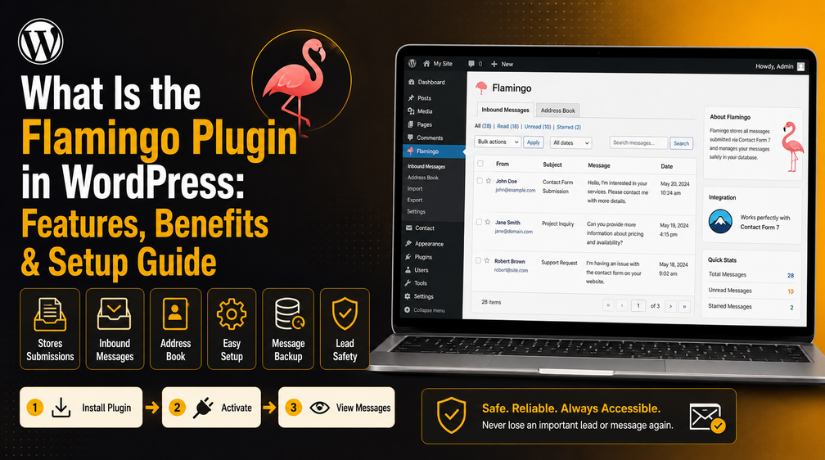
What Is the Flamingo Plugin in WordPress: Features, Benefits & Setup Guide
Introduction
Most WordPress websites use contact forms to collect customer messages. These forms help visitors ask questions, request quotes, or contact support. Many site owners use Contact Form 7 for this purpose. It is simple, flexible, and widely used across WordPress websites. However, one common issue creates problems for many website owners. Contact Form 7 does not save submissions inside WordPress by default. This means your website may send the message by email only.
If that email fails, the message may be lost completely. This can become a serious problem for business websites. A missed enquiry can mean a missed sale or booking. A lost support request can also affect customer trust badly. This is where the Flamingo plugin WordPress users often choose becomes useful. Flamingo stores submitted messages inside your WordPress dashboard. It works like a simple backup for contact form entries. When a visitor submits a form, Flamingo saves the message. You can later view that message from your admin area.
What Is the Flamingo Plugin in WordPress?
The Flamingo plugin is a message storage plugin for WordPress. It helps save contact form messages inside your website database. Many people call it a WordPress contact form database plugin. This is because it stores form submissions inside WordPress. It is commonly used with the Contact Form 7 plugin. Contact Form 7 creates the form on your website. Flamingo stores the messages submitted through that form. This makes the Contact Form 7 Flamingo plugin combination very helpful.
It gives users both form creation and message storage features. Flamingo is not a form builder plugin by itself. It does not create contact forms for your website. Instead, it supports Contact Form 7 by saving its submissions. This makes it simple, focused, and easy to understand. Once activated, it adds storage options to your WordPress dashboard. You can then view saved messages from the admin panel. This helps website owners manage form data more safely. It is useful when email delivery does not work properly. It also helps when users delete emails by mistake.
With Flamingo, the message can still remain inside WordPress. This makes it a helpful WordPress form submission plugin for many websites. It is best for users who want simple form entry records. It does not work like a full customer management system. However, it works well for basic message storage needs.
Why Do WordPress Sites Need Flamingo for Better Form Message Safety?
WordPress sites need Flamingo to keep contact form messages safe. Many websites use Contact Form 7 for enquiries, quotes, and support requests. But form emails may not always reach the inbox. This can happen because of hosting limits, spam filters, wrong mail settings, or SMTP issues. The Flamingo plugin WordPress users install helps solve this problem. It saves form submissions inside the WordPress dashboard. This gives website owners a backup record of every message.
Contact Form Emails May Not Always Arrive
Contact form emails can fail without warning. A visitor may submit the form successfully. But the website owner may not receive the email. This can happen due to poor mail settings, spam filters, or server limits. Flamingo helps by saving the message in WordPress. So, you can still check the entry later. This makes it a useful WordPress form submission plugin for business websites.
Important Leads Can Be Lost
Every form message can be a real business lead. A visitor may ask for pricing, service details, or support. If the message is lost, the customer may go elsewhere. This can affect sales and trust. The Contact Form 7 Flamingo plugin helps prevent this issue. It lets you save contact form entries WordPress users may otherwise miss. This is helpful for service, clinic, ecommerce, and agency websites.
Flamingo Works as a Backup for Submissions
Flamingo stores submitted messages inside WordPress. It works like a simple backup system. Even if the email fails, the entry may still be saved. Website owners can check old messages anytime. This makes the Flamingo WordPress plugin useful for lead tracking. It is not a full CRM, but it is great for basic message storage.
It Helps During Website Testing
Flamingo also helps during website testing and updates. After migration, redesign, or plugin changes, forms need testing. A form may look fine but still have email issues. Flamingo helps confirm if the form submission is working. If the message appears in Flamingo, the form is submitted correctly. If email fails, the issue may be SMTP or hosting mail.
It Supports Better Lead Management
Small websites do not always need a full CRM. They only need a simple place to view messages. Flamingo gives that option inside WordPress. Admins can review names, emails, subjects, and messages. They can also search old enquiries when needed. This makes Flamingo a simple WordPress contact form database plugin for daily use.
It Gives Website Owners More Confidence
Website owners need to know their forms are working. Missed messages can create lost sales and poor service. Flamingo gives a safer way to manage form submissions. It stores entries, supports follow-ups, and reduces confusion. For any website using Contact Form 7, Flamingo is a helpful tool.
Features of the Flamingo Plugin In WordPress
The Flamingo plugin WordPress users install has simple but useful features. It helps store Contact Form 7 messages inside WordPress. It is not a complex tool or full CRM system. It gives website owners a safe place for form entries. This makes the Flamingo WordPress plugin helpful for daily use.
Stores Contact Form 7 Submissions
Flamingo saves messages submitted through Contact Form 7 forms. This helps protect important enquiries from getting lost. If email delivery fails, the entry may still be saved. This feature is useful for quotes, bookings, and support forms. It helps users save contact form entries WordPress may not store.
Shows Messages in the Inbound Messages Section
Flamingo adds an Inbound Messages section inside WordPress. Admins can go there and view saved form submissions. Each message can be opened and checked easily. You can review names, emails, subjects, and message details. This makes form tracking simple for website owners.
Makes Form Entries Searchable
Flamingo allows admins to search saved form entries. You can search by name, email, subject, or message text. This helps when you need an old inquiry quickly. Busy websites can manage many form messages more easily. This makes Flamingo a useful WordPress form submission plugin.
Includes a Basic Address Book
Flamingo also includes a simple address book feature. It stores basic sender details from submitted contact forms. This helps you find repeat contacts more easily. It is not a full customer management system. Still, it is useful for basic contact record keeping.
Gives Simple WordPress Dashboard Access
The Flamingo WordPress plugin is easy to use. It adds a clean menu inside the WordPress dashboard. You do not need complex settings or coding knowledge. Beginners can check form messages without technical help. This makes it useful for small business websites.
Works Smoothly With Contact Form 7
The Contact Form 7 Flamingo plugin setup works well together. Contact Form 7 creates and displays your website forms. Flamingo stores the submitted messages inside the database. This gives users both form creation and message storage. It is a simple setup for Contact Form 7 users.
Helps Find Email Delivery Problems


Flamingo also helps identify email delivery problems. If Flamingo stores the entry, the form is working. If email does not arrive, the issue is likely delivery. This may mean SMTP, hosting mail, or spam filtering issues. It helps support teams find problems faster.
Works as a Lightweight Storage Plugin
Flamingo is a lightweight WordPress contact form database plugin. It focuses only on message storage and contact records. It does not add heavy tools or confusing features. This keeps the plugin simple for regular WordPress users. It is best for basic form entry management.
How to Install the Flamingo Plugin in WordPress (Step By Step)
Installing Flamingo is simple for most WordPress users. Before starting, make sure Contact Form 7 is installed. Flamingo works mainly with Contact Form 7 form submissions. Follow these steps to install and test it properly.
Step 1: Log In to Your WordPress Dashboard
- Open your WordPress admin login page.
- Enter your admin username and password.
- Click the Log In button.
- Make sure you are using an administrator account.
- Admin access is required to install new plugins.
- Also check that Contact Form 7 is already active.
Step 2: Go to the Plugins Section
- Look at the left-side WordPress dashboard menu.
- Click on the Plugins option.
- Now click Add New from the plugin menu.
- This will open the WordPress plugin library.
- Use the search box on the right side.
- Type Flamingo in the plugin search field.
Step 3: Install the Flamingo Plugin
- Find the official Flamingo plugin in search results.
- Check the plugin name before clicking install.
- Click the Install Now button.
- WordPress will download the plugin automatically.
- Wait until the installation process is complete.
- Do not close the page during installation.
Step 4: Activate the Flamingo Plugin
- After installation, click the Activate button.
- WordPress will enable the plugin on your website.
- Now check the left-side dashboard menu.
- You should see the Flamingo menu there.
- Common options include Address Book and Inbound Messages.
- These sections help manage saved form entries.
Step 5: Submit a Test Contact Form
- Open the page where your contact form appears.
- Fill in the form using test details.
- Add a valid name and email address.
- Write a clear test subject and message.
- Submit the form like a normal visitor.
- This helps confirm the form is working properly.
Step 6: Check the Saved Entry in Flamingo
- Go back to your WordPress dashboard.
- Click Flamingo > Inbound Messages.
- Look for your recent test submission.
- Open the saved message from the list.
- Check the name, email, subject, and message.
- Confirm that all details are saved correctly.
Step 7: Test Email Delivery Also
- Open your email inbox after testing the form.
- Check whether the form email arrived.
- Also check the spam or junk folder.
- If Flamingo saved the entry, the form works.
- If email did not arrive, check SMTP settings.
- Flamingo stores entries but does not fix email delivery.
Common Issues With Flamingo Plugin After Installing
The Flamingo plugin WordPress setup is usually simple. Still, some users may face small issues after installation. These issues often come from form settings, email delivery, or plugin conflicts. Most problems are easy to check with basic testing. Below are common Flamingo issues and simple ways to fix them.
Form Submissions Are Not Showing in Flamingo
Sometimes, form entries may not appear inside Flamingo. This can happen when Contact Form 7 is not active. It may also happen when the form is not submitted correctly. A plugin conflict can also block form submissions. JavaScript errors may stop the form from working properly. First, check if Flamingo and Contact Form 7 are active. Then submit a fresh test message from your form. After that, go to Flamingo > Inbound Messages. If nothing appears, check the form settings carefully. You can also disable other plugins for testing. This helps find any plugin conflict quickly.
Email Is Still Not Reaching the Inbox
Many users think Flamingo fixes email delivery problems. But Flamingo only stores submitted form messages. It does not improve email sending by itself. If your email is not arriving, check SMTP settings. WordPress default email sending is not always reliable. Hosting mail limits may also block contact form emails. Use a trusted SMTP plugin for better delivery. Then test your Contact Form 7 form again. If Flamingo saves the entry, the form is working. If email still fails, the issue is email delivery. This makes the Contact Form 7 Flamingo plugin useful for testing.
Sender Name or Email Shows Incorrectly
Sometimes, Flamingo may show the wrong sender details. This usually happens when forms use custom field names. Contact Form 7 may use fields like your-name and your-email. But some forms use custom names for those fields. Flamingo may not detect them correctly without proper mapping. Check your Contact Form 7 field names first. Then make sure email fields are set correctly. Use clear field names for name, email, and subject. After changes, submit another test form entry. This helps confirm the saved details are correct.
Too Many Spam Entries Are Being Saved
Flamingo saves form submissions sent through your contact forms. So, spam entries can also appear inside Flamingo. This happens when bots submit fake messages repeatedly. It can make your message list messy and hard to manage. Add spam protection to your Contact Form 7 forms. You can use CAPTCHA or other anti-spam settings. Also, avoid very open forms without basic checks. Delete spam entries from Flamingo on a regular schedule. This keeps your WordPress contact form database plugin cleaner. It also makes real customer messages easier to find.
Flamingo Stores Sensitive User Data
The Flamingo WordPress plugin may store personal visitor details. These details can include names, emails, phone numbers, and messages. Website owners must handle this data with care. Only trusted admins should access saved form entries. Avoid giving dashboard access to unnecessary users. You should also update your website privacy policy. Tell visitors how form data may be stored. Do not collect extra personal details without a real need. Delete old submissions that are no longer useful. This keeps your website safer and cleaner.
Database Size Increases Over Time
Flamingo stores entries inside the WordPress database. Over time, many saved entries can increase database size. Spam messages can make this issue worse. Large databases may slow some admin tasks later. Review Flamingo entries every month when possible. Delete old spam, test entries, and unused messages. Keep only records that are still useful. Before deleting large data, take a safe database backup. This helps protect important records during cleanup. Regular cleanup keeps Flamingo light and easier to use.
Flamingo Menu Is Not Visible
Sometimes, the Flamingo menu may not appear in WordPress. First, check if the plugin is activated properly. You should also log in as an administrator. Some user roles cannot access all plugin menus. Admin menu manager plugins may also hide Flamingo options. Disable such plugins temporarily and check again. If the menu appears after that, adjust menu settings. You can also reinstall Flamingo if activation fails. Always test again after making these changes.
Conclusion
The Flamingo plugin WordPress users install is simple and useful. It helps save Contact Form 7 submissions inside WordPress. This protects important messages from being lost through email issues. It also helps website owners review old enquiries easily. Flamingo is not a full CRM or email delivery tool. But it works well as a basic form storage solution. It helps you save contact form entries WordPress does not store by default. It also supports testing, troubleshooting, and better lead tracking. For best results, use Flamingo with proper SMTP setup. Also clean old entries and protect stored user data. If your website depends on Contact Form 7, Flamingo is helpful. It gives your business better control over form messages.
If your WordPress forms are not saving or sending messages, expert help can save time. The 24x7wpsupport team can check your form setup, Flamingo settings, SMTP delivery, and plugin conflicts. We can help make sure your customer enquiries are received, stored, and managed properly. For professional WordPress plugin setup and form troubleshooting, visit 24x7wpsupport.

Brian is a WordPress support specialist and content contributor at 24×7 WP Support. He writes practical, easy-to-follow guides on WordPress troubleshooting, WooCommerce issues, plugin and theme errors, website security, migrations, performance optimization, and integrations. With a focus on solving real website problems, Brian helps business owners, bloggers, and online store managers keep their WordPress sites running smoothly.
