
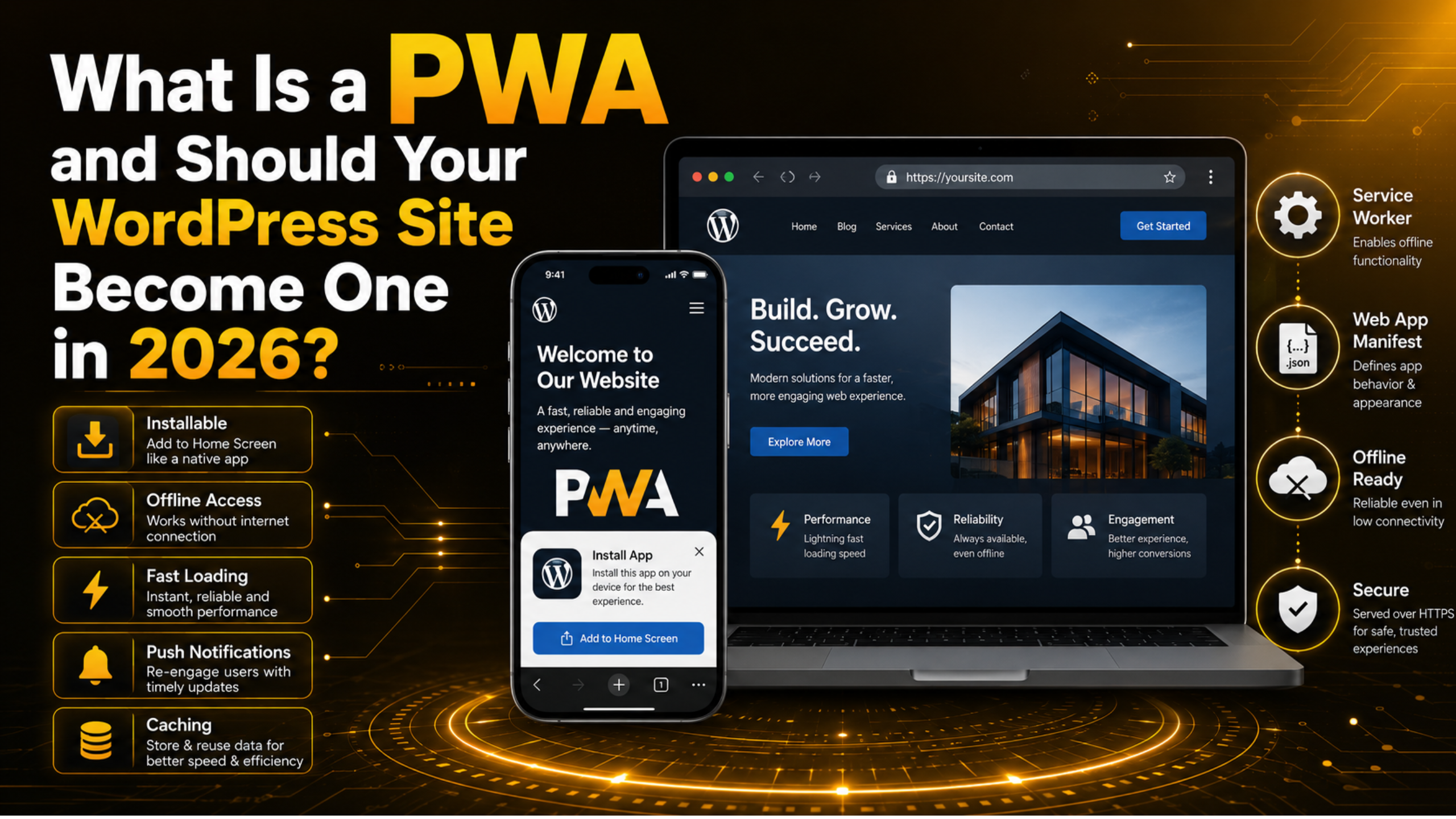
What Is a PWA and Should Your WordPress Site Become One in 2026?
Someone opens your site on a phone with one bar of signal. The page crawls, then stalls, then shows an error. They leave, and you never find out why. A progressive web app is one answer to that problem, and it does not require you to build a separate mobile app.
This guide explains what a PWA actually is and what it changes on a WordPress site. It also covers what one costs to build and keep, and how to decide whether yours should become one. That includes the cases where the honest answer is no.
What a Progressive Web App Really Is
A progressive web app is an ordinary website that has been given three extra capabilities. It can be installed to a phone’s home screen like an app. It can load and work when the network is slow or missing. And it can run code in the background even when nobody has the page open.
There is no app store involved, no separate codebase, and no review process. The same URL that serves your site to a desktop browser serves the app version to a phone. The browser looks for two files, and if it finds them, it quietly upgrades the experience.
The first file is a web app manifest. It is a small block of JSON that names your app, points at your icons, and sets the launch screen colour. The second is a service worker, a JavaScript file the browser installs and runs separately from your pages.
The word “progressive” is the important part. Browsers that support these features get the upgrade. Browsers that do not simply see your normal website. Nothing breaks and nobody is locked out, which is a very different risk profile from a native app.
How a Service Worker Changes What Your Site Can Do
The service worker is where nearly all the benefit comes from. It is worth understanding what it actually does. It sits between your pages and the network, like a small programmable proxy that lives inside the browser.
When a visitor requests a page, the request passes through the service worker first. Your code decides what happens next. It can serve a copy from the local cache at once. It can fetch from the network. It can try the network and fall back to the cache. Or it can return a friendly offline page instead of the browser’s error screen.
That single decision point is what makes a site feel fast on a bad connection. Your logo, stylesheet, fonts, and main script can be stored on the device the first time someone visits. On every visit after that, those files never touch the network at all. Only the actual content has to travel.
The caching strategies worth knowing
Three patterns cover most of what a content site needs. Cache-first suits files that never change without changing their name, such as fingerprinted CSS and JavaScript bundles, fonts, and your logo. Serve them from the cache immediately and skip the network entirely.
Network-first suits anything that must be current: a product price, a stock level, a comment thread. Try the network, and only reach for the cached copy if the request fails or takes too long. Stale-while-revalidate sits between the two. It shows the cached version instantly, then quietly fetches a fresh copy in the background for next time. Blog posts and archive pages are a good fit.
What Changes for a Real Visitor
The differences are easiest to understand from the visitor’s side rather than the developer’s. Four of them matter enough to justify the work.
Repeat visits become close to instant. Because the shell of the page is already on the device, the browser has almost nothing to download. On a mid-range phone this often turns a two-second load into something that feels immediate, and the gap widens as the connection gets worse.
The site keeps working when the network does not. A visitor on a train, in a lift, or in a rural area still sees the pages they have already viewed. For the ones they have not, they get a designed offline message rather than a browser error. For a documentation site or a support knowledge base, that alone can be the whole business case.
Visitors can install it. If someone adds your site to their home screen, it opens full screen with your icon and splash colour, and no address bar. This is a loyalty feature rather than an acquisition one, but installed users return far more often than bookmark users.
Push notifications become possible. The same service worker can receive a message from your server and show a notification while your site is closed. That is powerful and very easy to abuse, as covered below.
Turning a WordPress Site Into a PWA
The build itself is smaller than most people expect. WordPress already serves everything over one origin, which is the main structural requirement, and the rest is a handful of files.
Start by confirming your site is served entirely over HTTPS. Service workers refuse to install on an insecure origin. Mixed content is enough to stop them, and one image or script still loading over plain HTTP counts. Look for the padlock, then check your theme and custom templates for hard-coded HTTP URLs.
Next, add a manifest. It needs a name, a short name for the home screen label, and a start URL. It also needs a display mode of standalone, a theme colour, a background colour, and two square icons at 192 and 512 pixels. Serve it from your site root and reference it from the document head with a link tag.
Then register a service worker. The file must sit at the root of the scope you want it to control. A file at /sw.js controls the whole site. One at /blog/sw.js controls only the blog. Register it from a small inline script, wrapped in a feature check so older browsers ignore it cleanly.
Finally, decide what to precache. Be conservative on the first pass: the stylesheet, the main script, the fonts, the logo, and a dedicated offline page. A large precache list makes the first visit slower, which is the opposite of what you wanted.


Where PWAs and WordPress Fight Each Other
Three parts of a normal WordPress site clash with aggressive caching. Knowing about them in advance saves a long afternoon of confusion.
Logged-in pages must never be cached. Say your service worker stores a page rendered for an administrator, then serves it to a logged-out visitor. You have leaked private content and broken the admin bar for everyone. Check for the login cookie in your fetch handler and bypass the cache whenever it is present.
The admin area should be excluded outright. Skip any request whose path starts with /wp-admin/ or points at wp-login.php, along with the REST API and the AJAX endpoint. These are dynamic by nature and there is no version of caching them that ends well.
Cart, checkout, and account pages need the same treatment. A cached cart is worse than a slow one, because the visitor sees items that are gone and prices that may be wrong. If your site sells anything, exclude those routes before production.
Your existing page cache also needs thought. Server-side caching and service worker caching are separate layers with separate expiry rules, so content can end up stale in two ways at once. Our guide to enabling caching in WordPress covers the server-side half; the two layers must agree on how long content stays valid.
Push Notifications: Use Sparingly or Not at All
Push is the feature people ask for first and regret fastest. It deserves a section of its own because the failure mode is expensive and hard to reverse.
Never request notification permission on page load. A prompt that appears before the visitor has read a sentence is refused almost every time. A refusal is close to permanent. The browser will not ask again, and the visitor has to dig into site settings to change their mind. Some browsers now suppress the prompt on sites with very low acceptance rates.
Ask at a moment that makes the reason obvious. After someone reads a full article, completes an order, or clicks a “notify me” control, the request has an answer attached to it. Explain in one line what you will send and how often, using your own interface, before the browser prompt appears.
Then send far less than you think you should. Notifications that are not genuinely useful train people to uninstall, and an uninstall takes the offline support and the home screen icon with it. A shipping update or a reply to a comment earns its place. A weekly marketing blast does not.
The Honest Costs and Trade-Offs
A PWA is not free, and the ongoing costs land in places that are easy to overlook when you are only looking at the build.
Debugging gets harder. A service worker keeps serving the old version of your site until it is replaced and the page reloads. A change you just deployed may stay invisible to you and to visitors. Every deployment needs a versioning plan for your caches, and the “update on reload” option in your developer tools becomes routine.
Storage is finite and not under your control. Browsers grant each origin a share of disk space and reclaim it without warning when the device runs low. Anything you cache can disappear, so nothing cached can be the only copy.
Installation numbers are usually modest. Most visitors will never install it unless your site is something they use again and again — a tool, a tracker, a portal, a shop. The speed and offline benefits still apply to everyone, but the home screen icon should not be the reason you start.
And it will not fix a slow site. If your pages are heavy or your queries expensive, a service worker hides the problem on repeat visits while the first visit stays just as slow. Measure first, using our guide to checking your WordPress site performance, and fix the weight before you build.
So Should Your Site Become One?
The decision comes down to how people use your site, not to how modern the technology sounds. A few clear signals point each way.
It is worth doing when a good share of your traffic is mobile and returning. It is worth doing when visitors are often on patchy connections. It is worth doing when your content is reference material people come back to, or when you run a shop where latency costs you orders. In those cases the offline support and the instant repeat load earn their keep every day.
It is not worth doing when your site is a brochure people visit once before phoning you. Nor when almost all your traffic arrives from search and leaves at once. Nor when nobody on your team can maintain a service worker. An unmaintained one is worse than none, because it will eventually serve a stale site to people who cannot clear it.
There is also a middle path, and it is often the right one. Ship the manifest and a conservative service worker that caches only static assets and an offline page. You get most of the speed benefit for very little risk, and you can add more caching later. First make sure the basics are right — our guide on making your WordPress website mobile friendly covers the groundwork a PWA sits on.
A PWA is a set of small, well-understood additions that make a WordPress site faster and more reliable for the people who come back to it. Done carefully it is one of the better returns on a few days of work. Done carelessly it serves stale pages and annoys people. If you would like it built properly and maintained, the team at 24×7 WP Support can handle the whole thing.
Related posts:



Brian is a WordPress support specialist and content contributor at 24×7 WP Support. He writes practical, easy-to-follow guides on WordPress troubleshooting, WooCommerce issues, plugin and theme errors, website security, migrations, performance optimization, and integrations. With a focus on solving real website problems, Brian helps business owners, bloggers, and online store managers keep their WordPress sites running smoothly.
