
What Are Pingbacks in WordPress and How Do You Manage Them?
Introduction
Many website owners see strange comment notifications inside WordPress. They often notice them after publishing blog posts or pages. At first, these alerts can look confusing or unnecessary. Some users think they are normal comments from readers. Others assume they are spam or system errors.
That is why understanding what are pingbacks in WordPress matters. Pingbacks are a small feature, but they affect comment settings. They also affect moderation, content links, and website management. If you run a blog, business site, or support site, this matters. You should know what they do before leaving them enabled.
Many users first notice WordPress pingbacks in the comments area. They may also see related settings under Discussion options. If you do not understand them, managing your site becomes harder. You may approve things you should block. You may also keep settings enabled that add clutter.
This topic is important for another simple reason. Pingbacks are often discussed with trackbacks. That creates more confusion for beginners and busy site owners. So before learning deeper settings later, you need a clear base. You need to know what pingbacks are and why WordPress includes them.
What Pingbacks Actually Are
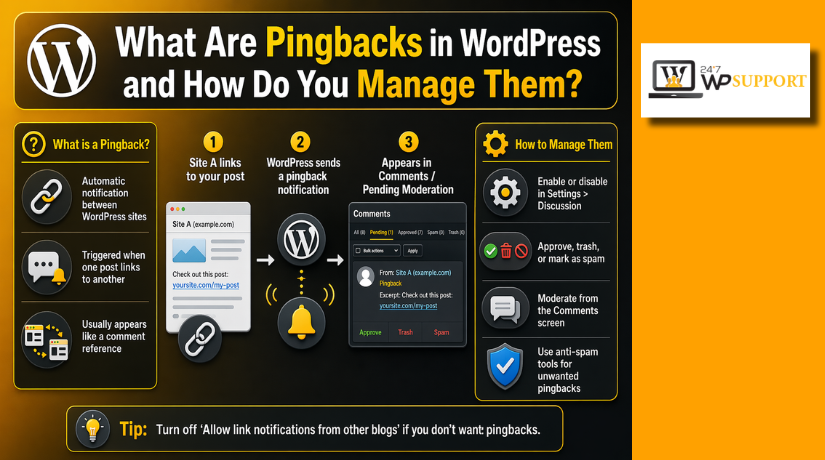
Pingbacks are automatic link notifications between supported websites. When one website links to another, WordPress can send a notice. That notice tells the linked website about the new mention. In simple words, pingbacks alert site owners about incoming links.
Here is the basic idea:
- Site A publishes a post with a link
- Site B receives that link notification
- WordPress places the pingback in comments or moderation
This is why many users ask, what are pingbacks in WordPress. They are not regular visitor comments. They are system-generated notifications connected to content links. That is the main thing to remember.
In most cases, WordPress pingbacks appear where comments are managed. They can show up like short comment entries. That is why they often confuse new users. The feature was designed to support blog interaction. It helps websites acknowledge when another site references their content.
How Pingbacks Work Inside WordPress
Understanding the process helps you manage WordPress pingbacks better. A pingback starts when one website links to another website. Both websites must support this feature for it to work.
Here is how the process usually works in WordPress:
- You publish a post on your website
- Another website adds a link to your post
- Their WordPress site sends a pingback notification
- Your website checks whether the link is real
- The pingback appears in moderation or comments
This process is automatic, which makes pingbacks different from many other link alerts. That is one reason users often compare trackbacks and pingbacks in WordPress. A pingback does not need someone to send it by hand. WordPress handles the request in the background.
For example, imagine a blog writes about your article and adds a link. If pingbacks are enabled on both sides, your site receives a notice. That notice may appear like a comment entry inside WordPress. This is why many users first mistake pingbacks for normal comments.
The main purpose is simple. Pingbacks tell you when another site mentions your content. They help website owners notice incoming links without checking manually.
Once you understand this flow, later settings become much easier. You can then decide whether this feature helps your site. It also prepares you for learning how to manage trackbacks and pingbacks in WordPress in the next section.
The Difference Between Pingbacks and Trackbacks
Many users confuse these two WordPress features very easily. Both deal with links between blog posts and websites. Both can also appear in your comment moderation area. Even so, they do not work in the same way.
The biggest difference is how each notification gets created. WordPress pingbacks are automatic when one supported website links another. A trackback is usually sent manually by the publisher. That makes pingbacks faster and easier for normal users.
Another key difference is how the information gets shared. A pingback mainly sends a link notification and checks it. A trackback can send a short excerpt with the link. This is one reason many users ask, what is the difference between trackbacks and pingbacks in WordPress.
Here is the simple comparison:
- Pingbacks work automatically after a valid content link appears
- Trackbacks often need manual input before they are sent
- Pingbacks verify the link between both website posts
- Trackbacks may include a short content summary or excerpt
This is why trackbacks and pingbacks in WordPress should not be treated as the same feature. They may look similar in your dashboard, but the process behind them is different.
Understanding this difference helps with better website decisions. It becomes easier to review notifications and comment settings. It also helps when learning how to manage trackbacks and pingbacks in WordPress later. Once you know the difference, you can decide which option fits your website better.
Why Some Site Owners Keep Pingbacks Enabled
Some website owners still find pingbacks useful in daily work. They like knowing when another website mentions their content. This can help them notice related posts without manual searching. For active blogs, that small update can still matter.


This is where WordPress pingbacks may offer simple value. They give a basic signal that another site linked you. For bloggers who publish often, this can support content awareness. It may also show when discussions happen across similar websites.
Site owners may keep them enabled for these reasons:
- They want alerts when another site mentions a post
- They run a blog with active article-to-article linking
- They like checking link activity from related websites
- They want to review blog interaction inside WordPress
Some users also keep trackbacks and pingbacks in WordPress enabled because they manage editorial or blog-heavy websites. In these cases, link notifications may still feel relevant. If the site gets real discussion from other blogs, pingbacks can seem useful. For these users, the feature supports visibility more than convenience.
Why Many WordPress Users Disable Pingbacks
Even with some benefits, many users turn this feature off. The reason is usually simple. Pingbacks often create more clutter than value. For many business websites, they add extra work without real benefit.
One common issue is low-quality or unwanted notifications. Some pingbacks come from weak or unrelated websites. Others may look useful at first, but add nothing meaningful. This makes moderation harder, especially on busy sites.
Another problem is self-pings from internal linking. When you link one post to another, WordPress may notify itself. That creates unnecessary comment entries and wastes moderation time. This is a major reason people search how to disable pingbacks in WordPress.
Many users also want a cleaner dashboard and comment area. They do not want extra items mixed with real user comments. That is why many site owners learn how to manage trackbacks and pingbacks in WordPress early.
For service websites, online stores, and company pages, disabling them often makes sense. These sites usually do not need link notifications for daily work. Once users understand what is the difference between trackbacks and pingbacks in WordPress, the choice becomes easier. In many cases, turning them off keeps WordPress simpler and easier to manage.
How to Manage Pingbacks From the WordPress Dashboard
WordPress gives simple settings to control pingbacks across your website. You can manage them from the main dashboard without extra tools. This is important when learning how to manage trackbacks and pingbacks in WordPress.
To check the main setting, follow these steps:
- Go to Settings in your WordPress dashboard
- Open the Discussion settings page
- Find the link notification options there
- Review which pingback features are enabled
- Save your changes after updating the settings
You will usually see options for sending and receiving notifications. One option lets your site notify other blogs after linking. Another option allows WordPress pingbacks from other websites. These settings control the default behavior for future posts.
How to Disable Pingbacks When You Do Not Need Them
Many site owners prefer a cleaner comments and moderation area. That is why they search how to disable pingbacks in WordPress.
The easiest method is simple:
- Open Settings > Discussion
- Uncheck the link notification options
- Save the updated discussion settings
You can also change discussion settings on individual posts. This helps when you want different rules for specific content. For most business websites, disabling them sitewide feels much easier.
Best Practice: When to Keep Them On and When to Turn Them Off
The right choice depends on your website type and goals. A personal blog may still benefit from pingback notifications. A business website usually does not need that extra activity.
Keep them on if:
- You run a blog with active post-to-post discussions
- You want alerts when other blogs mention your articles
Turn them off if:
- You run a company website or online store
- You want fewer spam-like notifications and less moderation work
This becomes easier once you understand trackbacks and pingbacks in WordPress clearly.
Conclusion
Now you know what are pingbacks in WordPress and why they matter. You also understand what is the difference between trackbacks and pingbacks in WordPress. Pingbacks can help some blog owners track linked content. Still, many websites do not need that feature today. If pingbacks add clutter, turn them off and simplify moderation. If they support your publishing style, keep them enabled and review them carefully. The best setup is the one that keeps your site easy to manage.
If you need help adjusting WordPress discussion settings, controlling comment features, or cleaning up unwanted pingback issues, 24x7WPSupport can help you manage your WordPress website with ease.
Related posts:
HTML vs WordPress for SEO: Which Is Better in 2026?
How to Edit a WordPress Website on GoDaddy
How to Connect a GoDaddy Domain to WordPress: Step-by-Step Guide
Umbraco vs WordPress: Which CMS Is Better for Your Business Website?
WordPress RSS Feeds Explained: How to Enable and Create a Custom Feed in 2026

Brian is a WordPress support specialist and content contributor at 24×7 WP Support. He writes practical, easy-to-follow guides on WordPress troubleshooting, WooCommerce issues, plugin and theme errors, website security, migrations, performance optimization, and integrations. With a focus on solving real website problems, Brian helps business owners, bloggers, and online store managers keep their WordPress sites running smoothly.
