
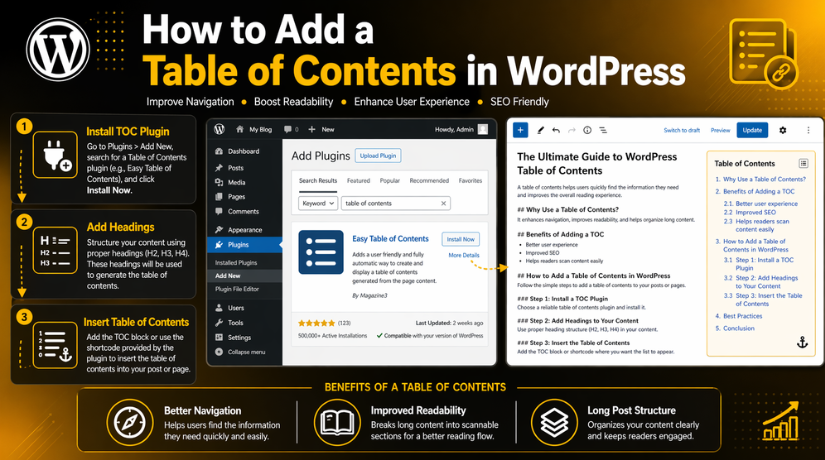
How to Add a Table of Contents in WordPress
Introduction
Long blog posts can feel hard to read at first glance. Many visitors do not want to scroll through the full page. They want to reach the exact section they need. That is where a table of contents becomes very useful. When you add table of contents in WordPress, you make your content easier to scan, read, and follow. A clear TOC gives readers a simple path through the article. It also makes your post look more organized from the start.
A good TOC works like a quick guide for the page. It shows the main sections in one place. Readers can click a heading and jump there instantly. This saves time and improves the overall reading experience. It is especially useful for tutorials, guides, service pages, and long-form blog posts. If your content has many sections, a TOC helps readers stay in control while reading.
Many website owners now use a WordPress table of contents plugin to add this feature quickly. These tools can detect headings and build the TOC for you. This makes the setup easier for beginners and busy site owners. At the same time, some users still prefer a manual method. They may want a WordPress table of contents without plugin for better control or fewer tools on the site. Both methods can work well when the content is structured properly.
For modern websites, this feature has become more common than ever. Many blogs now add a TOC near the top of the article. It usually appears after the introduction and before the main sections. This placement works well because it lets the reader understand the topic first. Then it shows the full article structure right away. Whether you are creating a tutorial or a table of contents WordPress post, this feature can make your article stronger and more reader-friendly.
What Is a Table of Contents in WordPress and How It Works?
A table of contents in WordPress is a clickable list of sections inside a post or page. It is usually created from the headings already used in the content. These headings can include H2, H3, and sometimes H4 levels. When a reader clicks one item, the page jumps to that exact section. This makes it easier to move through the article without endless scrolling.
In simple terms, the TOC gives readers a map of the page. It shows the main topics before they start reading deeply. This is very helpful when the article covers many points. Readers can decide where to begin and what to skip. That is why many site owners choose to add table of contents in WordPress for longer content.
A TOC is often placed near the top of the post. Some site owners add it below the opening paragraph. Others place it right after the introduction section. The best location depends on the layout and writing style. Still, the goal stays the same. The TOC should be easy to find and easy to use.
The good thing is that you do not need to build everything manually. A WordPress table of contents plugin can generate the section list automatically. It scans your headings and creates links based on them. This saves time and reduces manual work. It is a simple option for websites with many blog posts. If you publish tutorials or guides often, this method can be very helpful.
Why Adding a Table of Contents in WordPress Helps Website
Improving Navigation for Long WordPress Posts and Pages
One of the biggest reasons to use a TOC is better navigation. Long posts can feel crowded when many topics appear on one page. A TOC solves this problem by giving readers direct links to each section. They can jump where they want in one click. This is very useful for guides, tutorials, and service pages with many parts.
Making Content Easier to Read and Follow
A large wall of text can push readers away quickly. A TOC breaks that feeling before it starts. It gives a clear view of the article sections and makes the page look more organized. Readers feel more comfortable when they know what is coming next.
Creating a Better User Experience Across Devices
User experience matters on both desktop and mobile devices. On small screens, long articles can feel even harder to move through. A WordPress TOC helps mobile users reach the right section faster. They do not need to scroll through many screens just to find one answer.
Supporting Content Structure in a More SEO-Friendly Way
A TOC does not guarantee rankings, but it can support better page structure. Search engines look at headings to understand the content. A good TOC highlights that structure clearly. It shows that the page is organized into useful sections. This can support a more readable and well-arranged article.
Working Best for Tutorials, Guides, and Detailed Help Content
Not every short blog post needs a TOC. But detailed articles often benefit from one. A TOC is especially useful for tutorials, comparison posts, support guides, and long educational blogs. These content types usually have many headings and subheadings. A TOC helps organize them into a clear path.
Things You Should Prepare Before Adding a Table of Contents in WordPress
Before you add a table of contents, your content should be ready first. Many users install a plugin too early and expect perfect results. But a TOC works best when your article already has a clear structure. If the headings are messy, the TOC will also look messy. That is why preparation matters before you add table of contents in WordPress. A little setup work gives you a much cleaner result later.
Use a Proper Heading Structure Before Creating the Table of Contents
The first thing you need is a proper heading structure. Your main sections should use H2 headings in the article. Smaller points under those sections can use H3 headings. If needed, you can also use H4 headings carefully. This structure helps your readers understand the flow clearly. It also helps your WordPress TOC detect sections in the right order.
You should not use heading tags only for style or size. Many users make text bold and large, but skip real heading tags. That creates problems when a TOC plugin scans the page. The plugin usually reads H2, H3, and H4 tags only. So if your sections are not built correctly, the TOC may miss them. If you want to learn how to create table of contents in WordPress, heading structure is one of the first things to fix.
Keep Your Section Headings Clear and Easy to Understand
Your headings should explain the section in a simple way. A TOC is only helpful when readers understand each item quickly. If the headings are unclear, the TOC becomes less useful. Readers may click the wrong section or ignore the TOC completely. That is why heading wording matters before adding a table of contents WordPress post layout.
Try to keep headings direct and meaningful. Each heading should tell the reader what the section covers. Avoid very short titles that say little. Avoid vague headings that do not explain the topic clearly. A strong heading improves the article and also improves the TOC. This makes the full page easier to scan from the top.
Organize the Full Article Before You Add the TOC
You should finish the article structure before adding the TOC. This means your main sections should already be placed in order. The introduction should be ready. Your core points should already be grouped properly. This helps the TOC reflect the real shape of the article. If you keep changing the layout later, the TOC may also need more fixes.
A good TOC is not the starting point of the article. It is a result of a well-planned article structure. First, build the content in a logical way. Then let the TOC display that structure clearly. This is one of the best ways to add table of contents in WordPress without making the page look random.
Check Whether You Are Using Gutenberg, Classic Editor, or a Page Builder
Before adding a TOC, you should know which editor your site uses. Many WordPress websites now use the Gutenberg block editor. Some older websites still use the Classic Editor. Other sites may use page builders like Elementor or WPBakery. This matters because TOC tools do not work the same in every setup.
Some plugins work very smoothly with Gutenberg posts. Others offer shortcode support for Classic Editor or builder layouts. A few tools also provide their own block for easy placement. So before choosing your method, check how your content is built. This helps you pick the right WordPress table of contents plugin for your website.
Decide Where You Want the Table of Contents to Appear in the Post
Placement also matters before you add the TOC. Most websites place the TOC near the top of the article. A common position is right below the introduction. This gives readers a quick overview after they understand the topic. It feels natural and helps users move forward easily.
Some site owners prefer the TOC above the first paragraph. Others place it after a short opening section. The best location depends on your writing style and page design. But the TOC should not feel hidden or hard to find. It should also not push important content too far down the page.
How to Add a Table of Contents in WordPress (Complete Guide)
For most users, the plugin method is the simplest option. It is faster, easier, and better for regular publishing. You do not need to build anchor links by hand. You do not need to update each section manually every time. The plugin reads your headings and builds the TOC for you. That is why many users choose this route when they add a table of contents in WordPress.
Step 1: Choose a Table of Contents Plugin That Fits Your Website
- Start by choosing a plugin that matches your website needs.
- Popular options include Easy Table of Contents, LuckyWP Table of Contents, and SimpleTOC.
- Each plugin offers different features and display options.
- This is the easiest way to add table of contents in WordPress.
- A plugin saves time and handles the TOC automatically.
Step 2: Install the Plugin From Your WordPress Dashboard
- Go to your WordPress dashboard.
- Open Plugins and click Add New.
- Search for the TOC plugin you want to use.
- Click Install Now.
- After installation, click Activate.
Step 3: Open the Plugin Settings After Activation
- After activation, open the plugin settings page.
- Most TOC plugins add a separate settings area in the dashboard.
- This section lets you control how the TOC will appear.
- You can also manage display, placement, and heading settings here.
- This is where your WordPress TOC setup begins.
Step 4: Select Which Heading Levels the Plugin Should Include
- Choose which heading tags the plugin should scan.
- In most cases, select H2 and H3 first.
- Add H4 only if your article needs deeper sections.
- This step helps the plugin build the TOC correctly.
- A proper heading setup is important for how to create a table of contents in WordPress.
Step 5: Set the Minimum Number of Headings Required
- Choose the minimum number of headings needed before the TOC appears.
- This setting prevents the TOC from showing on very short posts.
- It is useful when you only want TOC on long articles.
- A higher heading count keeps the layout cleaner.
- This makes your table of contents WordPress post look more useful and organized.
Step 6: Choose Automatic or Manual Placement
- Decide where you want the TOC to appear.
- You can place it automatically at the top of the post.
- You can also insert it manually where needed.
- Some plugins allow block, shortcode, or widget placement.
- This gives you better control over your WordPress table of contents plugin setup.
Step 7: Adjust Basic Display Settings
- Review the design and display settings carefully.
- Choose whether to show numbering in the TOC.
- Decide if you want nested heading levels visible.
- Enable collapse or expand options if needed.
- These settings help make the TOC clean and easy to read.
Step 8: Add Proper Headings Inside Your Post or Page
- Open your post or page in the editor.
- Make sure your content uses real heading tags.
- Use H2 for main sections.
- Use H3 for sub-sections where needed.
- A clean heading structure helps both plugin and WordPress table of contents without plugin methods.
Step 9: Insert the TOC Into the Content Area
- Insert the TOC into the content area.
- If auto-insert is enabled, the plugin will place it for you.
- If manual mode is selected, add it with a block or shortcode.
- Place it where readers can see it easily.
- Many users add it below the introduction for better flow.
Step 10: Preview the Post and Test Every Link
- Preview the post on the front end.
- Check whether the TOC appears in the correct place.
- Click each TOC item one by one.
- Confirm that every link jumps to the right section.
- Fix any broken or missing links before publishing.
Step 11: Check the TOC on Mobile and Desktop
- Test the page on both desktop and mobile devices.
- Make sure the TOC looks clean on all screen sizes.
- Check that users can tap links easily on mobile.
- Review spacing, text size, and alignment.
- A good WordPress TOC should work well everywhere.
Step 12: Update the TOC After Editing Your Article


- Recheck the TOC after changing headings in your article.
- Plugins usually refresh the TOC from the latest heading structure.
- Removed or renamed headings can change the TOC output.
- Always preview again after major edits.
- This keeps your TOC accurate and useful for readers.
Common Problems You May Face When Adding a Table of Contents in WordPress
Even when you use a plugin, some problems can still appear. Most of these issues are not serious, but they can affect the final result. The TOC may not show correctly. It may skip headings or create broken links. These issues are common, especially on websites using many plugins or custom themes. Knowing these problems early helps you fix them faster and keep the page more user-friendly.
The Table of Contents Is Not Showing on the Post or Page
One common problem is that the TOC does not appear at all. This usually happens because of plugin settings. The plugin may be set to show the TOC only on certain post types. It may also require a minimum number of headings before it appears. If your article does not meet that number, the TOC may stay hidden. This can confuse users who expect it to show after installation.
Another possible reason is manual placement settings. Some plugins do not insert the TOC automatically. They need a shortcode or block placed inside the content. If that step is missed, the TOC will not appear on the page. This is why checking settings carefully is important when you add a table of contents in WordPress.
The Plugin Is Not Detecting Some Headings Inside the Content
Another common issue is missing headings in the TOC. The article may have many headings, but only some appear in the list. This usually happens when headings are not added properly. Some users style text to look like a heading, but do not use real H2 or H3 tags. A plugin cannot detect fake heading styles. It only reads actual heading tags from the content.
This issue can also happen with page builders. Some builders create heading elements in a different way. In those cases, the WordPress table of contents plugin may not detect every section correctly. If your article uses mixed content blocks, some headings may also be skipped.
The Table of Contents Links Are Not Working Properly
Sometimes the TOC appears correctly, but the links do not work well. A reader clicks an item, but the page does not jump correctly. In some cases, it jumps to the wrong heading. In others, it does not move at all. This problem often happens because of duplicate heading text. When two headings use the same words, the jump links can get confused.
Caching and optimization plugins can also affect TOC links. If the page uses old cached content, the jump links may not match the latest headings. Minification or script delay settings can also affect scrolling behavior on some websites. This is why testing matters before publishing a table of contents WordPress post.
The Table of Contents Looks Broken on Mobile Devices
A TOC may look fine on desktop screens first. But mobile devices can show a different result completely. Long heading text may wrap badly and look crowded. The width may also break the content layout badly. In some cases, the TOC box becomes too wide. This makes the page harder to read on phones.
This issue often comes from theme CSS conflicts. Some themes add spacing or font rules automatically. Those rules can affect the WordPress TOC layout badly. A plugin may also have default styles that do not fit. That is why mobile testing is always very important. A clean mobile layout makes the TOC much more useful.
The Table of Contents Style Does Not Match the Website Design
Another common issue is styling that feels out of place. The TOC may work correctly, but still look awkward. It may use the wrong font, colors, or spacing. This can make the page feel less professional overall. A mismatched design can also reduce trust for readers.
This issue usually happens with default plugin settings. Many tools use basic styles after installation. Those settings may not match your theme design exactly. If you use a WordPress table of contents plugin, review the design settings carefully. Sometimes a small CSS update improves the look quickly. A TOC should feel like part of the website.
Best Practices for Adding a Table of Contents in WordPress the Right Way
A TOC works best when it is simple and useful. It should help readers, not distract them from content. Good setup is not only about plugin activation. It is also about structure, placement, and reading comfort. These best practices help you get better results. They also make your TOC more helpful for real users.
Add a Table of Contents Only When the Content Really Needs It
Not every post needs a TOC at the top. Short blog posts usually do not need one. If the article has only a few sections, skip it. A TOC is most useful on long and detailed posts. It works best for tutorials, guides, and support pages. That is where readers need quick section access most.
When used in the right place, the TOC adds value. When forced into short pages, it adds clutter instead. This is why planning matters before you add table of contents in WordPress. Use it where it improves the experience clearly. Skip it where it adds no real benefit.
Keep the Heading Structure Clean and Easy to Follow
A TOC is only as good as the headings used. If headings are confusing, the TOC will be confusing too. Use H2 for major points and H3 for subpoints. Avoid random heading order inside the same article. Keep the structure simple and logical from top to bottom. This helps both readers and TOC tools understand the page.
This also matters for a table of contents WordPress post layout. Readers often scan the TOC before reading the article. If the heading flow looks clean, the article feels easier. If the structure looks messy, readers may leave early. Clear headings create a stronger reading path.
Place the Table of Contents Near the Top of the Article
Placement affects how quickly readers notice the TOC. In most cases, the best spot is near the top. A common location is right below the introduction paragraph. This helps readers understand the topic first. Then they can scan the full article structure easily. That flow works well on most blog pages.
A TOC should be easy to find immediately. It should not be hidden far inside content. It should also not appear before important opening lines. Many users place the WordPress TOC after a short intro. This keeps the page balanced and easy to use. Good placement improves the full reading experience.
Do Not Include Too Many Heading Levels in the TOC
Too many levels can make the TOC look crowded. If you include every heading, the box gets too long. That can make the page top area feel heavy. In most cases, H2 and H3 are enough. These levels give readers the main structure clearly. Deeper heading levels should be added only when needed.
This is especially important when using a WordPress table of contents plugin. Plugins can pull many heading levels automatically. But more items do not always mean better usability. A shorter TOC often works better for real readers. Keep it focused and easy to scan quickly.
Make the Table of Contents Easy to Read on All Devices
A TOC should look clean on desktop and mobile. Font size should be easy to read clearly. Spacing should give enough room between each item. Link text should also be simple and understandable. If the TOC feels crowded, readers may ignore it. Readability is one of the most important parts.
This matters even more on smaller screens today. Many users read blog posts on mobile devices. A hard-to-use TOC creates frustration instead of help. Whether you use a plugin or WordPress table of contents without plugin, always test the layout. A clean design helps readers move around the article faster.
Review the Table of Contents After Updating the Article Content
Articles often change after publishing over time. You may add sections, remove headings, or rename topics. When that happens, the TOC should be reviewed again. A heading update can change the whole TOC structure. If you forget to recheck it, errors can remain live. This affects the usefulness of the page.
Always preview the article after major content edits. Check whether all headings still appear correctly. Click the TOC links and test the jump points. This small review keeps the WordPress TOC accurate and helpful. A few extra minutes here can prevent reader frustration later.
Choose a Plugin That Matches Your Workflow and Website Style
Not every plugin suits every WordPress website equally. Some users want automatic insertion on all blog posts. Some want manual control using blocks or shortcodes. Others want a lighter tool with fewer settings. That is why plugin choice matters from the start. The right tool saves time and gives better results.
If you publish many long articles, automation helps greatly. If you want design control, manual options may fit better. A good WordPress table of contents plugin should match your editor and theme. It should also fit your posting style and content goals. The right match makes TOC management much easier.
Conclusion
A table of contents is a simple but powerful feature. It makes long content easier to scan and use. Readers can move to the exact section quickly. This saves time and improves the reading experience. It also helps your page look more structured overall. That is why many site owners now add tables of contents in WordPress regularly.
A good TOC works best with clean heading structure. It also needs the right placement and careful testing. When these parts are done well, the TOC adds real value. It supports better navigation and a more organized layout. For most users, a plugin is the easiest method. It saves time and makes setup much simpler.
If you are learning how to create a table of contents in WordPress, start with a clear article structure first. Then choose a setup method that fits your site. Whether you use a plugin or try a WordPress table of contents without a plugin method, the goal stays the same. Make the article easier for readers to use.
If you want help setting up a TOC correctly, expert support can save time. A wrong setup can create styling issues or broken links. It can also affect mobile layout and page flow. If you want a clean and professional result, 24×7 WP Support can help you.
Our team can help you install the right WordPress table of contents plugin for your website. We can also fix TOC display issues, plugin conflicts, and theme styling problems. If you want your table of contents WordPress post layout to look clean and work correctly, visit 24x7wpsupport and get expert WordPress help today.
Related posts:

Brian is a WordPress support specialist and content contributor at 24×7 WP Support. He writes practical, easy-to-follow guides on WordPress troubleshooting, WooCommerce issues, plugin and theme errors, website security, migrations, performance optimization, and integrations. With a focus on solving real website problems, Brian helps business owners, bloggers, and online store managers keep their WordPress sites running smoothly.
