
How to Add a Pingback in WordPress: Beginner’s Step-by-Step Guide
Introduction
WordPress has many useful tools for blog content management. One helpful feature is called a WordPress pingback. It helps one website notify another website after adding a link. This feature is mostly useful for blogs and content websites. Many users still want to know how to add pingback in WordPress correctly. However, pingbacks need careful use because spam can happen easily. You should understand the feature before enabling it on your website.
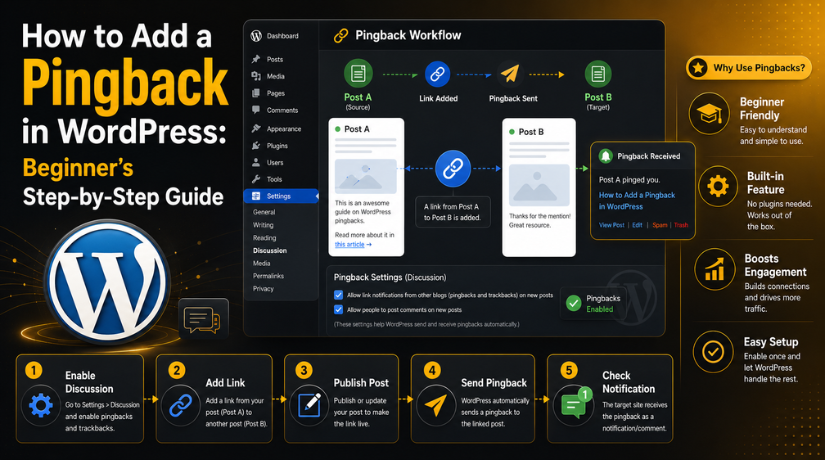
A pingback works like an automatic alert between two websites. When you link to another WordPress post, your website can notify that site. This only happens when both websites allow pingbacks. The website owner can then review the notification inside comments. They may approve, delete, or mark it as spam. This is why WordPress pingback settings are important for every website owner.
Many beginners confuse WordPress trackbacks and pingbacks with normal comments. They are not the same thing. Comments are written by real users on your post. Pingbacks are sent automatically when a link is created. Trackbacks are older and more manual than pingbacks. Today, many WordPress users focus more on pingbacks than trackbacks.
This guide explains the basic meaning of pingbacks in WordPress. It also helps you understand why they exist. You will learn how they connect blog content across websites. You will also understand why moderation matters before using them. Later parts will explain how to enable pingbacks in WordPress and manage them safely.
What Is a Pingback in WordPress and How Does It Work?
A WordPress pingback is an automatic link notification between websites. It tells another website that you linked to its content. You do not need to send this message manually. WordPress can handle the process automatically after correct setup. This makes pingbacks simple for bloggers and content publishers.
For example, you write a blog post on your website. Inside that post, you add a link to another WordPress article. If pingbacks are enabled, WordPress sends a notification automatically. The linked website receives that notification in its comments section. The website owner can then check and approve it.
A pingback is not a normal comment from a reader. It does not include a detailed personal message. It mainly shows another page linked to the post. This helps website owners see where their content is mentioned. However, they should always check the linking website carefully.
Pingbacks only work when both websites support and allow them. If one website disables pingbacks, the notification may not work. Security plugins may also block pingback requests sometimes. This is why users should understand WordPress pingback settings before using them.
The main purpose of pingbacks in WordPress is simple. They help connect related blog posts across different websites. They can also help bloggers find mentions of their content. Still, they need proper moderation because spam links are common. A clean comments section builds better trust with readers.
Who Should Use Pingbacks in WordPress for Better Blog Connections?
Pingbacks are not useful for every WordPress website. They work best for websites that publish regular blog content. A WordPress pingback helps connect one post with another related post. This feature can support blogs, learning websites, and content platforms. However, business websites should use pingbacks only with proper moderation. Before you add pingback in WordPress, understand if your website really needs it.
Bloggers Who Link to Other Helpful Blog Posts
Bloggers can use pingbacks to build content relationships with others. When one blogger links to another post, WordPress can send notifications. This helps the other website owner know about that mention. It also creates a small connection between related blog posts. For active bloggers, pingbacks in WordPress can support better content networking. Still, each pingback should be checked before approval.
News and Editorial Websites That Share Related References
News websites often link to reports, stories, and related posts. A pingback can help track where content is mentioned online. Editorial teams can review these notifications from the comments section. This helps them understand how their articles connect with others. However, they should never approve unknown links without proper review. Clean moderation keeps the website safe and trustworthy.
Educational Websites That Share Learning Resources
Educational websites often link to guides, tutorials, and reference articles. Pingbacks can help connect useful learning resources across WordPress websites. This can be helpful for schools, trainers, and tutorial blogs. It also helps readers find related learning material more easily. But website owners should review each source before approving it. Low-quality links can reduce the trust of educational content.
Website Owners Who Regularly Check Comment Moderation
Pingbacks appear inside the WordPress comment moderation area. So, website owners must check comments on a regular basis. If comments are ignored, spam pingbacks can quickly increase. This can make the website look unsafe or poorly managed. Anyone using WordPress trackbacks and pingbacks should monitor them carefully. Regular review helps keep the comment section clean and useful.
Benefits of Using Pingbacks in WordPress for Content Websites
Pingbacks can offer some useful benefits when used carefully. They are not a magic SEO tool or ranking shortcut. Still, they can help bloggers manage mentions and content references. The main benefit comes from better awareness of linked content. If you know how to enable pingbacks in WordPress, use them wisely. Proper setup and moderation make pingbacks more useful.
Pingbacks Help You Track Content Mentions Online
A WordPress pingback can show when another site links you. This helps you know where your content is being referenced. Bloggers can use this information to find related discussions. It can also help content teams understand post popularity. However, not every pingback means a valuable mention. Always check the linking website before approving the notification.
Pingbacks Can Build Connections With Other Bloggers
Pingbacks may help bloggers create connections with similar websites. When you link to another helpful post, they may notice. This can support healthy relationships between bloggers and publishers. It may also encourage future content mentions or collaborations. However, this works best with relevant and trusted websites. Spammy links should never be used for networking.
Pingbacks Add Reference Value to Blog Discussions
Approved pingbacks can appear near the comment area. They can show readers that another article discussed the topic. This gives extra reference value to your blog post. Readers may find another useful viewpoint through that link. But too many pingbacks can make comments look messy. Only approve pingbacks that add real value for readers.
Pingbacks Support Better Content Discovery
Pingbacks can help website owners find related content online. They may show websites discussing the same topic or idea. This can help bloggers discover new content angles. It may also reveal topics worth updating or expanding. For content-heavy websites, this can support research and planning. Still, manual review is needed before trusting any source.
Pingbacks Work Automatically After Proper Setup
Once enabled, WordPress can send pingbacks automatically after publishing. You only need to add a normal link inside content. WordPress then checks whether pingbacks are allowed by both websites. This makes the process simple for beginners and bloggers. Correct WordPress pingback settings help the feature work smoothly. But automatic does not mean it should be ignored.
Precautions Before Adding Pingbacks in WordPress Safely
Before using pingbacks, you should understand the possible risks. Many website owners disable pingbacks because spam is very common. A poorly managed pingback section can affect user trust. It can also create extra work inside comment moderation. So, before you add pingback in WordPress, check your settings carefully. Use this feature only when it supports your website goals.
Pingbacks Can Attract Spam and Unwanted Links
Spam websites often use pingbacks to place low-quality links. These links may point to unsafe or unrelated websites. If approved, they can make your comments look unprofessional. They can also harm the trust of your visitors. This is why manual approval is always important. Never allow pingbacks to appear without proper moderation.
Manual Moderation Is Needed for Every Pingback
Every pingback should be reviewed before it appears publicly. You should open the source link and check its quality. Make sure the website is relevant to your topic. Also check whether the content is safe and useful. If the source looks spammy, mark it as spam. Good moderation protects both readers and website reputation.
Pingbacks Are Not a Direct SEO Shortcut
Many beginners think pingbacks can quickly improve website rankings. This is not the right way to view them. Pingbacks mainly work as link notifications between WordPress websites. They do not replace strong content or quality backlinks. Focus on helpful content, internal links, and technical SEO. Use pingbacks in WordPress only for content connection.
Self-Pingbacks Can Create Extra Comment Notifications
Self-pingbacks happen when your own posts link each other. This can create unnecessary notifications inside your comments section. For large blogs, this may become annoying over time. It can also make comment moderation harder than needed. If this happens often, consider disabling self-pingbacks. You can also manage them using suitable WordPress settings.
Security Plugins May Block Pingback Requests
Some security plugins block pingback activity for safety reasons. Pingbacks often depend on WordPress XML-RPC functionality. Many security tools restrict XML-RPC to reduce attacks. Because of this, pingbacks may not work properly sometimes. Before changing security settings, understand the possible website risks. Safety should always be more important than pingback usage.
Only Approve Relevant and Trusted Pingbacks
Not every pingback deserves approval on your website. You should approve only trusted, useful, and related links. Check whether the linked website has real content and value. Avoid approving links from unknown or poor-quality websites. This keeps your comment section clean and helpful for readers. Strong moderation makes WordPress trackbacks and pingbacks safer to use.
How to Add a Pingback in WordPress Easily (Step-by-Step)
Adding a pingback is simple when settings are correct. You do not add it like a normal comment. WordPress sends it automatically after you add a link. This happens when both websites allow pingback notifications. So, before you add pingback in WordPress, check your setup first. The right WordPress pingback settings help this feature work correctly.
Step 1: Log In to Your WordPress Dashboard
- Open your WordPress login page.
- Enter your admin username and password.
- Go to your WordPress dashboard.
- Make sure you have admin access.
- Admin access is needed to change discussion settings.
Step 2: Go to WordPress Discussion Settings
- From the left dashboard menu, click Settings.
- Then click Discussion.
- This page controls comments and pingback settings.
- You can also manage WordPress trackbacks and pingbacks here.
- These settings help control how posts receive link notifications.
Step 3: Enable Link Notifications for New Posts
- Find the Default article settings section.
- Look for the link notification option.
- It usually mentions pingbacks and trackbacks together.
- Enable this option to receive pingbacks.
- This step helps users learn how to enable pingbacks in WordPress.
Step 4: Save Your WordPress Pingback Settings
- Scroll down to the bottom of the Discussion page.
- Click the Save Changes button.
- This saves your WordPress pingback settings.
- The setting will apply to future posts.
- Existing posts may need separate discussion setting checks.
Step 5: Open the Blog Post Editor in WordPress


- Go to Posts from your dashboard menu.
- Open an existing post or create a new one.
- Choose the post where you want to add a link.
- Make sure your content is complete and useful.
- A natural link works better inside helpful content.
Step 6: Add a Link to Another WordPress Blog Post
- Select the text where you want to add a link.
- Click the link option in the WordPress editor.
- Add the URL of another WordPress blog post.
- Make sure the linked content is useful and related.
- WordPress may send a WordPress pingback after publishing.
Step 7: Publish or Update the WordPress Post
- After adding the link, review your content once.
- Click Publish if it is a new post.
- Click Update if it is an existing post.
- WordPress will try to send the pingback automatically.
- The other website must also allow pingbacks in WordPress.
Step 8: Check the Comments Section for Pingback Activity
- Go to Comments from your WordPress dashboard.
- Check if any pingback appears there.
- Some pingbacks may wait for manual approval.
- Review the source website before approving it.
- Delete or mark spammy pingbacks as spam.
After completing these steps, WordPress will try to send the pingback automatically. You only need to enable the right settings, add a useful link, and publish or update your post.
Common Pingback Problems While Adding and Simple Fixes
Sometimes pingbacks do not work as expected in WordPress. This can happen because of settings, security, or spam filters. Some websites also disable pingbacks completely for safety. Before you change many settings, check the basic setup. Many issues are easy to fix with careful review. Here are common problems and their practical solutions.
WordPress Pingback Is Not Sending
A WordPress pingback may not be sent after publishing content. This often happens when pingbacks are disabled in settings. The linked website may also block pingback notifications. Sometimes security plugins stop outgoing pingback requests as well. If your post links to a non-WordPress site, it may fail. Pingbacks work best between supported WordPress websites.
Go to Settings > Discussion and check link notifications. Make sure pingbacks are enabled for new posts. Then open the post and check discussion options. Also confirm that the linked website accepts pingbacks. If security tools are active, review their XML-RPC settings carefully. Do not weaken website security only for pingbacks.
Pingback Is Not Showing in Comments
Sometimes a pingback is sent successfully but does not appear publicly. It may be waiting inside the pending comments area. WordPress may also move it to spam automatically. In some cases, the website owner may delete it. Theme settings may also hide pingbacks from the front end. So, always check the dashboard before assuming failure.
Open the WordPress dashboard and go to Comments. Check pending, spam, and trash folders one by one. If the pingback is useful, approve it manually. If it comes from a poor website, delete it. Also check whether comments are open on that post. Closed comments can stop pingbacks from showing correctly.
Security Plugin Blocks Pingback Requests
Many security plugins block pingbacks for safety reasons. Pingbacks can use XML-RPC features in WordPress. Attackers sometimes misuse XML-RPC for spam and attacks. Because of this, security plugins may block pingback requests. This can stop WordPress trackbacks and pingbacks from working properly. It is common on protected business websites.
Open your security plugin settings and review XML-RPC rules. Check whether pingbacks are blocked by the plugin. If needed, allow pingbacks only with proper care. However, do not disable important security features without reason. Website safety should always come before pingback usage. Ask a WordPress expert if you are unsure.
Too Many Spam Pingbacks Appear
Spam pingbacks are a very common WordPress issue. Spam websites may send fake or low-quality link notifications. These links can make your comment section look unsafe. They may also reduce user trust in your website. If automatic approval is active, spam can appear quickly. This is why moderation is always important.
Keep all pingbacks under manual approval. Use a trusted anti-spam plugin for extra protection. Check comments regularly and remove poor-quality pingbacks quickly. You can also disable pingbacks if spam becomes heavy. For business websites, disabling pingbacks is often safer. Clean comments help protect your website reputation.
Self-Pingbacks Keep Appearing on Your Website
Self-pingbacks happen when your own posts link together. WordPress may treat internal links like outside mentions. This creates extra notifications in the comments area. For large blogs, this can become very annoying. It also adds more work during comment moderation. Many website owners prefer stopping self-pingbacks completely.
You can delete self-pingbacks from the comments section manually. You can also disable pingbacks from discussion settings. Some users use no-self-ping tools for better control. Another option is managing internal links more carefully. Internal linking is good, but self-pingbacks are usually unnecessary. Keep your comment area clean and focused.
Theme Does Not Display Pingbacks Properly
Some WordPress themes do not show pingbacks on posts. The pingback may still exist inside the admin dashboard. This means the issue is not always with settings. Sometimes the theme comment template hides pingbacks from visitors. Custom themes may also display only normal comments. This can confuse users checking the front end.
First check the Comments section inside your dashboard. If the pingback appears there, settings are working correctly. Then review your theme comment display options. You may need theme-level changes for public display.
Best Practices for Using Pingbacks in WordPress Safely
Pingbacks can be useful when you manage them with care. However, they can also create spam and comment issues. So, every website owner should follow safe usage steps. Good management keeps your comments clean and trustworthy. It also helps you avoid unwanted links on your website. Before using pingbacks in WordPress, always review your site needs.
Keep Pingbacks Disabled Unless Your Website Really Needs Them
Not every website needs pingbacks for its content strategy. Many business websites work better without this feature enabled. If your website does not publish blogs often, avoid pingbacks. They may only add extra comment work for your team. You should enable them only for active content websites. This keeps your WordPress pingback settings simple and safer.
Moderate Every Pingback Before You Approve It
Always review each WordPress pingback before making it public. Do not approve pingbacks without checking the source website. A spam website may send low-quality link notifications. These links can make your comment section look unsafe. Open the source link and review its content carefully. Approve only clean, trusted, and topic-related pingbacks.
Use Anti-Spam Protection to Control Bad Pingbacks
Spam protection is important when using WordPress trackbacks and pingbacks. Many spam websites target pingbacks to place unwanted links. A good anti-spam plugin can reduce this problem. It can filter bad pingbacks before they appear publicly. Still, you should not depend only on automation. Manual review adds another safety layer for your website.
Do Not Use Pingbacks as an SEO Shortcut
Some users think pingbacks can improve rankings quickly. This is not the right purpose of pingbacks. A pingback is mainly a link notification feature. It does not replace quality content or real backlinks. Focus on useful posts, strong internal links, and technical SEO. Use pingbacks only when they support reader value.
Check the Linking Website Before Approving Pingbacks
A pingback should come from a useful and related website. If the source website looks spammy, reject it immediately. Also avoid links from unsafe or unrelated content pages. Poor links can reduce trust in your comment area. Readers may click those links and face bad experiences. Clean approval rules protect both visitors and your brand.
Disable Pingbacks on Old Posts When Spam Increases
Older posts often receive more unwanted pingbacks over time. Spammers may target old content because it stays indexed. If spam increases, disable pingbacks on older posts. This can reduce comment noise and moderation work. You can also close comments on outdated posts. This keeps old content safer and easier to manage.
Keep WordPress, Themes, and Plugins Fully Updated
Regular updates help WordPress work better and stay secure. Old themes or plugins may create comment-related problems. They may also cause issues with WordPress pingback settings. Updated tools reduce bugs and improve website protection. Always take a backup before making important updates. This helps protect your website during technical changes.
Review Your Comment Settings on a Regular Basis
Your website needs may change as your blog grows. So, review comments and pingback settings from time to time. Check whether pingbacks still add value to your website. If they create more spam than benefit, disable them. You can always enable them again when needed. Smart settings keep pingbacks in WordPress easier to manage.
Conclusion
Learning how to add pingbacks in WordPress is not difficult. WordPress can send pingbacks automatically after the correct setup. You only need to enable the right discussion settings. Then, add a link to another supported WordPress post. After publishing, WordPress tries to send the pingback itself. This makes the process simple for most beginners.
However, pingbacks should not be used without proper care. They can bring spam, unwanted links, and moderation work. You should always check each pingback before approval. This protects your readers and keeps your website clean. A good comment area builds more trust with visitors. So, use pingbacks only when they match your goals.
If you run an active blog, pingbacks may help you. They can show mentions and connect related blog content. But they are not a direct SEO ranking method. Strong content and safe website settings matter much more. Use WordPress trackbacks and pingbacks only with clear control. This helps your website stay useful, clean, and professional.
If you are unsure about how to enable pingbacks in WordPress, expert help can save time. The team at 24x7wpsupport can check your WordPress settings, comment controls, spam issues, and website performance. We can also help fix errors, improve security, and manage your WordPress website better. Visit 24x7wpsupport today and get professional WordPress support for your website.
Related posts:

Brian is a WordPress support specialist and content contributor at 24×7 WP Support. He writes practical, easy-to-follow guides on WordPress troubleshooting, WooCommerce issues, plugin and theme errors, website security, migrations, performance optimization, and integrations. With a focus on solving real website problems, Brian helps business owners, bloggers, and online store managers keep their WordPress sites running smoothly.
