
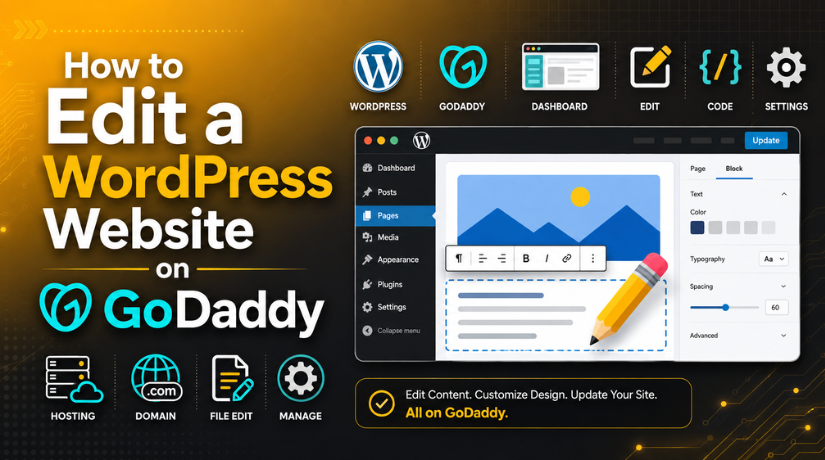
How to Edit a WordPress Website on GoDaddy
You host your site with GoDaddy, and now you need to change something. Good news: it is easier than it looks. This guide shows you how to edit a WordPress website on GoDaddy, step by step.
We will cover where to log in, which editor to use, and how to make common changes safely. No code required.
First, Know What You Have
GoDaddy sells two different products. It helps to know which one you have before you start.
- Managed WordPress hosting. This runs the real WordPress software. You get the full WordPress dashboard.
- GoDaddy Website Builder. This is a different, non-WordPress tool. This guide does not cover that one.
If you log in and see the familiar WordPress dashboard, you are in the right place. The steps below are for WordPress.
Why Editing on GoDaddy Is Straightforward
GoDaddy Managed WordPress keeps the standard WordPress dashboard. So when you edit a WordPress website on GoDaddy, you use the same tools as any WordPress site.
That is good news. Any WordPress guide or tutorial applies to you. You are not locked into a strange, custom system, and the skills you learn carry over anywhere.
Step 1: Log In to Your WordPress Dashboard
Every edit starts at the dashboard. You reach it through your GoDaddy account or directly.
The direct way is to add /wp-admin to your domain. For example, yoursite.com/wp-admin. Then enter your username and password.
You can also open it from your GoDaddy hosting panel. If you get stuck, our guide on how to log into WordPress through GoDaddy walks through both routes.
Step 2: Choose the Right Editor
WordPress gives you a few ways to edit. Pick the one that fits your task.
The Block Editor (for posts and pages)
This is the main editor for content. Go to Posts or Pages, then click a title to open it.
Each piece of content is a block. You add text, images, buttons, and more by clicking the plus icon. Then you drag blocks to reorder them.
The Site Editor or Customizer (for design)
This controls your site-wide look. Think headers, footers, colors, and menus.
Newer block themes use the Site Editor under Appearance. Older themes use the Customizer. Either way, you edit design here, not in individual posts.
Step 3: Make Common Edits
Here is how to handle the changes people ask about most when they edit a WordPress website on GoDaddy.
Edit Text
Open the page, click the text you want to change, and type. It works like a word processor. Click Update to save.
Edit or Replace Images
Click the image block, then choose Replace. Upload a new file or pick one from your media library. Always add alt text for SEO.
Edit Colors and Fonts
Open the Site Editor and find Global Styles. Change your color palette or font once, and it updates across the whole site. This keeps your brand consistent on every page.
Edit Menus
Go to Appearance → Menus. Add pages, drag items to reorder, and remove links you no longer need.
Edit the Footer
Footers live in the Site Editor or a widget area, depending on your theme. Our guide on how to edit a footer in WordPress covers each method.
Edit Pages and Plugin Files
Most edits happen in the visual editor. For deeper changes, see our complete guide on editing WordPress pages and plugin files.
Step 4: Use a Staging Site for Big Changes
GoDaddy Managed WordPress often includes a staging feature. A staging site is a private copy of your live site.
You test big edits there first. If something breaks, your live site stays safe. Once the change works, you push it live.
Use staging for theme swaps, major plugin updates, or design overhauls. Use the live site only for small, safe edits.


Step 5: Save, Preview, and Publish
Editing is not done until you save. Here is the safe order to follow.
- Make your change in the editor.
- Click Preview to see it first.
- Check it on both desktop and mobile.
- Click Update or Publish to go live.
Preview catches mistakes before your visitors do. Never skip it on important pages.
Adding and Editing Themes or Plugins
Themes control design. Plugins add features. You manage both from the dashboard.
To change your theme, go to Appearance → Themes. To add features, go to Plugins → Add New. If you need help installing a theme, our guide on how to install a WordPress theme on GoDaddy shows the steps.
One tip: do not install too many plugins. Each one adds code and can slow your site down.
Editing Behind the Scenes
Some edits go deeper than content. These include database changes and custom code.
GoDaddy gives you database access through its panel. For a walkthrough, see our guide on how to access your WordPress database on GoDaddy.
Only edit the database if you know what you are doing. A wrong change can break the whole site. Always back up first.
Common Mistakes to Avoid
- Editing live without a backup. Always back up before major edits.
- Skipping preview. Preview every important change first.
- Confusing the two GoDaddy products. WordPress and Website Builder are not the same.
- Forgetting to click Update. Changes are not saved until you do.
- Editing theme files directly. Use a child theme so updates do not wipe your work.
How to Keep Your Edits Safe
A few habits protect your work. First, back up before you start. GoDaddy keeps automatic backups, but a manual one adds peace of mind.
Second, make one change at a time. If something breaks, you know exactly what caused it. Third, keep WordPress, themes, and plugins updated so the editor works smoothly.
These small steps save you from big headaches later.
Can You Edit on Mobile?
Yes. You can edit a WordPress website on GoDaddy from a phone or tablet. Just open your browser and log in to the dashboard as usual.
The block editor works on mobile, though a larger screen is easier for big edits. For quick text fixes on the go, your phone is fine.
When to Get Help
Most edits are simple. But some are not. A broken layout, a plugin conflict, or an error message can stop you cold.
You do not have to solve it alone. Our team at 24×7 WP Support can edit, fix, and maintain your GoDaddy-hosted WordPress site around the clock. We handle the tricky parts so you can focus on your business.
Whether it is a quick text change or a full redesign, help is one message away.
Quick Editing Checklist
Keep this simple routine handy every time you edit:
- Log in at
yoursite.com/wp-admin. - Back up before any major change.
- Use the block editor for content, the Site Editor for design.
- Preview on desktop and mobile.
- Click Update to save, then check the live page.
Follow those five steps and most edits will go smoothly.
Final Thoughts
Learning to edit a WordPress website on GoDaddy is mostly about knowing where to click. Log in, pick the right editor, make your change, preview, and save.
Use staging for big edits, back up before you start, and keep everything updated. Follow that routine and you can manage your site with confidence.
And if you ever hit a wall, our team is here to help you edit your WordPress site safely and fast.



Brian is a WordPress support specialist and content contributor at 24×7 WP Support. He writes practical, easy-to-follow guides on WordPress troubleshooting, WooCommerce issues, plugin and theme errors, website security, migrations, performance optimization, and integrations. With a focus on solving real website problems, Brian helps business owners, bloggers, and online store managers keep their WordPress sites running smoothly.
