
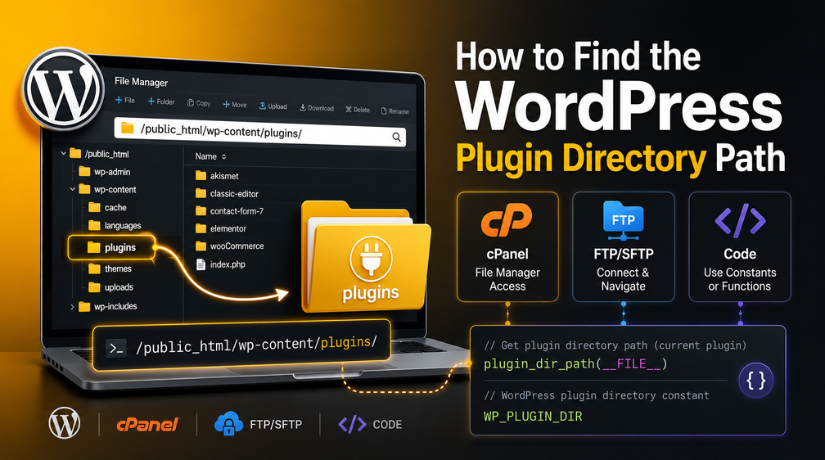
How to Find the WordPress Plugin Directory Path
Introduction
Finding the WordPress plugin directory path is useful for many site tasks. You may need it when a plugin stops working. You may also need it while fixing a website error. Many WordPress issues start inside the plugin folder. So, knowing the correct path saves time and avoids confusion.
Website owners often need this path during plugin troubleshooting. Developers may also ask for it during support work. Hosting teams may use it when checking file-level problems. This path helps you find where each plugin is stored.
You may need the plugin directory path when you want to:
- Check a plugin folder manually.
- Rename a plugin during troubleshooting.
- Upload plugin files through hosting.
- Remove a broken plugin safely.
- Share the path with a support expert.
- Review plugin files after a website error.
This is also helpful when WordPress admin access is not working. In that case, you can still access plugin files from hosting. You can use cPanel, FTP, or SFTP for this task.
Most WordPress websites use a common folder structure. However, the exact path may change on some hosting accounts. This depends on your website setup and hosting panel.
What Is the WordPress Plugin Directory Path?
The WordPress plugin directory path is the server location of plugins. It shows where WordPress keeps installed plugin files. This path is not the same as a website link. It is a file location inside your hosting account.
A common path may look like this:
/public_html/wp-content/plugins/
Inside this folder, each plugin has its own separate folder. For example, a contact form plugin may have its folder there. A security plugin may also have its own folder there.
The WordPress plugins folder location usually sits inside wp-content. This folder stores important website content files. It can include plugins, themes, uploads, and other files.
Knowing this location helps you manage plugin files safely. It also helps you explain issues clearly to support teams.
Default Plugin Folder Location in WordPress
Most WordPress websites keep plugins inside one default folder. This folder is called the plugins folder. It is usually placed inside the wp-content folder. So, the common WordPress plugins folder location is:
wp-content/plugins
This folder stores all normal installed WordPress plugins. Each plugin usually has its own folder inside it. For example, a contact form plugin has one folder. A cache plugin also has its own separate folder.
A common full path may look like this:
public_html/wp-content/plugins
This path is common on many cPanel hosting accounts. The public_html folder often works as the main website root. It stores the files that load your live website.
If WordPress is installed in a subfolder, the path changes. For example, your site may run from a blog folder. In that case, the plugin folder may look like this:
public_html/blog/wp-content/plugins
This means the plugin folder depends on your WordPress installation place. So, users should first confirm the correct website root folder.
Many beginners ask, where is the plugin folder in WordPress? The simple answer is inside the wp-content folder. However, the full path can change based on hosting setup.
Some hosting companies use different root folder names. You may see folders like:
- public_html
- www
- htdocs
- Your domain name folder
These folders may all contain WordPress website files. So, always open the folder that contains wp-admin, wp-content, and wp-includes. These three folders usually confirm the correct WordPress installation.
You should avoid changing plugin folder names without care. A wrong change can disable plugin features. It may also break important website functions. Always take a backup before editing plugin files. This keeps your website safe during troubleshooting.
How to Find the Plugin Directory Path from cPanel
cPanel is one of the easiest ways to find plugin files. Many hosting companies provide cPanel for website file access. You can use it without installing extra software. This method is helpful for beginners and website owners.
If you want to find WordPress plugin folder in cPanel, follow each step carefully. Do not edit or delete files unless you know the purpose.
Step 1: Log in to Your Hosting cPanel
First, open your hosting account login page. Then, enter your username and password. After login, look for the cPanel dashboard. Some hosts show cPanel inside the main hosting panel. Others provide a direct cPanel login link.
Use only your official hosting login page. This keeps your website files safe.
Step 2: Open the File Manager
After entering cPanel, find the File Manager option. This tool lets you view website folders and files. Click File Manager to open your server file area.
File Manager works like a normal computer folder system. You can open folders, view files, and check paths.
Step 3: Open the Website Root Folder
Now, find your website root folder. In many cPanel accounts, it is named public_html. This folder usually stores your main website files.
If you manage many websites, check the correct domain folder. Your website may be inside a separate folder. Open the folder that contains these three WordPress folders:
- wp-admin
- wp-content
- wp-includes
These folders confirm the correct WordPress installation.
Step 4: Open the wp-content Folder
After finding the right root folder, open wp-content. This folder stores important WordPress content files. It includes themes, plugins, uploads, and cache files.


This step helps you understand
Step 5: Open the plugins Folder
Inside wp-content, click the plugins folder. This is the main folder for installed plugins. The path usually looks like this:
public_html/wp-content/plugins
Each plugin will have its own folder inside this location. For example, a security plugin has its separate folder.
Step 6: Copy or Note the Plugin Path
Some hosting panels show the full path at the top. You can copy or note that path. This is a simple way for How to find WordPress plugin directory path using cPanel.
Before making changes, take a website backup. This protects your site during plugin troubleshooting.
How to Find the Plugin Directory Path Using FTP or SFTP
FTP and SFTP are useful for checking WordPress files directly. This method helps when cPanel is not available. It also helps when your hosting dashboard looks different. You can use tools like FileZilla, Cyberduck, or WinSCP. Many hosting companies also provide FTP details inside the account panel.
If you want to know how to find WordPress plugin directory path, FTP gives clear file access. You can open folders and check the real server structure. SFTP is safer than normal FTP because it uses secure access. So, use SFTP whenever your hosting provider supports it.
Step 1: Connect to Your Website Server
Open your FTP or SFTP tool first. Enter the host name, username, password, and port number. These details are usually available inside your hosting account. After connecting, you will see your website folders.
Step 2: Open the Website Root Folder
Next, find the main website folder. It may be named public_html, www, htdocs, or your domain name. Open the folder that contains WordPress core folders. These folders include wp-admin, wp-content, and wp-includes.
Step 3: Go to the Plugins Folder
Open the wp-content folder after finding the correct root folder. Then, open the plugins folder inside it. The normal WordPress plugin directory path may look like this:
public_html/wp-content/plugins
Inside this folder, you will see all installed plugin folders. You can open any plugin folder to check its files.
How Developers Can Find the Plugin Path in Code
Developers can also find the plugin path using WordPress code. This is useful while building or checking custom plugins. It is better than writing a fixed server path manually. Fixed paths may fail after migration or hosting changes.
A common function is:
plugin_dir_path(__FILE__);
This function returns the current plugin file directory path. It helps developers include files correctly inside a plugin.
Another useful constant is:
WP_PLUGIN_DIR
This constant points to the main plugins folder. Developers can use it when they need the general plugin directory. However, WordPress functions are often safer for plugin-specific work. They adjust better when the website setup changes.
Plugin Directory Path vs Plugin URL
Many beginners confuse a plugin path with a plugin URL. Both look related, but they work differently. The WordPress plugin directory path is a server file location. It helps you find plugin files inside hosting. A plugin URL is a web address that loads files online.
A server path may look like this:
/home/account/public_html/wp-content/plugins/plugin-name/
A plugin URL may look like this:
https://example.com/wp-content/plugins/plugin-name/
The path is used for file access and server work. The URL is used for browser-based files. These files may include CSS, JavaScript, and images. So, always check which one your task needs.
Common Reasons You Cannot Find the Plugin Folder
Sometimes, users cannot find the plugin folder quickly. This usually happens because the website uses a different setup. You may also check the wrong domain folder by mistake.
Common reasons include:
- WordPress is installed inside a subfolder.
- The hosting account has many domain folders.
- The site uses a custom wp-content folder.
- Managed hosting hides some file areas.
- Some plugins are stored inside mu-plugins.
- You opened the wrong website root folder.
To solve this, first find the folder with wp-admin. Then open wp-content and check the plugins folder. This is the safest way for how to access wp-content plugins folder.
Safety Tips Before Editing the Plugins Folder
Always handle plugin files with care. One wrong file change can break your website. Before editing anything, take a full website backup. Also, avoid direct edits on a live business website.
Follow these safety tips:
- Create a backup before changing plugin files.
- Use staging when testing plugin changes.
- Rename plugin folders only for troubleshooting.
- Do not delete files without expert guidance.
- Contact support if the site is critical.
Conclusion
Finding the plugin folder becomes simple with the right steps. Most websites store plugins inside wp-content/plugins. You can access this path through cPanel, FTP, SFTP, or code. If you are unsure about plugin files, 24×7 WP Support can help you check paths, fix plugin errors, and manage WordPress troubleshooting safely.
Related posts:

Best QR Code Plugins For WordPress to Boost Engagement & Conversions (Top Picks)

Top 5 WordPress Auctions Plugins Installation & Set Up

Top 5 Community Building Forum Plugins for WordPress in 2022

Top WordPress Security Plugins Installation To Protect Your WordPress Website
Top WordPress Event Plugins Installation with Set Up

Brian is a WordPress support specialist and content contributor at 24×7 WP Support. He writes practical, easy-to-follow guides on WordPress troubleshooting, WooCommerce issues, plugin and theme errors, website security, migrations, performance optimization, and integrations. With a focus on solving real website problems, Brian helps business owners, bloggers, and online store managers keep their WordPress sites running smoothly.
