
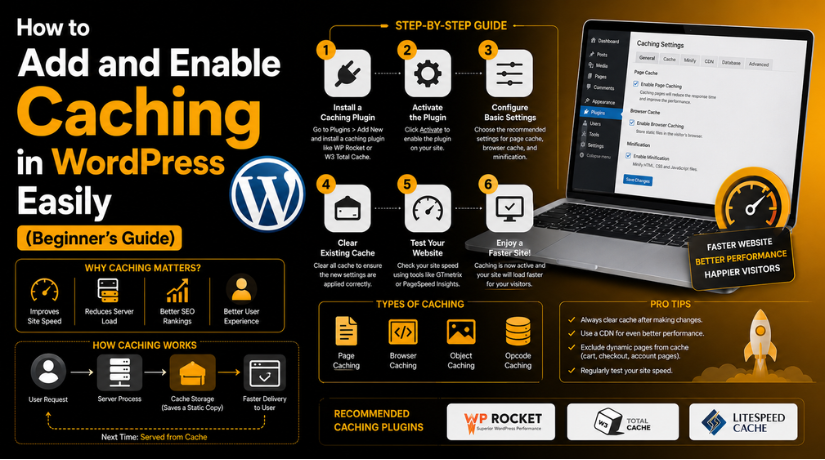
How to Add and Enable Caching in WordPress Easily (Beginner’s Guide)
Introduction
A fast website gives users a better browsing experience. Visitors do not like waiting for slow pages. They may leave your website within a few seconds. This can reduce traffic, leads, sales, and trust. Search engines also prefer websites that load quickly. So, speed is important for users and SEO. This is where WordPress caching becomes very useful. Caching helps your website load pages faster. It reduces extra work from your hosting server. It also helps your website handle more visitors smoothly.
Many WordPress websites become slow over time. This can happen because of heavy themes, large images, plugins, scripts, and database requests. Each page visit asks WordPress to load many files. WordPress also collects content from the database. Then it builds the page for the visitor. This process works well, but it can become slow. When many users visit together, the server works harder. This can increase loading time and affect website performance.
You will learn about caching step-by-step in this article. You will first comprehend what caching is. You will then discover how it benefits WordPress websites. Caching types, safety checks, plugins, testing, and common fixes will be covered in later sections. It’s an easy goal. You ought to understand how to properly and safely enable caching in WordPress.
What Is Caching in WordPress and How Does It Work?
Caching in WordPress means storing ready-made website data temporarily. This saved data helps pages load faster for visitors. Without caching, WordPress builds every page from the beginning. It loads theme files, plugin files, database content, images, scripts, and stylesheets. Then it creates the final page for the user. This process can take more time, especially on busy websites.
With caching, WordPress saves a prepared version of the page. When another visitor opens that page, WordPress shows the saved version. It does not need to rebuild everything again. This reduces server work and improves loading speed. That is why WordPress caching is a key part of performance improvement.
When you enable caching in WordPress, your website can perform better. It can load faster for new and returning visitors. It can also reduce pressure on your hosting plan. This helps blogs, business websites, service websites, and online stores. A trusted WordPress cache plugin can make this process simple.
What Are the Main Uses of Caching in WordPress Websites?
Caching Helps Improve WordPress Website Loading Speed
Caching helps your WordPress website load pages much faster. Without caching, WordPress builds each page every time. It loads theme files, plugin files, scripts, and database content. This process can take more time on busy websites. With WordPress caching, a saved page version loads quickly.
Caching Reduces Extra Load on the Hosting Server
Caching reduces repeated work on your hosting server. Normally, the server handles every request from the start. It processes PHP files and database queries again and again. This can slow down your website during high traffic. Cached pages reduce this extra server work.
Caching Improves the User Browsing Experience
Users have a better experience on a website that loads quickly. Pages are accessible to visitors quickly. They can effortlessly view services, read content, and fill out paperwork. Users may leave a page quickly if it is slow. Pages load more quickly and feel more stable when they are cached. This prolongs the time that visitors are interested.
Caching Supports WordPress Speed Optimization
Caching is an important part of WordPress speed optimization. It works with other speed methods like image compression. It also supports file optimization and better hosting performance. A WordPress cache plugin can handle many tasks automatically. It can create cached pages and serve them quickly.
Caching Helps Handle Sudden Traffic Spikes
Your website may get sudden traffic from campaigns or promotions. A viral blog post can also bring many visitors quickly. Without caching, the server may become overloaded. This can make pages slow or unavailable. Cached pages help handle more visitors at the same time.
Caching Can Support Better SEO Performance
Search engines prefer websites with a better page experience. Fast pages can help users stay longer on your site. They can also reduce quick exits from slow pages. This may support stronger engagement signals over time.
Caching Helps Improve Leads and Conversions
Caching can help improve leads, sales, and form submissions. Visitors are more likely to act on faster pages. They can open service pages without waiting too long. They can also complete contact forms more easily. Slow loading can stop users before they take action.
Different Types of Caching Used in WordPress Websites
WordPress uses different caching methods for better performance. Each type has a different role on your website. Some caching methods store full pages. Others store files, database results, or server-level data. Understanding these types helps you choose the right setup.
Page Caching Saves Full Pages for Faster Loading
WordPress page caching is the most used type of caching. It keeps a page in its entirety in HTML. When users access that website, the cached version loads rapidly. WordPress doesn’t start again from scratch. This speeds up loading and lessens the demand on the server. Service pages, blogs, and landing pages all benefit from page caching.
Browser Caching Stores Website Files in the Visitor’s Browser
Files are stored by browser caching within the visitor’s browser. Images, typefaces, CSS, and JavaScript are examples of these files. Upon their return, the visitor’s browser loads these files. It is not necessary for the website to download everything again.
Object Caching Helps Store Repeated Database Results
Object caching stores repeated database query results for faster access. WordPress websites often request the same database data many times. Object caching saves this data temporarily for quick reuse. This is useful for dynamic websites and large websites.
Database Caching Reduces Repeated Database Requests
Database caching stores common database query results. This helps reduce repeated requests to the database. It can improve websites with many posts, products, or users. However, beginners should use this carefully. Wrong settings can sometimes create outdated results.
CDN Caching Delivers Website Files from Nearby Servers
CDN caching stores static files on global server networks. CDN means Content Delivery Network. It sends files from the closest available server location. This helps visitors from different regions load pages faster. CDN caching is helpful for websites with global traffic.
Server-Level Caching Works Directly from the Hosting Server
Server-level caching works from your hosting environment. Many managed WordPress hosts provide this feature. It can be faster than plugin-based caching in many cases. The server handles cached content before WordPress fully loads.
Opcode Caching Helps PHP Code Run More Efficiently
On the server, built PHP code is stored via opcode caching. This can enhance performance because WordPress is based on PHP. The server doesn’t continually compile the same PHP code. This increases the speed and efficiency of backend processing.
Important Safety Checks Before You Enable Caching in WordPress
Before you enable caching in WordPress, you should check a few things. Caching can improve speed, but wrong settings may cause issues. Your design, forms, cart, or login pages may work differently. So, always prepare your website before changing cache settings. These checks help you avoid errors and protect website data.
Take a Full Backup Before Making Any Cache Changes
Always take a full website backup before enabling caching. A backup protects your website if anything goes wrong. It should include website files and the database. You can use your hosting backup tool or backup plugin. This step is very important for business websites.


Update WordPress Core, Theme, and Plugins First
Outdated files can create caching conflicts on your website. So, update WordPress core, theme, and active plugins first. Old plugin files may not work with cache settings. They can also cause CSS or JavaScript issues. Updated files usually work better with modern cache plugins.
Check Your Current Website Speed Before Caching
Test your website speed before adding any cache plugin. This helps you compare results after enabling caching. You can check page load time and mobile performance. Also note slow pages, large images, and layout shifts. This gives you a clear starting point. After caching, test the same pages again.
Disable Other Cache Plugins to Avoid Conflicts
Do not use many cache plugins together. Multiple cache plugins can create serious conflicts. They may cache the same files in different ways. This can break design, forms, scripts, and checkout pages. Before installing a new WordPress cache plugin, deactivate old cache plugins.
Note Pages That Should Not Be Cached
It is not appropriate to cache some WordPress pages. The content displayed on these pages varies depending on the user. Pages for the cart, checkout, my account, and login are typical examples. Additionally, user dashboards and form confirmation screens require attention. Incorrect information may be displayed to visitors if these sites are cached.
How to Add and Enable Caching in WordPress Using Plugin
Using a plugin is the easiest way to add caching. Most beginners can set it up without coding. A WordPress cache plugin creates saved page versions automatically. It can also manage browser caching, compression, and preload options. Follow these steps carefully to enable caching safely.
Step 1: Choose the Right WordPress Cache Plugin
- Choose a trusted WordPress cache plugin for your website.
- Match the plugin with your hosting and website needs.
- Use a beginner-friendly plugin if you want simple settings.
- Use an advanced plugin if your website needs more control.
- Popular options include WP Rocket, LiteSpeed Cache, and W3 Total Cache.
- You can also use WP Super Cache or WP Fastest Cache.
- Use only one cache plugin at one time.
- Multiple cache plugins can create conflicts and layout issues.
Step 2: Take a Backup Before Installing the Plugin
- Take a full website backup before changing cache settings.
- Your backup should include website files and database data.
- This backup protects your website from unexpected problems.
- You can use your hosting backup option.
- You can also use a trusted WordPress backup plugin.
- Keep the backup stored in a safe location.
- This gives you a restore option if something breaks.
Step 3: Install the Cache Plugin from WordPress Dashboard
- Log in to your WordPress admin dashboard.
- Go to Plugins > Add New from the left menu.
- Search for your selected cache plugin name.
- Check the plugin name, rating, and active installs.
- Click Install Now beside the correct plugin.
- Wait until the installation process is complete.
- Click Activate to enable the plugin.
- The plugin will now appear in your dashboard.
Step 4: Open the Cache Plugin Settings Page
- Open the plugin settings page after activation.
- Most plugins add a menu under Settings or Performance.
- Click the plugin menu to open cache options.
- Review the available settings carefully before changing them.
- Do not enable every option at once.
- Start with basic cache settings first.
- This helps avoid design and script issues.
Step 5: Enable Page Caching First
- Page caching is the main caching feature.
- It saves ready-made versions of website pages.
- Visitors can load cached pages much faster.
- Find the page cache option in plugin settings.
- Turn on the main page caching feature.
- Click Save Changes or Update Settings.
- This is the key step to enable caching in WordPress.
Step 6: Enable Browser Caching for Static Files
- Browser caching stores files in the visitor’s browser.
- These files include images, CSS, JavaScript, and fonts.
- Returning visitors can load these files faster.
- Find the browser cache option in plugin settings.
- Enable browser caching from the available options.
- Save your settings after enabling this feature.
- This supports better WordPress speed optimization.
Step 7: Enable GZIP or Brotli Compression
- Compression reduces website file size before loading.
- Smaller files can load faster in the browser.
- Most cache plugins offer GZIP or Brotli compression.
- Find the compression option in plugin settings.
- Enable GZIP or Brotli compression carefully.
- Save your changes after enabling compression.
- Check your website design after this step.
- Make sure styles and scripts still load correctly.
Step 8: Enable Cache Preloading
- Cache preloading creates cached pages before visitors arrive.
- This helps pages load faster for first-time users.
- Without preload, the first visitor may create the cache.
- Open the preload option in your cache plugin.
- Enable preload for pages, posts, and key URLs.
- Save your changes after selecting preload settings.
- This improves caching performance across important pages.
Step 9: Enable Mobile Cache If Needed
- Mobile users need a smooth browsing experience.
- Some websites use different layouts for mobile devices.
- Check if your plugin offers a mobile cache option.
- Enable mobile cache if your theme needs it.
- Save your settings after enabling mobile cache.
- Test your website on real mobile devices.
- Check menus, buttons, images, forms, and spacing.
- This helps prevent mobile layout problems.
Step 10: Exclude Dynamic Pages from Cache
- Some pages should not be cached by default.
- These pages show changing or user-specific information.
- Exclude cart, checkout, my account, and login pages.
- Also exclude dashboard, payment, and form success pages.
- This is very important for WooCommerce websites.
- Wrong caching can show incorrect user details.
- Add these pages in the cache exclusion settings.
- Save the exclusion list after adding page URLs.
Step 11: Save All Settings and Clear Cache
- Save all plugin changes after completing the setup.
- Then clear or purge the full website cache.
- This removes old cached files from your website.
- It also creates fresh cached versions of pages.
- Most plugins show a Clear Cache button.
- Click that button after major setting changes.
- Clear cache again after design or content updates.
- This keeps your WordPress caching setup fresh.
Step 12: Test Your Website After Enabling Cache
- Open your website in a private browser window.
- Check the homepage, service pages, and blog pages.
- Test the menu, buttons, images, and contact forms.
- Check the website on desktop and mobile devices.
- If you use WooCommerce, test cart and checkout pages.
- Also test login, search, and account pages carefully.
- If anything breaks, disable one setting and retest.
- This completes How to Add and Enable Caching in WordPress.
How to Test If WordPress Caching Is Working Properly
After you enable caching in WordPress, testing is very important. Caching can improve speed, but it can also affect features. You should check your website before considering the setup complete. This helps you confirm that WordPress caching works correctly.
Open Your Website in a Private Browser Window
First, open your website in an incognito or private window. This shows the website like a normal visitor sees it. Your browser may already store old files. A private window gives a cleaner testing view. Open the homepage and a few important pages.
Use Website Speed Testing Tools for Better Results
Use speed testing tools after enabling cache settings. You can test your homepage, service pages, and blog pages. Compare the new results with your old speed test. Check loading time, page size, and server response time. This helps you understand the real improvement.
Check Page Loading Time on Desktop and Mobile
Your website should load faster on both devices. Open the website on desktop and mobile browsers. Check how quickly the first page appears. Also check how smoothly users can scroll pages. Mobile speed is very important for modern websites.
Review Header, Footer, Menu, and Page Layout
Sometimes cache settings can affect design files. This may break your header, footer, or page sections. Check your website layout after enabling caching. Review menus, buttons, sliders, forms, images, and icons. Make sure spacing and alignment look correct.
Test Contact Forms, Login Pages, and Checkout Pages
Functional pages need special testing after caching setup. Test your contact form by sending a message. Check login, signup, search, and account pages. If your website uses WooCommerce, test the cart carefully. Also test checkout, payment, and order confirmation pages.
Common WordPress Caching Problems and Simple Fixes
Caching is useful, but wrong settings can create problems. Most issues happen because old files keep loading. Some problems also happen due to CSS or JavaScript settings. The good news is that most caching issues are easy. You can fix them by checking settings step by step.
Website Changes Are Not Showing After Updates
This is one of the most common cache issues. You may update text, images, menus, or design. Still, the old version may appear to visitors. This happens when cached files are not cleared. Clear your WordPress cache plugin cache first. Then clear hosting cache and CDN cache if used. Also refresh your browser cache.
Website Layout Looks Broken After Enabling Cache
Sometimes the website layout may look broken after caching. Buttons, fonts, images, or sections may appear incorrectly. This usually happens due to CSS or JavaScript optimization. Disable minify, combine, or delay JavaScript options first. Then clear all cache and test again. Enable each option one by one after testing.
Contact Form Stops Working After Cache Setup
Contact forms often depend on JavaScript and security tokens. If these scripts are cached incorrectly, forms may fail. Users may see errors after submitting the form. First, exclude the contact page from caching. Then exclude form plugin scripts if needed. Also disable JavaScript delay for form-related files.
WooCommerce Cart Shows Wrong Product Details
WooCommerce pages need careful cache handling. Cart, checkout, and account pages show user-specific details. If these pages are cached, users may see wrong data. They may see old cart items or incorrect totals. Exclude cart, checkout, my account, and payment pages. Also check WooCommerce cookies in cache settings.
Mobile Website Looks Different or Broken
Mobile layout problems can appear after caching changes. This can happen when desktop cache loads for mobile users. It can also happen due to combined CSS files. Enable separate mobile cache if your plugin provides it. Then clear all old cache files. Test the website on real mobile devices.
Logged-In Users See Cached or Old Content
Logged-in users should usually receive fresh website content. This is important for dashboards, accounts, and membership areas. If logged-in pages are cached, users may see wrong details. Open your cache plugin settings and review user cache options. Disable caching for logged-in users unless needed.
Conclusion
Caching is a useful way to improve WordPress website speed. It helps pages load faster and reduces server work. It also supports a smoother browsing experience for visitors. When you enable caching in WordPress, always test important pages carefully. Check your homepage, contact forms, login page, cart page, and checkout page. This helps make sure the website works correctly after caching.
A good WordPress cache plugin can make setup easier. Still, every website needs the right cache settings. Wrong settings may show old content or break page layouts. So, clear your cache after major updates. Also test your website on desktop and mobile devices.
For caching setup, speed issues, or WordPress performance checks, users can contact 24×7 WP Support through its official support options. The website lists the toll-free phone number for the United States and Canada as +1-888-818-9916.
Related posts:
How to Connect IDX in WordPress: Complete Step By Step Guide for Beginners
How to Backup and Restore WordPress or WooCommerce Website?
How to reset the WordPress administrator password
How to Enable Automatic Updates in WordPress (Complete Guide)
How to Edit a Footer in WordPress - Learn The Best Methods

Brian is a WordPress support specialist and content contributor at 24×7 WP Support. He writes practical, easy-to-follow guides on WordPress troubleshooting, WooCommerce issues, plugin and theme errors, website security, migrations, performance optimization, and integrations. With a focus on solving real website problems, Brian helps business owners, bloggers, and online store managers keep their WordPress sites running smoothly.
