
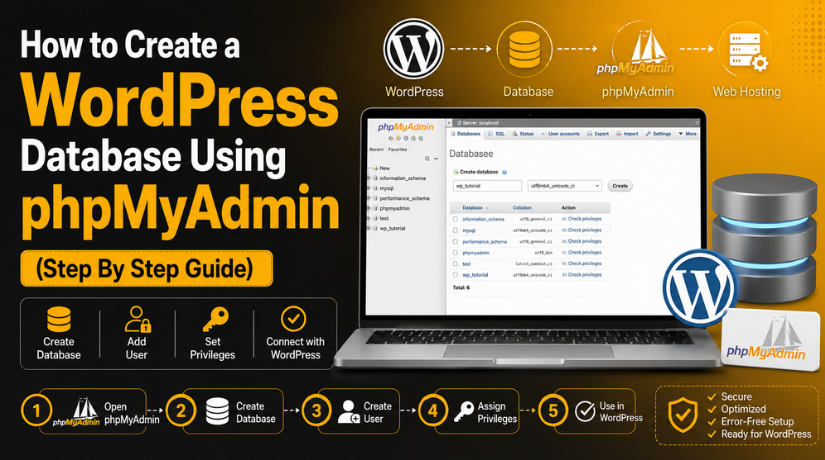
How to Create a WordPress Database Using phpMyAdmin (Step By Step Guide)
Introduction
A WordPress website needs two main parts to work. It needs website files and a database. Website files include WordPress core files, themes, plugins, and uploads. The database stores your website content and settings. So, you must create a WordPress database before manual installation. This step is very important for a smooth setup.
Many hosting companies offer one-click WordPress installation. That tool creates the database automatically for most users. Still, manual WordPress database setup is useful in many cases. You may need it during custom installation, migration, or local setup. You may also need it while fixing database connection errors.
phpMyAdmin WordPress setup makes this process easier for beginners. It gives you a visual panel to manage database tasks. You do not need command-line knowledge for basic database work. You can create a MySQL database for WordPress with simple steps. This WordPress database tutorial will help you understand the basics first. Then you can follow the setup process with more confidence.
What Is a WordPress Database and How Does It Work?
A WordPress database is a storage system for your website. It saves important data in organized tables. These tables help WordPress find and show content quickly. When someone opens your website, WordPress checks the database. Then it loads the right content on the screen. This makes WordPress a dynamic website platform.
It does not depend only on fixed HTML pages. Instead, it builds each page using stored database information. WordPress database creation is needed before the website can store content. Without a database, WordPress cannot save posts, pages, users, or settings. That is why the database is a core part of WordPress.
The database also keeps your website flexible and easy to manage. You can publish a blog post from the dashboard. WordPress saves that post inside the database. You can update a page, change a menu, or edit settings. WordPress also saves those changes inside the database. This system helps non-technical users manage websites easily. You do not need to edit files for every content change.
Why WordPress Needs a Database to Run Your Website Properly
WordPress needs a database because it works as a dynamic CMS. It does not show only fixed website files. Instead, WordPress collects data from the database when needed. This data helps WordPress build each page for visitors. When someone opens your website, WordPress checks many saved records. It checks page content, theme settings, menu items, and user details.
WordPress Uses the Database to Load Posts, Pages, and Website Content
Every post and page needs a safe place for storage. WordPress saves this content inside database tables. When visitors open a blog post, WordPress finds that record. Then it shows the post title, content, author, and date. It also loads related items like categories, tags, and comments.
WordPress Uses the Database to Save Website Settings and Options
WordPress also uses the database for important website settings. These settings include site title, tagline, permalink structure, and homepage choice. It also stores menu settings, widget settings, and theme options. Many plugins save their setup details inside the database too.
WordPress Uses the Database for Users, Roles, and Login Details
WordPress stores user information inside the database. This includes admin users, editors, authors, subscribers, and customers. It also stores user roles and permission levels. These details decide what each user can access. For example, an admin can manage the full website.
WordPress Uses the Database for Plugins and WooCommerce Stores
Plugins often add more data inside your WordPress database. Some plugins use existing tables, while others create new tables. WooCommerce stores products, orders, coupons, taxes, and customer records. Booking plugins may store appointments, services, and staff details.
Important Requirements and Details Needed Before Creating a WordPress Database
Hosting Control Panel Access
You need access to your hosting control panel first. This may be cPanel, Plesk, DirectAdmin, or another dashboard. The hosting panel gives access to database tools. You can open phpMyAdmin from this section. Without hosting access, you cannot start the setup process.
phpMyAdmin Access
You need phpMyAdmin access to manage the database visually. phpMyAdmin WordPress setup is easier for beginners. It helps you create and manage MySQL databases. You do not need command-line knowledge for basic tasks. Most hosting panels show phpMyAdmin under the database section.
Database Creation Permission
Your hosting account must allow database creation. Some hosts restrict this option inside phpMyAdmin. In that case, use the MySQL Databases section. This option is usually available inside cPanel. Always check your hosting permissions before starting WordPress database creation.
Clear Database Name
You need a proper database name for your website. Use a simple and clear name. For example, you can use business_wp_db. Some hosts add your account prefix automatically. Always copy the full database name after creating it.
Secure Database Username
WordPress needs a database username to connect with the database. This user allows WordPress to read and write data. Use a unique username for better safety. Do not use your hosting login username. A separate user keeps your WordPress database setup more secure.
Strong Database Password
You must create a strong database password. Use uppercase letters, lowercase letters, numbers, and symbols. Avoid simple passwords like admin123 or your domain name. A strong password protects your WordPress database from unwanted access.


Database Host Details
You need the correct database host name. Most WordPress websites use localhost as the database host. Some managed hosting companies use a different server name. Check your hosting dashboard if localhost does not work. Wrong host details can cause connection errors.
WordPress Files Ready
The database alone cannot run your website. You also need WordPress files on your hosting server. These files include WordPress core, themes, and plugins. After you create a MySQL database for WordPress, connect it with these files. Both parts must work together.
Backup Safety Before Changes
Always take a backup before working on an existing website. A small database mistake can break important website data. Backups help you restore the website quickly. This step is very important for live websites. It keeps your WordPress database tutorial process safer.
Guide Tutorial to Create WordPress Database Using phpMyAdmin
Creating a database is an important step before installing WordPress. The database stores posts, pages, users, settings, and plugin data. A correct WordPress database setup helps your website work smoothly. You can use phpMyAdmin WordPress tools to create the database easily. Follow these simple steps to complete the process safely.
Step 1: Log In to Your Hosting Control Panel
- First, log in to your hosting control panel.
- This may be cPanel, Plesk, DirectAdmin, or another dashboard.
- Find the Databases section inside your hosting panel.
- Then click the phpMyAdmin option.
- If you use a local server, open phpMyAdmin through XAMPP, MAMP, or WAMP.
- Do not edit old databases without checking their purpose first.
Step 2: Open phpMyAdmin and Check the Main Screen
- After opening phpMyAdmin, check the main screen carefully.
- The left side usually shows all available databases.
- The top menu may show options like Databases, SQL, Import, and Export.
- Make sure you are not inside another website’s database.
- Avoid deleting, renaming, or emptying any existing tables.
- A wrong change can break a live website quickly.
Step 3: Create a New Database for WordPress
- Click the Databases tab in phpMyAdmin.
- Find the Create database field on the screen.
- Enter a simple database name for your website.
- You can use names like business_wp_db or site_wp_db.
- Some hosts may add an account prefix automatically.
- Copy the full database name after creating it.
- Choose a suitable collation if the option appears.
- A utf8mb4 collation works well for most WordPress websites.
- Click Create to complete WordPress database creation.
Step 4: Create a Database User
- WordPress needs a database user to access the database.
- This user allows WordPress to read and save data.
- Go to User Accounts if this option is available.
- Click Add user account.
- Enter a secure username for the database user.
- Choose localhost as the host in most cases.
- Create a strong password with letters, numbers, and symbols.
- Save the username and password in a safe place.
- If phpMyAdmin does not allow this, use MySQL Databases in hosting.
Step 5: Give the User Permission to Use the Database
- Creating a user is not enough for WordPress.
- You must assign that user to the new database.
- Open the user privileges area in phpMyAdmin.
- Select your new database user.
- Choose your WordPress database.
- Give the user permission to manage that database.
- Beginners can select All Privileges for that database only.
- Do not give access to every database on the server.
- This keeps your WordPress database setup safer.
Step 6: Add Database Details in WordPress
- Open your WordPress installation screen.
- WordPress will ask for your database details.
- Enter the database name, username, password, and database host.
- Most websites use localhost as the database host.
- If it fails, check your hosting database details.
- You can also add these details in the wp-config.php file.
- This connects WordPress with your new database.
Step 7: Run the WordPress Installation
- Submit the WordPress installation form after adding database details.
- WordPress will check the database connection first.
- If the details are correct, the setup will continue.
- WordPress will create its database tables automatically.
- Add your site title, admin username, password, and email.
- Avoid using admin as your main username.
- After that, your website will be ready to use.
- This completes the create WordPress database process simply.
Common Errors While Creating a WordPress Database
Creating a database is simple when details are correct. Still, small mistakes can cause setup issues. These errors are common during WordPress database setup. You can fix most of them by checking database details again.
Error Establishing a Database Connection
This is the most common WordPress database error. It usually appears when WordPress cannot connect with the database. The database name, username, password, or host may be wrong. Check each detail carefully before trying again. Also confirm that the database user has proper access. A correct phpMyAdmin WordPress setup can prevent this issue.
Access Denied for Database User
This error means the database user cannot access the database. The user may not have the right permissions. You need to assign the user to the correct database. Also give the user required database privileges. Beginners can select All Privileges for that database only. This helps WordPress read, write, and update data properly.
Unknown Database Error
This error appears when WordPress cannot find the database. The database name may be incorrect or incomplete. Some hosting panels add a prefix to database names. For example, the full name may include your account name. Always copy the complete database name from your hosting panel. This keeps WordPress database creation accurate and safe.
Cannot Create Database in phpMyAdmin
Some hosting providers block database creation inside phpMyAdmin. This does not always mean something is wrong. You may need to use the MySQL Databases section instead. This option is usually available inside cPanel or hosting dashboard. You can still create a MySQL database for WordPress from there.
Wrong Database Host Details
Most WordPress websites use localhost as the database host. However, some managed hosts use a custom database host. If localhost does not work, check your hosting details. You can also contact your hosting support team. Wrong host details can stop the full setup process.
WordPress Tables Are Not Created
WordPress creates its tables during installation. If tables are not created, permissions may be missing. Check whether the database user has proper privileges. WordPress needs permission to create and update tables. Without this access, installation cannot complete correctly.
Blank Screen After WordPress Setup
A blank screen may appear after setup sometimes. This issue is not always database-related. It may happen due to PHP errors, plugin issues, or theme problems. Check error logs if you can access them. You can also disable plugins and test again.
Conclusion
A WordPress database is the main storage area for your website. It saves posts, pages, users, comments, settings, and plugin data. So, the database must be created correctly before manual WordPress installation. A proper setup includes a database name, database user, strong password, and correct user permissions.
phpMyAdmin makes this process easier for website owners. It gives a simple visual panel to create and manage databases. Still, every detail must match during WordPress installation. Wrong database details can cause connection errors or failed setup.
Before making changes inside phpMyAdmin, always check the database name carefully. Also, take a backup when working on an existing website. This keeps your website data safe during technical changes.
Need help? For database setup guidance, WordPress installation help, migration support, or database connection errors, 24×7 WP Support provides support for self-hosted WordPress websites. You can visit 24×7 WP Support or call +1-888-818-9916 for WordPress and Woocommerce support.
Related posts:
How to Fix the “Not a Valid JSON Response” Error in WordPress Easily

How to Integrate Facebook Login With Your WordPress Website

WordPress featured image not showing – The Probable Reasons and How to Resolve this Issue?
Best 404 Plugins for WordPress to Improve User Experience & Fix Broken Links

How To Manage Menu In WordPress

Brian is a WordPress support specialist and content contributor at 24×7 WP Support. He writes practical, easy-to-follow guides on WordPress troubleshooting, WooCommerce issues, plugin and theme errors, website security, migrations, performance optimization, and integrations. With a focus on solving real website problems, Brian helps business owners, bloggers, and online store managers keep their WordPress sites running smoothly.
