
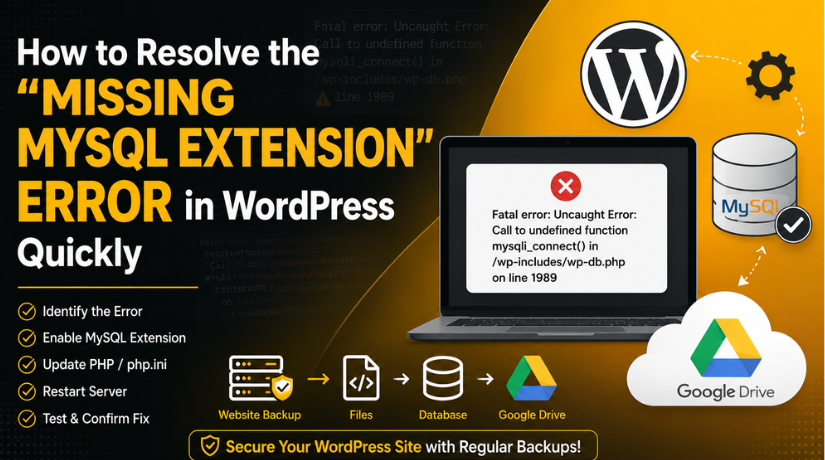
How to Resolve the “Missing MySQL Extension” Error in WordPress Quickly
Introduction
WordPress MySQL extension error can stop your website from loading. It often appears without warning and creates serious confusion. Many users see this message on their website screen: “Your PHP installation appears to be missing the MySQL extension which is required by WordPress.” This message looks technical, but the issue is usually simple to understand. WordPress cannot connect properly with the database because PHP lacks the required MySQL support.
This error can affect both the frontend and admin area. Your visitors may not see your website content. You may also lose access to your WordPress dashboard. That makes the issue urgent for blogs, business websites, and WooCommerce stores. A live store can lose orders when this error appears. A business website can also lose leads and customer trust.
This guide explains how to fix MySQL extension error issues in WordPress. It uses simple steps and clear explanations. You will understand the cause before applying any solution. This helps you fix missing MySQL extension WordPress issues safely and quickly.
What Does the “Missing MySQL Extension” Error Mean in WordPress?
The “Missing MySQL Extension” error means WordPress cannot connect with its database. WordPress needs a database to store almost everything. Your pages, posts, comments, users, settings, and plugin data stay inside it. WooCommerce websites also store products, orders, payments, and customer details there. When WordPress cannot reach this database, the website cannot load correctly.
WordPress uses PHP to run its core files and features. PHP works like a bridge between WordPress files and the database. For this bridge to work, PHP needs a MySQL extension. This extension allows PHP to send and receive database requests. The modern extension used for this purpose is usually mysqli.
When mysqli is missing or disabled, PHP cannot communicate with MySQL. This creates a WordPress database connection error on the website. The issue may look like a database problem. However, the database details may still be correct. The problem is often with PHP configuration or server settings.
Think of WordPress as a shop counter. The database is the store room behind it. PHP is the worker who brings items from the store room. The MySQL extension is the door key. If the key is missing, the worker cannot enter. The products are still inside, but nobody can access them. That is exactly what happens with this error.
Common Reasons Behind the Missing MySQL Extension Error in WordPress
The WordPress MySQL extension error usually appears when PHP cannot connect WordPress with the database. This issue often happens due to disabled extensions, wrong PHP versions, outdated WordPress files, or hosting setup problems. Understanding the real cause helps you Fix missing MySQL extension WordPress issues safely without damaging website files.
Mysqli Extension Is Disabled
WordPress needs the mysqli extension to connect with MySQL or MariaDB. If this extension is disabled, WordPress cannot load website data. This can create a WordPress database connection error. You can check it from cPanel, PHP Selector, or hosting settings. Hosting support can enable it if needed.
PHP Version Was Changed Recently
This error may appear after changing the PHP version. One PHP version may support mysqli, while another may not. If the new PHP setup lacks the extension, WordPress cannot connect with the database. This creates the PHP installation missing MySQL extension message on your website screen.
WordPress Core Is Very Outdated
An old WordPress version may not work properly with modern PHP versions. It can create compatibility issues after server updates. This may lead to the WordPress MySQL extension error. Updating WordPress core, themes, and plugins helps improve database support, security, and overall website stability.
Hosting Server Is Missing PHP MySQL Package
On VPS or dedicated servers, the PHP MySQL package may be missing. Without this package, the mysqli extension cannot work. This issue is common on unmanaged servers. The server owner may need to install the correct package. Beginners should ask hosting support before changing server packages.
Wrong PHP Configuration File Is Loading
PHP may load the wrong php.ini or .user.ini file. This can stop the mysqli extension from loading correctly. A wrong extension path can also cause this issue. This makes WordPress unable to connect with the database. Always check configuration files carefully before editing anything.
Website Migration Was Not Completed Properly
The error may appear after moving a website to new hosting. The old server may support mysqli, but the new server may not. Your files and database may be correct. Still, missing PHP support can break the connection. Always check PHP settings after website migration.
Custom PHP Handler or .htaccess Rule Conflict
Some websites use .htaccess rules or custom PHP handlers. These rules may force the website to use the wrong PHP version. This can stop mysqli from loading. After migration or server changes, old rules may no longer work. Review them carefully before applying fixes.
Important Safety Steps Before Fixing the Missing MySQL Extension Error
Take a Complete Backup Before Making Any Server Change
Always take a full website backup before fixing this error. The backup should include both website files and database. This protects your content if anything goes wrong. PHP changes usually happen at the server level. A wrong setting can affect your complete website.
Check Whether You Have Proper Hosting Access
You need the correct access before troubleshooting this issue. Most fixes need a hosting panel or server access. You may need cPanel, File Manager, FTP, or SSH. You may also need access to PHP settings. Without access, you cannot enable mysqli yourself.
Avoid Random PHP Downgrades Without Proper Testing
Some users quickly downgrade PHP after seeing this error. This may make the website work for some time. But it is not a safe long-term solution. Old PHP versions can create security and speed problems. They may also create plugin and theme compatibility issues.
Do Not Delete WordPress Files or the Database
Never delete WordPress files to fix this issue quickly. Also, do not delete or recreate the database. This error usually does not mean your database is lost. It often means PHP cannot connect with the database. Deleting files can create bigger problems for your website.
Note Recent Changes Before Starting the Fix
Before fixing the issue, note what changed recently. This helps you find the real cause faster. The error often appears after a clear server change. You should check recent updates, migrations, and hosting actions. Also check whether PHP was updated automatically.


Complete Guide to Fixing the Missing MySQL Extension Error in WordPress
This section explains how to fix MySQL extension error issues safely. The main goal is to check PHP, enable mysqli, and confirm the correct server setup. Do not change random files quickly. Follow each step carefully.
Step 1: Check Your Current PHP Version First
- Open your WordPress dashboard if it is accessible.
- Go to Tools > Site Health > Info > Server.
- Check the PHP version shown under server details.
- A wrong PHP version can cause the WordPress MySQL extension error.
- Note the PHP version before making any changes.
Step 2: Check PHP Version from Your Hosting Panel
- Log in to your hosting account.
- Open cPanel, MultiPHP Manager, or PHP Selector.
- Check which PHP version is assigned to your domain.
- Sometimes, the website uses a different PHP version.
- This mismatch can cause the PHP installation missing MySQL extension issue.
Step 3: Create a phpinfo.php File to Check Server Details
- Open File Manager or connect through FTP.
- Create a file named phpinfo.php in the root folder.
- Add this code: <?php phpinfo(); ?>.
- Open the file in your browser.
- Search for mysqli on the page.
- Delete the file after checking server details.
Step 4: Check Whether mysqli Extension Is Enabled
- WordPress needs mysqli to connect with MySQL.
- Check if mysqli is available on your server.
- You can check it using cPanel, phpinfo, or SSH.
- If mysqli is missing, WordPress cannot load database content.
- This may create a WordPress database connection error.
Step 5: Enable mysqli from cPanel or PHP Selector
- Open your hosting cPanel.
- Go to Select PHP Version or PHP Extensions.
- Search for mysqli in the extension list.
- Enable it if it is unchecked.
- Save the new PHP settings.
- This can quickly Fix missing MySQL extension WordPress problems.
Step 6: Check mysqli Using SSH Command
- Use this step only if you have SSH access.
- Log in to your server through SSH.
- Run this command: php -m | grep mysqli.
- If mysqli appears, the extension is enabled.
- If nothing appears, it may be missing.
- Remember, SSH PHP may differ from website PHP.
Step 7: Install PHP MySQL Package on VPS or Dedicated Server
- Use this step for VPS or dedicated hosting.
- Ubuntu servers usually need the php-mysql package.
- CentOS, AlmaLinux, or RHEL may need php-mysqlnd.
- Install the correct package for your PHP version.
- Restart Apache, Nginx, or PHP-FPM after installation.
- Ask hosting support if you are unsure.
Step 8: Confirm the Correct PHP Version Is Assigned
- Go back to your hosting PHP settings.
- Check the PHP version assigned to your domain.
- Review MultiPHP Manager or PHP Selector settings.
- Also check .htaccess and .user.ini files.
- A wrong PHP handler can create the same error again.
- Confirm everything before testing the website.
Step 9: Review .htaccess and Custom PHP Handler Rules
- Open your website root folder.
- Find the .htaccess file.
- Check for old PHP handler rules.
- These rules may force the wrong PHP version.
- This issue often appears after migration.
- Take a backup before editing this file.
Step 10: Restart PHP Services and Clear Website Cache
- Restart PHP services if your hosting allows it.
- Restart Apache, Nginx, or PHP-FPM when needed.
- Clear hosting cache and browser cache.
- Clear OPcache if available on your server.
- This helps PHP load the new settings.
- Then refresh your WordPress website again.
Step 11: Test Your Website and WordPress Dashboard
- Open your website in a private browser window.
- Check the homepage and important pages.
- Try opening the WordPress admin dashboard.
- Test forms, login pages, and plugin features.
- For WooCommerce, test cart and checkout pages.
- This confirms how to fix MySQL extension errors safely.
How to Prevent Missing MySQL Extension Error in the Future
Keep WordPress Updated Regularly
Always keep WordPress core updated to the latest stable version. Updates improve security, speed, and PHP compatibility. Old WordPress versions may not work well with modern servers. Regular updates reduce the risk of a WordPress database connection error. Also update themes and plugins from trusted sources only.
Use a Reliable WordPress Hosting Provider
Good hosting reduces many server-related WordPress errors. Your hosting should support modern PHP, MySQL, MariaDB, and required PHP extensions. It should also provide backups and PHP version control. Reliable hosting helps prevent the PHP installation missing MySQL extension issue. It also improves website speed and uptime.
Test PHP Updates on a Staging Website
Never update PHP directly on a live website. First, test the change on a staging copy. This helps find plugin, theme, and database issues early. If everything works properly, apply changes to the live website. This is a safer way to handle server updates.
Check WordPress Site Health Regularly
WordPress Site Health can show server and PHP issues. It helps you check missing modules, outdated PHP, and performance warnings. Review Site Health at least once monthly. This can help you detect problems before they break the website. It also supports better website maintenance.
Avoid Very Old PHP Versions
Old PHP versions can create security and compatibility problems. They may also stop plugins from working correctly. Do not use outdated PHP as a permanent fix. Choose a supported PHP version with mysqli enabled. This helps prevent the WordPress MySQL extension error in the future.
Keep a Backup Before Server Changes
Always create a backup before changing PHP or hosting settings. Your backup should include website files and databases. This protects posts, pages, users, products, and orders. If something breaks, you can restore the website quickly. A clean backup makes troubleshooting safer and easier.
Review Hosting Settings After Migration
After moving your website, check PHP settings immediately. Confirm the PHP version, database version, and required extensions. Also review wp-config.php, caching, SSL, and file permissions. Migration can change server behavior. These checks help prevent WordPress database connection error problems after moving hosting.
Conclusion
The Missing MySQL Extension error in WordPress usually appears when PHP cannot connect WordPress with the database. In most cases, your database is not damaged. The issue is often linked to PHP settings, a disabled mysqli extension, an outdated WordPress setup, or hosting configuration problems. You should check the PHP version, enable the required MySQL extension, update WordPress files, and review server settings carefully. These steps can help restore the website safely and reduce future errors.
If the error still appears, you can contact 24×7 WP Support for technical guidance. Their team provides support for self-hosted WordPress websites, including WordPress errors, hosting issues, plugin problems, WooCommerce issues, and database-related errors. You can visit 24x7wpsupport or call their United States and Canada toll-free number at +1-888-818-9916.



Brian is a WordPress support specialist and content contributor at 24×7 WP Support. He writes practical, easy-to-follow guides on WordPress troubleshooting, WooCommerce issues, plugin and theme errors, website security, migrations, performance optimization, and integrations. With a focus on solving real website problems, Brian helps business owners, bloggers, and online store managers keep their WordPress sites running smoothly.
