
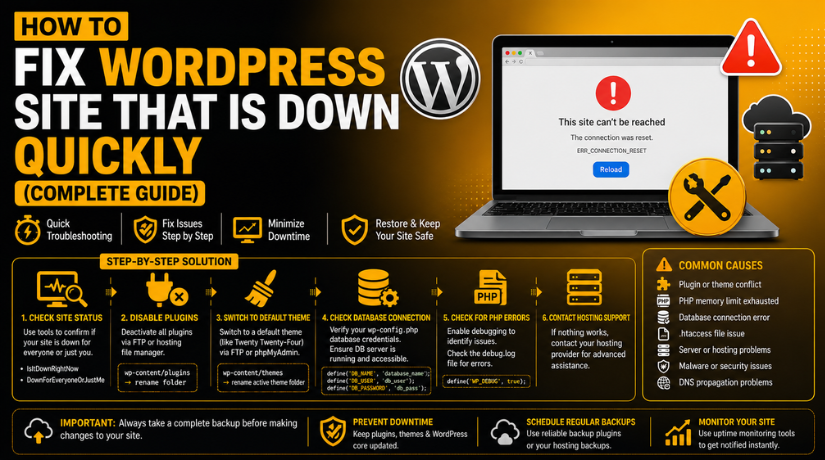
How to Fix WordPress Site That Is Down Quickly (Complete Guide)
Introduction
WordPress site down issues can feel stressful for any owner. Your visitors cannot read pages, buy products, or contact you. This can affect leads, sales, bookings, and customer trust. Even short WordPress downtime can create a bad user experience. It can also make your brand look less reliable online.
A website may stop working for many common reasons. Sometimes, a plugin update can break important website functions. Sometimes, a theme file may create a serious PHP error. Hosting problems, database errors, DNS issues, SSL warnings, and malware can also cause downtime. In some cases, the site may only look down because of cache issues.
Many users try random fixes when their site stops loading. This can make the problem worse and harder to solve. A safe process is always better than quick guessing. Before you Fix WordPress website issues, you must understand the real cause. This helps you avoid data loss, broken layouts, and missing files.
Good WordPress troubleshooting starts with one simple step. You must first know what type of error appears. The error message often tells you where to look first. This guide will help you understand the issue clearly. Then you can move toward the right WordPress error fix.
What Does “WordPress Site Is Down” Mean for Website Owners?
WordPress website not working does not always mean total failure. Sometimes, only the homepage stops loading for visitors. Sometimes, the admin dashboard works, but frontend pages fail. Sometimes, the website opens on mobile but not desktop. In other cases, only checkout, login, forms, or product pages stop working.
This means downtime can appear in different ways. Your website may show a blank white screen. It may display a 500 internal server error. It may show a 502, 503, or 504 server error. Some users may see an SSL warning in their browser. Others may see “Error establishing a database connection.” Sometimes, the website redirects visitors to an unknown page.
You may also notice that your WordPress admin area fails. The /wp-admin page may not open at all. Login may work, but the dashboard may load slowly. Forms, buttons, menus, or checkout pages may stop responding. These signs show that your site needs careful checking.
When you want to Recover WordPress site access, avoid changing everything together. First, identify what part of the website is broken. Check if the whole site is offline. Then check if only one feature or page fails. This small step can save time and prevent bigger damage.
First Things to Do Before You Start Fixing the Website
When you see a WordPress site down issue, stay calm first. Do not change plugins, themes, files, and settings together. Quick random actions can make the problem worse. A safe process helps you find the real issue faster. It also protects your files, database, users, orders, and settings. Before you fix WordPress website issues, check the basic signs first. This gives you a clear repair path. It also helps you avoid bigger damage during recovery.
Check If the WordPress Website Is Down for Everyone
Sometimes, your WordPress website not working is only local. Your browser cache may show an old error. Your internet provider may also have a DNS issue. Your device may have stored an outdated website version. So, test the website from another browser first. Then open it using mobile data on your phone. You can also ask another person to check it.
Check Recent Website Changes That May Have Caused Downtime
Recent changes often cause sudden WordPress downtime. Think about what changed before the website stopped working. This step is very important for fast WordPress troubleshooting. It helps you find the cause without guessing. You should check recent actions carefully.
Take a Backup Before Making Any Website Changes
Always take a backup before starting any repair work. A backup protects your website if something goes wrong. It should include website files and the full database. Your files contain themes, plugins, images, and uploads. Your database contains posts, pages, users, orders, and settings. If the admin panel is not opening, check hosting backups. Many hosting panels keep daily or weekly backups.
Avoid Making Too Many Fixes at the Same Time
Many users try several fixes together during panic. This makes the real issue harder to find. You should test one fix at a time. After each step, reload the website carefully. If the site starts working, you know the cause. This method keeps WordPress troubleshooting clean and simple. It also helps prevent new errors from appearing.
How to Identify the Main Causes of WordPress Website Down Issues
Check Your Hosting Server Status First
Hosting is often the first place to check. A WordPress site down issue can happen when the server stops responding. Your hosting server may be overloaded, suspended, or under maintenance. Log in to your hosting account and check server status. Also check CPU usage, memory usage, bandwidth, and disk space.
Review Recent Plugin Updates or New Plugin Installations
Plugins are a common cause of WordPress downtime. A plugin update may conflict with WordPress core, theme files, or PHP settings. A newly installed plugin can also break the website. Check if the issue started after a plugin change. If yes, deactivate that plugin first. This is an important step in WordPress troubleshooting. It helps you find the problem without changing everything.
Check Your Active WordPress Theme
Your theme controls the website design and many frontend functions. A broken theme file can make the website stop loading. This often happens after a theme update or code change. A wrong edit in the functions.php file can also create errors. If your WordPress website does not have a working issue after theme changes, test a default theme.
Test WordPress Admin Dashboard Access
Open your admin login page using /wp-admin. If the dashboard opens, the issue may affect only the frontend. It may be linked to cache, page builder content, or theme files. If the dashboard does not open, the issue may be deeper. It may involve PHP errors, database issues, hosting limits, or security blocks.
Read the Exact Error Message Carefully
Error messages give clear clues about the real issue. A 500 error may show a server or PHP problem. A 503 error may mean overload or maintenance mode. A database connection error means WordPress cannot reach the database. A white screen often points to plugin, theme, or memory issues.
Check Website Error Logs in Hosting
Error logs can show the exact file causing downtime. You can usually find them inside cPanel or hosting tools. These logs may show plugin names, theme files, PHP fatal errors, or memory issues. This makes it easier to Fix WordPress website problems safely.
Check Database Connection Details
WordPress needs a working database connection to load content. If the database details are wrong, the website may stop working. Check the database name, username, password, and host inside wp-config.php. Also confirm that the database server is running. A damaged or overloaded database can also cause downtime.
Check Domain, DNS, and SSL Settings
Sometimes WordPress is fine, but the domain setup fails. A domain may expire or point to the wrong server. DNS records may also change after hosting migration. SSL issues can show browser security warnings. Check nameservers, A records, SSL status, and HTTPS redirects.
Scan for Malware or Security Problems
Malware can make a WordPress site redirect or stop loading. It can also create spam pages or unknown admin users. Sometimes hosting providers suspend hacked websites for safety. Check for strange redirects, unknown files, and new admin accounts. Run a security scan and change all important passwords.
Check Cache and CDN Settings
Cache can sometimes show old errors after the site is fixed. CDN settings can also block or misroute traffic. Clear your WordPress cache, hosting cache, browser cache, and CDN cache. If you use Cloudflare, check DNS and firewall settings there. Cache checks are simple but very useful.
How to Fix WordPress Site That Is Down With Safe Steps
When your WordPress site down issue appears, follow a clear process. Do not change many settings at the same time. Each step should confirm one possible cause. This makes WordPress troubleshooting simple, safe, and faster. It also helps you avoid extra website damage. Follow these steps one by one.
Step 1: Check If a Faulty Plugin Is Causing the Issue
Plugins often cause WordPress downtime after updates or server changes. If your dashboard works, go to the plugins page. Deactivate the recently updated plugin first. Then check your website in a new tab. If the site works, that plugin caused the issue. You can update, replace, or remove it safely.
If your dashboard does not open, use cPanel or FTP. Go to /wp-content/ and rename the plugins folder. Rename it to plugins-old and reload your website. If the site opens, one plugin is faulty. Rename the folder back and test plugins one by one. This is a common WordPress error fix.


Step 2: Switch to a Default WordPress Theme
Your active theme can also break your website. This may happen after updates or code changes. A small error in functions.php can stop loading. If your dashboard works, activate a default WordPress theme. Then reload your website and check it again.
If the dashboard does not open, use cPanel or FTP. Go to /wp-content/themes/ and rename your active theme folder. WordPress may load another available default theme. If the site works, your theme caused the issue. Restore the last working theme version if needed.
Step 3: Fix the WordPress Critical Error or White Screen
A critical error usually means a PHP fatal error. A white screen can also show the same problem. First, check your admin email inbox. WordPress may send a recovery mode email. This email may show the broken plugin or theme.
If no email arrives, check hosting error logs. The logs may show the exact broken file. You can also ask hosting support to check it. Low PHP memory can also create this issue. Ask your host to increase the PHP memory limit. This can help Recover WordPress site access faster.
Step 4: Fix the Database Connection Error
A database connection error means WordPress cannot reach the database. Your database stores posts, pages, users, orders, and settings. Open your wp-config.php file and check the database details. Review the database name, username, password, and host.
If the details are correct, the database server may be down. Contact your hosting provider and ask them to check MySQL. Also check if the database is damaged or overloaded. Take a full backup before any database repair.
Step 5: Check Hosting Resource Limits and Server Problems
Hosting issues can make your WordPress website not working suddenly. Log in to your hosting dashboard first. Check CPU usage, memory usage, bandwidth, and disk space. Also check server status and entry process limits.
If disk space is full, remove old backups or large files. If the server is down, contact hosting support. If your site often reaches limits, upgrade hosting resources. Stable hosting helps reduce future WordPress downtime.
Step 6: Clear Website Cache and CDN Cache
Cache can show old errors after the issue is fixed. Clear your WordPress cache plugin first. Then clear the hosting cache from your hosting panel. Also clear browser cache and test in private mode.
If you use a CDN, purge the CDN cache too. Cloudflare users should check DNS and firewall rules. After clearing cache, test key pages again. Check login, forms, checkout, and main service pages.
Step 7: Check Domain, DNS, and SSL Settings
Sometimes WordPress files are fine, but domain settings fail. Your domain may expire or point to another server. DNS records may also change after migration. Check nameservers, A record, and hosting IP address.
SSL issues can also block visitors from opening your site. Check if your SSL certificate is active. Also review HTTPS redirect settings inside hosting or CDN. This step helps Recover WordPress site access when domain settings fail.
Step 8: Scan the Website for Malware or Security Issues
Malware can make your website stop loading or redirect visitors. It may create spam pages or unknown admin users. Sometimes hosting providers suspend infected websites for safety.
Check admin users and remove unknown accounts. Scan website files for suspicious code or files. Change admin, hosting, FTP, and database passwords. Update WordPress, plugins, and themes after cleanup. Serious malware issues need expert WordPress security help.
Step 9: Restore a Clean Backup If the Issue Is Risky
A backup restore can be the fastest safe option. Use it when the site breaks after a known change. This may include plugin updates, theme edits, or code changes. Restore only a clean and recent backup.
After restoring, test your website carefully. Check the homepage, admin dashboard, forms, login, and checkout. Also check images, links, SEO settings, and tracking codes. Use a staging site before future updates. This helps prevent another WordPress site down issue.
How to Prevent WordPress Downtime in the Future
Keep Your WordPress Website Stable and Always Ready
Preventing WordPress downtime is better than fixing emergency issues later. A stable website needs regular care, safe updates, and proper monitoring. Many website owners ignore small warnings until the site fails. This can affect traffic, leads, sales, and customer trust. Good maintenance helps you avoid the same WordPress site down problem again.
Keep WordPress Core, Plugins, and Themes Updated Safely
Old plugins, themes, and WordPress files can create serious problems. They may cause errors, security risks, or compatibility issues. However, updates should not be done without checking first. Always take a backup before major updates. Update one plugin or theme at a time. Then test your website after each update.
Use a Staging Website Before Major Website Changes
A staging website is a private test copy. You can test updates, plugins, themes, and custom code there. This keeps your live website safe from sudden errors. If something breaks on staging, visitors will not see it. This is very useful for business websites, WooCommerce stores, and service websites. A staging setup helps you Fix WordPress website risks before they affect users.
Set Up Regular Backups for Files and Database
Backups are very important for fast recovery. Your backup should include website files and database data. Files include plugins, themes, uploads, and images. The database includes posts, pages, users, orders, and settings. Active websites may need daily backups. WooCommerce and booking websites may need real-time backups.
Use Reliable Hosting With Enough Server Resources
Weak hosting can cause repeated website problems. Your website may stop working during high traffic. It may also fail due to low memory or CPU limits. Choose hosting with good uptime, backups, security, and support. A reliable hosting plan can reduce WordPress website not working issues.
Monitor Website Uptime and Review Website Health Monthly
Uptime monitoring alerts you when your website goes offline. This helps you act before customers report the issue. You should also review website health every month. Check plugin updates, theme updates, PHP version, SSL status, backups, and error logs. Also test forms, checkout, login, and important pages.
Conclusion
A down WordPress website needs calm and careful checking. Start with hosting, plugins, themes, database, DNS, SSL, cache, and security. These areas often explain why a WordPress site down issue happens. A step-by-step process also helps prevent extra damage. It protects your files, content, users, orders, and website settings. Regular updates, backups, uptime monitoring, and monthly health checks can reduce future WordPress downtime. They also make recovery faster when something goes wrong.
Is your website still not opening? You can contact 24x7wpsupport for guidance on self-hosted WordPress issues. Their website lists support for WordPress errors, hosting, plugins, themes, migration, WooCommerce, and security-related problems. You can visit 24×7 WP Support or call +1-888-818-9916 for US and Canada support.



Brian is a WordPress support specialist and content contributor at 24×7 WP Support. He writes practical, easy-to-follow guides on WordPress troubleshooting, WooCommerce issues, plugin and theme errors, website security, migrations, performance optimization, and integrations. With a focus on solving real website problems, Brian helps business owners, bloggers, and online store managers keep their WordPress sites running smoothly.
