
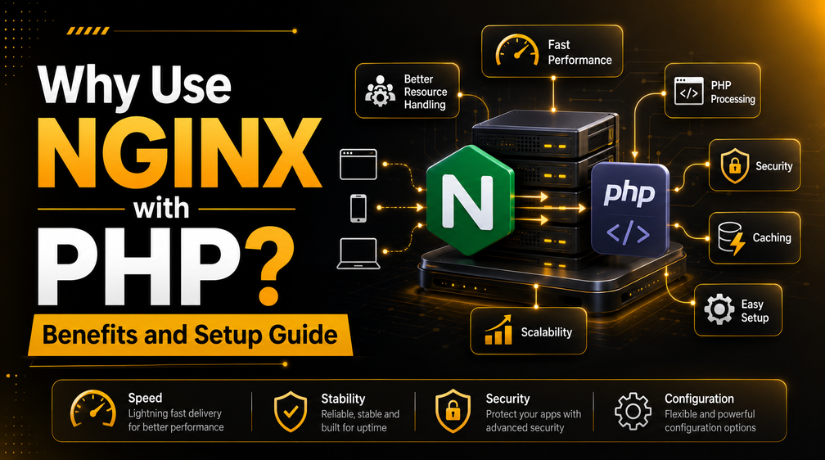
Why Use NGINX with PHP? Benefits and Setup Guide
Introduction
Many PHP websites need fast loading and stable server performance. A slow website can affect users, sales, and search visibility. It can also increase bounce rates when visitors leave quickly. This is why many developers ask, why use NGINX with PHP for business websites?
NGINX is a strong web server for modern PHP websites. It handles requests quickly and uses server resources carefully. This makes it useful for blogs, business websites, portals, and stores. It can also manage more traffic when your website grows.
PHP websites need proper server handling to work smoothly. NGINX does not run PHP files by itself. It sends PHP requests to PHP-FPM for processing. This setup helps PHP pages load in a clean and controlled way.
A correct NGINX and PHP setup can help with:
- Faster page response
- Better traffic handling
- Lower server load
- Improved website stability
- Cleaner PHP request processing
For USA business websites, speed matters a lot. Visitors expect pages to open without delay. Search engines also consider user experience when ranking websites. So, a strong server setup can support both users and SEO.
What NGINX Does for PHP Websites
NGINX works as the front server for your PHP website. It receives the request when someone opens a page. Then it checks what type of file the browser needs.
For static files, NGINX responds directly and quickly. These files include images, CSS, JavaScript, fonts, and media files. This saves time because PHP does not need to run.
For dynamic PHP pages, NGINX sends the request to PHP-FPM. PHP-FPM processes the PHP code and returns the final result. After that, NGINX sends the finished page to the visitor’s browser.
This process keeps the website fast and organized. It also separates static file handling from PHP processing.
When learning how to configure PHP with NGINX, you must understand this flow first. NGINX needs a proper server block. It also needs correct FastCGI settings for PHP-FPM.
A basic working flow looks like this:
- Visitor opens a PHP page.
- NGINX receives the browser request.
- NGINX checks the requested file type.
- Static files load directly from NGINX.
- PHP files go to PHP-FPM.
- PHP-FPM returns the processed page.
- NGINX sends the page back to the browser.
This setup gives PHP websites better speed and control.
Main Benefits of Using NGINX with PHP
Using NGINX with PHP gives better speed and stronger control. It helps your website handle requests in a clean way. NGINX manages static files, while PHP-FPM handles PHP scripts. This separation improves performance and reduces extra server pressure.
Faster Static File Delivery
NGINX is very good at serving static website files. These files include images, CSS, JavaScript, and font files. It sends these files without using PHP processing each time. This helps pages open faster for website visitors.
This is useful for business websites, blogs, and online stores. A faster page can improve user experience and engagement.
Better Traffic Handling
NGINX can manage many visitor requests at the same time. This makes it helpful for growing PHP websites. When traffic increases, your server needs better request handling.
NGINX uses an efficient system to manage these requests. It helps reduce delays during busy traffic periods. This is one reason many website owners choose NGINX.
Lower Server Resource Usage
NGINX uses server resources carefully when configured correctly. It can handle many connections with less memory usage. This helps websites run better on limited hosting resources.
Lower resource usage also supports better uptime and stability. Your website can stay smoother during normal traffic spikes.
Better PHP Control with PHP-FPM
PHP-FPM gives better control over PHP processing. It manages PHP worker processes and handles dynamic page requests. You can adjust PHP-FPM settings based on website needs.
This setup helps developers improve performance and reduce PHP delays. It also makes troubleshooting easier when PHP issues appear.
Better Support for Growing PHP Websites
If you want to learn how to speed up PHP website with NGINX, start with this setup. NGINX and PHP-FPM give a stronger base for growth. They help your website serve users faster and more reliably.
NGINX vs Apache for PHP Websites
The topic NGINX vs Apache for PHP websites is common. Both servers can run PHP websites well. But their working style is different.
Apache is flexible and easier for many beginners. It supports .htaccess, which helps with quick rule changes. Many shared hosting platforms still use Apache for this reason.
NGINX is often preferred for speed-focused websites. It handles static files and traffic more efficiently. However, NGINX needs server-level configuration instead of .htaccess.
For high-speed PHP websites, NGINX is a strong choice. It works best when PHP-FPM is configured correctly.
Basic PHP and NGINX Setup Flow
This NGINX PHP-FPM setup guide explains the basic setup process. NGINX does not process PHP files directly on the server. It needs PHP-FPM to read and run PHP scripts. When both work together, PHP websites load faster and cleaner.


Before starting, make sure you have server access. You should also know your PHP version and website root path. These details help you avoid common setup mistakes.
Step 1: Install NGINX on the Server
First, install NGINX on your hosting server or VPS. NGINX will handle browser requests for your PHP website. After installation, start the NGINX service and enable it. This keeps NGINX active after every server restart.
You should also check if NGINX is running correctly. Open your server IP or domain in the browser. If the default NGINX page appears, the server is working.
Step 2: Install PHP-FPM for PHP Processing
Next, install PHP-FPM based on your required PHP version. PHP-FPM means PHP FastCGI Process Manager. It handles PHP requests sent by NGINX.
For example, your server may use PHP 8.1 or PHP 8.2. Always choose the version your website supports properly. A wrong PHP version can break plugins, themes, or custom code.
Step 3: Check If PHP-FPM Is Running
After installing PHP-FPM, check the service status carefully. PHP-FPM must run before NGINX can process PHP pages. If PHP-FPM is stopped, PHP files may not open correctly.
You can also restart PHP-FPM after making configuration changes. This helps apply the latest PHP settings properly.
Step 4: Configure the NGINX Server Block
The server block controls your domain settings in NGINX. It includes the domain name, root folder, and index files. This is an important step in how to configure PHP with NGINX.
Your server block should include:
- Website domain name
- Website root directory
- Index file settings
- PHP request handling rules
- Error log and access log paths
The root directory must point to your website files. If the path is wrong, NGINX may show a 404 error.
Step 5: Add FastCGI PHP Handling
Now add PHP handling rules inside the server block. These rules tell NGINX to send PHP files to PHP-FPM. The fastcgi_pass value must match your PHP-FPM socket or port.
If the socket path is wrong, PHP will not work. This can also cause a 502 Bad Gateway error.
Step 6: Test the NGINX Configuration
Always test the NGINX configuration before restarting the service. This helps find syntax errors before they affect the website. If the test shows success, you can reload NGINX safely.
Step 7: Restart NGINX and PHP-FPM
Finally, restart or reload both services after setup changes. This applies the new configuration to your PHP website. Then open your website and test PHP pages carefully.
Common NGINX PHP Issues and Fixes
Even a good server setup can face PHP issues. Most problems happen because of wrong paths, stopped services, or missing rules. When NGINX PHP not working appears, check the setup step by step.
PHP File Downloads Instead of Running
This issue happens when NGINX cannot pass PHP files correctly. The browser downloads the PHP file instead of opening it. This usually means PHP handling rules are missing. Check the server block and FastCGI settings carefully.
PHP Page Shows a Blank Screen
A blank page often means PHP has an error. It can also happen because error display is disabled. Check the PHP error log and NGINX error log. These logs can show the exact reason.
NGINX Shows 502 Bad Gateway
A 502 error usually means PHP-FPM is not responding. It can also happen when the socket path is wrong. To understand how to fix NGINX 502 Bad Gateway PHP-FPM, first check PHP-FPM status. Then confirm the fastcgi_pass path matches your PHP-FPM setup.
Common checks include:
- Restart PHP-FPM service.
- Check the PHP-FPM socket path.
- Review NGINX error logs.
- Confirm enough server memory.
- Test NGINX configuration again.
Wrong PHP-FPM Socket Path
NGINX must connect to the correct PHP-FPM socket. If the path is wrong, PHP pages will fail. Always match the NGINX socket path with your PHP version.
PHP-FPM Service Not Running
If PHP-FPM is stopped, NGINX cannot process PHP files. Restart the service and check its status. This simple step fixes many PHP loading issues.
Speed Optimization Tips for PHP Websites Using NGINX
If you want to know how to speed up PHP website with NGINX, start with basic optimization. Enable browser caching for static files. Use gzip or Brotli compression for faster delivery. Adjust PHP-FPM worker settings based on traffic. Avoid running PHP for images, CSS, and JavaScript files. Keep PHP updated for better speed and security.
Conclusion
NGINX with PHP can improve speed, control, and stability. It helps your website handle static files faster and manage PHP requests better. But PHP-FPM must be configured correctly for smooth performance. A small setup mistake can cause PHP errors, blank pages, or 502 issues.
A proper NGINX and PHP setup gives your website a stronger base. It can support better loading speed, user experience, and long-term growth. Regular monitoring also helps you catch server issues early.
If you need help with NGINX, PHP, or WordPress server issues, contact 24x7wpsupportfor expert assistance.
Related posts:
Fastest WordPress Hosting Providers Compared in 2026

How Much Does It Cost to Hire Someone to Build a WordPress Website?
How to Limit Login Attempts in WordPress: Complete 2026 Guide
How to Open the Browser Console to Debug WordPress Issues (2026)
How to Reduce HTTP Requests in WordPress: 2026 Speed Guide

Brian is a WordPress support specialist and content contributor at 24×7 WP Support. He writes practical, easy-to-follow guides on WordPress troubleshooting, WooCommerce issues, plugin and theme errors, website security, migrations, performance optimization, and integrations. With a focus on solving real website problems, Brian helps business owners, bloggers, and online store managers keep their WordPress sites running smoothly.
