
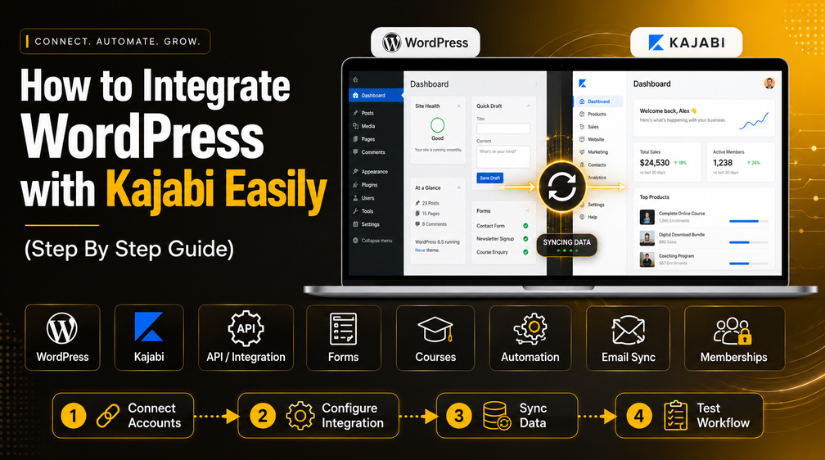
How to Integrate WordPress with Kajabi Easily (Step By Step Guide)
Introduction
Many website owners use WordPress and Kajabi for different business needs. WordPress helps you build a strong website with full control. It works well for blogs, landing pages, SEO pages, and service pages. Kajabi helps you sell courses, memberships, coaching programs, and digital products. It also supports checkout pages, emails, offers, and student access. Both platforms have strong features, but they serve different purposes. That is why many creators prefer using Kajabi with WordPress together.
Many people ask, does WordPress integrate with Kajabi in a simple way? The answer is yes, but the method depends on your goal. You can add Kajabi checkout links to WordPress pages. You can connect forms, use automation tools, or build custom workflows. Some setups are simple and need no coding. Other setups may need plugins, webhooks, or developer support.
This guide explains how both platforms work together. You will learn the meaning of Kajabi WordPress integration first. Then, you will understand why this setup helps your business. Later parts will explain setup steps, common problems, and best practices.
What Is Kajabi In WordPress?
Kajabi in WordPress does not mean Kajabi becomes a WordPress plugin. It means you connect WordPress pages with Kajabi features. These features may include forms, checkout pages, products, and offers. WordPress remains your main public website in many setups. Kajabi works as your course, payment, and student system.
This setup gives you more control over your online business. WordPress can manage your website content and SEO structure. Kajabi can manage your course delivery and buyer access. So, both tools work together without replacing each other. This is the real meaning of WordPress Kajabi integration.
For example, you may create a course landing page in WordPress. That page can explain your course, benefits, and pricing. Then, a button can send users to Kajabi checkout. After payment, Kajabi can give course access automatically. This makes the user journey simple and clear.
You can also connect WordPress to Kajabi through forms and automation tools. A WordPress form can collect a visitor’s name and email. Then, that lead can move into Kajabi for email follow-up. This helps you build your list and nurture leads.
Why Should You Integrate WordPress with Kajabi?
Better SEO Control Through Your WordPress Website
WordPress gives strong control over website SEO and content structure. You can create blog posts, guides, landing pages, and service pages. You can also manage meta titles, descriptions, headings, and internal links. This helps search engines understand your website more clearly.
A strong WordPress website can bring long-term organic traffic. You can write helpful content around your course topics. This content can answer user questions and build trust. Then, you can guide readers toward your Kajabi offer.
Better Course Management Through Kajabi
Kajabi helps you manage digital products in one place. You can create courses, lessons, modules, offers, and checkout pages. You can also manage student access and email follow-ups. This makes course delivery easier for website owners.
Without Kajabi, you may need many WordPress plugins. You may need plugins for courses, payments, emails, and memberships. Too many plugins can slow your website and create conflicts. Kajabi can reduce this load by handling course functions separately.
Better Sales Journey For Visitors And Buyers
A connected setup creates a better sales journey for visitors. WordPress can educate visitors before they see your offer. Blog posts and landing pages can explain problems and solutions. Then, Kajabi can manage the sale and course access.
This journey feels natural for users. They do not feel pushed too quickly into buying. They first get helpful information from your WordPress website. Then, they move to Kajabi when ready to join.
Better Automation For Leads, Buyers, And Students
Automation is another strong reason to connect WordPress to Kajabi. You can send WordPress form leads directly into Kajabi. You can add tags based on user interest or actions. You can also start email sequences after signup.
For example, a visitor may download a free course guide. Kajabi can then send helpful follow-up emails automatically. Later, those emails can promote your paid course or offer. This helps you build relationships without manual work.
Better Brand Experience Across WordPress And Kajabi
A good integration also improves your brand experience. Your WordPress website can show your main brand design. Kajabi can match your logo, colors, and message style. This makes both platforms feel connected to users.
You can also use a branded subdomain for Kajabi. For example, your main site can stay on your domain. Your course area can run on a course subdomain. This keeps the experience clean and easy to understand.
Things to Prepare Before Integrate WordPress with Kajabi
Before starting a WordPress Kajabi integration, you need a clear setup plan. A proper plan helps you avoid errors during the process. It also keeps your website, course, forms, and checkout working correctly. Many website owners start integration without checking basic requirements. This can create broken links, missing leads, and checkout problems later. So, preparation is the most important step before connecting both platforms.
You should first understand your website goal. You may want to sell courses from WordPress. You may want to collect leads and send them to Kajabi. You may want to use WordPress for SEO content. You may also want Kajabi for courses and student access. Each goal needs a different setup method. That is why planning should happen before technical work starts.
Prepare Your WordPress Website Before Starting The Integration
Your WordPress website should be ready before you connect it with Kajabi. First, update your WordPress core, theme, and plugins. Old versions may cause errors during setup. They can also create security risks for your website. A clean and updated website gives a stable base.
Next, check your website speed and mobile layout. Many visitors may open your pages from mobile devices. Your landing pages, buttons, and forms should work smoothly. If your website is slow, users may leave early. This can reduce course signups and sales.
Prepare Your Kajabi Account Before Connecting It With WordPress
Your Kajabi account should also be ready before integration begins. First, create your Kajabi course, product, or membership. Add lessons, modules, videos, downloads, and support details. Your course should look complete before you start sending visitors.
Next, create your Kajabi offer or pricing plan. The offer controls how users buy and access content. Check the price, payment type, and access rules carefully. A wrong offer setup can stop buyers from getting course access. This can create support issues after purchase.
Decide Your Main Goal Before You Connect WordPress To Kajabi
Before you connect WordPress to Kajabi, decide your main goal clearly. Your goal will decide the right integration method. Without a clear goal, the setup can become confusing. You may add tools that you do not actually need.
If your goal is course selling, use Kajabi checkout links. You can add these links to WordPress buttons and pricing sections. This method is simple and works well for beginners. It is also easy to test and manage.
Choose The Right Integration Method For Your Business Needs
Choosing the right method is very important for smooth setup. Not every business needs a complex integration. Simple setups are often better for small websites and creators. Advanced setups are better when you need custom workflows.
If you only want to sell a course, use checkout links. This method needs less time and less technical work. You can add the Kajabi checkout URL to WordPress buttons. Then, users can buy directly through Kajabi.
How to Integrate WordPress with Kajabi Using Simple And Advanced Methods
Method 1: Add Kajabi Checkout Links To WordPress Pages
Adding Kajabi checkout links is the easiest integration method. This method works well for course sales and paid offers. You do not need coding for this setup. You only need your Kajabi offer link and WordPress page access.
Step 1: Create Your Product Inside Kajabi
- Log in to your Kajabi account.
- Create your course, membership, or digital product.
- Add lessons, videos, downloads, and course details.
- Check that all product content is complete.
- Make sure buyers get proper access after payment.
Step 2: Create A Kajabi Offer For That Product
- Go to the offer section inside Kajabi.
- Create a new offer for your product.
- Set the price for your course or membership.
- Choose one-time payment or subscription payment.
- Check that the correct product is linked.
- Avoid linking the wrong course to the offer.
Step 3: Set Up Your Kajabi Checkout Page
- Open the checkout settings for your Kajabi offer.
- Add the course name and pricing details.
- Add required buyer information fields.
- Add your logo and brand colors.
- Keep the checkout text clear and simple.
- Make the checkout page look trusted and professional.
Step 4: Copy The Kajabi Checkout Link
- Open the Kajabi offer checkout page.
- Copy the checkout page URL carefully.
- Save the link for your WordPress page.
- Open the link once in your browser.
- Confirm that the checkout page loads correctly.
- Check the course name, price, and offer details.
Step 5: Open Your WordPress Page Or Landing Page
- Log in to your WordPress dashboard.
- Open the page where you want the button.
- Choose a course page, blog post, or landing page.
- You can also use your homepage or pricing page.
- Select a visible area for better user action.
Step 6: Add A Clear CTA Button
- Add a button to your WordPress page.
- Use simple and action-based button text.
- Use text like “Join the Course.”
- You can also use “Start Learning” or “Enroll Now.”
- Avoid unclear text like “Click Here.”
- Clear button text improves user understanding.
Step 7: Paste The Kajabi Checkout Link In The Button
- Open the button link settings in WordPress.
- Paste the Kajabi checkout URL carefully.
- Check that there are no extra spaces.
- Choose same tab or new tab opening.
- Save or update the WordPress page.
- Test the button after saving changes.
Step 8: Add The Link In Other Important Areas
- Add the checkout link to your header menu.
- Add it to your footer section.
- Place it inside your pricing table.
- Add it to blog CTA sections.
- Use it in banners or sidebar areas.
- This helps more visitors reach checkout.
Step 9: Test The Full Checkout Journey
- Open your WordPress page on desktop.
- Click the Kajabi checkout button.
- Check if the correct checkout page opens.
- Test the same button on mobile.
- Review the offer name and pricing.
- Confirm the payment and access process works.
Step 10: Track Button Clicks And Sales
- Set up tracking for your CTA button.
- Use analytics tools to track button clicks.
- Add UTM parameters to Kajabi checkout links.
- Track which WordPress page sends sales.
- Review the data regularly.
- Use this data to improve conversions.
Method 2: Embed Or Connect Kajabi Forms With WordPress
This method is useful for lead generation. You can collect emails from WordPress visitors. Then, you can send those leads into Kajabi. This works well for free guides, webinars, newsletters, and course waitlists.
Step 1: Decide What Your Form Will Collect
- Decide the main goal of your form.
- Use it for webinar signup or lead capture.
- You can also use it for free downloads.
- Keep the form short and simple.
- Ask for name and email first.
- Add phone number only when needed.
Step 2: Create A Form Inside Kajabi
- Log in to your Kajabi account.
- Create a new form inside Kajabi.
- Add the fields required for your goal.
- Connect the form with the right tag.
- Connect it with the right email sequence.
- Give the form a clear internal name.
Step 3: Set Up Kajabi Tags And Email Automation
- Create tags for different lead types.
- Use names like “Free Guide Lead.”
- You can also use “Webinar Signup.”
- Connect the tag with your Kajabi form.
- Set up an email sequence for follow-up.
- Test that automation starts after submission.
Step 4: Get The Kajabi Form Embed Code
- Open the form settings inside Kajabi.
- Find the form embed option.
- Copy the embed code carefully.
- Do not change the code manually.
- Save the code for your WordPress page.
- Wrong code changes may break the form.
Step 5: Open The WordPress Page For The Form


- Go to your WordPress dashboard.
- Open the page where the form will appear.
- Use a landing page or blog post.
- You can also create a signup page.
- Choose a clear and visible form section.
- Make sure the offer is easy to understand.
Step 6: Add The Embed Code To WordPress
- Add a Custom HTML block in WordPress.
- Paste the Kajabi embed code inside it.
- Save or update the WordPress page.
- Preview the page after saving.
- Check whether the form appears correctly.
- Test the layout on mobile too.
Step 7: Test The Kajabi Form Submission
- Submit the form with test details.
- Use a test name and email address.
- Open your Kajabi account after submission.
- Check whether the contact is created.
- Confirm that the correct tag is applied.
- Make sure the form connection works properly.
Step 8: Connect WordPress Forms To Kajabi If Needed
- Use a WordPress form plugin if needed.
- You can use WPForms or Gravity Forms.
- You can also use Fluent Forms.
- Collect leads directly from your WordPress page.
- Send the data to Kajabi using automation.
- This gives more control over form design.
Step 9: Use Zapier Or Make For Form Automation
- Connect your WordPress form with Zapier or Make.
- Set form submission as the trigger.
- Set Kajabi contact creation as the action.
- Map each form field correctly.
- Send name to the name field.
- Send email to the email field.
Step 10: Check Emails, Tags, And Follow-Up Flow
- Submit another test entry after automation setup.
- Check if the contact reaches Kajabi.
- Confirm that the correct tag is added.
- Check if the email sequence starts.
- Review the first email received by the user.
- Fix any failed automation before launch.
Common Problems During WordPress and Kajabi Integration
A WordPress Kajabi integration can work smoothly with proper planning. Still, some issues may appear during setup or testing. These problems usually happen because of wrong links, missing settings, failed automation, or tracking gaps. Many website owners also forget to test the full user journey. This can create problems after real visitors start using the website. So, you should check every important step before going live. A proper test helps you protect leads, sales, and student access.
Checkout Link Does Not Work Properly
A broken checkout link is a common integration problem. This usually happens when the wrong Kajabi URL is added. Sometimes, the Kajabi offer is not published yet. In other cases, the checkout page is not active. A WordPress button may also have an old or incorrect link. This can stop visitors from reaching the payment page. It can also reduce trust and lower course sales.
To fix this issue, test the checkout link directly first. Open the Kajabi checkout URL in a private browser window. Check the course name, price, offer, and payment fields. Then, test the WordPress button on your website. Check the same button on desktop and mobile devices. Also clear your WordPress cache after updating the link. This helps visitors see the latest button changes.
Leads Are Not Sending From WordPress To Kajabi
Lead transfer issues can happen during form integration. This problem usually appears when forms are not mapped correctly. For example, the email field may not connect properly. The name field may also send data to the wrong field. Sometimes, Zapier, Make, or webhook settings may fail. This stops leads from reaching Kajabi after form submission.
To solve this issue, submit a test form first. Use a test name and email address. Then, open Kajabi and check the contact list. Confirm that the new lead appears correctly. Also check if the right tag was applied. If tags are missing, your email sequence may not start.
Buyers Do Not Get Course Access After Purchase
Course access issues can affect user trust very quickly. A buyer expects instant access after completing payment. If access does not work, they may contact support immediately. This problem can happen when the wrong offer is selected. It can also happen when the payment does not complete. Sometimes, the buyer uses one email at checkout and another for login.
To prevent this issue, test the full checkout process. Use a test purchase if your setup allows it. Check if the buyer receives a welcome email. Then, check if the course appears inside the Kajabi account. Also confirm that the correct offer unlocks the correct product. This step is very important before launch.
Tracking Data Is Not Showing Correct Results
Tracking problems are also common during integration. You may track visits on WordPress but not Kajabi. This creates incomplete data inside analytics tools. You may see button clicks but miss actual purchases. You may also fail to track which page created the sale. This makes marketing decisions harder.
To fix this, install tracking on both important areas. Track your WordPress landing pages and CTA buttons. Also track Kajabi checkout and thank-you steps where possible. Use UTM parameters in your Kajabi checkout links. This helps you identify the exact traffic source.
Design Looks Different Between WordPress And Kajabi
Design mismatch can affect user trust during the buying journey. Your WordPress page may look modern and branded. But the Kajabi checkout may look different or plain. This can make users feel they moved to another website. Some users may even stop before payment.
To avoid this, match both platforms as much as possible. Use the same logo, brand colors, and message style. Keep button colors similar on WordPress and Kajabi. Use clear headings and simple checkout copy. This helps the transition feel smooth and trusted.
Domain Or Email Issues After Kajabi Setup
Domain issues can happen when DNS settings are changed incorrectly. A small DNS mistake can affect your website or email. This is especially important when using a Kajabi subdomain. For example, you may connect courses.example.com to Kajabi. If records are wrong, the subdomain may not work.
Email issues can also appear after DNS changes. This usually happens when MX records are changed or removed. MX records control business email delivery. If they are missing, emails may stop working. That can affect your leads, customers, and support messages.
Best Practices For WordPress And Kajabi Integration
A successful integration needs more than technical connection. It should create a smooth journey for visitors and buyers. Your setup should be simple, clear, secure, and easy to manage. These best practices help you avoid common mistakes. They also improve the user experience across both platforms.
Keep WordPress As The Main SEO Website
WordPress works very well for SEO-focused websites. You can use it for blogs, guides, pages, and landing pages. It gives strong control over titles, headings, URLs, and internal links. You can also use SEO plugins to improve page structure. This helps search engines understand your content better.
If your business depends on organic traffic, keep WordPress central. Publish helpful content around your course or service topics. Add strong CTAs inside useful content sections. Then, guide readers toward your Kajabi offer naturally. This approach helps users learn before they decide to buy.
Keep Kajabi For Course And Product Delivery
Kajabi is useful for courses, memberships, offers, and student access. It can handle lessons, videos, modules, checkouts, and emails. This helps reduce the need for many WordPress plugins. A lighter WordPress website can be easier to manage.
You should avoid copying full course content into WordPress. This can create confusion and content management problems. Keep your public content on WordPress. Keep your paid course content inside Kajabi. This separation makes your system cleaner and safer.
Use Clear CTA Buttons Across WordPress Pages
Clear CTA buttons are important for conversions. Users should know exactly what happens after clicking. Avoid vague text like “Click Here” or “Learn More.” Use clear button text like “Join the Course Now.” You can also use “Start Learning Today” or “Get Course Access.”
Place CTA buttons in the right locations. Add one near the top of landing pages. Add another after benefits or pricing sections. You can also add CTAs inside blog posts. This helps users take action when they feel ready.
Match Branding Between WordPress And Kajabi
Branding should stay consistent across both platforms. Use the same logo, colors, fonts, and tone. Your Kajabi checkout should not feel disconnected from WordPress. A matched design helps users trust the payment process.
Use simple and friendly language on both platforms. Avoid complex words that confuse new visitors. Keep your message clear from landing page to checkout. Users should understand the offer, price, and next step. This can reduce hesitation during purchase.
Test Every Step Before Launching The Integration
Testing is one of the most important best practices. Never launch your integration without checking the full journey. Start from the WordPress landing page. Click the Kajabi button and open the checkout page. Complete a test form or purchase where possible.
Check if the correct contact appears in Kajabi. Check if tags are applied properly. Check if emails start at the right time. Also confirm that course access works after purchase. These tests protect your visitors from errors.
Keep Backup And Security Ready Before Changes
Security should always stay part of integration planning. Take a WordPress backup before making major changes. This protects your site if a plugin conflict happens. You can restore the site quickly when needed.
Also protect your API keys and webhook URLs. Never place private keys in public website code. Use secure endpoints for webhook-based setups. Validate incoming data before using it inside WordPress. This helps stop unsafe or wrong data from entering.
Conclusion
Now you know how WordPress and Kajabi can work together. WordPress is strong for SEO, content, blogs, and landing pages. Kajabi is strong for courses, offers, checkout, and student access. A good setup helps you use both platforms correctly.
Many users ask, does WordPress integrate with Kajabi for business growth? Yes, it does when the setup is planned properly. You can start with simple checkout links and forms. Then, you can add automation, webhooks, or API features later. This keeps your setup simple at the beginning. It also gives you room to grow over time.
A strong integration should support your visitor journey. Users should move from WordPress content to Kajabi checkout easily. Leads should enter Kajabi without missing data. Buyers should get course access without delay. Tracking should also show what pages create results.
Start with the method that matches your current goal. Keep WordPress focused on traffic and content. Keep Kajabi focused on course delivery and sales. Then, test every step before sending real visitors. This approach creates a smoother and safer integration.
Need help with your WordPress Kajabi integration setup? The 24x7wpsupport team can help you plan, connect, and test everything. We can add Kajabi checkout links, connect forms, check tracking, and fix setup issues. We can also review your WordPress pages for better user flow. Our team can help make Kajabi with WordPress work smoothly for your business. Visit 24x7wpsupport to get expert WordPress support today. Let our team help you build a clean and reliable integration.




Brian is a WordPress support specialist and content contributor at 24×7 WP Support. He writes practical, easy-to-follow guides on WordPress troubleshooting, WooCommerce issues, plugin and theme errors, website security, migrations, performance optimization, and integrations. With a focus on solving real website problems, Brian helps business owners, bloggers, and online store managers keep their WordPress sites running smoothly.
