
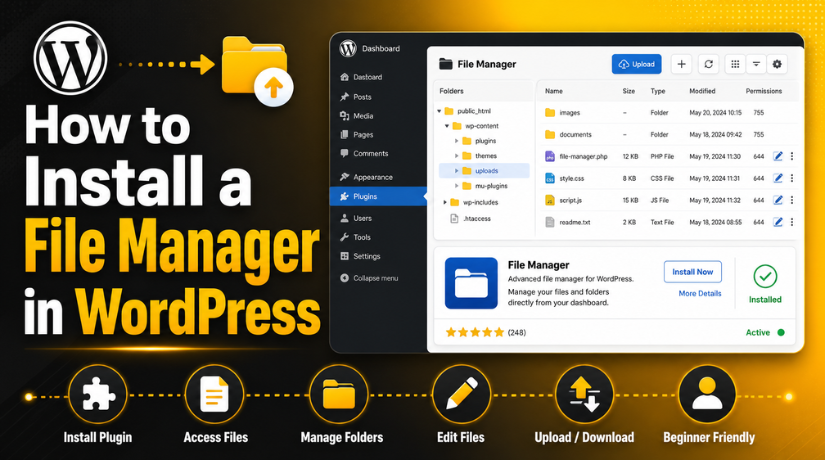
How to Install a File Manager in WordPress: Step By Step Beginner Guide
Introduction
Managing WordPress files is an important part of website care. Every WordPress site runs with many files and folders. These files control your theme, plugins, media, and core features. Usually, users manage these files through cPanel, FTP, or SFTP. But many beginners do not have direct hosting access. Some website owners only have WordPress dashboard access. In that case, a WordPress file manager plugin can help a lot. It allows users to manage files from inside WordPress. This makes basic file work easier and faster.
Many users search for how to add file manager in WordPress because they want simple access. They may need to upload a file, replace an image, or check folders. A file manager helps users complete these small tasks quickly. It works like a simple file browser inside WordPress. You can open folders, view files, download files, and upload new files. Some plugins also allow file editing and folder creation. This makes WordPress file management easier for non-technical users.
However, users must handle these tools with care. A WordPress file manager gives access to important website files. One wrong edit can break your website layout or features. Deleting the wrong file can also cause serious errors. So, users should always take a backup before using it. A file manager is helpful, but safety comes first.
What Is a File Manager in WordPress and How Does It Work?
A WordPress file manager is usually a plugin. It adds a file control panel inside your dashboard. This panel allows access to website folders and files. It works much like a hosting file manager. Users can browse, upload, edit, rename, and download files. This makes file access easier from one place.
When you install file manager in WordPress, it creates a new menu. This menu usually appears inside the admin dashboard. From there, you can open the website file structure. You can view folders like wp-content, themes, plugins, and uploads. These folders store the main working files of your website. So, you must understand them before making changes.
A WordPress file manager plugin is useful for users without hosting access. It can help developers, site owners, and support teams. It is also helpful during quick fixes and small updates. But it must be used only by trusted admins. Giving file access to the wrong user is risky. It can lead to broken files or security problems.
When Should You Use a WordPress File Manager for Website Tasks?
A WordPress file manager is useful for many small tasks. It helps when you need quick access to website files. You can manage files without opening cPanel, FTP, or SFTP. This is helpful for beginners and busy website owners. A WordPress file manager plugin gives file access from the dashboard. It saves time when only basic file work is needed. You can upload, download, rename, or check files easily. However, you should use it only for controlled tasks. It is not the best option for major website changes. For large changes, staging or SFTP is much safer.
Use a File Manager Plugin for WordPress for Quick File Tasks
A file manager plugin for WordPress works well for quick jobs. You may need to upload a small verification file. Some tools ask you to add files inside the root folder. For example, you may need ads.txt or robots.txt changes. A file manager can help complete these tasks faster. You can also download a file before editing it. This gives you a backup copy for safe rollback. You may replace a small image or document file. You can also create a folder for custom assets. These simple tasks make WordPress file management much easier.
Use It When FTP or cPanel Access Is Not Available
Many website owners do not have hosting login details. Some clients only share WordPress admin access with developers. In such cases, a WordPress file manager plugin can help. It allows users to access files from WordPress itself. This reduces the need for hosting panel access. It also helps when FTP details are delayed. Beginners often find FTP tools hard to use. A dashboard-based file manager feels easier and more familiar. It shows files in a simple folder-style view. This makes small file tasks less confusing for users.
Use It for Basic WordPress Maintenance Work
A WordPress file manager can support basic maintenance tasks. You can review theme folders during troubleshooting work. You can also check plugin folders when issues appear. You may download a file before making a small change. This helps protect your site from accidental mistakes. You can remove temporary files after checking their use. You can also manage small custom CSS or TXT files. These tasks support clean and better WordPress file management. Still, every file action should be done with care. Always check the file location before making changes.
When You Should Not Use a WordPress File Manager
You should not use a file manager for risky work. Do not edit core WordPress files directly. Core files are inside wp-admin and wp-includes folders. WordPress manages these files during official updates. Wrong edits can break the dashboard or full website. Do not upload unknown PHP files to your website. Unsafe PHP files can create major security problems. Do not delete files without knowing their purpose. A deleted file may break images, layouts, or plugin features. Do not change file permissions without technical knowledge. Wrong permissions can expose private files or block updates.
Avoid Using File Manager for Large Website Migrations
A file manager plugin for WordPress is not ideal for migrations. Large websites have many files and database records. A plugin-based file manager may load slowly with big folders. It may also fail during large uploads or downloads. Migration work needs safer tools and proper backups. SFTP, hosting file manager, or migration plugins are better options. These methods handle larger files more safely. They also reduce timeout and upload failure issues. Use a WordPress file manager only for small tasks. This keeps your website safer and more stable.
Important Safety Steps Before Installing a WordPress File Manager Plugin
Before you install file manager in WordPress, follow safety steps. A file manager gives direct access to website files. This access is useful, but it can be risky. One wrong change can affect your full website. So, preparation is very important before installing any plugin. You should create a backup and review plugin quality. You should also limit access to trusted users only. These steps help protect your website from mistakes. They also reduce security risks from unwanted file access. Safe setup makes WordPress file management easier and better.
Take a Full Website Backup Before Making File Changes
Always take a full backup before using file manager. Your backup should include website files and database. Files store themes, plugins, uploads, and custom assets. The database stores posts, pages, settings, and user data. Both parts are important for full website recovery. Store the backup outside your live website folder. Cloud storage or local computer storage can help. Also, confirm that the backup can be restored. A backup is only useful when restoration works correctly. This step protects your site from accidental file errors.
Use a Staging Website Before Editing Important Files
A staging website is a safe testing copy. It allows you to test changes before going live. You should use staging for important file edits. This helps you avoid live website errors. If something breaks, visitors will not see the issue. You can test plugin files, theme files, and custom files. After testing, you can move safe changes live. This is a better method for serious updates. Beginners should avoid editing live files directly. A staging site gives extra protection and peace of mind.
Check Plugin Trust Level Before You Install It
Do not install any random file manager plugin quickly. Check the plugin details before installing it. Look at active installations and user ratings first. A trusted plugin usually has many active users. Also check the last updated date carefully. A plugin updated recently is usually safer to use. Review WordPress version compatibility before installation. Read user reviews to understand common problems. Check support activity for recent replies from developers. A good WordPress file manager plugin should be active and maintained.
Limit File Manager Access to Trusted Admin Users Only
A WordPress file manager should only be used by trusted admins. Do not allow editors, authors, or contributors to access it. File manager tools can change important website files quickly. The wrong user may delete or edit important files. This can break your website or create security risks. Review all admin accounts before installing the plugin. Remove unused admin users from your WordPress site. Use strong passwords for every admin account. You can also enable two-factor login for better safety. Access control is very important for file security.
Understand File Permissions Before Changing Anything
File permissions control how files can be used. They decide who can read, write, or execute files. Wrong permissions can cause many website problems. Some permissions may block uploads or plugin updates. Other permissions may expose private files to attackers. You should not change permissions without proper knowledge. Avoid setting full write access on important folders. Never change permissions just to force a quick fix. Contact hosting support when permissions seem incorrect. Correct permissions keep your website safer and more reliable.
Avoid Keeping the File Manager Plugin Active Unnecessarily
You should not keep file manager active without reason. Use it only when you need file access. After finishing the task, deactivate and delete the plugin. This reduces the risk of unwanted file access. It also keeps your WordPress dashboard cleaner. Fewer plugins can also reduce plugin conflict chances. If you need it later, you can reinstall it. This is safer than keeping it active always. A WordPress file manager plugin is powerful, so use it carefully. Smart plugin use supports safer WordPress file management.
How to Install a File Manager in WordPress (Complete Guide)
Installing a WordPress file manager plugin is a simple process. You can do it from your WordPress dashboard. You do not need coding knowledge for the setup. This method is useful for beginners and website owners. It helps you manage files without opening cPanel or FTP. However, you should still follow each step carefully. A file manager gives access to important website files. So, always choose a trusted plugin before installation. This keeps your website safer during WordPress file management tasks.
Step 1: Log In to Your WordPress Dashboard Safely
- First, open your WordPress admin login page.
- Enter your username and password to access the dashboard.
- Use an administrator account for plugin installation.
- Other user roles may not have plugin access.
- Check your website before installing any new plugin.
- Open the homepage and important pages first.
- Make sure there are no existing website errors.
- If errors already exist, fix them before continuing.
- This helps you install file manager in WordPress safely.
Step 2: Go to the Add New Plugin Section
- After login, go to your WordPress dashboard menu.
- Click Plugins from the left-side menu.
- Now click the Add New option.
- This page shows plugins from the WordPress directory.
- You can search for file manager plugins here.
- This is the easiest method for beginners.
- You do not need to upload plugin files manually.
- This helps users learn how to add file manager in WordPress.
Step 3: Search for a Trusted WordPress File Manager Plugin
- Use the search box on the plugin page.
- Type File Manager in the search field.
- You can also search WP File Manager.
- Other options include Advanced File Manager or Filester.
- WordPress will show matching plugin results.
- Do not install the first plugin quickly.
- Check plugin details before selecting one.
- A good file manager plugin for WordPress should be trusted.
- Look at ratings, active installs, and update history.
- These details help you choose a safer plugin.
Step 4: Review Plugin Details Before Installing It
- Open the plugin details before installing it.
- Read the plugin description and listed features.
- Check whether it supports your WordPress version.
- Review the last updated date carefully.
- A recently updated plugin is usually safer.
- Read recent user reviews before installation.
- Reviews can show common problems or benefits.
- Also check if plugin support is active.
- A reliable WordPress file manager should have active support.
- This step helps avoid weak or risky plugins.
Step 5: Install the File Manager Plugin Carefully
- After choosing the plugin, click Install Now.
- WordPress will start downloading the plugin files.
- Wait until the installation finishes completely.
- Do not refresh the page during installation.
- A broken installation may create plugin issues.
- After installation, the button changes to Activate.
- This means the plugin has been installed successfully.
- It will not work until you activate it.
- This step prepares your site for WordPress file management.
Step 6: Activate the WordPress File Manager Plugin
- Click the Activate button after installation.
- WordPress will enable the plugin on your website.
- A new file manager menu may appear.
- The menu name depends on the selected plugin.
- It may show as File Manager or WP File Manager.
- Some plugins place settings under Tools.
- Check that your dashboard still loads properly.
- If the dashboard becomes slow, check plugin conflicts.
- Proper activation helps the tool work safely.
Step 7: Open the File Manager and Review Website Folders


- Open the new file manager menu carefully.
- You will see website files and folders.
- The layout may look like a computer file browser.
- You may see wp-admin, wp-includes, and wp-content.
- Do not edit folders without knowing their purpose.
- Most safe tasks happen inside wp-content.
- This folder contains themes, plugins, and uploads.
- Start with small tasks in the beginning.
- This helps you understand the tool safely.
Step 8: Configure File Manager Settings for Safer Access
- Check plugin settings before using it fully.
- Review which user roles can access file manager.
- Allow access only for trusted administrator users.
- If possible, limit access to required folders.
- Some plugins allow root directory control.
- Some plugins offer file type restrictions.
- You may also find upload limit settings.
- Check code editor settings if available.
- Review activity logs when the plugin provides them.
- Good settings make WordPress file management safer.
How to Use File Manager After Installation in WordPress
After setup, you can start using the file manager. The tool lets you manage files from your dashboard. You can upload, download, edit, rename, delete, and organize files. But every action should be done with care. Always check the folder location before making changes. Also download a copy before editing important files. This gives you a simple rollback option. A WordPress file manager plugin is helpful when used carefully. It can make small file tasks faster and easier.
Upload a File Using WordPress File Manager
To upload a file, open the correct target folder first. For example, upload media files inside the uploads folder. Upload verification files only where the tool requires them. After choosing the folder, click the upload button. Select the file from your computer and confirm upload. Wait until the upload process finishes completely. Then check if the file appears in the folder. If the file does not upload, check file size limits. Also check whether your file type is allowed.
Download a File Before Editing It
Downloading a file before editing is a smart habit. Select the file you want to change. Click the download option inside the file manager. Save the file on your local computer safely. This creates a backup copy before editing. If something goes wrong, you can restore that file. This is useful for CSS, TXT, PHP, and config files. Never edit important files without a saved copy. This simple step can prevent major website problems.
Edit a File Safely from the Dashboard
Some file manager plugins allow direct file editing. Select the file and click the edit option. Make only small and clear changes at first. Avoid editing PHP files if you are not technical. One missing bracket can break your website. After editing, save the file and test your website. Open the page affected by that file change. Also check the admin dashboard for any error. If anything breaks, restore your saved copy immediately. Careful editing keeps your website safer.
Create a New Folder for Custom Files
A file manager also lets you create new folders. Open the location where you want the folder. Click the new folder option in the toolbar. Use a simple and clear folder name. Avoid spaces, special characters, and very long names. A clean folder name is easier to manage later. You can use folders for custom assets or documents. Do not create folders inside core WordPress folders. Use wp-content for most custom file needs. This keeps your structure clean and safe.
Rename Files Without Breaking Website Links
Renaming files looks simple, but it can affect pages. Select the file and click the rename option. Use a clear, short, and safe file name. Avoid changing file extensions unless you know the purpose. For example, do not change .php to .txt randomly. Also remember that image links may break after renaming. Pages may still point to the old file name. After renaming, check related pages and media links. This helps confirm everything still works properly.
Zip and Unzip Files in WordPress File Manager
Many file manager tools support zip and unzip features. You can select files or folders and create an archive. This is useful when downloading many files together. You can also unzip trusted files inside selected folders. But be careful when uploading zip files from unknown sources. Unsafe files may harm your website security. Always scan files before uploading them to WordPress. Use unzip only when you trust the file source. This keeps your website files safer during management.
Common Problems After Installing a WordPress File Manager and Fixes
A WordPress file manager plugin can make file work easier. But some users may face problems after installing it. These issues can happen because of plugin conflicts or server limits. Sometimes, hosting security rules may also block file actions. A WordPress file manager works with important website files. So, even small errors can affect your website. You should understand common problems before using the tool. This helps you fix issues without creating bigger risks. It also makes WordPress file management safer for beginners. Below are common problems and simple fixes you can follow.
File Manager Menu Is Not Showing in WordPress Dashboard
Sometimes, the file manager menu may not appear after activation. This can happen because of a plugin conflict. It can also happen due to user role restrictions. Some file manager plugins show menus only to administrators. Cache problems may also hide new dashboard menu items. First, refresh your WordPress dashboard and clear cache. Then check whether you are using an admin account. If the menu still does not appear, deactivate the plugin. Activate it again and check the dashboard menu. If the issue continues, try another trusted plugin. This is a simple fix after you install file manager in WordPress.
File Upload Fails After Installing File Manager Plugin
File upload failure is another common issue for users. You may see an upload error inside the file manager. This can happen due to file size limits. Some hosting servers block large files by default. Security plugins may also block certain file types. First, try uploading a smaller file for testing. If that works, your file size limit is low. You can increase upload limits from hosting settings. You can also contact hosting support for help. Check whether the file type is allowed or blocked. Avoid uploading unknown PHP files for security reasons. This keeps your WordPress file management process safer.
File Manager Opens but Files Cannot Be Edited
Sometimes, users can open files but cannot edit them. This usually happens due to file permission restrictions. Hosting security rules may also block direct file editing. Some security plugins disable editing for safety reasons. First, check whether the file is read-only. Then check plugin settings for editing permissions. If editing is blocked by hosting, contact support. Do not force unsafe permission changes yourself. Wrong permission changes can create security risks. If needed, use SFTP for safer file editing. Always download a file copy before editing anything important. This protects your website from accidental file damage.
Website Shows a Critical Error After File Editing
A critical error may appear after a wrong file edit. This often happens when PHP code is changed incorrectly. A missing bracket can break your full website. Deleting a required file may also cause errors. Plugin or theme file changes can also create issues. First, stay calm and restore your saved file copy. If you have backup access, restore the last safe version. You can also disable the changed plugin or theme. Use hosting file manager or SFTP if dashboard access fails. After recovery, avoid editing live PHP files directly. A file manager plugin for WordPress should be used carefully.
WordPress File Manager Loads Very Slowly
A file manager may load slowly on large websites. This happens when folders contain too many files. Backup folders, cache folders, and media folders can be heavy. Server resource limits may also slow down loading. First, open smaller folders instead of large directories. Avoid opening full backup folders inside the tool. Delete old backup files only after confirming safety. Check whether another plugin is causing dashboard slowness. If the problem continues, use hosting file manager instead. SFTP is also better for large file tasks. A WordPress file manager works best for small file work.
Security Plugin Blocks WordPress File Manager Actions
Security plugins may block file manager actions for protection. They may stop file editing, PHP uploads, or folder changes. This can happen because file access is sensitive. First, check the security plugin alert or log. It may show the blocked action clearly. Review whether the action is safe or risky. Do not disable security settings without understanding the risk. If required, allow temporary access for trusted admin use. Complete the file task and restore the protection quickly. After finishing, deactivate and delete the file manager plugin. This reduces unwanted file access on your website.
File Manager Installation Causes Plugin Conflict Issues
A new file manager plugin may conflict with existing plugins. This can affect dashboard loading or admin features. Security, backup, and optimization plugins may conflict sometimes. First, deactivate the file manager plugin and test the site. If the issue stops, the plugin caused the conflict. Try another trusted WordPress file manager plugin if needed. You can also disable conflicting features inside plugin settings. Avoid keeping multiple file manager tools active together. Too many similar plugins can create extra issues. Use only one safe tool for WordPress file management. Fewer plugins make your website easier to maintain.
Uploaded File Does Not Appear on the Website
Sometimes, uploaded files do not appear on the live website. This can happen when files are uploaded wrongly. You may have placed the file in another folder. Cache may also show the old website version. First, confirm the file location inside file manager. Check the file name and extension carefully. Then clear website cache and browser cache. If it is an image, check the image URL. If it is a verification file, check placement instructions. Uploading files into the correct folder is very important. Small path mistakes can stop files from working properly.
Conclusion
A WordPress file manager is a helpful dashboard tool. It allows users to manage files without FTP access. You can upload, download, rename, edit, and organize files. This makes basic WordPress file management easier for beginners. It is also useful when hosting access is unavailable. However, this tool must be used with care. It gives direct access to important website files. Wrong edits or deleted files can break your website. So, always take backups before making changes. Use staging for important edits and testing work. Choose a trusted plugin and limit access to admins. After finishing your task, remove the plugin if possible.
Need help with how to add file manager in WordPress safely? 24x7wpsupport can help you manage files correctly. Our team can install the right file manager plugin. We can also fix upload, edit, permission, and plugin issues. You can get expert help for safe file changes. We also support WordPress errors, backups, security, and maintenance. If your website shows errors after file editing, contact us. We can review the issue and restore safe access. Visit 24x7wpsupport for professional WordPress support. Let experts handle your website files with care.




Brian is a WordPress support specialist and content contributor at 24×7 WP Support. He writes practical, easy-to-follow guides on WordPress troubleshooting, WooCommerce issues, plugin and theme errors, website security, migrations, performance optimization, and integrations. With a focus on solving real website problems, Brian helps business owners, bloggers, and online store managers keep their WordPress sites running smoothly.
