
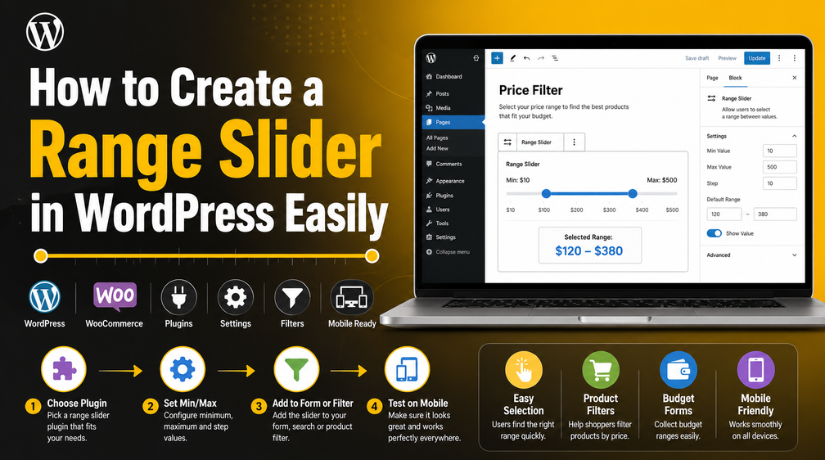
How to Create a Range Slider in WordPress Easily
Introduction
A range slider is a simple website feature. It helps users choose a value by moving a handle. They do not need to type numbers manually. This makes the selection process faster and easier.
Many website owners want to know how to create a range slider in WordPress because it improves user experience. It also makes forms, filters, and product searches more useful. A slider can help visitors choose prices, quantities, sizes, distance, age, budget, or service levels.
For example, an online store can use a slider for product prices. A service website can use it for budget selection. A booking website can use it for guest numbers or date ranges.
A range slider can help your website in many ways:
- It makes value selection simple.
- It keeps the page clean and modern.
- It reduces typing errors from users.
- It improves product and content filtering.
- It works well for mobile users.
When used correctly, a range slider saves time. It also guides visitors toward the right result quickly. This can improve engagement and support better conversions.
What Is a WordPress Range Slider?
A WordPress range slider is an interactive input field. It allows users to select values from a fixed range. Users can drag the slider handle left or right. The selected value changes as the handle moves.
Some sliders select only one value. For example, users may choose a budget of $500. Other sliders allow minimum and maximum values. For example, users may choose products between $50 and $200.
A range slider can appear in many website areas. You can use it inside contact forms, quote forms, search filters, calculators, and WooCommerce product pages. It is especially helpful when users need quick choices.
A good slider should be clear, smooth, and mobile-friendly. It should also show labels, values, and limits properly. This helps visitors understand what they are selecting.
Common Uses of Range Sliders in WordPress Websites
Range sliders are useful on many WordPress websites. They help visitors narrow choices without extra typing. This makes the browsing process smoother and faster.
A WordPress price range slider is one common example. It lets users select a minimum and maximum price. This is useful for shops, service pages, directories, and booking websites. Visitors can choose a price range that matches their budget.
Price Filtering
Price filtering is very helpful for online stores. Users can move the slider and view matching products. This saves time and reduces unwanted results.
For example, a visitor may only want products under $100. A slider helps them find those products quickly. This improves the shopping experience and keeps users engaged.
WooCommerce Product Search
A WooCommerce price range slider works well on shop pages. It helps customers filter products by price. Store owners can place it on product archive pages, category pages, or sidebar areas.
This feature is useful for stores with many products. Customers can avoid scrolling through every item. They can select their budget and view suitable products only.
Custom Forms
Range sliders also work well inside custom forms. You can use them for quotes, budgets, quantities, ages, ratings, or service levels. This makes forms easier and more interactive.
For example, a service website can ask users for their project budget. A slider feels easier than typing numbers manually.
Search and Filter Sections
A WordPress filter range slider can improve search results. It helps users filter listings, products, services, or posts. It can also work with location, distance, size, or rating filters.
Range sliders are helpful because they:
- Reduce long dropdown lists.
- Make filtering faster.
- Improve mobile usability.
- Keep the design clean.
- Help users find results quickly.
Best Methods to Create a Range Slider in WordPress
You can create a range slider in different ways. The best method depends on your website needs.
Using a WordPress Plugin
A range slider WordPress plugin is best for beginners. It does not require coding. You can install the plugin, adjust settings, and add the slider.
Using a Form Builder
Form builders are useful for quote forms and calculators. Many form plugins include slider fields.
Using Custom Code
A WordPress custom range slider gives more control. Developers can manage the design, values, and behavior. This method works best for advanced features.
How to Create a Range Slider in WordPress Using a Plugin
Using a plugin is the easiest method for beginners. It helps you add a slider without writing code. This method is best when you need a quick setup. It also works well for forms, filters, and product pages.
If you want to learn how to create a range slider in WordPress, start with a plugin. A good plugin gives ready settings and simple controls. You can manage values, labels, and design from the dashboard.
Step 1: Choose the Right Plugin
First, choose a plugin based on your exact need. Some plugins work best for product filters. Some work better for forms or calculators. A range slider WordPress plugin should be simple, updated, and easy to manage.
Before installing any plugin, check these points:


- It supports your WordPress version.
- It has clear slider settings.
- It works with your theme.
- It supports mobile screens.
- It has useful support details.
This helps you avoid setup issues later.
Step 2: Install and Activate the Plugin
Next, install the selected plugin from your dashboard. Go to Dashboard → Plugins → Add New. Search for the plugin name in the search box. Then click Install Now and activate it.
After activation, the plugin may add a new menu. Some plugins add settings inside the form builder. Others add options under widgets, blocks, or WooCommerce filters.
Step 3: Configure Slider Settings
Now, open the slider settings area. Set the basic values first. These values decide how the slider will work.
You may need to configure:
- Minimum value
- Maximum value
- Step value
- Default selected value
- Slider label
- Value display
- Design style
For example, a price slider may start from $0. It may end at $500. The step value can be $10 or $50.
Step 4: Add the Slider to a Page or Form
After settings, add the slider to your website. Many plugins offer shortcodes, blocks, widgets, or form fields. You can place the slider inside a page, sidebar, shop page, or form.
Make sure the slider appears in the right section. It should match the purpose of that page.
Step 5: Test the Slider on Desktop and Mobile
Finally, test the slider before publishing changes. Check it on desktop, tablet, and mobile. Move the handle and confirm values update correctly.
Also test form submission or filter results. This ensures the slider works smoothly for every visitor.
How to Add a Price Range Slider in WooCommerce
A price range slider is very useful for online stores. It helps customers filter products by their budget. They can select a minimum and maximum price easily. This makes product searching faster and more comfortable.
A WooCommerce price range slider works best on shop pages. You can also add it to category pages. It helps users avoid products outside their price range. This keeps the shopping journey simple and focused.
You can add a price slider in two common ways. Some WooCommerce themes include built-in price filters. These filters may appear inside widgets or sidebar areas. You can enable them from the WordPress dashboard.
If your theme does not provide this feature, use a product filter plugin. Many plugins offer a WordPress price range slider for WooCommerce stores. These plugins often support AJAX filtering. This means products can update without reloading the full page.
You can place the price range slider in these areas:
- Shop page sidebar
- Product category pages
- Product archive pages
- Filter sections above products
- Mobile filter panels
After setup, test the slider carefully. Check if products update correctly after changing prices. Also test if sale products, variable products, and out-of-stock items display properly.
You should also check page speed after adding filters. Some filter plugins can add extra scripts. A lightweight plugin helps your store load faster.
When Should You Use a Custom Range Slider in WordPress?
A plugin is not always enough for every website. Sometimes, you may need a WordPress custom range slider. This is useful when your website needs special logic.
For example, you may need a custom calculator. You may also need a unique search tool. A custom slider gives better control over design and function.
A custom range slider is useful when:
- Plugin options feel limited.
- Your design needs special styling.
- The slider must connect with custom data.
- You need faster and cleaner performance.
- The slider must follow a unique workflow.
Custom sliders need safe coding and proper testing. Poor code can break forms or filters. So, always test it across devices before making it live.
Important Tips Before Adding a Range Slider
Before adding a range slider, plan its purpose clearly. A slider should help users make faster choices. It should not make the page confusing or heavy.
Keep the slider simple and easy to understand. Use clear minimum and maximum values. Add labels so users know what they are selecting. For example, use labels like “Minimum Price” and “Maximum Price” near a price filter.
Follow these simple tips before setup:
- Use clear values and labels.
- Keep the slider design clean.
- Test it on mobile screens.
- Avoid too many sliders on one page.
- Check theme and plugin compatibility.
- Make sure values update correctly.
A WordPress filter range slider should also work smoothly with search results. If users change the value, results should update correctly. This is very important for product filters and listing pages.
Common Range Slider Issues and Quick Fixes
Sometimes, a range slider may not work correctly. Most issues happen because of plugin conflicts, cache, or theme styling.
Common issues include:
- Slider not showing on the page.
- Slider not working on mobile.
- Price filter not updating products.
- Slider style looking broken.
- Selected values not saving correctly.
To fix these issues, start with simple checks. Clear your website cache first. Then update WordPress, theme, and plugins. Also check if the shortcode or block is placed correctly.
If the issue continues, test with a default theme. This helps confirm whether your theme causes the problem. You can also disable plugins one by one. This helps find plugin conflicts safely.
Conclusion
A range slider makes WordPress websites easier to use. It helps visitors choose values quickly and clearly. Plugins are best for simple setup. Custom sliders work better for advanced needs. Always test the slider before publishing it live.
If you need help adding or fixing a range slider, 24×7 WP Support can help you set it up correctly.
FAQs
1. What is a range slider in WordPress?
A range slider in WordPress is an input field. It lets users select a value by moving a handle. You can use it for prices, budgets, forms, filters, and product searches.
2. How do I create a range slider in WordPress?
You can create a range slider using a plugin, form builder, or custom code. A plugin is the easiest option for beginners. It lets you add sliders without coding.
3. Can I add a price range slider in WooCommerce?
Yes, you can add a price range slider in WooCommerce. Many product filter plugins support this feature. Some WooCommerce themes also include built-in price filter widgets.
4. Why is my WordPress range slider not working?
Your slider may not work because of cache, plugin conflicts, or theme issues. Clear your cache first. Then update your theme and plugins. Also test the slider on mobile.
5. Do I need coding to create a custom range slider?
Yes, a custom range slider usually needs coding. Developers can control its design, values, and behavior. Beginners should use a range slider WordPress plugin for easier setup.

Brian is a WordPress support specialist and content contributor at 24×7 WP Support. He writes practical, easy-to-follow guides on WordPress troubleshooting, WooCommerce issues, plugin and theme errors, website security, migrations, performance optimization, and integrations. With a focus on solving real website problems, Brian helps business owners, bloggers, and online store managers keep their WordPress sites running smoothly.
