
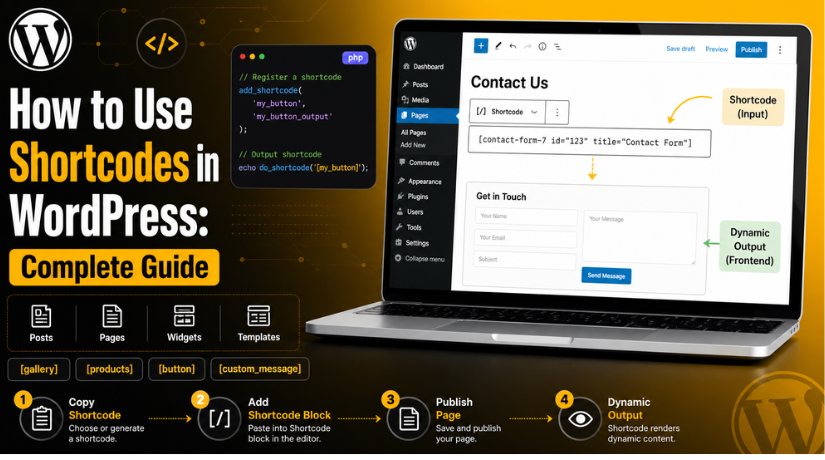
How to Use Shortcodes in WordPress: Complete Guide
Introduction
WordPress gives users many simple ways to manage website content. One useful feature is the shortcode system. It helps users add dynamic content without writing long code. Many plugins, themes, and custom tools use shortcodes for quick display.
You may see WordPress shortcodes in contact forms, galleries, sliders, buttons, pricing tables, and product sections. These small code snippets save time and make content management easier. They are helpful for beginners, website owners, bloggers, and developers.
This guide explains how to use shortcodes in WordPress in a clear way. You will learn what shortcodes mean, how they work, and where they are used. You will also understand their basic format before using them on your website.
Shortcodes are useful because they keep complex features simple. Instead of adding full code, users can paste one short line. WordPress then processes that line and shows the final content.
What Are Shortcodes in WordPress?
Many beginners ask, what are shortcodes in WordPress? A shortcode is a small code placed inside square brackets. WordPress reads this code and replaces it with real output.
A basic shortcode may look like this:
[contact-form]
This shortcode may display a contact form on the page. The visitor will not see the shortcode text. They will only see the final form or feature.
Shortcodes can come from plugins, themes, or custom code. For example, a gallery plugin may create a gallery shortcode. A form plugin may create a form shortcode. A WooCommerce plugin may create product display shortcodes.
Common shortcode uses include:
- Contact forms
- Image galleries
- Product sections
- Call-to-action buttons
- Login forms
- Video embeds
- Pricing tables
The main purpose of shortcodes is simple. They let users add useful features inside content areas. You can place them in posts, pages, widgets, and some templates.
Shortcodes also support extra settings called attributes. These attributes control how the output appears. For example, a product shortcode may control item count or layout.
In simple words, shortcodes act like shortcuts. They connect your content area with dynamic WordPress features. This makes website editing faster, cleaner, and easier.
Why WordPress Shortcodes Are Useful
WordPress shortcodes are useful because they make website editing easier. They help users add advanced features without writing full code. This is helpful for beginners and non-technical website owners.
A shortcode can display a form, gallery, product list, or button. You only need to place it in the right area. WordPress then shows the final output on the front end.
Shortcodes also save time during regular website updates. You do not need to build the same section again. You can reuse the same shortcode on many pages.
For example, one contact form shortcode can work across your website. If you update the form inside the plugin, all pages update together. This makes content management simple and clean.
Shortcodes are also helpful for plugin-based features. Many WordPress plugins provide shortcodes after setup. You can copy them and place them where needed.
Common benefits include:
- They reduce manual coding work.
- They help add dynamic content fast.
- They work with many plugins and themes.
- They keep page editing simple.
- They allow easy reuse across pages.
- They help non-technical users manage content.
Shortcodes are best when used with care. Too many shortcodes on one page can slow loading. So, use them only where they add real value.
How to Use Shortcodes in WordPress
Learning how to use shortcodes in WordPress is simple. Most shortcodes come from plugins, themes, or custom functions. You only need to copy and paste them correctly.
First, find the shortcode from the plugin settings or documentation. A form plugin may show its shortcode after form creation. A gallery plugin may show one after gallery setup.
Then, open the page or post where you need it. Use the WordPress block editor for the cleanest method. Add a Shortcode block and paste the shortcode inside it.
Follow these simple steps:
- Copy the shortcode from the plugin or theme.
- Open the required post or page.
- Click the plus icon in the block editor.
- Search for the Shortcode block.
- Paste the shortcode into that block.
- Update or publish the page.
- Visit the page and check the result.
You can also paste some shortcodes into normal content areas. However, the Shortcode block is a better choice. It keeps the shortcode separate from regular text.
After adding the shortcode, always test the front-end page. Make sure the form, gallery, product, or button appears correctly. Also check the page on mobile devices.
This simple process helps you use shortcodes safely. It also keeps your WordPress content easier to manage.
How to Add Shortcode in WordPress Pages, Posts, and Widgets
Learning how to add shortcode in WordPress helps you place features correctly. Shortcodes can work in pages, posts, widgets, and some theme areas. The best method depends on where you want the content.
Add Shortcode in WordPress Pages
Pages are common places for shortcodes. You can use them on contact, service, pricing, and landing pages. For example, a contact page may use a form shortcode.
Open the page in the WordPress editor. Add a Shortcode block from the block list. Paste your shortcode inside the block. Then update the page and check the front end.
Add Shortcode in WordPress Posts
Posts can also use shortcodes for helpful content sections. You can add forms, videos, buttons, or product boxes. This helps readers take action while reading your article.
Place the shortcode where the feature should appear. Avoid adding too many shortcodes inside one post. Too many dynamic items may affect page speed.
Add Shortcode in WordPress Widgets
Widget areas can also support shortcodes in many themes. You can use them in sidebars, footers, or block widget areas. The Shortcode block is the cleanest option here.
Go to Appearance and open the Widgets section. Choose the widget area where you want the output. Add the Shortcode block and paste your shortcode.
Shortcodes may also work inside Custom HTML blocks sometimes. However, this depends on theme and plugin support.
Add Shortcode in Menu or Special Areas
Some users want shortcodes inside WordPress menus. This does not always work by default. Menus may show the shortcode as plain text.
For menu shortcodes, you may need custom code or plugin support. Always test this before using it on a live site.
WordPress Shortcode Examples
Simple examples help you understand shortcode structure better. Different plugins create different shortcode formats. So, always check the plugin instructions first.
Here are common WordPress shortcode examples:


This shortcode can show a basic image gallery.
[contact-form-7 id=”123″ title=”Contact form”]
This type can display a contact form from a form plugin.
[products limit=”4″ columns=”4″]
This can show products in a simple grid layout.
[button text=”Contact Us” url=”/contact”]
This can display a custom button with a link.
Some shortcodes include attributes inside the brackets. Attributes change how the shortcode output appears. They work like settings for that shortcode.
For example:
[products limit=”4″ columns=”4″ orderby=”date”]
In this example, each attribute has a clear purpose:
- limit controls the number of displayed products.
- columns controls the layout style.
- orderby controls the product sorting method.
Shortcodes become easier when you understand these parts. The shortcode name runs the feature. The attributes control how that feature appears.
How to Create Shortcode in WordPress
Learning how to create shortcode in WordPress gives you more control. A custom shortcode can display your own content or layout. It is useful when plugins do not offer your exact feature.
You can create a WordPress custom shortcode using PHP code. However, add the code in a safe place. Do not edit your parent theme files directly. Those changes may disappear after a theme update.
Use one of these safer options:
- A child theme functions.php file
- A small custom plugin
- A trusted code snippets plugin
Here is a basic custom shortcode example:
function my_custom_message_shortcode() {
return ‘<p>Welcome to our WordPress website.</p>’;
}
add_shortcode(‘custom_message’, ‘my_custom_message_shortcode’);
You can display it with this shortcode:
[custom_message]
In this example, the function creates the output. The return statement sends that output to WordPress. The add_shortcode() function registers the shortcode name.
The shortcode name is custom_message. So, WordPress runs this function when that shortcode appears.
You can also create shortcodes with attributes. Attributes help users control the final output.
function custom_button_shortcode($atts) {
$atts = shortcode_atts(
array(
‘text’ => ‘Click Here’,
‘url’ => ‘#’,
),
$atts
);
return ‘<a href=”‘ . esc_url($atts[‘url’]) . ‘”>’ . esc_html($atts[‘text’]) . ‘</a>’;
}
add_shortcode(‘custom_button’, ‘custom_button_shortcode’);
You can use it like this:
[custom_button text=”Contact Us” url=”/contact”]
This shortcode creates a button-style link. The text attribute controls button text. The url attribute controls the button link.
Always escape custom shortcode output when using user values. Use esc_html() for visible text. Use esc_url() for links. These functions help keep the output safer and cleaner.
How to Use WordPress do_shortcode Function
The WordPress do_shortcode function runs shortcodes inside PHP files. This is useful when you need shortcode output in templates.
For example:
echo do_shortcode(‘[contact-form-7 id=”123″ title=”Contact form”]’);
You can use it inside custom page templates. You can also use it in theme files or plugin files.
Common use cases include:
- Header or footer template areas
- Custom landing page templates
- WooCommerce template sections
- Custom plugin output areas
Use do_shortcode() only when needed. Too many shortcode calls can affect loading speed. Also, use only trusted shortcodes inside PHP files. This keeps your website safer and easier to manage.
Why WordPress Shortcode Is Not Working
A WordPress shortcode not working issue can happen for many reasons. In most cases, the shortcode is missing something simple. A wrong name, missing bracket, or disabled plugin can stop the output.
Sometimes, the shortcode appears as plain text on the page. This means WordPress is not processing it in that area. It may happen inside menus, excerpts, custom fields, or unsupported theme sections.
Common reasons include:
- The shortcode name is typed incorrectly.
- The opening or closing bracket is missing.
- The related plugin is disabled or removed.
- The shortcode is placed in an unsupported area.
- A cache plugin shows the old page version.
- A custom shortcode has a PHP error.
- A page builder module does not process shortcodes.
To fix this, first check the shortcode spelling. Then confirm the related plugin is active. Use the Shortcode block for better results. Clear your website cache and browser cache. If you use custom code, check the error log.
Best Practices for Using WordPress Shortcodes
Use WordPress shortcodes carefully for clean website management. Shortcodes are helpful, but too many can slow pages. Keep each shortcode useful, clear, and easy to manage.
Follow these simple best practices:
- Use clear names for custom shortcodes.
- Avoid adding many shortcodes on one page.
- Keep a list of important shortcodes.
- Test shortcodes after plugin updates.
- Remove unused shortcodes from old content.
- Use safe PHP functions in custom code.
- Avoid editing parent theme files directly.
These steps help you prevent broken layouts and display issues. They also make future website updates easier.
Conclusion
Shortcodes make WordPress content editing faster and easier. They help users add forms, galleries, buttons, and dynamic sections. You can use them in posts, pages, widgets, and templates.
Custom shortcodes give more control when used safely. The do_shortcode() function also helps in PHP templates.
If your shortcode is not working, or you need a custom shortcode, 24x7wpsupport can help you fix it safely.
FAQs
What are WordPress shortcodes?
They are small bracket codes that display dynamic website content.
Why is my shortcode showing as text?
WordPress may not support shortcodes in that selected area.
Can I create my own shortcode?
Yes, you can create one using safe custom PHP code.
Where can I add shortcodes in WordPress?
You can add shortcodes in posts, pages, widgets, and supported template areas. The Shortcode block is the best option for most users.
Can shortcodes slow down my WordPress website?
Yes, too many shortcodes can affect page speed. This usually happens when shortcodes load heavy scripts, forms, products, or galleries.
Is it safe to use custom shortcodes in WordPress?
Yes, custom shortcodes are safe when coded properly. Always use safe PHP functions and avoid editing parent theme files directly.





Brian is a WordPress support specialist and content contributor at 24×7 WP Support. He writes practical, easy-to-follow guides on WordPress troubleshooting, WooCommerce issues, plugin and theme errors, website security, migrations, performance optimization, and integrations. With a focus on solving real website problems, Brian helps business owners, bloggers, and online store managers keep their WordPress sites running smoothly.
