
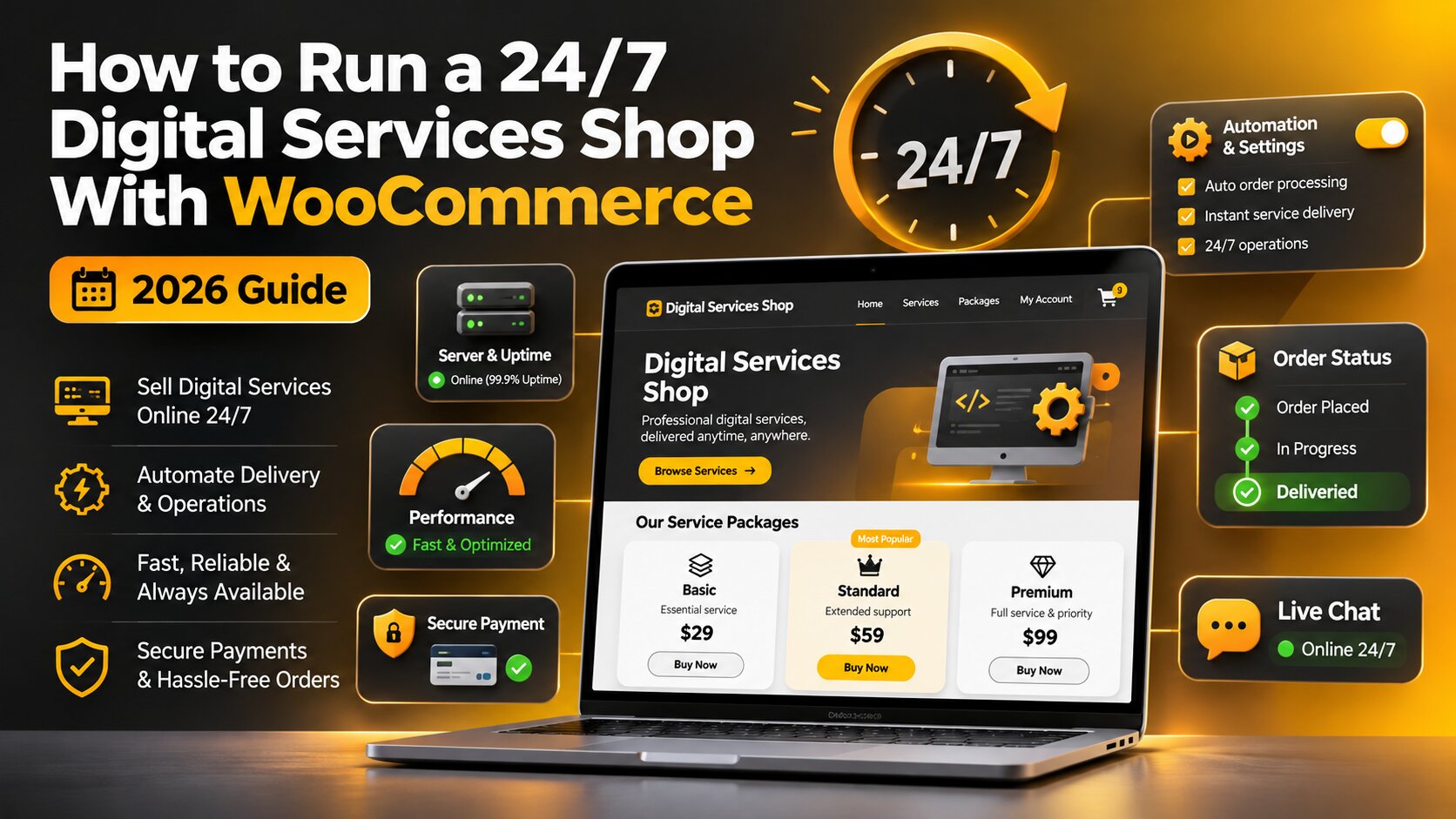
How to Run a 24/7 Digital Services Shop With WooCommerce (2026 Guide)
Selling a service online works differently from selling a product. Nothing goes in a box. The buyer picks a package, pays and then waits for a person to deliver the work, and the order can arrive at any hour.
You see this model all over the web, on every kind of platform. Agencies sell monthly care plans, tutors sell lesson packs and consultants sell audit calls. Gaming has its own version: marketplaces such as LFCarry, an AI gaming companion and a marketplace for optional services from professional players (coaching, carries, leveling, in-game gold), running since 2016.
If you plan to run a services shop on WordPress, WooCommerce covers most of what you need. The work is in the setup: service tiers, an order status page, light live chat and a site that stays fast and online at peak hours.
Set Up Each Service as a Variable Product
Services usually come in tiers, such as Basic, Standard and Premium, or 1, 5 and 10 hours. In WooCommerce, the cleanest way to sell tiers is a variable product: 1 product page with a set of options, and control over the price, stock, image and more for each variation.
To build it, choose Variable Product in the Product data dropdown and open the Attributes tab. Create an attribute such as Package, enter its values separated by a vertical bar (Basic | Standard | Premium), then generate variations to add every combination.
Each variation opens into its own panel, and 3 fields matter most for services. The Regular Price is required, since a variation without a price does not show in the store. The Virtual box removes the shipping settings. The description says what the tier includes and how long delivery takes.
Then set default form values, so your most popular tier is preselected and buyers can add the product to the cart without making a choice.
Give Buyers an Order Status Page
A physical order has a tracking number. A service order needs a page where the buyer can see that the order arrived and that someone is working on it.
WooCommerce order statuses cover most of this. A paid order sits in Processing, awaiting fulfillment, until a team member marks it Completed by hand. Orders in which every product is both virtual and downloadable skip Processing, so keep Downloadable off on tiers that a person delivers.
Order notes keep the buyer informed. WooCommerce has 3 types, and customer notes are written for the buyer: each goes out by email and also appears in the order details on their My account page. A line such as “Your session is booked for 18:00 UTC” answers the question before the buyer asks it.
Guests without an account need another way in. The woocommerce_order_tracking shortcode, placed in square brackets on a page, shows a form where anyone can see the status and details of an order by entering the order number and billing email. Give it its own page and link it from the order confirmation email and the site footer.
Add Live Chat That Keeps Pages Light
Live chat catches the buyer who is ready to pay but has 1 last question about a tier. The cost is weight: a chat widget is an external script that loads with every page it sits on.
The fix is a facade, a pattern Lighthouse suggests for external embeds that can be deferred. A facade is a static element that looks like the widget but does nothing until the visitor interacts with it, so it is much lighter on page load. It connects to the chat provider when the cursor moves over it and swaps itself for the real widget on click.
The trade-off is small. Until the real widget loads, the facade cannot show live features such as a badge with the count of new messages.


Then match the chat to your staffing. If someone answers around the clock, say so next to the chat button. If not, show your hours and switch to a message form outside them. For questions about an existing order, reply with a customer note, so the answer also reaches the buyer’s inbox.
Keep Pages Fast When Orders Peak
Core Web Vitals give you clear targets for busy hours: Largest Contentful Paint within 2.5 seconds, Interaction to Next Paint of 200 milliseconds or less and Cumulative Layout Shift of 0.1 or less. A page passes when it meets all 3 at the 75th percentile of page loads, on mobile and desktop separately.
Interaction to Next Paint became a Core Web Vital in March 2024, replacing the older FID metric. INP measures interaction responsiveness, so watch it on pages full of dropdowns and buttons.
Page caching handles most of the load, with 1 rule: Cart, Checkout and My Account stay out of the cache, since they show information specific to the current customer and their cart. Many caching plugins exclude them already, so check the setting after any plugin or host change.
Then check the cart fragments script, which uses the WordPress admin-ajax API to update the cart without a page refresh. Until WooCommerce 7.8 it loaded on every page, and on heavily trafficked stores its extra AJAX requests could put serious load on the server.
Since 7.8 it loads only where the Cart widget is active, where another script depends on it or where code enqueues it. If your theme still uses the classic Cart widget, switch to the Mini-Cart block, which does not use the cart fragments API.
Order storage matters too. WooCommerce has traditionally kept orders as custom post types and post meta, which comes with performance issues. High-Performance Order Storage moves them into custom tables optimized for WooCommerce queries, and it has been on by default for new installations since WooCommerce 8.2, released in October 2023.
Keep the Store Online Around the Clock
A 24/7 shop also relies on scheduled tasks. WordPress runs them with WP-Cron, which checks for due tasks on every page load. It does not run constantly: if a task is due at 2:00 PM and no page loads until 5:00 PM, it runs at 5:00 PM.
Quiet hours are exactly when this matters. Set up a server cron job that calls wp-cron.php on a fixed schedule, such as every 15 minutes, and then set the DISABLE_WP_CRON constant to true in wp-config.php. Without that step, WordPress keeps running WP-Cron on each page load, which only adds work for the server.
Finally, add an uptime monitor that checks the home page and a product page from outside your server at short intervals and alerts the person on duty. A keyword check, such as the name of a tier, makes a blank page or an error screen count as down. Plan plugin and theme updates for the quietest hour in your analytics, and tell the chat team before you start.
A Launch Checklist for a 24/7 Services Shop
Run through this list before launch and after every major update:
- Every tier is a priced, virtual variation with Downloadable off.
- The order status page is linked from order emails and the footer.
- Customer notes go out at each stage of delivery.
- The chat widget loads behind a facade.
- Cart, Checkout and My Account stay out of the page cache.
- Product pages pass Core Web Vitals on mobile.
- A server cron job runs WP-Cron, and an uptime monitor alerts a person.
Most of this is configuration in WooCommerce and your hosting panel. Set it up at launch, and buyers can choose a tier, pay and check on their order at any hour while your team focuses on the work itself.



Brian is a WordPress support specialist and content contributor at 24×7 WP Support. He writes practical, easy-to-follow guides on WordPress troubleshooting, WooCommerce issues, plugin and theme errors, website security, migrations, performance optimization, and integrations. With a focus on solving real website problems, Brian helps business owners, bloggers, and online store managers keep their WordPress sites running smoothly.