
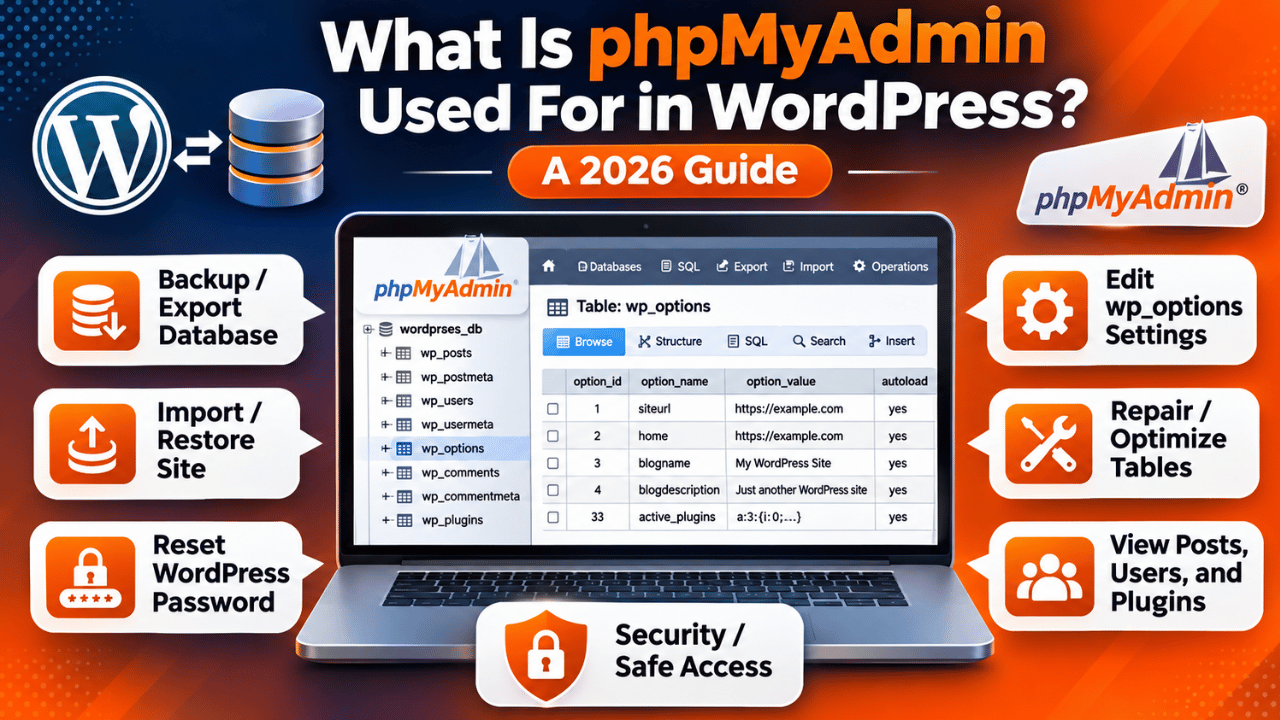
What Is phpMyAdmin Used For in WordPress? A 2026 Guide
Introduction
phpMyAdmin is a free, web-based tool for looking at and changing a MySQL or MariaDB database. WordPress keeps almost everything in that kind of database, so phpMyAdmin lets you see your posts, users and settings as plain tables. Site owners use it to back up data, fix a locked-out login, repair a broken setting and check what a plugin has stored.
This guide explains what phpMyAdmin does, how it relates to WordPress, and the jobs it handles well. It also covers the jobs where it is the wrong tool, and how to open it without putting your site at risk.
The Short Answer: A Window Into Your WordPress Database
A database is an organised store of information, laid out in tables made of rows and columns. WordPress does not keep your posts in files. It keeps them in database tables, and it reads them each time someone loads a page. phpMyAdmin is a control panel for that database. You open it in a browser, pick your database, and see every table in a list.
The tool is not part of WordPress. It is a separate program, written in PHP, that your hosting company installs next to your site. Most hosts add a link to it inside the control panel, usually under a heading such as Databases. You sign in with your hosting account or with the database user, and you land on a screen that shows all databases you may use.
Inside phpMyAdmin you can do four main things. You can browse the data, edit single rows, run commands written in SQL, and move data in or out with import and export. SQL, short for Structured Query Language, is the language used to ask a database to find, add, change or delete data. You do not need to know it to use most features, because the buttons build the commands for you. Still, every change is real and applies straight away.
How phpMyAdmin Connects to WordPress Data
To use the tool well, you need a map of where WordPress puts things. Every table name starts with a prefix, which is wp_ on most installs. A site may use a different prefix for security, so check yours before you run any command. Your database name and user sit in the wp-config.php file, which our guide on the wp-config.php file explains.
wp_posts and wp_postmeta. These hold your posts, pages, menu items and media records. The meta table holds extra details, such as custom fields and page builder data.
wp_options. This table holds site settings, such as the site address, the active plugin list and many plugin options. It is the table you will visit most often.
wp_users and wp_usermeta. These hold login names, password hashes, email addresses and each user’s role.
wp_comments and the term tables. These store comments, categories, tags and the links that tie them to posts.
Plugins often add their own tables. They usually use the same prefix, followed by the plugin’s name. When you remove a plugin, its tables may stay behind, which is one reason sites grow slowly over time.
Common Jobs phpMyAdmin Handles Well
Most site owners open phpMyAdmin only a few times a year. Four tasks make up most of those visits, and the tool handles each of them well.
Backing up the database. Choose your database, click Export, and pick the Quick method with the SQL format. The download is a single file that holds every table. It is a simple safety copy to take before any risky change. See our guide to backing up your WordPress database for the full routine.
Restoring or moving a site. The Import tab loads an SQL file into a database. This is how many manual moves between servers work. Large files can hit a size limit, which comes from PHP settings on the server rather than from phpMyAdmin itself.
Creating a database. New installs and test sites need an empty database and a user. Our walkthrough on creating a database in WordPress from phpMyAdmin covers each click.
Checking and repairing tables. Tick the tables you want, then use the drop-down below the list to choose Check table, Repair table or Optimize table. Repair helps when a table is marked as crashed. Optimize reclaims unused space. For deeper cases, read about how to repair a database in WordPress.
Fixing a Locked-Out or Broken Site With phpMyAdmin
phpMyAdmin shines when the dashboard will not load. Because it talks to the database directly, it still works when a plugin or a setting has broken WordPress. Take a database export before each of the fixes below, since every one changes live data.
Reset a lost password. Open wp_users, find your row and click Edit. In the user_pass row, set the Function drop-down to MD5 and type the new password in the Value box. Click Go. WordPress accepts this older hash and upgrades it the next time you sign in. Our guide to resetting a WordPress password from phpMyAdmin shows the screens.
Turn off every plugin at once. A faulty plugin can cause a white screen. In wp_options, find the row where option_name is active_plugins. Copy its value somewhere safe, then clear the value and save. All plugins switch off, and you can reach the dashboard to turn them on one at a time.
Correct the site address. A wrong address after a move can cause redirect loops. In wp_options, edit the siteurl and home rows so both hold the right address, including https if you use it.
Create a new admin. Adding a user takes rows in two tables, so it is easier to reset a password. Use this route only when you know the steps well.
What phpMyAdmin Should Not Be Used For
Because phpMyAdmin is powerful, it is easy to misuse. A few jobs are better done another way, and a few should be avoided altogether.


Find and replace on serialized data. WordPress stores many settings in a format called serialized data. It records the length of each piece of text. If you change a web address with a plain SQL replace, the lengths no longer match and the setting can break. Use a tool made to handle this format instead.
Daily content work. Writing and editing posts in table rows is slow and risky. Use the WordPress editor, which also saves revisions and keeps related tables in step.
Deleting tables you do not recognise. A table that looks unused may belong to a plugin that is still active. Dropping it cannot be undone without a backup.
Large bulk changes without a test. A single command can change thousands of rows. Try it on a staging copy first, and always keep an export you can restore.
How to Open phpMyAdmin Safely
Start with a backup. Take a full export, and keep a copy of your site files too. If you can, repeat the work on a staging copy of the site before touching the live one. Our overview of the database connection error shows what happens when the database is unreachable, which is a good reason to be careful.
Step 1: Find the link. Sign in to your hosting control panel and look under Databases for phpMyAdmin. Click it, and it signs you in automatically on most hosts.
Step 2: Pick the right database. Check the DB_NAME line in wp-config.php. Your account may hold several databases, and editing the wrong one is a common mistake.
Step 3: Look before you change. Click a table, open the Browse tab, and read the rows. Use the Search tab to find a value. Reading changes nothing, so it is a safe way to learn the layout.
Step 4: Edit one row at a time. Use the Edit link on a single row. Check the result in WordPress after each change, and stop if something looks wrong.
Security Tips for phpMyAdmin
A database tool reachable from the internet is a target. Attackers scan for common addresses such as /phpmyadmin, then try to guess passwords. Treat it like the keys to your site.
Use the access your host provides, which is normally protected by your hosting login. Avoid installing a second public copy on your own domain. If you must, protect that folder with an extra password, restrict it to your own IP address, and keep the software up to date.
Give the database user a long, random password and use a different one for each site. Never share the login by email or chat. Close the tab when you finish, and sign out of the hosting panel on shared computers.
Finally, remove access you no longer need. If you do not use the tool, ask your host to turn it off. Fewer open doors mean fewer chances for a break-in.
Other Tools That Can Do the Same Work
phpMyAdmin is not the only way to reach the database. WP-CLI, the command-line tool for WordPress, has a wp db group of commands. It can export and import the database, run queries and repair tables. Its search-replace command handles serialized data correctly, which makes it the better pick for address changes. It needs shell access, so it suits technical users and managed servers.
Backup tools built for WordPress are better for routine copies, because they run on a schedule and store the files off the server. For speed problems, our guide on optimizing database performance covers safer habits than manual table work.
A good rule is simple. Use phpMyAdmin to look, to take a quick export, and to rescue a site that will not load. Use the dashboard or WP-CLI for everything you do on a regular basis. Your host’s support team can also run a database task for you, which is often the safest choice when you feel unsure.
Conclusion: A Powerful Tool Worth Using Carefully
phpMyAdmin is the tool that lets you see and edit the database behind your WordPress site. It is useful for backups, imports, table repairs and rescues when the dashboard is out of reach. It is a poor fit for everyday content work, and it needs care because each change is live.
To sum up, the tool reads and writes the same tables that WordPress uses, so you see the truth about your site. That makes it a fine place to check what a plugin stored, to find why a setting misbehaves, and to confirm that a backup holds real content. It also means a small slip can have large effects, which is why the habits in this guide matter so much.
Back up before you start, change one thing at a time, and keep access tight. If you would rather not edit a database yourself, the team at 24×7 WP Support can take a look at your site and talk you through the safest option.




Brian is a WordPress support specialist and content contributor at 24×7 WP Support. He writes practical, easy-to-follow guides on WordPress troubleshooting, WooCommerce issues, plugin and theme errors, website security, migrations, performance optimization, and integrations. With a focus on solving real website problems, Brian helps business owners, bloggers, and online store managers keep their WordPress sites running smoothly.