
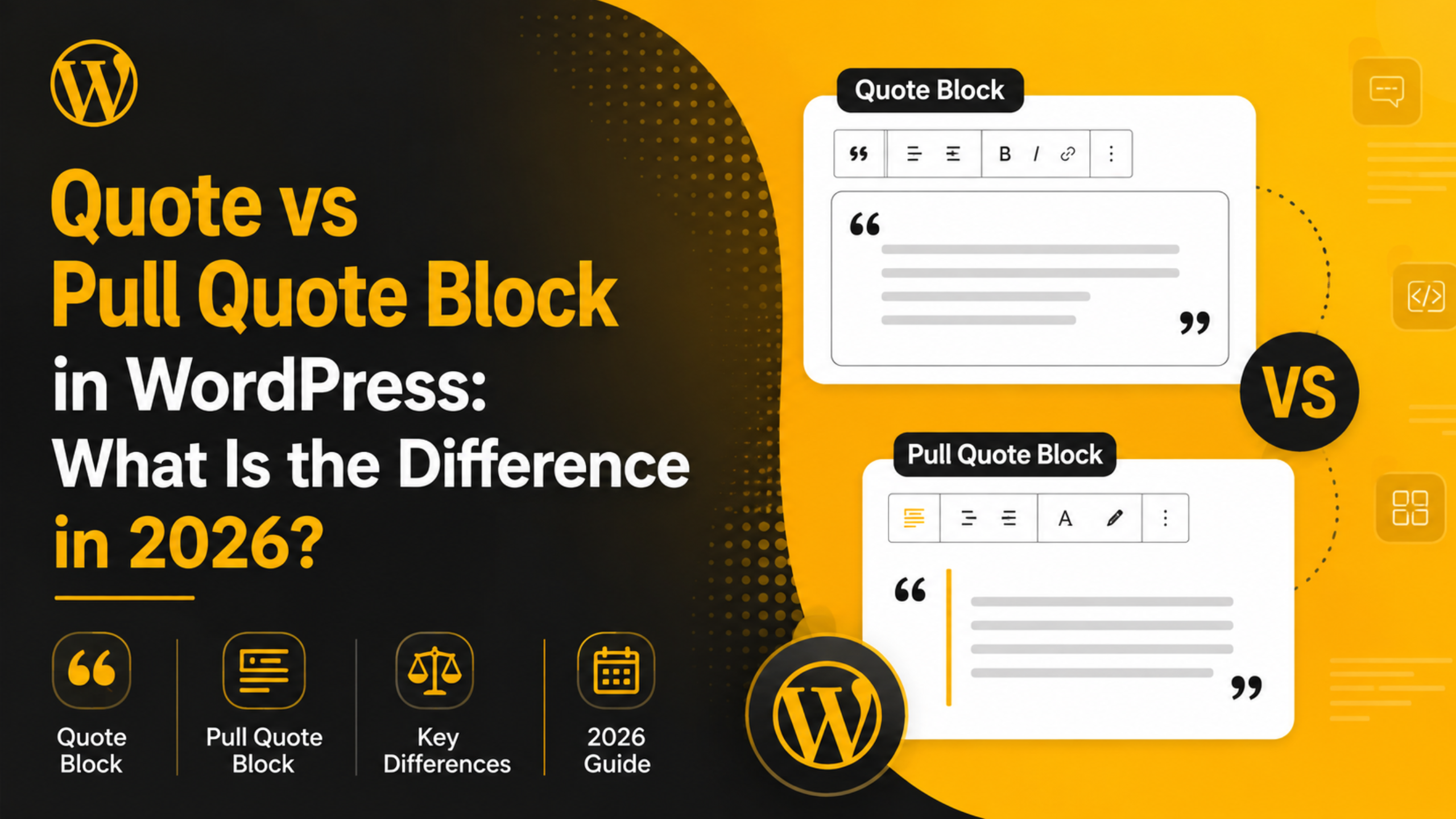
Quote vs Pull Quote Block in WordPress: What Is the Difference in 2026?
The WordPress block editor gives you two blocks that look almost the same. One is called Quote. The other is called Pull Quote. Both set text apart in a larger style, and both let you add a name underneath. So most site owners pick one at random.
They are not the same tool. The Quote block carries words that came from someone else. The Pull Quote block repeats words that already sit in your own article, so a skimming reader stops and looks. This guide covers what each block does, the markup it writes, how to swap between them, how to style them, and which one fits your page.
What the Quote Block Actually Does
The Quote block is for quoted material. Use it when the words came from a person, a study, a review, a support ticket, or a page you are citing. It is the block version of a classic blockquote. The text stays in the reading flow, and the reader is meant to read it in order.
To add it, click the black plus button in the top left and search for “Quote”. You can also type /quote in an empty paragraph and press Enter. Type your quoted text in the main area. Below it sits a faint line that says “Add citation”. Click that line and type the source name.
Since WordPress 6.0 the Quote block holds other blocks inside it. You can drop two or three paragraphs, a list, or a heading into one quote. That matters for long testimonials. If your quote refuses to take a second paragraph, the site still runs the older block version, and a core update fixes it.
In the block sidebar you get two style choices under the Styles tab: Default and Plain. Default draws a border on the left. Plain strips the border and keeps the spacing. Typography, colour, and spacing controls sit below, though how many appear depends on your theme.
The HTML the Quote Block Writes
This part matters more than most people expect, because search engines and screen readers read the markup, not the look. The Quote block writes a real <blockquote> element with the class wp-block-quote. Your text sits in paragraph tags inside it. Your citation is wrapped in a <cite> tag.
That is proper semantic HTML. A <blockquote> tells any machine reading the page that these words are quoted from elsewhere. A screen reader can announce it as a quotation. A search engine can see that this passage is attributed. You get that meaning for free, without writing a line of code, purely by picking the right block.
What the Pull Quote Block Is For
The Pull Quote block does a different job. In print design, a pull quote is a short line lifted out of the article and blown up in the middle of the column. It adds no new information. It catches a reader who is scanning and pulls them back into the text.
So the words in a pull quote should already appear in your article. You pick one strong sentence, copy it, and set it apart. A skimming reader sees that line, decides the article is worth their time, and starts reading properly.
To add one, click the plus button and search for “Pull Quote”, or type /pullquote in an empty paragraph. Type your line. The citation field is optional here. On a pull quote you usually leave it empty, because the line is your own writing and there is nobody to credit.
The Pull Quote block gives you more visual control. Under the Styles tab you get Default and Solid Color. Solid Color fills the block with a background colour and flips the text to a colour you pick. The block toolbar also adds width controls, so a pull quote can run wide or full width when the theme supports it.
The HTML the Pull Quote Block Writes
The Pull Quote block wraps everything in a <figure> element with the class wp-block-pullquote. Inside that figure sits a <blockquote>, then your paragraph, then an optional <cite>. The outer figure is the key difference.
A <figure> signals something set apart from the main flow, like an image or a chart. That fits a pull quote well, because the reader is not supposed to read it in sequence. It is a signpost, not a step. When you compare the two blocks in the code view, that extra figure wrapper is the fastest way to tell which block you are looking at.
The Five Real Differences You Should Care About
Strip away the theme styling and five things separate these blocks. Knowing them makes the choice obvious in any article you write.
1. Where the words came from. A Quote holds someone else’s words. A Pull Quote holds your own words, repeated. This is the single test that settles most cases.
2. The markup. Quote gives you a bare <blockquote>. Pull Quote gives you a <figure> wrapped around a <blockquote>. Your CSS and your theme target these differently.
3. Reading order. A Quote is meant to be read in place. A Pull Quote is meant to be glanced at and skipped by anyone already reading properly.
4. Colour and width controls. Pull Quote ships with a Solid Color style and wide alignment options. Quote is plainer by design and usually inherits body styling.
5. Length. A Quote can run for several paragraphs. A Pull Quote should stay under about fifteen words. Longer than that and it stops working as a hook, because a scanning reader will not stop for a paragraph.
How to Add, Swap and Move Between the Two Blocks
Picked the wrong one? You do not have to delete it and start again. WordPress converts between the two in two clicks and keeps your text and citation.
Click anywhere inside the block. A small toolbar appears above it. The first icon on the left shows the current block type. Click it, and a menu opens with a “Transform to” list. Pick Pull Quote or Quote. The editor rewrites the markup and keeps your words.


The same menu offers Paragraph, Group, and Columns. Turning a quote back into a plain paragraph is the fastest way to strip styling you no longer want. If the transform option is missing, the block is a custom one from your theme, not a core block.
To move a block, use the up and down arrows in that toolbar, or grab the six dot handle and drag. On a long page, open the List View instead. Click the icon with three stacked lines in the top left. Dragging inside that tree is far more precise.
One shortcut is worth learning if you write a lot. In an empty paragraph, type a right angle bracket and press the space bar. The paragraph becomes a Quote block at once, with your cursor ready to type. There is no matching keystroke for a pull quote, so use the slash command. Both tricks work in the editor covered in our guide on how to use the WordPress block editor.
Styling Both Blocks Site Wide Without Writing CSS
Changing one quote in one post is easy. Changing every quote on the site is where people get stuck and start pasting CSS into random files. With a block theme you do not need to.
Go to Appearance > Editor. Click Styles, then the half filled circle icon, then Blocks. You now see every block type on your site. Click Quote. Set the font size, line height, text colour, and padding, then click Save. Every quote on every page follows those settings. Repeat for Pull Quote.
These settings live in your theme’s theme.json file, plus a small database record for your own edits. They survive theme updates and need no plugin.
If you run a classic theme, the Styles panel will not be there. Add your rules to Appearance > Customise > Additional CSS instead, and target .wp-block-quote and .wp-block-pullquote. Keep them in the customiser rather than in theme files, so an update cannot wipe them.
Accessibility: The Pull Quote Problem Nobody Mentions
Here is the trade off that rarely gets discussed. A pull quote repeats text that already exists in your article. A sighted reader skips it without thinking. A screen reader user does not get that choice. The screen reader works through the page in order and reads the duplicated line out loud a second time.
One pull quote in a long article is a small annoyance. Four or five become tiring, and they break the thread of the argument for the readers who most need a clear thread.
There are two sensible fixes. The simplest is restraint: one pull quote per article, two at most in a long piece. The second is technical. Open the block, go to the Advanced section at the bottom of the block sidebar, and add a class you can hook onto. Then use a small filter in your child theme to add aria-hidden="true" to that figure. Only do this when the exact sentence appears elsewhere, because hiding unique content from screen readers is a real accessibility failure.
Never apply that trick to a Quote block. A quote carries content found nowhere else on the page, so it must stay readable by assistive technology.
Do Pull Quotes Hurt Your SEO?
This worry comes up in nearly every content team, so it deserves a plain answer. Repeating one sentence inside your own article does not create a duplicate content problem. Duplicate content means whole pages copied across URLs, not a line echoed twice on one page. Publishers have used pull quotes for a century and search engines handle them fine.
There is a small real effect to watch. A pull quote adds a second copy of that sentence, so its keywords appear twice. Do that five times with the same phrase and the page starts to look stuffed. Vary the lines you pull, and never pick one just because it holds your target keyword.
The Quote block has a quieter benefit. When you quote a real source and fill in the citation field, you add attribution that both a person and a crawler can see. That supports the trust signals search engines look for on advice content. Fill in the citation every time. It takes four seconds.
Which Block Should You Use? A Rule That Always Works
When you are unsure, ask one question: did somebody else say this? If yes, use the Quote block and fill in the citation. Testimonials, expert opinions, survey findings, review snippets, and lines from official documentation all belong there.
If the words are yours and appear elsewhere in the same article, use the Pull Quote block. It is a design element, not a content element. Its job is to break a wall of text and give a scanning reader a reason to stop.
A few limits keep both blocks useful. Place pull quotes between sections, not right after a heading, so the reader does not meet two attention grabbers in a row. Never put one in the first screen, because there is nothing to pull the reader back to yet.
If either block renders strangely after an update, the cause is usually a theme conflict or a stale cache. Our walkthrough of common WordPress block editor problems and fixes shows how to isolate it. If the block editor is not for you at all, you can switch back to the classic editor, though you then lose the transform menu and the site wide style panel.
Small formatting choices add up across a few hundred posts. If you would rather hand the fiddly parts over, the team at 24×7 WP Support looks after WordPress sites around the clock in 2026, from editor issues and theme styling to speed, security, and daily maintenance. Talk to us and get your site tidied up properly.
Related posts:






Brian is a WordPress support specialist and content contributor at 24×7 WP Support. He writes practical, easy-to-follow guides on WordPress troubleshooting, WooCommerce issues, plugin and theme errors, website security, migrations, performance optimization, and integrations. With a focus on solving real website problems, Brian helps business owners, bloggers, and online store managers keep their WordPress sites running smoothly.
