
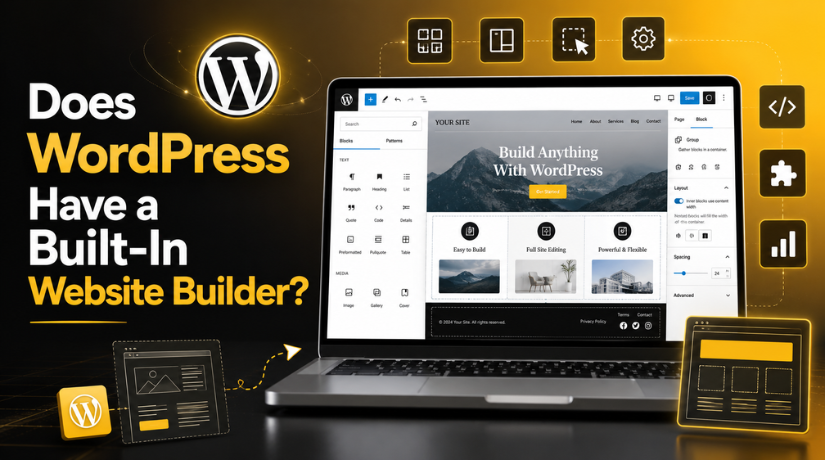
Does WordPress Have a Built-In Website Builder?
Introduction
If you’ve been exploring WordPress as a platform to build your website, you’ve probably asked this question: does WordPress actually come with a website builder, or do you have to buy one separately? It’s a fair question — and one that confuses a lot of beginners who’ve seen flashy drag-and-drop builders on platforms like Wix or Squarespace.
The honest answer is yes — WordPress does include a built-in website builder. But there’s more to the story than a simple yes or no. WordPress’s native builder works differently from what most people expect, and knowing the difference can save you hours of frustration. In this guide, we’ll walk you through everything you need to know about WordPress’s built-in tools, how they compare to third-party page builders, and which option makes the most sense for your site in 2026.
The Short Answer: Yes, WordPress Has a Built-In Builder
Since WordPress 5.0, the platform has shipped with a built-in visual editor called the Block Editor — also known as Gutenberg. Before that, WordPress used a basic text-based editor called TinyMCE, which offered very limited design control. Gutenberg changed everything by introducing a block-based system that lets you design pages visually without writing code.
Then, starting with WordPress 5.9, the platform went even further with Full Site Editing (FSE) — a more powerful set of tools that extend the block editor to cover your entire site, not just individual posts or pages. As of 2026, with WordPress 6.8 shipping in April, FSE has matured into a stable, production-ready system that gives you genuine website-building capabilities right out of the box.
So WordPress does have a built-in builder. Whether it’s the right builder for your needs is a separate question — and we’ll get to that shortly.
What Is the WordPress Block Editor?
The Block Editor is the default content editor in WordPress. When you create a new page or post, this is the interface you’re working in. Instead of writing everything in a single text box, you build your content using individual “blocks” — each one representing a specific element like a paragraph, image, heading, button, video embed, or column layout.
How Blocks Work
Every piece of content you add becomes its own block. Want to add an image? Insert an Image block. Need a two-column layout? Add a Columns block and drop content inside each column. Need to embed a YouTube video? There’s a block for that too. You can rearrange blocks by dragging them up and down, adjust their settings in the sidebar, and preview your changes in real time.
The block system is surprisingly capable for a native editor. WordPress ships with dozens of core blocks covering everything from basic text formatting to tables, pullquotes, cover images, social links, and even simple query loops that dynamically display your latest posts.
What You Can Build With the Block Editor
For most standard websites — blogs, small business sites, portfolios, and informational pages — the Block Editor is genuinely sufficient. You can build clean, well-structured pages without installing a single plugin. The editor stores your content as standard block markup, which means it’s lightweight, loads fast, and won’t lock you into a proprietary format.
If you’re just getting started with WordPress, it’s worth exploring what’s already included before you pay for a third-party builder. You might be surprised how much you can accomplish with the native tools. And if you’re curious about how much it actually costs to get a WordPress site up and running, our guide on how much it costs to build a WordPress website in 2026 breaks down exactly what to expect.
WordPress Full Site Editing — Taking It Much Further
The Block Editor covers individual posts and pages, but Full Site Editing (FSE) takes things to an entirely different level. FSE is a framework built on top of the block editor that lets you visually design and control every part of your website — including the header, footer, navigation menus, page templates, archive layouts, and global styles.
What Is the Site Editor?
FSE is accessed through a new interface called the Site Editor, found under Appearance → Editor in your WordPress dashboard. Inside the Site Editor, you can edit block-based templates for different content types — your homepage layout, single post template, archive page, 404 error page, and more — all using the same familiar block-based system.
You can also manage Global Styles from one central panel, setting your site-wide fonts, colors, spacing, and button styles so everything stays consistent without repeating yourself on every page.
What FSE Can Do in 2026
With WordPress 6.8, the Site Editor received meaningful improvements, including Pattern Overrides (which let you sync reusable design patterns across your site), expanded template registration options, and a more capable content management interface. FSE in 2026 is genuinely competitive with what dedicated website builders offered just a few years ago.
The catch? FSE only works with block-based themes. Classic WordPress themes don’t support the Site Editor. If you’re using an older theme, you won’t have access to these tools. Popular block-based themes include Twenty Twenty-Four, Kadence, and GeneratePress — all of which work beautifully with FSE.
How WordPress’s Built-In Builder Compares to Wix and Squarespace
One of the most common points of confusion is the difference between WordPress’s builder and the drag-and-drop builders you find on hosted platforms like Wix and Squarespace. Those platforms were designed from the ground up as website builders, with visual design as the primary experience. Everything is point-and-click, and you can place elements anywhere on the page.
WordPress’s Block Editor takes a different approach. It’s block-based and flow-based — meaning elements stack vertically in a structured layout rather than floating freely on a canvas. This makes it easier to maintain consistent spacing and structure, but it also means you can’t always place things exactly where you want them pixel-by-pixel.
In terms of design flexibility, Wix and Squarespace still edge ahead for absolute beginners who want pixel-perfect control with no learning curve. But WordPress gives you far more control over performance, SEO, extensibility, and ownership of your content. And with FSE and page builder plugins, the design gap has narrowed significantly. You can learn more about what WordPress actually is and what makes it different in our complete guide to WordPress.


The Limits of WordPress’s Built-In Builder
To be fair, the Block Editor and FSE do have real limitations — especially if you have complex design requirements or want to build something with advanced interactivity.
The core blocks don’t include built-in form builders, popup creators, animation tools, or mega menus. The column and layout options, while improved, still fall short of what dedicated page builders offer for highly customized layouts. Template-level editing in FSE can also feel clunky to beginners who haven’t worked with block-based themes before.
The Block Editor is also a relatively young system. While it has improved dramatically since its introduction, some experienced WordPress developers still prefer third-party tools for client work where precise design control is essential.
When to Consider a WordPress Page Builder Plugin
If the built-in tools don’t cover what you need, WordPress’s plugin ecosystem has you covered. Page builder plugins are the most popular category of WordPress plugins precisely because they extend the platform’s native design capabilities with much more powerful visual editing tools.
Popular Page Builder Plugins in 2026
Elementor remains the most widely used page builder, active on over 10 million websites. It offers a true drag-and-drop canvas, 100+ widgets, a popup builder, a form builder, and a vast template library. The free version is solid; Elementor Pro unlocks the advanced features.
Divi by Elegant Themes is another popular choice, known for its split-testing features and a large design module library. It’s bundled with an Elegant Themes membership, which also includes the Monarch social plugin and Bloom opt-in plugin.
Beaver Builder is highly regarded among developers for its clean code output and reliability. It’s less flashy than Elementor but extremely stable and developer-friendly.
Bricks Builder has gained significant momentum in recent years, particularly among performance-conscious developers, thanks to its lean code output and powerful dynamic content features.
If you’re weighing these options and wondering about budget, it’s worth checking whether you can build what you need for free first. Our guide on creating a WordPress website for free walks through exactly what you can achieve without spending anything.
Which Option Is Right for Your WordPress Site?
The right choice comes down to what you’re building and how much design complexity you need.
If you’re creating a blog, a simple business site, or a content-focused website, stick with the built-in Block Editor and Full Site Editing. It’s fast, it’s free, and it’s more than capable. Pair it with a good block-based theme and you’ll have a professional-looking site without adding plugin bloat.
If you need advanced layouts, custom forms, popup lead capture, animations, or you’re building a site for a client who wants pixel-level design control, a page builder plugin like Elementor or Bricks will serve you better. Just be mindful of performance — some page builders add significant overhead to your pages, so test loading speed carefully.
If you’re somewhere in the middle — you want more than the core blocks offer but don’t need a full page builder — consider a block plugin library like Kadence Blocks or GenerateBlocks. These extend the core Block Editor with additional blocks and design options while keeping your site lightweight and compatible with FSE.
Get Expert Help With Your WordPress Site
Choosing the right website builder setup for WordPress doesn’t have to be overwhelming — but it does require understanding your goals, your budget, and the type of site you’re building. Whether you’re using the native block editor, exploring Full Site Editing, or evaluating page builder plugins, the best setup is the one that gives you the results you need without making your site slow or your life complicated.
At 24×7 WP Support, we help WordPress site owners make smart decisions about their setup, optimize their design tools, and keep their sites running smoothly. Reach out to our team today if you need guidance choosing the right builder for your WordPress project — or if you need hands-on help getting your site built the right way from the start.

Brian is a WordPress support specialist and content contributor at 24×7 WP Support. He writes practical, easy-to-follow guides on WordPress troubleshooting, WooCommerce issues, plugin and theme errors, website security, migrations, performance optimization, and integrations. With a focus on solving real website problems, Brian helps business owners, bloggers, and online store managers keep their WordPress sites running smoothly.
