
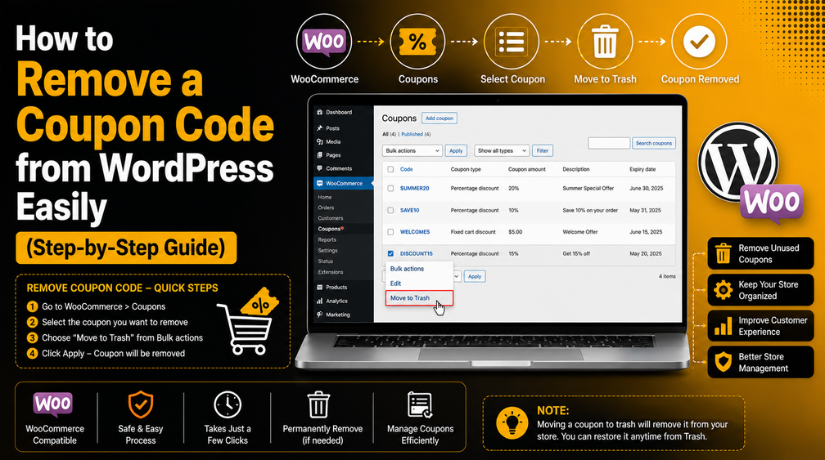
How to Remove a Coupon Code from WordPress Easily (Step-by-Step Guide)
Introduction
Coupon codes can help your store get more sales. They give customers a clear reason to buy today. Many WordPress store owners use coupons during special offers. These offers may include holiday sales, first-order discounts, or free shipping deals. However, old coupons can create problems when left active. A customer may use an expired offer without your plan. This can reduce your profit and affect order value.
Many store owners want to remove coupon code from WordPress after a campaign ends. This is a smart step for better store control. It helps you avoid unwanted discounts during checkout. It also keeps your pricing clean and simple. When too many coupons stay active, customers may feel confused. Some may leave the checkout to search for better discounts. This can reduce completed orders and hurt your sales.
If you use WooCommerce, coupon cleanup becomes very important. WooCommerce gives you useful coupon tools for online stores. You can create, edit, limit, or delete coupons easily. Good WooCommerce coupon management helps protect your revenue. It also keeps your checkout process smooth for customers.
This guide will show you the correct steps. You will learn how to delete coupon code in WooCommerce safely. You will also understand when to remove a coupon. Later, we will cover how to remove the coupon field. This helps when you want to disable coupon code WordPress options completely.
What Is a Coupon Code in WordPress and WooCommerce?
A coupon code is a special discount code for customers. Customers enter this code on the cart or checkout page. After applying, they receive a discount on their order. In WordPress, coupons are usually handled through WooCommerce. WordPress alone does not include a full coupon system. WooCommerce adds this feature for online store owners.
A coupon can support many types of store discounts. You can offer a percentage discount, like ten percent off. You can also offer a fixed cart discount. This removes a set amount from the total cart value. Some stores use product-based coupons for selected items only. Others use free shipping coupons to increase completed orders.
WooCommerce also lets you control coupon rules. You can set expiry dates for each coupon. You can limit coupon use by customer or order. You can apply coupons only to selected products. You can also block coupons from sale items. These options make WooCommerce coupon management more flexible.
Sometimes, a coupon is no longer useful. In that case, you may need to remove WooCommerce coupon settings. You may also need to delete coupons in WordPress when campaigns end. This keeps your store safe from unwanted discounts.
When Should You Remove a Coupon Code from WordPress Store?
Remove the Coupon When the Offer Has Expired
You should remove a coupon when the offer date has ended. Many stores create coupons for holiday sales or special events. These coupons should not stay active after the campaign ends. If you forget to remove coupon code from WordPress, customers may still use old discounts. This can reduce your profit and create pricing issues.
Remove the Coupon When It Gives the Wrong Discount
A wrong coupon value can quickly hurt your store revenue. Sometimes, a small setting mistake creates a big discount. For example, a ten percent offer may become one hundred percent. In this case, you should delete the coupon code in WooCommerce immediately. This protects your store from unwanted losses.
Remove the Coupon When It Gets Shared Publicly
Some coupons are created for selected customers only. These may include private offers or loyalty rewards. But sometimes, private codes get shared on coupon websites. When this happens, many unknown users may apply for the discount. This can damage your planned sales budget. You should quickly remove WooCommerce coupon codes that spread without control.
Remove the Coupon When Your Store No Longer Offers Discounts
Some stores stop using coupons after changing their pricing plan. They may focus on product quality, service value, or premium branding. In this case, it is better to disable coupon code WordPress options. Removing the coupon option can make checkout cleaner. Customers will focus on products instead of searching for discounts.
Remove the Coupon When You Want a Cleaner Checkout Page
A coupon field can sometimes distract customers during checkout. Many shoppers leave the checkout to search for a better deal. This can increase cart abandonment and reduce completed orders. If you do not use coupons, remove the coupon field completely. This keeps the checkout page simple and direct.
Remove the Coupon Before Launching a New Offer
Old coupons can conflict with fresh promotions. A customer may use an old code instead of a new offer. This can create confusion and wrong discount combinations. Before launching a new sale, review all active coupons carefully. Then remove or disable old codes that are no longer needed.
Before You Remove a Coupon Code: Important Checks for Store Safety
Check All Active Marketing Campaigns First
Before removing a coupon, check where it is promoted. The coupon may appear in emails, ads, banners, or popups. If customers still see the code after deletion, they may get confused. This can create support messages and reduce customer trust. Update all active campaigns before you delete coupons in WordPress.
Check Coupon Usage Reports Carefully
Coupon reports show how often customers use a code. This helps you decide whether to remove it now. If the coupon is still used often, review its purpose first. It may still be connected with an active campaign. Checking reports supports better WooCommerce coupon management.


Check Existing Orders Before Making Changes
Old orders may still show coupon details after deletion. This is normal because order records should stay accurate. Removing a coupon does not usually remove past discount history. You should still review recent orders before making changes. This helps you understand the coupon’s real impact.
Check Email Automation Tools and Templates
Many stores use automated emails for sales and recovery. These emails may include old coupon codes. Abandoned cart emails, welcome emails, and newsletters often use discounts. If you remove the coupon but not the email, customers may still try using it.
Check Coupon Plugins and Auto-Apply Rules
Some stores use advanced coupon plugins for extra features. These plugins may auto-apply coupons during checkout. They may also use URL coupon links or cart rules. If you only remove one coupon, plugin rules may still create issues. This is important when learning how to remove coupon codes in WooCommerce safely.
Take a Complete Website Backup Before Changes
A backup protects your store from unexpected problems. Coupon changes are usually simple, but stores can still face issues. A backup lets you restore your site if needed. This is very important for live WooCommerce stores. Large stores should also test changes on a staging site.
How to Remove a Coupon Code from WooCommerce Dashboard
Step 1: Log In to Your WordPress Admin Dashboard Safely
- First, open your WordPress login page.
- Enter your admin username and password.
- Use an admin account for coupon changes.
- A store manager account may also work.
- Make sure your login details are secure.
- This keeps your store settings safe.
- It also supports better WooCommerce coupon management.
Step 2: Open the Coupon Management Area in WooCommerce
- After login, check the left admin menu.
- Click on Marketing from the dashboard menu.
- Now click on the Coupons option.
- This page shows all WooCommerce coupon codes.
- You can see active and expired coupons here.
- This is the main place to delete coupon codes in WooCommerce.
- It also helps you manage discount offers easily.
Step 3: Search for the Coupon Code You Want to Remove
- Use the search box on the Coupons page.
- Enter the exact coupon code or coupon name.
- This helps you find the coupon quickly.
- Check the coupon title before opening it.
- Do not remove any coupon without review.
- A wrong deletion can affect active campaigns.
- This step helps avoid store mistakes.
Step 4: Open the Coupon and Check Its Main Details
- Click on the coupon name to open it.
- Review the discount type very carefully.
- Check the coupon amount before deleting it.
- Review the expiry date and usage limit.
- Check product rules and user restrictions.
- Make sure this is the correct coupon.
- This is important before you remove WooCommerce coupon settings.
Step 5: Check If the Coupon Is Used Anywhere Else
- Check if the coupon appears in emails.
- Review popups, banners, and landing pages.
- Check ads and social media posts too.
- Customers may still see the old code.
- This can confuse them after coupon removal.
- Update those places before deleting the coupon.
- This keeps your store message clear.
Step 6: Move the Coupon Code to Trash
- Return to the main coupon list page.
- Hover over the coupon you want removed.
- You will see quick action links there.
- Click the Trash option below the coupon.
- This removes the coupon from active use.
- Customers cannot use that coupon anymore.
- This is an easy way to remove coupon code from WordPress.
Step 7: Delete the Coupon Permanently If Needed
- A trashed coupon is not fully deleted.
- It stays inside the Trash section.
- Open the Trash section from the coupon page.
- Find the coupon you want to delete.
- Click Delete Permanently for full removal.
- Use this only for unused coupons.
- This helps you delete coupons in WordPress completely.
Step 8: Test the Removed Coupon on the Checkout Page
- Open your store like a normal customer.
- Add any product to the cart.
- Go to the cart or checkout page.
- Enter the deleted coupon code there.
- WooCommerce should show an invalid coupon message.
- This confirms the coupon no longer works.
- Testing helps avoid checkout confusion.
How to Remove the Coupon Field from WooCommerce Cart and Checkout
Step 1: Understand What This Method Will Change
- This method does not remove one coupon.
- It removes the full coupon field.
- Customers will not see the coupon box.
- This is useful for stores without discounts.
- It makes the checkout page cleaner.
- Use this to disable coupon code WordPress options.
- It can improve the customer buying flow.
Step 2: Go to WooCommerce Settings from the Dashboard
- Open your WordPress admin dashboard.
- Click WooCommerce in the left menu.
- Now click the Settings option.
- This area controls your store settings.
- You can manage checkout options here.
- Be careful while changing these settings.
- They can affect the full checkout process.
Step 3: Stay on the General Settings Page
- WooCommerce usually opens the General tab.
- Stay on this tab for coupon settings.
- Scroll down through the available options.
- Find the setting related to coupon usage.
- You do not need custom code here.
- WooCommerce provides this built-in option.
- This makes the process beginner-friendly.
Step 4: Find the Enable Coupon Codes Option
- Look for Enable the use of coupon codes.
- This option controls coupon fields in WooCommerce.
- When enabled, customers can enter coupon codes.
- When disabled, customers cannot apply coupons.
- This setting affects cart and checkout pages.
- Use it when you want no coupons.
- It supports clean WooCommerce coupon management.
Step 5: Uncheck the Coupon Code Option
- Uncheck Enable the use of coupon codes.
- This will disable coupons across your store.
- It removes the coupon field from the cart.
- It also removes it from checkout.
- Use this only when all coupons should stop.
- Active coupons will not work after this.
- This helps remove discount distractions.
Step 6: Save the WooCommerce Settings Properly
- After unchecking the option, click Save Changes.
- This saves your updated WooCommerce settings.
- Do not close the page before saving.
- If you forget, nothing will change.
- The coupon field may still appear.
- Saving confirms your new checkout setup.
- Always check the page after saving.
Step 7: Check the Cart Page After Saving Changes
- Open your store in a new tab.
- Add any product to the cart.
- Now open the cart page.
- Check if the coupon field appears.
- The coupon box should be removed.
- Clear cache if it still appears.
- Also check custom cart plugin settings.
Step 8: Check the Checkout Page for Final Confirmation
- Open the checkout page after testing the cart.
- Review the page like a customer.
- The coupon field should not appear there.
- Check the page on desktop and mobile.
- Use a private browser window if needed.
- This gives you a fresh page view.
- It confirms the setting works correctly.
Step 9: Clear Cache If the Coupon Field Still Appears
- Clear your WordPress cache plugin first.
- Clear server cache from hosting if available.
- Clear CDN cache if your site uses one.
- Clear your browser cache as well.
- Refresh the cart and checkout pages again.
- Check if the coupon field is gone.
- Cache cleanup helps show the latest changes.
Step 10: Keep a Record of the Coupon Change
- Note the coupon change in your store record.
- Add the date of the change.
- Mention why the coupon field was removed.
- Share the update with your team.
- This avoids confusion during future campaigns.
- Good records improve WooCommerce coupon management.
- They also support better store planning.
Common Problems After Removing Coupon Codes from WordPress
Deleted Coupon Code Still Works at Checkout
Sometimes, a deleted coupon may still work after removal. This often happens because your website cache is showing old data. WooCommerce may also have a duplicate coupon with similar settings. First, clear your cache plugin and server cache. Then test the coupon again in a private browser.
Coupon Field Still Appears on the Cart Page
Deleting one coupon does not remove the coupon box. It only stops that coupon code from working. If you want to remove the field completely, change WooCommerce settings. Go to WooCommerce > Settings > General. Then uncheck the coupon code option and save changes. This helps you disable coupon code WordPress settings properly.
Coupon Field Still Appears on Checkout Page
The checkout page may still show the coupon field. This can happen due to cache or custom checkout plugins. First, clear your website, browser, and CDN cache. Then check the checkout page in a private window. If the field still appears, review checkout plugin settings. Some plugins control coupon displays separately from WooCommerce.
Old Coupon Code Still Appears in Emails
Many stores use coupons inside automated email campaigns. These may include welcome emails or abandoned cart messages. If you delete coupon code in WooCommerce, emails may still show it. Customers may click the offer and face errors. This creates confusion and can reduce trust. Check all email templates before removing old coupons.
Coupon Code Still Shows on Website Banners
A deleted coupon can still appear on website banners. It may also show inside popups or announcement bars. Check your homepage, product pages, and landing pages. Also review Elementor sections, sliders, and header notices. If customers see old codes, they may try them. This can create a poor shopping experience.
Auto-Apply Coupons Still Run After Deletion
Some stores use advanced coupon plugins for auto discounts. These plugins may apply coupons through rules or links. If you only remove one coupon, rules may remain active. Check all coupon plugins installed on your website. Look for auto-apply settings, URL coupons, and cart rules. This step is important in how to remove coupon code in WooCommerce safely.
Coupon Reports Still Show Old Coupon Data
Old coupon data may still appear in reports. This does not always mean the coupon is active. Reports often keep past order details for records. WooCommerce may show old coupon usage in previous orders. This helps you track sales and discount history. Do not delete order records to remove report data.
Conclusion
Removing a coupon code from WordPress is a simple but important store task. It helps you stop old offers, avoid wrong discounts, and keep checkout clear. If you use WooCommerce, you can remove a coupon from the coupon list. You can also disable the coupon field from store settings when needed. Before making changes, always check emails, banners, popups, and active campaigns. This helps you avoid customer confusion after coupon removal. After removing the coupon, test your cart and checkout pages carefully. Also clear cache if the old coupon still appears. A clean coupon setup protects your pricing and improves customer trust. It also makes your WooCommerce store easier to manage.
If your coupon code still appears, does not delete properly, or affects checkout, you can review your WooCommerce setup with expert support. 24×7 WP Support helps with self-hosted WordPress and WooCommerce website issues, including plugin settings, checkout problems, and store errors. For support details, visit 24×7 WP Support or call +1-888-818-9916 for United States and Canada support.
Related posts:

Brian is a WordPress support specialist and content contributor at 24×7 WP Support. He writes practical, easy-to-follow guides on WordPress troubleshooting, WooCommerce issues, plugin and theme errors, website security, migrations, performance optimization, and integrations. With a focus on solving real website problems, Brian helps business owners, bloggers, and online store managers keep their WordPress sites running smoothly.
