
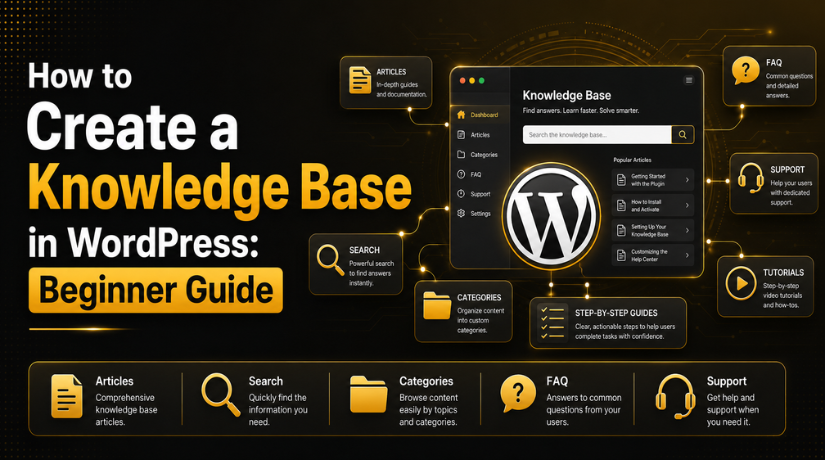
How to Create a Knowledge Base in WordPress: Beginner Guide
Introduction
Website visitors want quick answers before they contact support. They may need help with orders, services, accounts, setup, or common website questions. If they cannot find clear answers, they may leave your site. This can hurt trust, leads, and customer experience.
A WordPress knowledge base gives users a simple place to find help. It keeps useful answers organized in one section. Users can read guides, follow steps, and solve small problems themselves. This reduces repeated support requests for your team.
For example, a customer may ask how to reset a password. Another visitor may ask how to use a service. Instead of replying again and again, you can create one helpful article. Then users can access that answer anytime.
A knowledge base also makes your website look more professional. It shows that your business understands user needs. It also helps new visitors feel more confident. When your content gives clear answers, users trust your website more.
WordPress makes this process easier for beginners. You can build a help section using pages, posts, or a plugin. With the right setup, your knowledge base can become a useful support tool.
What Is a Knowledge Base in WordPress?
A knowledge base in WordPress is a collection of helpful content. It answers common questions from your website visitors. It can include tutorials, FAQs, setup guides, and troubleshooting steps.
A WordPress knowledge base works like a self-help center. Users visit it when they need support. They search for a topic and read the related article. This helps them solve problems without waiting for a reply.
You can create this section in different ways. Small websites may use normal WordPress pages. Blogs may use posts and categories. Larger websites often use a WordPress documentation plugin for better structure.
A plugin can add useful features, such as:
- Search box for fast answers
- Article categories for easy browsing
- Related articles for better navigation
- Clean layouts for support content
This type of setup is useful for many websites. Service businesses can explain their process. Online stores can answer order questions. Agencies can share support guides. Software websites can publish product documentation.
A knowledge base should always stay simple. Each article should answer one clear question. The content should use easy words and short steps. This makes it helpful for beginners and regular users.
Why Should You Create a Knowledge Base in WordPress?
Every website owner wants to support users in a better way. A knowledge base helps you do that with clear answers. It gives visitors a simple place to solve common questions. This makes your website more useful and more trusted.
When you create knowledge base in WordPress, you reduce repeated support requests. Many users ask the same questions again and again. These questions may relate to services, orders, payments, accounts, or setup steps. A helpful article can answer those questions anytime.
A knowledge base also improves the user experience. Visitors do not always want to wait for email support. They prefer fast answers when they face small issues. Clear help articles save their time and reduce confusion.
It also supports SEO growth. Many users search Google for problem-based answers. If your knowledge base article answers those questions well, it can bring helpful traffic. This makes your website useful for both users and search engines.
A good knowledge base can help you:
- Reduce daily support pressure
- Improve customer satisfaction
- Build trust with new visitors
- Save your team’s time
- Answer common questions faster
Things to Prepare Before Creating a WordPress Knowledge Base
Before learning how to create a knowledge base in WordPress, prepare your content first. A good plan makes the setup easier. It also keeps your help section clean and simple.
Start by listing common customer questions. Check your emails, contact forms, chat messages, and support tickets. Find the questions users ask most often. These questions should become your first knowledge base articles.
Next, group similar topics into simple categories. For example, you can use categories like Account, Billing, Orders, Setup, Services, or Troubleshooting. These categories help users find answers faster.
You should also decide your article format before writing. Each article should follow the same structure. This keeps your WordPress knowledge base easy to read.
A simple article format can include:
- Short issue introduction
- Clear step-by-step solution
- Helpful screenshots if needed
- Related links for extra help
- Final check or next action
Use simple words in every article. Avoid complex terms when possible. If you must use a technical word, explain it clearly. This helps beginners follow your guide without stress.
Choose the Right Method to Build Your Knowledge Base
Before building your help section, choose the right setup method. WordPress gives you more than one simple option. Your choice depends on your website size and support needs.
Using WordPress Pages
You can create help articles using normal WordPress pages. This method works well for small websites. It is useful when you need only a few articles. For example, you may create pages for contact help, service details, or basic FAQs.
Pages are easy to create and manage. However, they may not offer advanced search or categories. So, this method may feel limited as your content grows.
Using Blog Posts
You can also use blog posts for help content. Posts allow categories, tags, and better content organization. This method works if your support articles also target SEO traffic.
For example, you can write guides around common customer questions. These articles can appear in search results. However, blog posts may not look like a proper help center. Users may also mix support articles with normal blog content.
Using a Plugin
A plugin is usually the best option for beginners. A WordPress knowledge base plugin gives you a ready structure. It can include article categories, search boxes, and clean layouts. This makes your help section easier to manage.
If you want a professional support area, use a plugin. The best knowledge base plugin for WordPress should be simple, fast, and easy to customize. It should also work well on mobile devices.
How to Create a Knowledge Base in WordPress Step by Step
Now let us start the basic setup process. These first steps help you build a clear foundation.
Step 1: Install a Suitable Knowledge Base Plugin
To learn how to create a knowledge base in WordPress, start with plugin installation. Go to your WordPress dashboard. Then open the Plugins section and click Add New. Search for a trusted WordPress knowledge base plugin. Check its reviews, updates, and features before installing it.
After installation, activate the plugin. Most plugins add a new knowledge base menu. You can use this menu to create articles and categories.


Step 2: Create Main Knowledge Base Categories
Next, create your main help categories. These categories should match user needs. You can use names like Setup, Billing, Orders, Services, Account, or Troubleshooting.
Keep categories simple at the beginning. Too many categories can confuse visitors. Start with broad topics, then add more later. This makes your knowledge base clean and easy to browse.
Step 3: Add Your First Help Article
After creating categories, add your first help article. Keep one article focused on one clear question. This makes the answer easier for users to follow. For example, write one article about password reset only. Do not mix account setup and billing in one guide.
Use a simple title that matches user search intent. A title like “How to Reset Your Account Password” works better. It tells users exactly what the article explains. When you create knowledge base in WordPress, clear titles improve both search and user experience.
Start the article with a short introduction. Then explain the steps in a simple order. Use numbers when the process needs action.
Step 4: Add Search and Navigation
Search is very important for any help center. Users may not browse every category manually. A good WordPress knowledge base plugin usually includes a search box. Place the search box near the top of the knowledge base page.
Good navigation also helps users move between topics. Add clear categories and related article links. This keeps visitors inside your help section longer. It also helps them find complete answers faster.
Step 5: Link Articles From Important Website Pages
Your knowledge base should not stay hidden. Link it from important website areas. Add links from your contact page, support page, footer, and service pages. If you run an online store, link help articles from product pages too.
These links reduce support requests from confused visitors. They also guide users before they submit a support form. This makes your website more helpful and organized.
Step 6: Preview and Test the Knowledge Base
Before publishing, test the full knowledge base carefully. Open it on desktop, tablet, and mobile devices. Check the search box, category links, article links, and page layout.
Also review each article for simple language. Make sure every step is clear and correct. Fix broken links, spelling issues, and unclear screenshots before launch.
What Should a Good Knowledge Base Article Include?
A good article should answer the user’s question quickly. It should not feel long, confusing, or incomplete. If you use a WordPress documentation plugin, keep the structure clean and consistent.
Each article should include:
- A clear title based on one question
- A short issue introduction
- Step-by-step solution instructions
- Screenshots or examples where needed
- Related links for extra guidance
- Updated date for changed information
- A short final check or next action
This format keeps every article useful. It also helps users trust your support content.
Best Practices for Managing a WordPress Knowledge Base
After setup, you must manage your help section properly. A WordPress knowledge base works best when content stays clear and updated. Users trust articles that answer their questions without confusion.
Start by reviewing your articles on a regular schedule. WordPress settings, plugins, and website features can change over time. Old screenshots or outdated steps may confuse new visitors.
Use simple titles for every help article. The title should match the exact user question. For example, “How to Update Your Billing Details” is clear. It tells users what answer they will find.
You should also add internal links between related articles. These links help visitors move through useful support content. They also help search engines understand your article structure.
Follow these best practices:
- Keep each article focused on one topic.
- Update screenshots when your website design changes.
- Add new articles from repeated support questions.
- Use clear categories for easy browsing.
- Review search terms inside your knowledge base.
- Remove outdated or duplicate support content.
These small steps improve trust and user experience. They also make your support process faster and easier.
Common Mistakes Beginners Should Avoid
Many beginners create too many categories at the start. This makes the knowledge base confusing for visitors. Start with simple categories and expand them later.
Another common mistake is writing very long articles. Users need quick answers, not complex explanations. Break long steps into short sections and bullet points.
Avoid these mistakes while managing your knowledge base:
- Hiding the knowledge base link from main website areas
- Using difficult technical words without simple explanations
- Ignoring mobile users and small screen layouts
- Forgetting to update old help articles
- Mixing many different issues in one article
Conclusion
A knowledge base helps users find answers faster. It also reduces support pressure for your business. With WordPress, beginners can build a clean help section easily. Start with common questions, simple categories, and clear articles. If you need expert help, 24x7wpsupport can help you plan, create, and manage a professional WordPress knowledge base.
Related posts:

Brian is a WordPress support specialist and content contributor at 24×7 WP Support. He writes practical, easy-to-follow guides on WordPress troubleshooting, WooCommerce issues, plugin and theme errors, website security, migrations, performance optimization, and integrations. With a focus on solving real website problems, Brian helps business owners, bloggers, and online store managers keep their WordPress sites running smoothly.
