
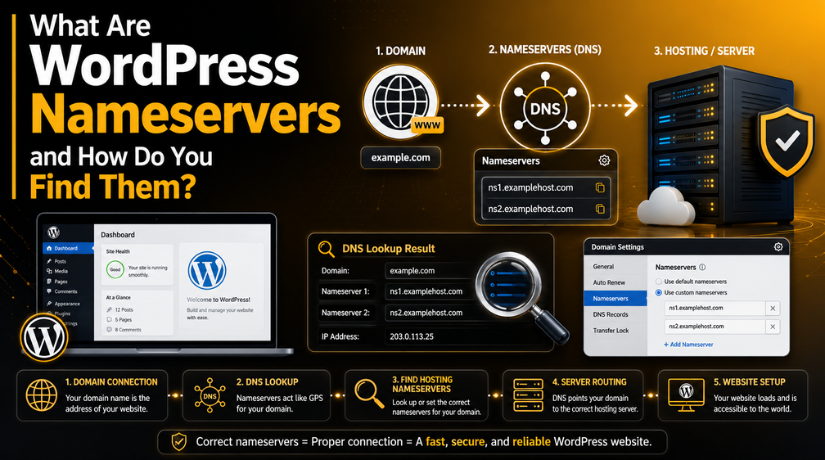
What Are WordPress Nameservers and How Do You Find Them?
Introduction
Many WordPress users buy domains and hosting from different companies. This is very common for business websites, blogs, and online stores. However, the domain and hosting must connect correctly. That is where WordPress nameservers become important.
Nameservers help your domain find the right hosting server. They guide visitors to the correct WordPress website. When someone types your domain name, the browser checks where your website is hosted. Nameservers give that direction.
For example, you may buy a domain from GoDaddy. You may host your WordPress website with Bluehost, SiteGround, or another provider. In this case, your domain must point to your hosting account. If the nameservers are wrong, your website may not open. It may show an error, old website, or blank page.
This issue can confuse many beginners. They may think WordPress is broken. However, the real problem is often the domain connection. Correct nameservers help your domain and hosting work together.
Nameservers matter because they help with:
- Connecting your domain to WordPress hosting.
- Loading the correct website for visitors.
- Managing DNS records from the right place.
- Avoiding domain connection and website loading issues.
A small mistake in nameserver setup can affect your website. So, it is important to understand them clearly.
What Are WordPress Nameservers?
Many users ask, what are nameservers in WordPress? In simple words, nameservers are internet records. They tell browsers where your domain should go. They connect your domain name with your hosting server.
Think of nameservers like a road sign for your domain. The domain is your website address. Hosting is where your website files stay. Nameservers guide users from the address to the correct location.
Most WordPress domain nameservers look like this:
- ns1.yourhostingcompany.com
- ns2.yourhostingcompany.com
Your hosting provider gives these nameservers. You add them inside your domain registrar account. After that, your domain starts pointing to your WordPress hosting.
Nameservers are not usually managed inside the WordPress dashboard. They are managed through your domain company or hosting provider. This is important to know. WordPress controls your website content, pages, posts, and settings. Nameservers control where your domain sends visitors.
For WordPress.com users, nameserver settings may appear inside their WordPress.com account. For self-hosted WordPress users, hosting and domain providers handle them.
In short, WordPress nameservers help your domain locate your website files. They are a key part of your website setup. Without correct nameservers, visitors may not reach your WordPress site.
How WordPress Nameservers Work With DNS
WordPress DNS nameservers work through the Domain Name System. DNS helps browsers find the correct website server. It changes your domain name into server details. This allows visitors to reach your WordPress website.
When someone types your domain in a browser, DNS starts working. It checks which nameservers control your domain. Then, those nameservers send the browser to the right hosting server.
For example, your domain may be yourbusiness.com. Your WordPress website files may be stored with your hosting company. The nameservers tell the domain where those files are located.
Nameservers also control important DNS records. These records manage different parts of your domain setup.
Common DNS records include:
- A Record: Points your domain to a server IP address.
- CNAME Record: Points one domain name to another domain name.
- MX Record: Controls business email delivery.
- TXT Record: Helps with verification and security checks.
This is why nameservers must be handled carefully. A wrong change can affect your website or email. For example, changing nameservers without checking email records can stop email delivery.
Many beginners think DNS settings are inside WordPress. This is not always true. WordPress manages your pages, posts, themes, and plugins. DNS nameservers manage your domain’s online direction.
If your website is not loading after setup, DNS may be the reason. Sometimes, the domain still points to old hosting. Sometimes, DNS propagation is still pending. In both cases, checking nameservers is a smart first step.
How to Find WordPress Nameservers
Learning how to find WordPress nameservers is simple. You need to check the place where your hosting is managed. Your hosting provider usually gives the correct nameserver values.
You can find WordPress nameservers in these common places:
- Hosting account dashboard.
- Hosting welcome email.
- Domain or DNS settings page.
- WordPress.com domain settings.
- Hosting support documents.
First, log in to your hosting account. Open the domain, DNS, or website settings area. Look for nameserver details. They may appear as two separate values.
A nameserver may look like this:
- ns1.hostingprovider.com
- ns2.hostingprovider.com
Copy both values exactly. Do not change spelling, dots, or numbers. Even a small typing error can break the domain connection.
You can also check your domain registrar account. Open your domain settings there. You may see the current nameservers already added. This helps you confirm where your domain is pointing.


For WordPress.com users, open the domain settings inside WordPress.com. The nameserver details may be listed under domain connection settings.
If you are still unsure, contact hosting support. Ask them for the correct nameservers for your WordPress hosting account. This helps avoid mistakes and saves time.
How to Point Your Domain to WordPress Hosting
Learning how to point domain to WordPress hosting is important. It helps your domain open the correct WordPress website. This step is needed when your domain and hosting are separate.
First, log in to your WordPress hosting account. Find the correct nameserver details from your hosting provider. These nameservers usually come in two values. Copy them exactly as shown in your hosting dashboard.
Next, log in to your domain registrar account. This is where you bought your domain name. Open the domain settings area. Then, look for DNS or nameserver settings.
Now replace the old nameservers with the new hosting nameservers. Make sure both nameserver values are added correctly. A missing nameserver can cause connection problems.
Basic steps include:
- Log in to your hosting account.
- Copy the correct hosting nameservers.
- Log in to your domain registrar account.
- Open DNS or nameserver settings.
- Replace old nameservers with new ones.
- Save the changes carefully.
- Wait for DNS propagation.
Many users search for how to change nameservers in WordPress. However, nameservers are usually not changed inside WordPress. They are changed inside your domain registrar account. WordPress manages your website content. Your domain company manages nameserver settings.
After saving nameserver changes, your website may not load instantly. DNS updates need time to spread across the internet. This process is called DNS propagation. It may take a few hours. Sometimes, it may take up to 24–48 hours.
Avoid changing random DNS records during this time. It may create more issues. Wait patiently and test your website again later.
Common WordPress Domain Connection Issues
A WordPress domain connection issue can happen for several reasons. Most issues are linked to wrong or incomplete nameserver setup.
One common issue is entering the wrong nameserver value. Even one wrong letter can stop your domain from working. Another issue is missing the second nameserver. Most hosting providers give at least two nameservers.
Your domain may also still show the old website. This can happen because of DNS cache. Your browser or internet provider may still hold old records.
Common issues include:
- Wrong nameservers added in the domain account.
- One nameserver missing from the setup.
- Domain not added inside the hosting account.
- DNS propagation still pending.
- Old browser or DNS cache showing old results.
- Email records not copied after nameserver changes.
If your website does not open, check both accounts. Review your domain registrar settings first. Then check your hosting account. Make sure the domain is added there.
Correct nameservers help your WordPress website load properly. They also reduce domain connection errors.
Simple Checklist Before Changing Nameservers
Before you update nameservers, check every detail carefully. A small mistake can stop your website from loading. It can also affect email if DNS records are missing. So, always review your current setup first.
When learning how to change nameservers in WordPress, remember one thing. Nameservers are usually changed in your domain account. They are not changed inside the WordPress dashboard.
Use this simple checklist before making changes:
- Confirm the correct nameservers from your hosting provider.
- Copy both nameserver values without any spelling mistakes.
- Take a screenshot of your old DNS settings.
- Check your email records before updating nameservers.
- Make sure your domain is added to your hosting account.
- Save changes only after reviewing all details.
- Wait for DNS propagation after the update.
- Clear browser cache if the old website still appears.
Your WordPress DNS nameservers control where your domain sends visitors. They may also control DNS records for email and other services. So, never update them without checking important records first.
If your website does not open after changes, do not panic. DNS updates can take time. Sometimes, your browser may still show old data. You can test your domain later from another device.
Conclusion
WordPress nameservers play an important role in website setup. They connect your domain with the correct WordPress hosting server. When nameservers are correct, visitors reach your website without issues.
If you face a WordPress domain connection issue, check nameservers first. Also review your hosting account and DNS records. This helps you find the issue faster.
Need help with nameservers, DNS, or domain setup? Visit at 24x7wpsupport Our team can check your domain connection, hosting setup, and WordPress DNS issues. We help you fix the problem quickly and safely.




Brian is a WordPress support specialist and content contributor at 24×7 WP Support. He writes practical, easy-to-follow guides on WordPress troubleshooting, WooCommerce issues, plugin and theme errors, website security, migrations, performance optimization, and integrations. With a focus on solving real website problems, Brian helps business owners, bloggers, and online store managers keep their WordPress sites running smoothly.
