
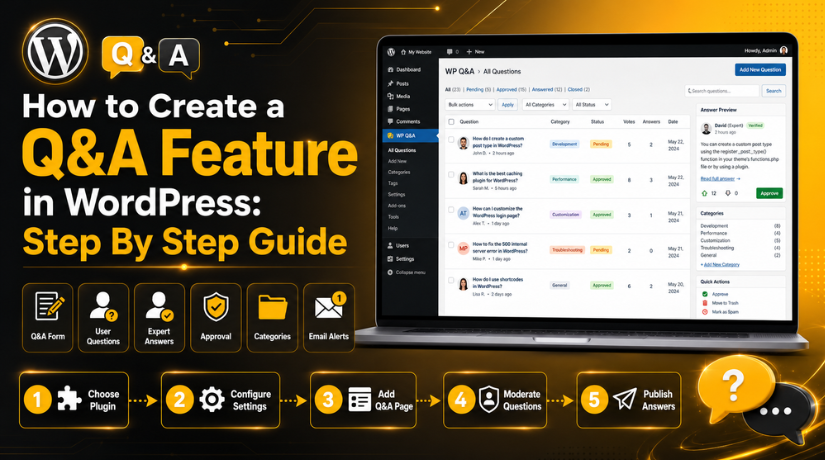
How to Create a Q&A Feature in WordPress: Step By Step Guide
Introduction
Modern website visitors want quick answers before taking any action. They do not like searching through many pages. If they feel confused, they may leave your website. This is why many site owners want to create Q&A features in WordPress. A Q&A section gives users a clear place to ask questions. It also gives them helpful answers without waiting for support. This feature works well for blogs, business sites, stores, courses, and service websites. It helps visitors understand your content, products, or services better. A good Q&A section also makes your website more useful.
It can answer common doubts before users contact your team. This saves time for both visitors and website owners. When users find answers easily, they trust your website more. They also feel more confident before buying, booking, or contacting you. A WordPress Q&A plugin can make this process easier. It helps you add question forms, answer areas, categories, and moderation tools. You do not need advanced coding for basic setup.
This guide will help you understand the first steps clearly. You will learn what a Q&A feature means. You will also learn why it is useful for your website. Before learning the setup process, understand its purpose first.
What Is a Q&A Feature in WordPress and How Does It Help Users?
A Q&A feature in WordPress is a question and answer area. It allows users to ask questions directly on your website. The site owner, admin, expert, or users can answer them. This creates a simple WordPress question answer system for visitors. It works like a helpful support area on your site.
Users can search existing answers before asking new questions. This saves time and reduces repeated support messages. A Q&A feature can be simple or advanced. A simple section may show common questions and answers. An advanced system may allow voting, profiles, and categories. Many website owners use a WordPress FAQ and Q&A plugin for this. These plugins help manage questions in an organized way. You can approve questions before they appear publicly. You can also control who can answer user questions.
This keeps your website safe, clean, and useful. A Q&A feature is different from normal blog comments. Comments usually discuss one post or one topic. A Q&A section focuses on clear questions and useful answers. This makes it easier for visitors to find solutions.
Benefits of Adding a Q&A Feature to Your Website
Q&A Feature Improves User Engagement on Your Website
A Q&A feature encourages visitors to interact with your website. They can ask questions instead of leaving the page. They can also read answers from other users. This keeps them engaged for a longer time. Better engagement can improve the overall user experience. It also shows that your website is active. An active website feels more trustworthy to new visitors. When people see real questions, they feel connected. They understand that other users have similar doubts. This makes your website feel more helpful and human.
Q&A Section Reduces Repeated Support Questions
Many website owners answer the same questions many times. This takes time and slows down support work. A Q&A section solves this problem in a simple way. You can answer one question once for everyone. Future visitors can read that answer anytime. This reduces emails, calls, and support tickets. It also gives your team more time for urgent issues. For example, users may ask about pricing, setup, delivery, or login. You can keep those answers public and easy to find.
WordPress Question Answer System Builds Visitor Trust
Trust is very important for every website. Visitors trust websites that answer questions clearly. A public Q&A section shows openness and care. It tells users that you are ready to help. When answers are clear, users feel more confident. They can understand your service or product better. This is useful for business and eCommerce websites. Customers often need answers before making decisions. A strong Q&A area removes doubts at the right time. It also shows that your website is active and reliable.
Q&A Feature Helps Customers Make Better Buying Decisions
Customers usually have questions before they buy something. They may ask about size, features, delivery, support, or returns. If they do not get answers, they may leave. A Q&A feature helps answer these doubts quickly. This is very useful for WooCommerce websites. Product questions can appear directly near product details. Other customers can also read those helpful answers. This improves the buying journey for new visitors. Clear answers can reduce hesitation before checkout.
Q&A Section Supports SEO With Helpful Question-Based Content
People often search Google using full questions. A Q&A section can match those searches naturally. Each question can target a real user problem. Each answer can provide a simple and helpful solution. This makes your content more useful for search visitors. It can also support long-tail keyword coverage. For example, users may search setup or plugin questions. Your Q&A answers can guide them clearly. Use natural keywords inside answers where they fit.
Q&A Feature Creates a Better Support Experience
A Q&A section works like a public support area. Users can search answers before contacting your team. This gives them faster help and better control. It also helps your team handle support more easily. You can update old answers when information changes. You can also turn repeated questions into full blog posts. This makes your website stronger over time. A well-managed Q&A section becomes a useful content asset. It supports users, improves trust, and saves support time.
How to Create a Q&A Feature in WordPress (Complete Guide)
The easiest way to create Q&A feature in WordPress is by using a plugin. A plugin gives you ready-made question and answer tools. You do not need to write custom code. It helps you add forms, questions, answers, categories, and settings easily. This method is best for beginners, bloggers, service websites, and store owners. Follow these simple steps to add Q&A section in WordPress properly.
Step 1: Choose the Best Q&A Plugin for Your Website
- First, decide what type of Q&A section you need.
- Use a Q&A plugin for normal questions and answers.
- Use a forum plugin for community discussions.
- Use a WooCommerce Q&A plugin for product questions.
- Check plugin ratings and reviews.
- Check the last update date.
- Choose a plugin that supports your WordPress version.
Step 2: Install the Q&A Plugin From Your Dashboard
- Log in to your WordPress dashboard.
- Go to Plugins.
- Click Add New.
- Search for your selected plugin.
- Click Install Now.
- After installation, click Activate.
- Now the plugin is ready to use.
Step 3: Open the Plugin Settings Page
- After activation, open the plugin settings.
- Check the basic options first.
- Review question settings.
- Review answer settings.
- Review email notification settings.
- Save the settings after changes.
Step 4: Set Who Can Ask Questions
- Decide who can ask questions.
- You can allow registered users only.
- You can also allow guest users.
- Registered users are safer.
- Guest users can ask questions faster.
- Choose the option that fits your website.
Step 5: Set Who Can Answer Questions
- Decide who can answer questions.
- Admins can answer all questions.
- You can also allow registered users.
- For business sites, admin answers are better.
- For community sites, user answers can help.
- Save the answer permission settings.
Step 6: Enable Question Approval for Better Control
- Turn on question approval.
- This keeps new questions pending.
- Admin can check questions first.
- Approve useful questions only.
- Reject spam or fake questions.
- This keeps your Q&A page clean.
Step 7: Create Basic Question Categories
- Create simple question categories.
- Categories help users find answers.
- Start with a few categories only.
- You can add General Questions.
- You can add Technical Support.
- You can add Billing Questions.
- You can add Product Questions.
- Add more categories later if needed.
Step 8: Create the Main Q&A Page
- Go to Pages.
- Click Add New.
- Add a page title.
- Use Ask a Question or Questions.
- Add the plugin shortcode or block.
- Publish the page.
- Open the page and check it.
Step 9: Add the Q&A Page to Your Website Menu
- Go to Appearance.
- Click Menus.
- Select your Q&A page.
- Add it to the main menu.
- Use a clear menu name.
- You can use Ask a Question.
- You can also use the Help Center.
- Save the menu.
Step 10: Test the Question Submission Process
- Open the Q&A page.
- Submit one test question.
- Go to the WordPress dashboard.
- Check if the question appears.
- Approve the test question.
- Open the Q&A page again.
- Check if the question is visible.
Step 11: Add a Test Answer and Check Display
- Open the approved question.
- Add a test answer.
- Publish or approve the answer.
- Open the question on the front end.
- Check if the answer looks correct.
- Check spacing and text size.
- Fix any layout issue.
Step 12: Check Email Notifications
- Submit a test question.
- Check if the admin gets an email.
- Add an answer.
- Check if the user gets an email.
- Check the spam folder if needed.
- Use an SMTP plugin if emails fail.
Step 13: Check the Q&A Page on Mobile
- Open the page on mobile.
- Check the question form.
- Check buttons and text.
- Make sure everything is easy to read.
- Test asking a question from mobile.
- Fix spacing or display issues.
Step 14: Add Sample Questions Before Launch
- Add a few sample questions.
- Use common questions from users.
- Add clear and helpful answers.
- This makes the page useful from day one.
- It also shows users what they can ask.
Step 15: Launch and Review Questions Regularly


- Launch the Q&A section after testing.
- Check new questions often.
- Approve good questions.
- Remove spam questions.
- Update old answers when needed.
- Keep the plugin updated.
- This keeps your Q&A section useful and safe.
Common Issues When Creating a Q&A Feature in WordPress
Even a good setup can show small issues sometimes. These problems usually happen because of plugin settings, theme conflicts, or user role limits. When you create Q&A feature in WordPress, you should test each feature carefully. This helps you fix problems before real users visit. A WordPress Q&A plugin can make setup easy, but settings still matter. Wrong settings can stop questions, answers, emails, or page display. Some issues may also appear after plugin updates.
Q&A Page Shows a 404 Error After Setup
A 404 error means WordPress cannot find the page. This can happen after creating a new Q&A page. It can also happen when plugin URLs are not refreshed. First, go to Settings and open the Permalinks page. Then click the Save Changes button without changing anything. This simple step refreshes WordPress URL rules. After that, open your Q&A page again. If the error still appears, check plugin page settings. Make sure the correct Q&A page is selected there. Also check if the page is published, not saved as draft. Clear your website cache after making these changes.
Questions Are Not Displaying on the Q&A Page
Sometimes questions do not appear after users submit them. This can happen because questions are waiting for approval. Open your Q&A plugin dashboard and check pending questions. If the question is pending, approve it manually. Also check whether the correct shortcode is used. A wrong shortcode can show an empty page. If your plugin uses page assignment, review that setting too. Make sure your Q&A page is linked correctly. Category filters can also hide some questions from view.
Users Cannot Submit Questions From the Website
Users may fail to submit questions for many reasons. First, check who can ask questions in plugin settings. If only registered users can ask, guests cannot submit. This setting is useful, but users must log in first. Also check if user registration is enabled on your website. If registration is disabled, new users cannot create accounts. Security plugins may also block some form submissions. This can happen when spam rules are too strict. Test the form with an admin and normal user account. Also check required fields inside the question form. If a field is missing, submission may fail.
Email Notifications Are Not Working Properly
Email notifications are important for any Q&A section. Admins should receive alerts for new questions. Users should receive alerts when answers are posted. If emails are missing, check plugin notification settings first. Make sure notifications are turned on inside the plugin. Also confirm that the admin email address is correct. Next, check spam or junk folders for test emails. WordPress email delivery can fail on some hosting servers. In that case, install and configure an SMTP plugin. SMTP helps WordPress send emails more reliably. After setup, send another test question and answer.
Spam Questions Are Increasing on the Website
Spam is common on public question forms. Fake users may submit links, ads, or useless questions. This can hurt your website quality and user trust. To reduce spam, enable admin approval for every question. You can also require users to log in first. Add reCAPTCHA if your plugin supports it. It helps block automated spam bots from forms. Also limit the number of links inside answers. Spam posts often include too many unwanted links. Use an anti-spam plugin if the issue continues.
Q&A Layout Looks Broken or Unprofessional
A broken layout can make your Q&A page look poor. This may happen because of theme or CSS conflicts. Sometimes page builders also affect plugin layouts. First, clear your website cache and browser cache. Then reload the Q&A page and check again. If the issue continues, check plugin display settings. Some plugins include layout or template options. You can also test the page with another theme. This helps confirm whether your theme causes the issue. Check spacing, buttons, forms, and answer boxes carefully.
Voting or Answer Features Are Not Working
Voting and answer options may stop working sometimes. This often happens because of JavaScript conflicts. Cache plugins can also block some dynamic features. First, clear all cache from your website. Then test voting again in a private browser window. Also check whether voting is enabled in plugin settings. Some plugins allow voting only for logged-in users. If guests cannot vote, this may be normal. Test the feature using a normal user account. If voting still fails, disable other plugins one by one.
Best Practices Before Launching Your Q&A Feature in WordPress
Before launching your Q&A section, follow a clear checklist. This helps avoid common mistakes after going live. A strong launch process improves trust and user experience. It also keeps your WordPress Q&A plugin setup stable. Do not publish the section without testing important features. Check the page, forms, emails, mobile layout, and speed. Also prepare a few sample questions before launch.
Add Sample Questions Before Real Users Visit
Sample questions make your Q&A page helpful from day one. They also show users what kind of questions to ask. Choose questions that your visitors usually ask often. For example, service websites can add pricing questions. Stores can add shipping, return, and product questions. Course websites can add lesson and account questions. Keep every answer clear, short, and useful. Do not add fake or misleading questions. Use real user doubts from emails or support chats.
Keep Every Answer Clear, Helpful, and Easy to Read
Answers should solve the user’s question directly. Do not write long answers without a clear point. Start with the main answer first. Then add extra details only when needed. Use simple words and short sentences. Avoid confusing technical words when possible. If technical steps are needed, explain them clearly. You can also use bullet points for longer answers. Clear answers help users trust your website more. They also reduce repeated questions from new visitors.
Use Categories and Tags in a Clean Way
Categories and tags make your Q&A section easier to browse. Use categories for large topics on your website. Use tags for smaller related points inside questions. Do not create too many categories at the start. Too many choices can confuse users during submission. Start with five or six useful categories first. Add more only when your questions increase. Keep category names simple and clear. Users should understand each category without extra explanation.
Enable Spam Protection Before Public Launch
Spam protection should be active before launch. Public question forms can attract fake submissions quickly. Enable manual approval for all new questions first. Add reCAPTCHA if your plugin allows it. You can also require login before question submission. This gives you better control over user activity. Limit links inside questions and answers when possible. Spam users often add unwanted links in content. Also block common spam words if your tools allow it.
Make the Q&A Section Easy to Use on Mobile
Mobile users need a smooth and simple layout. Many visitors will ask questions from phones. So, test the Q&A section on different screen sizes. Check the question form, buttons, and answer boxes. Make sure users can type without layout problems. The submit button should be easy to tap. Text should be readable without zooming. Category dropdowns should work smoothly on mobile. If the page feels crowded, reduce extra widgets.
Add Internal Links Inside Helpful Answers
Internal links help users find more useful information. You can link answers to related blogs or service pages. For example, a plugin issue answer can link to a guide. A pricing question can link to your service page. A product question can link to the product details page. These links guide users to the next useful step. They also help search engines understand your content structure. Do not add too many links inside one answer. Use only links that truly help the reader.
Conclusion
A Q&A feature can make your WordPress website more useful. It gives visitors a simple place to ask questions. It also helps them find answers without waiting for support. If you want to create Q&A feature in WordPress, start with the right plugin. Then configure settings, permissions, categories, and approval rules carefully. A good WordPress Q&A plugin can save setup time. It can also help you manage questions in one place. However, setup alone is not enough. You must test the page, control spam, and update answers. This keeps your Q&A section clean, helpful, and trusted. If managed well, it can improve support and engagement. It can also help users make better decisions on your website.
If you want expert help, 24x7wpsupport can assist you. Our team can help you choose the right Q&A plugin. We can also set up the page, forms, categories, and settings. If your plugin causes errors, we can fix those issues. We can also improve layout, mobile view, and user experience. Whether you need a simple Q&A section or a full WordPress question answer system, we can help. Visit 24x7wpsupport today and get reliable WordPress support for your website.



Brian is a WordPress support specialist and content contributor at 24×7 WP Support. He writes practical, easy-to-follow guides on WordPress troubleshooting, WooCommerce issues, plugin and theme errors, website security, migrations, performance optimization, and integrations. With a focus on solving real website problems, Brian helps business owners, bloggers, and online store managers keep their WordPress sites running smoothly.
