
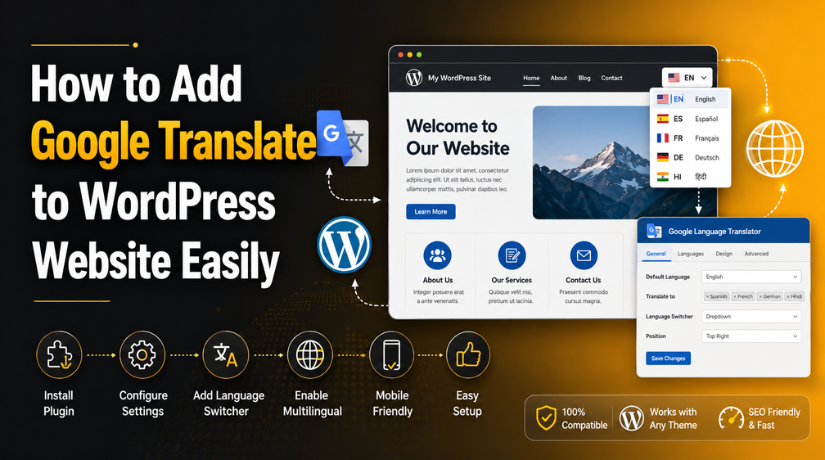
How to Add Google Translate to WordPress Website Easily
Introduction
A website should be easy for every visitor to understand. Today, many WordPress websites get visitors from different countries. Some visitors may not understand the website’s main language. This can stop them from reading your content properly. It can also stop them from contacting your business. That is why website translation is now very useful.
When you Add Google Translate to WordPress, visitors can read your website in their preferred language. They do not need to copy your content manually. They can choose a language directly from your website. This makes the browsing experience simple and comfortable.
A Google Translate WordPress setup is helpful for many websites. It works well for blogs, service websites, business websites, and support websites. It can also help stores that sell to different customer groups. If your website serves users from different regions, translation can improve their experience.
However, automatic translation is not always perfect. Some words may not translate with the correct meaning. Some brand messages may also sound different in another language. So, important pages should be checked carefully after translation. This includes service pages, product pages, legal pages, and checkout pages.
This guide will explain the basic meaning of Google Translate for WordPress. It will also explain how it works on a website. You will also understand the difference between automatic and manual translation. These points will help you choose the right method later.
What Is Google Translate for WordPress and How Does It Help Your Website?
Google Translate WordPress means adding a translation feature to your WordPress website. This feature helps visitors change website text into another language. It can make your content easier to read for global users.
In simple words, Google Translate helps convert website content automatically. A visitor selects a language from the available options. The website text then appears in the selected language. This makes the website more useful for users who prefer another language.
A WordPress language plugin usually adds this translation feature. The plugin places a language switcher on your website. This switcher can appear in the header, footer, menu, or sidebar. Some plugins also show it as a floating button.
When visitors click the switcher, they can select their language. The plugin then translates the website content for them. This may include pages, posts, menus, buttons, and basic form text. This helps users understand your website without leaving the page.
If you want to Translate WordPress website content quickly, this method works well. It is useful when you need simple language support. It is also helpful when your website gets visitors from many areas. A translation plugin can improve access without major website changes.
However, Google Translate is not the same as a full manual translation system. It mainly provides automatic translation. This means the content is translated by machine. It may not always match your brand voice. It may also miss local meaning in some languages.
Why Add Google Translate to a WordPress Website for Better Visitor Support?
Adding translation to your website can improve the visitor experience. Many websites now receive visitors from different countries and regions. Some visitors may not understand your default website language clearly. When they cannot read your content, they may leave quickly. This can reduce trust, leads, and possible sales. A Google Translate WordPress setup helps solve this problem easily. It allows visitors to read your content in their chosen language. This makes your website more useful for more people. It also makes your content easier to access for everyone. When users understand your website, they feel more confident. This confidence can help them contact you or buy faster.
Helps Visitors Read Website Content in Their Own Language
The main benefit of translation is better content understanding. Visitors can read your pages in their preferred language. They do not need to copy text into another tool. They can select a language directly on your website. This creates a faster and smoother browsing experience for them. A WordPress language plugin can make this process simple. It adds a language option where users can find it. The user clicks the option and chooses the required language. After that, the website content appears in that language. This helps users understand services, products, blogs, and contact details. It also helps visitors avoid confusion while reading important information.
Improves the User Experience for Global Website Visitors
A good website should feel easy for every visitor. Translation helps make your website more friendly and useful. Users can stay on your website without language difficulty. They can read details, compare options, and understand your message. This improves the overall user experience on your website. When visitors feel comfortable, they spend more time browsing. They may also visit more pages and read more content. A WordPress translation plugin can support this user journey. It helps users move through your website with less effort. This is useful for service websites, blogs, and business websites. A better experience can also support better conversion opportunities.
Useful for Business Websites That Serve Different Customer Groups
Business websites often serve users from many language backgrounds. Some customers may understand your language only partly. This can create gaps between your message and their needs. Translation helps reduce that gap in a simple way. When you Add Google Translate to WordPress, users can understand your offer better. They can read service details, pricing notes, and contact information. This helps them decide whether your business fits their needs. It also makes your brand look more helpful and accessible. Service businesses can use translation to support more visitors. Local businesses can also help multilingual communities near their area. This makes the website more useful for real customers.
Helpful for WooCommerce Stores and Product-Based Websites
WooCommerce stores can also benefit from website translation. Product pages often include important details for buyers. These details may include features, sizes, prices, and shipping notes. If visitors cannot understand them, they may not buy. A WordPress language plugin can help translate basic product content. It allows users to read product information in their language. This can improve trust before they add products to cart. It can also help users understand return policies and delivery details. However, store owners must test translation carefully after setup. Cart, checkout, and payment pages need special attention. These pages should remain clear, accurate, and easy to use.
Supports Global Reach and Wider Website Accessibility
A translated website can reach more visitors across the world. It helps people from different regions understand your content easily. This can support global visibility and better brand connection. A Multilingual WordPress website can also improve long-term growth. It gives visitors more ways to connect with your business. Even simple automatic translation can support basic global access. Users can read your blog posts, service pages, and resources. This makes your website more inclusive for different audiences. If your business serves international users, translation becomes more valuable. It can also help visitors trust your brand faster. Better access often leads to better user engagement.
Important Things to Know Before Adding Google Translate to WordPress
Before using translation, you should understand some important points. Translation can help your website, but it needs proper setup. A poor setup can affect design, speed, forms, and SEO. This is why you should plan the process carefully. The Best translation plugin for WordPress depends on your website goals. Some plugins are better for quick automatic translation. Others are better for SEO and manual editing. You should not choose a plugin only because it is popular. Check your website type, content needs, and visitor language needs. This helps you choose a better translation solution. Careful planning can prevent many common website problems later.
Automatic Translation May Not Always Give Perfect Meaning
Automatic translation is fast, but it is not always perfect. Some words may translate with the wrong meaning. Some sentences may also sound strange in another language. This can affect your brand message and user trust. A Google Translate WordPress setup can help basic understanding. But important pages should still be reviewed by humans. Service pages should explain your offer in clear language. Product pages should describe features without creating confusion. Legal and policy pages need accurate wording every time. Medical and financial content also needs extra care. Automatic translation is helpful, but manual review adds better quality. This balance can make your website safer and clearer.
Free Translation Tools May Not Fully Support Multilingual SEO
Many free translation tools work only for visitor display. They may translate visible content on the page only. They may not create separate translated pages for search engines. This means translated content may not rank in Google search. If SEO is important, you need better multilingual features. A complete Multilingual WordPress website may need translated URLs. It may also need translated titles, descriptions, and image alt text. Hreflang tags can also help search engines understand languages. Basic tools may not provide all these SEO features. So, choose your plugin based on your traffic goals. If you need rankings, use an SEO-ready translation solution.
Translation Can Affect Website Layout and Design
Translated text can be longer than your original content. This can change how sections appear on the website. Menu items may become wider after translation. Buttons may not have enough space for longer words. Headings may break into more lines than expected. This can affect desktop, tablet, and mobile layouts. A WordPress translation plugin should be tested after setup. Check the header, footer, buttons, forms, and cards. Also check pricing tables, banners, and product sections carefully. Your design should still look clean after translation. If layout issues appear, CSS adjustments may be needed. A clean layout helps users trust your website more.
Website Speed May Change After Adding Translation Features
Translation plugins may load extra scripts on your website. These scripts can affect page speed in some cases. A slower website can frustrate visitors and reduce engagement. It can also affect the browsing experience on mobile devices. Before setup, check how the plugin loads resources. After setup, test your website speed again. Clear cache and check pages in a fresh browser. Do not install multiple translation plugins at the same time. Multiple plugins can create conflicts and slow loading. A lightweight WordPress language plugin is better for basic needs. Also keep unused plugins removed from your website. A faster website gives users a better experience.
Forms and Checkout Pages Need Careful Testing After Translation
Forms often use labels, placeholders, and validation messages. These items may not always translate correctly. Some forms load text through scripts or plugin settings. This can stop translation from working on every field. Contact forms, quote forms, and booking forms need testing. WooCommerce checkout pages also need careful review after translation. Shipping labels, tax messages, and payment texts may stay unchanged. Some payment gateway content may come from outside WordPress. This means translation may not control every message. After you Translate WordPress website pages, submit test forms. Also test cart and checkout steps from start to finish. This helps prevent user confusion during important actions.
How to Add Google Translate to WordPress Website (Complete Guide)
Step 1: Take a Backup of Your WordPress Website
- First, save a backup of your website.
- This keeps your website safe before changes.
- Backup your website files and database.
- You can use your hosting backup option.
- You can also use a backup plugin.
- This helps you restore the site if needed.
- Do this before installing any WordPress translation plugin.
Step 2: Choose a Google Translate WordPress Plugin
- Now choose a good translation plugin.
- You can search for a Google Translate WordPress plugin.
- Check the plugin reviews before installing it.
- Check when the plugin was last updated.
- Choose a plugin that is easy to use.
- Make sure it works on mobile devices.
- A good WordPress language plugin should be simple.
- The Best translation plugin for WordPress depends on your website needs.
Step 3: Install and Activate the Plugin
- Log in to your WordPress dashboard.
- Go to Plugins > Add New.
- Search for the translation plugin.
- Click Install Now.
- Wait for the plugin to install.
- Click Activate.
- Now the plugin is ready to use.
- You can find its settings in the dashboard.
Step 4: Configure Plugin Settings


- Open the plugin settings page.
- Select your website’s main language.
- Choose the languages you want to show.
- Do not add too many languages.
- Too many options can confuse visitors.
- Choose the language switcher style.
- You can use a dropdown or flags.
- You can also use a floating button.
- Save the settings after making changes.
- Then check your website frontend.
Step 5: Add the Language Switcher to the Website
- Add the language switcher in a clear place.
- The header menu is a good option.
- Visitors can see it quickly there.
- You can also place it in the footer.
- A sidebar also works for blog websites.
- A floating button is also useful.
- Make sure it does not cover other buttons.
- It should not hide forms or chat icons.
- This helps users change language easily.
- It also improves your Multilingual WordPress website experience.
Step 6: Add Translator to Menu, Widget, or Shortcode Area
- Most plugins give different display options.
- You can add the translator to the menu.
- This is useful for easy access.
- You can also add it as a widget.
- Widgets work well in footer or sidebar areas.
- Some plugins also provide a shortcode.
- You can add that shortcode to any page.
- You can also use it in page builders.
- Choose the option that looks best.
Step 7: Test the Translation on Main Pages
- Now test the translation on your website.
- Start with the homepage.
- Then check your about page.
- Check your service pages too.
- Also test your blog posts.
- Check the contact page and form text.
- If you use WooCommerce, test product pages.
- Also test cart and checkout pages.
- This confirms your Translate WordPress website setup works.
- Fix any text or design issue you notice.
Step 8: Check Mobile and Tablet View
- Open your website on a mobile phone.
- Also check it on a tablet.
- Make sure the switcher is easy to tap.
- It should not cover the mobile menu.
- It should not hide CTA buttons.
- It should not overlap forms.
- Check if translated text looks clean.
- Some translated words may become longer.
- This can affect buttons and headings.
- Fix spacing if the design looks broken.
Step 9: Clear Cache and Test Again
- After setup, clear your website cache.
- Cache may show the old website version.
- Clear your WordPress cache plugin first.
- Then clear your browser cache.
- You can also test in incognito mode.
- If you use CDN, clear CDN cache.
- Now open your website again.
- Test the language switcher on desktop.
- Test it on mobile and tablet too.
- This confirms your Add Google Translate to WordPress setup works properly.
Common Problems After Adding Google Translate to WordPress Website
Adding translation is usually simple with a plugin. Still, some issues can appear after setup. These issues may affect design, speed, forms, or SEO. A Google Translate WordPress setup should always be tested carefully. Testing helps you find problems before visitors face them. Some issues happen because of plugin conflicts. Some issues happen because of theme styling. Cache settings can also stop new changes from showing. If you use a WordPress translation plugin, review every main page. Check the header, footer, forms, menus, and buttons. Also test your website on mobile and desktop devices. This helps keep the user experience smooth and professional.
Language Switcher Not Showing on the Website Properly
Sometimes the language switcher does not appear after setup. This can happen when plugin settings are not saved. It can also happen when the widget is not added correctly. Your theme may not support the selected display area. Cache can also show the older website version. In some cases, CSS may hide the language switcher. First, check your WordPress language plugin settings carefully. Make sure the switcher option is enabled there. Then check the menu, widget, or shortcode placement. Clear your website cache and browser cache after changes. Also test the website in a private browser window. This usually helps confirm if the issue is fixed.
Translation Button Not Working After Plugin Setup
The translation button may appear but not work properly. This usually happens because of JavaScript conflicts. Some cache or speed plugins can also block scripts. Security plugins may stop external translation scripts from loading. Browser extensions can also affect the translation button sometimes. If the button fails, disable cache minification temporarily. Then test the website again in a fresh browser. You can also deactivate other plugins one by one. This helps find the plugin causing the issue. Do not leave broken buttons visible on your website. A broken translation button can reduce visitor trust quickly. A working button is important for a smooth experience.
Website Layout Breaks After Content Is Translated
Translated text can be longer than the original text. This can affect your website layout in many areas. Menu items may become too wide after translation. CTA buttons may not fit longer translated words. Headings can break into more lines than expected. Product cards and pricing tables may also look uneven. This issue is common on a Multilingual WordPress website. You should check all important sections after translation. Review the homepage, service pages, forms, and product pages. If the layout breaks, adjust spacing and font sizes. You may also need small CSS changes. Clean design helps users trust your website more.
Mobile View Looks Messy After Adding Translation Option
Mobile view needs special care after translation setup. A floating language button can overlap important content. It may hide chat buttons, forms, or CTA buttons. A wide dropdown can also break the mobile header. Sometimes the mobile menu becomes crowded after adding languages. This can make the website hard to use. Always test your Google Translate WordPress setup on phones. Check different screen sizes for a better review. Make sure users can tap the language option easily. Also confirm that translated text does not break sections. Mobile visitors should get a clean and easy experience. Good mobile design supports better engagement and conversions.
Forms Are Not Translating Correctly on WordPress Website
Contact forms may not always translate perfectly. Some form labels are controlled by form plugin settings. Some placeholder text may load through JavaScript. Validation messages may stay in the default website language. This can confuse visitors who selected another language. After you Translate WordPress website pages, test every form carefully. Submit a test enquiry in each selected language. Check labels, placeholders, buttons, and error messages properly. Also test newsletter forms and quote request forms. If some text does not translate, edit it manually. You may need plugin-specific translation settings for forms. Clear form text helps visitors complete actions without confusion.
WooCommerce Checkout Translation Issues Need Extra Testing
WooCommerce websites need more careful translation testing. Product pages may translate well, but checkout may not. Cart, checkout, and payment pages include dynamic text. Shipping labels may come from a third-party plugin. Payment gateway messages may come from external services. These messages may not translate through every plugin. If you use WooCommerce, test the full buying process. Add a product to cart and open checkout. Review billing fields, shipping fields, and order notes. Also check tax messages, payment text, and confirmation pages. A good WordPress translation plugin should not break checkout flow. Clear checkout content helps users complete purchases with confidence.
Best Practices for WordPress Website Translation Setup
Translation works better when your setup is planned properly. You should not install a plugin and forget testing. A translation feature affects content, design, speed, and SEO. So, every important page should be reviewed after setup. Use one trusted WordPress language plugin only. Multiple translation plugins can create conflicts and slow loading. Keep the language switcher simple and easy to find. Use clear language across your website content. Short and simple sentences usually translate more accurately. Also review sensitive pages before sharing them with visitors. These small steps can improve quality and reduce problems. A careful setup creates a better multilingual experience.
Keep the Language Switcher Easy for Visitors to Find
The language switcher should be visible and simple. Visitors should not search too hard for it. Header placement is usually best for most websites. It keeps the language option near the main menu. Footer placement can work for cleaner website designs. Sidebar placement works well for blogs and resource websites. Floating buttons can help users switch language anytime. But they should not block important website elements. Avoid placing the switcher inside crowded sections. Also make sure it works on mobile devices. A clear switcher improves the value of translation. It helps users read your website without extra effort.
Use Simple Website Content for Better Automatic Translation
Simple content translates better than complex content. Avoid very long sentences when writing website pages. Also avoid slang, unclear phrases, and confusing terms. Google Translate can understand clean wording more easily. This makes translated content clearer for website visitors. Use direct words for buttons, headings, and forms. Short paragraphs also help users read content faster. A clear content style supports every translation plugin. It also improves the original website experience for all visitors. If your content is simple, translation errors may reduce. This helps your Google Translate WordPress setup perform better. Better content creates better understanding across different languages.
Review Important Website Pages Manually After Translation
Automatic translation is useful, but review is still important. Your main pages should always be checked manually. Start with your homepage and main service pages. Then check product pages, pricing pages, and contact pages. Also review legal pages, privacy policy, and checkout pages. These pages can affect trust, sales, and customer decisions. Wrong translation on important pages can confuse visitors. It can also make your brand message look weak. Manual review helps improve accuracy and clarity. You can start with automatic translation for speed. Then improve important pages with careful editing. This gives better quality and a more professional website.
Test Website Speed After Adding Translation Plugin
Translation plugins may add extra files and scripts. These files can affect page speed in some cases. A slow website can reduce user experience and conversions. After adding translation, test your website speed again. Check both mobile and desktop performance results. Review if the plugin loads too many resources. Also clear cache and test pages again properly. Avoid using more than one translation plugin together. Remove unused plugins that are no longer needed. Optimize images, cache, and scripts when possible. A fast website helps visitors browse without frustration. Speed testing should be part of every translation setup.
Check SEO Settings for Multilingual Website Growth
If you want multilingual traffic, check SEO settings carefully. Basic automatic translation may not support SEO growth. You may need translated URLs for different languages. You should also translate SEO titles and meta descriptions. Image alt text should match the translated page language. Internal links should guide users between related translated pages. Hreflang tags can help search engines understand language targeting. A strong Multilingual WordPress website needs more than visible translation. It needs proper SEO structure for each language version. Choose the Best translation plugin for WordPress based on these goals. Good SEO setup helps translated content perform better online.
Keep Translation Plugins Updated and Test After Updates
Your translation plugin should always stay updated. Updates can fix bugs, security issues, and compatibility problems. Older plugins may create errors with newer WordPress versions. They may also stop working with updated themes or builders. Before updating, take a fresh website backup. After updating, test your website again carefully. Check the language switcher, forms, menus, and checkout pages. Also test mobile view after major plugin updates. If something breaks, restore or fix it quickly. Plugin updates are important for a secure website. Regular testing keeps your translation feature reliable for visitors.
Conclusion
Adding Google Translate to WordPress is a useful step. It helps visitors read your website in different languages. It can improve access, comfort, and user experience. A WordPress translation plugin makes the setup easier for beginners. You can add a switcher, choose languages, and test pages. However, automatic translation should not be trusted blindly. Important pages need manual review for better accuracy. Website owners should also test speed, design, forms, and SEO. A clean setup helps your website feel more professional. It also supports users from different language backgrounds. With proper testing, translation can make your website more helpful.
If you want to Add Google Translate to WordPress without plugin, layout, or speed issues, 24x7wpsupport can help. Our team can install the right translation plugin and configure it properly. We can also add the language switcher in a clean position. We test pages, forms, mobile layout, and basic functionality. This helps your visitors get a smooth translation experience. Visit 24x7wpsupport to get expert WordPress support for your website.
Related posts:



Brian is a WordPress support specialist and content contributor at 24×7 WP Support. He writes practical, easy-to-follow guides on WordPress troubleshooting, WooCommerce issues, plugin and theme errors, website security, migrations, performance optimization, and integrations. With a focus on solving real website problems, Brian helps business owners, bloggers, and online store managers keep their WordPress sites running smoothly.
