
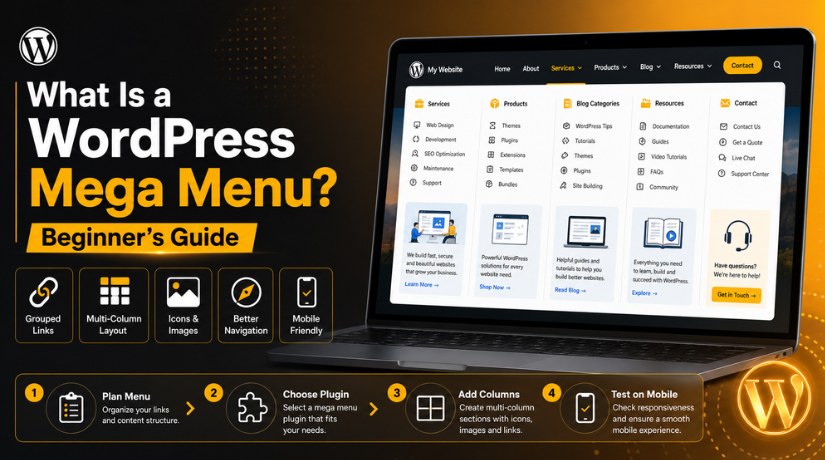
What Is a WordPress Mega Menu? Beginner’s Guide
Introduction: Why Website Navigation Matters
User experience is significantly impacted by website navigation. It helps visitors find important pages without confusion. A clear menu also makes your website feel simple and professional.
Users anticipate quick access when they visit your website. They may look for services, products, blogs, pricing, or contact details. If they cannot find these pages quickly, they may leave. Leads, sales, and user trust may all suffer as a result.
A small website can work well with a basic menu. For example, a website with Home, About, Services, Blog, and Contact pages needs simple navigation. But larger websites need better menu planning. They may have many services, categories, products, or resources.
This is where a mega menu becomes helpful. Many beginners ask, What is a WordPress mega menu and why should they use it? The answer is simple. It is an advanced menu layout that shows more options in a clean way.
A well-planned menu can help users:
- Find important pages faster.
- Browse services without extra clicks.
- Understand your website structure clearly.
- Move between categories with less effort.
- Stay longer on your website.
What Is a WordPress Mega Menu?
A big dropdown menu is called a WordPress mega menu. It shows many links in one expanded menu area. Unlike a basic dropdown, it does not show one long list. Instead, it groups links into columns and sections.
In WordPress, a mega menu can have a lot of helpful components. You can add page links, categories, images, icons, buttons, and short text. This makes navigation more visual and easier to scan.
An online retailer, for instance, can clearly display product categories. A service website can group services by type or industry. A blog can display content categories in an organized way.
A mega menu works best for websites with many pages. It facilitates users’ rapid access to the appropriate section. It also keeps the header clean and easy to use. When created properly, it improves navigation without making the website confusing.
How a Mega Menu Is Different From a Normal Dropdown Menu
A normal dropdown menu is simple and small. It usually shows a short list of links under one menu item. This works well for basic websites with fewer pages. A small business website, for instance, might only require five primary pages.
A mega menu works in a bigger and clearer way. It shows many links inside one large dropdown area. These links can appear in columns, groups, or sections. This facilitates scanning and comprehension of the menu.
A normal dropdown may become hard to use when it has many links. Long dropdown lists can look messy on large websites. On mobile devices, they could potentially be confusing to users. A mega menu in WordPress helps solve this problem with better structure.
Here is the simple difference:
Here is the table content written in text format:
A normal dropdown menu shows a short list of links. A WordPress mega menu shows grouped links in columns.
A normal dropdown menu works best for small websites. A WordPress mega menu works better for larger websites.
A normal dropdown menu has limited design options. A WordPress mega menu can include icons, images, headings, and buttons.
A normal dropdown menu can become long and messy. A WordPress mega menu keeps links more organized.
A normal dropdown menu is useful for simple navigation. A WordPress mega menu is better for detailed website navigation.
A mega menu is also more visual than a normal dropdown. You can add headings, icons, buttons, or categories. This helps users understand the menu faster.
When Should You Use a Mega Menu in WordPress?
When your website has a lot of pages, you should use a mega menu. It is helpful when a simple menu cannot organize everything clearly.
A mega menu works well for:
- Service websites with many service pages.
- WooCommerce stores with many product categories.
- Blogs with many content sections.
- Agencies offering different solutions.
- Education websites with courses and resources.
- Directory or membership websites with many options.
However, every website does not need a mega menu. A small website with five to seven pages may not need it. A simple menu can work better in that case.
Use a mega menu only when it improves navigation. It should help users find information faster. It should not make the website header heavy or confusing.
Main Benefits of Using a WordPress Mega Menu
A WordPress mega menu helps visitors browse your website easily. It gives users a clear path to important pages. Websites with numerous sections can benefit greatly from this.
A basic dropdown can feel limited on larger websites. It may hide important pages inside a long list. A mega menu solves this issue with better grouping. It lets you organize related pages under clear headings.
Here are the main benefits of using a mega menu:
Better User Experience
A mega menu helps users find pages faster. Visitors can scan links, categories, and sections easily. This reduces confusion and saves time during browsing.
Cleaner Website Structure
A mega menu keeps your navigation neat and organized. You can group services, products, or blog topics clearly. This helps users understand your website layout quickly.
Helpful for Large Websites
Large websites often have many important pages. A mega menu can display them without crowding the header. It keeps the main menu clean and useful.
Better Product Discovery
WooCommerce stores can use mega menus very well. Store owners can show product categories, brands, or offers clearly. This helps shoppers reach products with fewer clicks.
More Visual Navigation


A mega menu can include icons, images, and short text. These elements make navigation easier to understand. They also make the menu look more modern.
Supports Internal Linking
A mega menu can link to important website pages. This helps users reach key pages from the header. It also supports a better browsing flow across the site.
What Can You Add Inside a WordPress Mega Menu?
Many helpful items can be found in a WordPress mega menu. These items should help users find information faster.
You can add:
- Page links
- Blog categories
- Product categories
- WooCommerce product links
- Service groups
- Icons and images
- Short descriptions
- Buttons or call-to-action links
- Contact links
- Login or account links
However, avoid adding too many items inside the menu. A mega menu should make navigation simple, not crowded. Use only useful links that guide visitors clearly. A clean menu builds trust and improves the overall website experience.
How to Add Mega Menu in WordPress
Learning how to add mega menu in WordPress is simple. For this work, advanced coding knowledge is not required. Most beginners can create one using a plugin. A plugin gives you ready options for layout, columns, icons, and design.
Step 1: Plan Your Menu Structure
Start by planning your menu before building it. Write down your main pages, categories, and service sections. Then group related links under clear menu headings. This step helps you avoid a crowded menu later.
For example, a service website can group services by category. A store can group products by type, brand, or use.
Step 2: Choose a WordPress Mega Menu Plugin
A WordPress mega menu plugin helps you create advanced menus easily. It gives you settings for columns, colors, icons, widgets, and layouts. Numerous plugins are compatible with the menu system you currently have in WordPress.
Select an easy-to-use plugin. Also check mobile support, update history, and theme compatibility.
Step 3: Install and Activate the Plugin
Go to your WordPress dashboard first. Then open Plugins > Add New from the left menu. Look for the mega menu plugin that you have chosen. Click Install Now, then click Activate.
After activation, check the plugin settings carefully. Some plugins add options under Appearance > Menus. Others may create a separate menu settings page.
Step 4: Connect the Plugin With Your Existing Menu
Most plugins use your current WordPress menu. You can open Appearance > Menus and select your menu. Then enable the mega menu option for the required menu item.
This lets you turn one dropdown into a mega menu. Rebuilding the entire menu is not necessary.
Step 5: Add Columns, Links, and Design Elements
Now add your menu content in a clean layout. You can add pages, categories, icons, buttons, images, or widgets. Make each section brief and simple to read.
Use clear headings for every group. This helps visitors understand the menu quickly.
Step 6: Test the Menu on Desktop and Mobile
Always test your mega menu after setup. Check it on desktop, tablet, and mobile screens. Make sure every link opens the right page. Also check that the menu does not cover important content.
Best Free Mega Menu Plugin WordPress Users Can Try
Beginners often search for the best free mega menu plugin WordPress users can install. Some popular options include Max Mega Menu, QuadMenu, RT Mega Menu, and ThemeHunk Mega Menu.
Before choosing any plugin, check these points:
- It should support mobile menus.
- It should work with your active theme.
- It should have recent updates.
- It should be simple for beginners.
- It should not slow down your website.
Install only one menu plugin at a time. Multiple menu plugins can create design conflicts. A simple, stable plugin is always the better choice.
Best Practices for Creating a User-Friendly Mega Menu
A mega menu should make website navigation simple and clear. There shouldn’t be too many options to confuse users. Always keep the layout clean, balanced, and easy to scan.
Use clear menu labels for every section. Avoid clever words that beginners may not understand. Group related pages under the right headings. This helps visitors find pages with less effort.
Follow these simple best practices:
- Keep the menu layout simple.
- Use short and clear labels.
- Group similar links together.
- Avoid adding too many columns.
- Place important pages near the top.
- Use icons only when they add value.
- Match the menu design with your website.
- Test the menu speed after setup.
- Check mobile layout before publishing.
For any WordPress website, mobile testing is crucial. Many users browse websites from phones. Your mega menu should open smoothly on smaller screens.
Common Mistakes Beginners Should Avoid
Beginners often add too many links inside one menu. This makes the menu crowded and hard to use. A mega menu should guide users, not overwhelm them.
Avoid these common mistakes:
- Adding every page inside the menu.
- Using unclear or long menu labels.
- Ignoring mobile responsiveness.
- Using heavy images inside the menu.
- Installing multiple menu plugins together.
- Not testing the menu after updates.
- Turning every menu item into a mega menu.
Keep your menu useful, light, and easy to manage.
Conclusion
A WordPress mega menu helps organize large website navigation. Online retailers, blogs, and service websites all benefit from it. Beginners can create one easily with the right plugin.
If you need help creating a clean and mobile-friendly mega menu, contact 24×7 WP Support. Your website’s navigation can be enhanced by our WordPress specialists.
FAQs
1. What is a WordPress mega menu?
A WordPress mega menu is a large dropdown menu. It shows many links, categories, and sections in one area. It helps users find important pages faster.
2. Do I need a mega menu for every WordPress website?
No, every website does not need a mega menu. Small websites can use a simple menu. A mega menu is better for large websites with many pages.
3. How can I add a mega menu in WordPress?
You can add a mega menu using a WordPress plugin. Install a mega menu plugin, connect it with your menu, and add columns, links, or icons.
4. What is the best free mega menu plugin WordPress users can try?
Some popular free options include Max Mega Menu, QuadMenu, RT Mega Menu, and ThemeHunk Mega Menu. Always check updates, reviews, and theme support first.
5. Can a mega menu improve user experience?
Yes, a mega menu can improve user experience. It organizes pages clearly and helps visitors reach important content quickly. It also makes large websites easier to browse.

Brian is a WordPress support specialist and content contributor at 24×7 WP Support. He writes practical, easy-to-follow guides on WordPress troubleshooting, WooCommerce issues, plugin and theme errors, website security, migrations, performance optimization, and integrations. With a focus on solving real website problems, Brian helps business owners, bloggers, and online store managers keep their WordPress sites running smoothly.
