
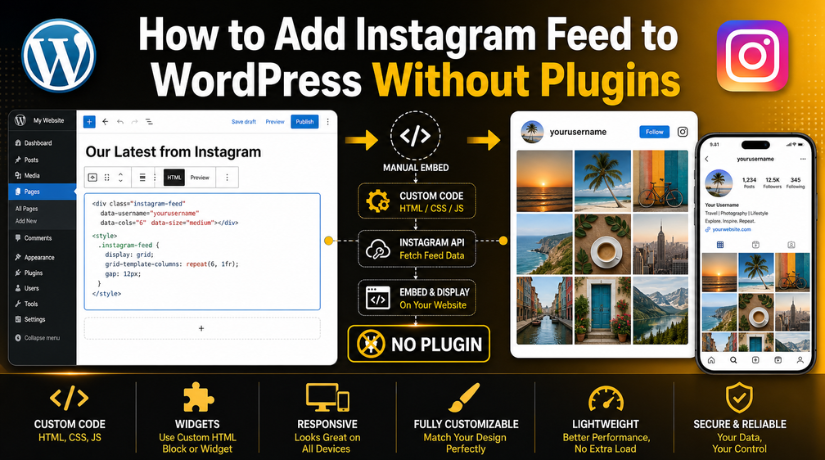
How to Add Instagram Feed to WordPress Without Plugins
Introduction
Many website owners use Instagram to share fresh brand updates. It may include product photos, reels, events, offers, or customer stories. When you show this content on WordPress, your website looks more active and trusted.
Many users want to add Instagram feed to WordPress without plugins because they prefer a lighter website. Every plugin adds files, scripts, and update needs. Some plugins may also conflict with themes or other tools. That is why a manual method can be useful for simple needs.
This method works well when you want to show selected Instagram content. For example, you can display a recent product post, event photo, or testimonial post. It helps visitors see your social activity without leaving your website.
A manual Instagram section can help with:
- Showing social proof on important pages
- Highlighting real photos from your brand
- Keeping pages visually engaging
- Reducing the need for extra plugins
- Giving users quick access to your Instagram profile
This approach is simple, clean, and useful for small websites. It gives you more control over what appears on your site.
What Does “Instagram Feed Without Plugin” Really Mean?
An Instagram feed WordPress without plugin setup usually means manual embedding. It does not always mean a live, auto-updating feed. This is an important point to understand before starting.
With the manual method, you can display public Instagram posts, reels, or selected profile content. You can place them inside a WordPress post, page, sidebar, or landing page. However, these posts do not update automatically when you publish new Instagram content.
So, this method is best for selected Instagram highlights. It is not best for users who need a fully automatic feed.
You can use this method when you want:
- Selected posts on service pages
- Product photos on landing pages
- Event posts inside blog content
- Brand updates on the homepage
In simple words, this topic is about manually showing Instagram content on WordPress. It helps you avoid plugins while keeping your page clean and useful.
Can New Instagram Posts Automatically Show on WordPress?
New Instagram posts do not automatically show on WordPress with manual embedding. This is the most important point to understand. When you add a post manually, WordPress only displays that selected post.
So, if you publish a new post on Instagram, it will not appear by itself. You must copy the new post link or embed code. Then, you must add it again to your WordPress page.
This manual method is useful for simple display needs. It works well when you want to show selected posts only. However, it is not a live Instagram feed.
For automatic updates, you need a more advanced setup, such as:
- Instagram Graph API integration
- Custom WordPress integration
- Instagram feed plugin
- Third-party Instagram feed service
These options can pull new Instagram posts automatically. They can show your latest content after you publish it. However, they need extra setup and regular checking.
Manual embedding is still a good choice for many websites. It gives you full control over which posts appear. It also avoids extra plugin load on your website.
Method 1: Embed an Instagram Post Manually Using Embed Code
The embed code method is a simple way to show Instagram content. It lets you place a public Instagram post inside WordPress. This is useful when you want to embed Instagram feed in WordPress without plugin for selected content.
Follow these steps to add the post manually:
- Open Instagram on a desktop browser.
- Visit the public post or reel.
- Click the three-dot menu.
- Choose the embed option.
- Copy the embed code.
- Open your WordPress page or post.
- Add a Custom HTML block.
- Paste the copied Instagram code.
- Preview and update the page.
This method works best for public posts and reels. You can use it for product images, customer posts, event photos, and brand updates.
Make sure the Instagram post is public. Private posts may not display on your website. Also, check the page after publishing. This helps confirm the embed looks correct on desktop and mobile.
This method is quick, clean, and plugin-free. It is a good option when you only need selected Instagram content.
Method 2: Paste the Instagram Post URL in WordPress Editor
Another simple method is to paste the Instagram post URL. This method is easier than using embed code. It works well for users who want a quick option.
To use this method, first open Instagram in your browser. Then, visit the public post or reel you want. Copy the post URL from the browser address bar. You can also copy the link from the Instagram share option.
Now open your WordPress post or page. Paste the Instagram URL into a new block. WordPress may convert the link into an embed block. After that, preview the page and check the display.
Follow these steps:
- Copy the public Instagram post URL.
- Open the WordPress post or page.
- Paste the URL into a new block.
- Wait for WordPress to create the embed.
- Preview the page on the frontend.
- Update or publish the page.
This is a clean way to learn how to add Instagram feed manually in WordPress. However, it may not work on every site. Some themes, security rules, or editor settings may block embeds.
Method 3: Create a Manual Instagram Feed Layout Using Multiple Embeds
You can also create a feed-like Instagram section manually. This method uses several Instagram embeds together. It helps your page look like a simple Instagram feed.
To do this, select your best Instagram posts first. Choose posts that support your page goal. For example, use product photos on product pages. Use event posts on event pages. Use customer posts for social proof.
Then, add each post inside a clean layout. You can use WordPress Columns, Group, or Row blocks. Place each Instagram embed inside a Custom HTML block. This helps you display Instagram feed on WordPress without plugin in a simple way.


Follow these steps:
- Select 3, 6, or 9 Instagram posts.
- Copy the embed code for each post.
- Open the target WordPress page.
- Add a Columns or Group block.
- Add Custom HTML blocks inside columns.
- Paste each Instagram embed code.
- Add a heading like “Follow Us on Instagram.”
- Add a button linking to Instagram.
- Test the section on desktop and mobile.
This layout can look like a real feed. But it is still fully manual. You must replace old posts yourself when needed.
Best Places to Display Instagram Content on WordPress
Instagram content works best when it supports the page goal. Do not place embeds only for decoration. Use them where they add trust, proof, or visual value.
You can display Instagram content in these areas:
- Homepage social proof section
- About page brand story section
- Product or service pages
- Blog posts about events or updates
- Portfolio or gallery pages
- Campaign landing pages
- Footer or sidebar section
For example, a service page can show client results. A product page can show real product photos. An event blog can show related Instagram posts.
Avoid adding Instagram embeds on every page. Too many embeds can slow your website. They can also distract visitors from your main content.
How Many Instagram Posts Should You Embed?
Fewer Instagram embeds usually work better. Each Instagram post loads external scripts from Instagram. These scripts may increase page loading time.
Use a small number of posts based on the page purpose:
- Use 1 post inside a blog article.
- Use 3 posts for a small homepage section.
- Use 6 posts for a feed-like layout.
- Avoid 9 or more posts unless needed.
A clean layout gives users a better reading experience. It also helps your WordPress page stay faster.
Common Issues When Adding Instagram Feed Without Plugins
Manual Instagram embeds are simple, but issues can still happen. Most problems come from account privacy, deleted posts, or site settings.
Here are common issues to check:
Private Instagram account: Private posts usually do not show on public websites.
Deleted or restricted post: Removed or limited posts may stop displaying on WordPress.
URL not converting: WordPress may not convert the Instagram URL automatically.
Mobile layout issue: Some themes may break the embed layout on small screens.
Slow page speed: Too many embeds can increase page load time.
No automatic updates: New Instagram posts will not appear by themselves.
Always preview the page after adding embeds. Check both desktop and mobile views before publishing.
Tips to Keep Manual Instagram Embeds Clean and Fast
Manual Instagram embeds should support your content, not slow it down. Use only posts that add real value to the page. Avoid adding too many Instagram posts in one section.
Follow these simple tips:
- Use only your best Instagram posts.
- Keep 3 to 6 embeds on one page.
- Place embeds below your main message.
- Test the section on mobile devices.
- Check page speed after adding embeds.
- Add a clear Instagram follow button.
- Replace old posts when they become outdated.
These steps help keep your page clean and easy to use. They also improve the visitor experience.
When Should You Use This No-Plugin Method?
This no-plugin method is best for simple display needs. It works well when you want full control over selected posts.
You can use it for:
- Small business websites
- Blog articles
- Portfolio pages
- Event pages
- Product highlight sections
- Social proof sections
This method is also useful when you want fewer plugins. It helps reduce extra plugin updates and possible conflicts.
Conclusion
You can add Instagram content to WordPress without plugins. Use embed code, post URLs, or multiple manual embeds. This works well for selected posts and simple layouts.
However, manual embeds do not update automatically. For live updates, you need an API, plugin, or custom setup.
Need help adding Instagram content without slowing your site? 24x7WPSupport can set it up properly.
Related posts:
How To Make An Online Magazine With WordPress
How to Fix WordPress Allowed Memory Size Exhausted Error in Websites
WordPress Plugin Conflicts
How to Integrate Magento with WordPress: Complete Step-by-Step Guide
Is the site experiencing technical difficulties? Find out the reasons and the potential ways to fix ...

Brian is a WordPress support specialist and content contributor at 24×7 WP Support. He writes practical, easy-to-follow guides on WordPress troubleshooting, WooCommerce issues, plugin and theme errors, website security, migrations, performance optimization, and integrations. With a focus on solving real website problems, Brian helps business owners, bloggers, and online store managers keep their WordPress sites running smoothly.
