
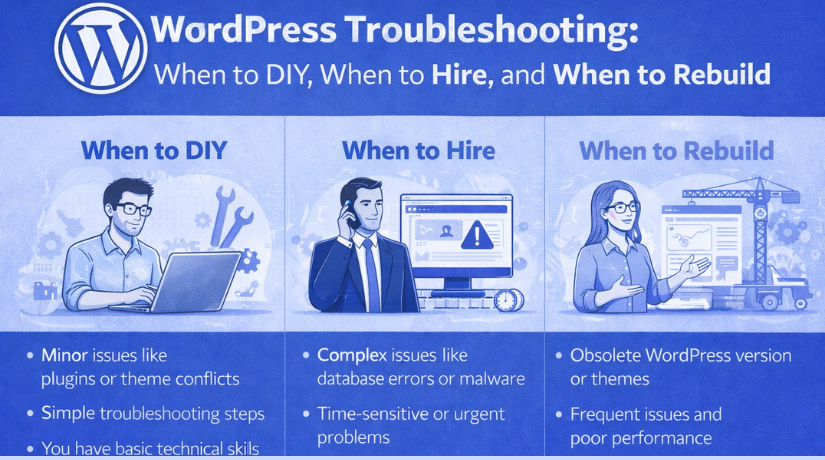
WordPress Troubleshooting: When to DIY, When to Hire, and When to Rebuild
Last updated on April 15th, 2026 at 06:22 am
Introduction
Your WordPress site just broke. Maybe it’s the white screen of death. Maybe your contact form stopped sending emails three weeks ago and you just found out from an angry customer. Maybe you updated a plugin and now half your pages look like a ransom note written by someone who hates fonts.
You’re staring at your screen wondering: can I fix this myself, or am I about to make things significantly worse?
This is the question that haunts every WordPress site owner. The answer isn’t always obvious, and getting it wrong costs real money. Fix something simple yourself and you save hundreds. Try to DIY a complex database issue and you might spend your entire weekend making things worse while your site stays offline.
This guide gives you a practical framework for making that call. You’ll learn which problems are safe to tackle yourself, which ones need professional help, and when your site has grown past the point where patches and plugins can save it.
The Real Cost of WordPress Problems
When to DIY: Problems You Can Fix Yourself
Before we talk about solutions, let’s talk about what’s actually at stake.
A 2023 study by Jepto found that website downtime costs small businesses an average of $427 per minute. That sounds dramatic until you do the math on a site making $5,000/month in sales. Eight hours of downtime during a busy period wipes out nearly 15% of your monthly revenue.
But downtime is just the obvious cost. The hidden costs are worse.
Lost trust. When a customer visits your site and sees an error page, they don’t wait around. They hit the back button and go to your competitor. A survey by HubSpot showed that 88% of online consumers are less likely to return to a site after a bad experience. That’s not just one lost sale. That’s a customer relationship that never happens.
SEO damage. Google’s crawlers visit your site regularly. If they hit errors repeatedly, your rankings suffer. A site that stays broken for a week can take months to recover its search positions. And you might never know how much traffic you lost during the recovery period.
Security exposure. That “minor” plugin conflict you’ve been ignoring? It might be masking a vulnerability. Sucuri’s 2024 report found that 56% of hacked WordPress sites had at least one outdated plugin with a known security flaw. The problem you’re putting off could be the backdoor someone exploits.
Your time. This is the cost nobody calculates honestly. If you spend six hours trying to fix something a professional could handle in 45 minutes, what did that actually cost you? If your hourly rate is $75, you just spent $450 to save a $150 repair bill. You also lost a day you could have spent on revenue-generating work. And that’s assuming you actually fix the problem.
The goal isn’t to fix everything yourself. It’s to fix the right things yourself and know when to call for backup.
When to DIY: Problems You Can Fix Yourself
Good news: most WordPress problems fall into a handful of categories, and many of them are genuinely fixable by non-developers. Here’s what you can safely tackle.
Plugin conflicts. This is the most common WordPress issue. You update something, and suddenly your site looks wrong or throws errors. The fix: deactivate all plugins, then reactivate them one by one until you find the culprit. You can do this from your WordPress dashboard. If you can’t access your dashboard, use FTP to rename the plugins folder (this deactivates all plugins), then rename it back and test each one. Time required: 15-45 minutes. Risk level: Low, as long as you have a backup.
Theme conflicts after updates. Your theme updated and now your header looks weird, or your fonts changed, or that custom CSS you added disappeared. Check if your theme has a changelog. Often the update overwrites customizations made directly to theme files. If you edited theme files directly, you’ll need to re-add those changes. Better yet, use a child theme going forward so updates don’t erase your work. Time required: 30 minutes to 2 hours. Risk level: Low to medium.
Slow page speed. Your site loads in 6 seconds when it should load in 2. Start with the basics. Install a caching plugin like WP Super Cache or W3 Total Cache. Compress your images using ShortPixel or Imagify. Remove plugins you’re not using. These three steps solve most speed problems without touching code. Time required: 1-3 hours. Risk level: Low.
Broken links and 404 errors. You’ve got pages returning “not found” errors, or internal links pointing to content that moved. Use a plugin like Broken Link Checker to scan your site. For pages that moved, set up 301 redirects using the Redirection plugin. Time required: 1-2 hours. Risk level: Very low.
Contact form issues. Your contact form stopped sending emails, or submissions are going to spam. WordPress’s default email function is unreliable. Install WP Mail SMTP and configure it with your email provider’s SMTP settings. This fixes the problem for 80% of sites. Time required: 30-45 minutes. Risk level: Low.
The common thread: these problems have clear solutions, minimal risk of making things worse, and plenty of tutorials available. If your issue fits one of these patterns, give it a shot yourself first.
That said, there’s a point where DIY becomes expensive in ways that aren’t immediately obvious. When your business depends on complex integrations or custom functionality, working with custom web application development services becomes the smarter financial decision. The same logic applies to WordPress troubleshooting: some problems look simple but hide complexity that only becomes apparent after you’ve spent hours on them.
When to Hire Help: Problems That Need Professional Eyes
Some WordPress problems look fixable but aren’t. Others are fixable but not by someone without specific technical knowledge. Here’s when to pick up the phone.
Database corruption or errors. You’re seeing messages like “Error establishing database connection” or your posts are displaying garbled content. The WordPress database stores everything: posts, pages, user accounts, settings, plugin configurations. One wrong query can delete content permanently. Database repair requires understanding MySQL, knowing how to run queries safely, and having verified backups you can restore from. Professionals diagnose whether it’s a connection issue or table corruption, then repair safely. Cost: $75-300 depending on complexity.


Hacked sites. Your site is redirecting to spam pages, showing content you didn’t create, or Google is flagging it as dangerous. Hackers don’t just add one file. They plant backdoors throughout your site, in the database, in seemingly innocent files, in places you’d never think to look. Cleaning one infection while missing three others means you’ll be hacked again within days. Sucuri’s data shows DIY malware removal has over 60% reinfection rates. Professionals use specialized scanning tools and handle Google blacklist removal. Cost: $200-500 for standard cleanups.
SSL/HTTPS migration issues. You installed an SSL certificate but now you’re getting mixed content warnings, broken images, or redirect loops. HTTPS migration touches your database, your .htaccess file, your wp-config.php, and potentially every piece of content on your site. The wrong approach creates redirect loops that lock you out of your dashboard. Cost: $100-250.
Server configuration problems. Your host says the problem is your site. Your site logs suggest it’s the server. You’re stuck in the middle with no answers. Server configuration involves PHP settings, memory limits, file permissions, and a dozen other variables that interact in unpredictable ways. Without server access and Linux command line knowledge, you can’t even diagnose the problem properly. Cost: $100-400.
E-commerce payment issues. Your WooCommerce checkout is failing, payment gateways aren’t connecting, or orders are going through but not recording properly. Payment processing involves sensitive customer data. Debugging requires access to gateway settings, API logs, and sometimes direct communication with payment processors. Getting it wrong means lost sales or duplicate charges. Cost: $150-400.
The pattern here: these problems either involve sensitive data, risk permanent damage, or require technical knowledge that takes years to develop. Paying a professional isn’t an expense. It’s risk management.
When to Rebuild: Signs Your Site Has Outgrown Patches
Sometimes the honest answer isn’t “fix it yourself” or “hire someone to fix it.” Sometimes it’s “this site needs to be rebuilt from the ground up.”
This is hard to hear when you’ve invested years into your current site. But continuing to patch a fundamentally broken foundation costs more in the long run than starting fresh.
Your site is a Frankenstein of plugins. You’ve got 45 plugins installed. Ten of them do overlapping things. Three haven’t been updated in two years. You’re afraid to remove any of them because you don’t remember what depends on what. Every plugin is a potential security vulnerability. Sites with 40+ plugins have significantly higher maintenance costs and security incidents than sites with 15-20.
Performance can’t be fixed. You’ve tried caching, optimized images, upgraded hosting. Your site still loads in 5 seconds. Often the culprit is a bloated theme with thousands of lines of unused CSS, or a page builder that generates inefficient code. Replacing these requires rebuilding your pages anyway.
Your site can’t support your business needs. You need membership functionality, but your current setup makes it a nightmare. Your site needs to integrate with your CRM, email platform, and booking system, but every integration is held together with duct tape. Your website should enable your business, not constrain it.
Security has been compromised multiple times. You’ve been hacked twice in the past year despite cleanup efforts. Repeated infections usually indicate compromised core files or backdoors that keep getting missed. At some point, cleaning becomes more expensive than replacing.
You’ve outgrown WordPress. Your traffic has grown to millions of visitors. Your application logic has become complex enough that you’re fighting against WordPress instead of working with it. WordPress powers 43% of the web, but it’s not the right tool for every job.
The common thread: the cost of maintaining the status quo exceeds the cost of rebuilding. That’s the tipping point where patches stop making sense.
The Decision Framework
When something breaks, run through these questions in order:
- Is your site completely down or just malfunctioning? If completely down, contact your host first. Many “site down” issues are server problems that only they can fix.
- Do you have a recent backup? If yes, you can attempt DIY fixes knowing you can restore if things go wrong. If no, create a backup before touching anything.
- Can you identify what changed before the problem started? Did it break after a plugin update? After you edited a file? Start your troubleshooting there.
- Is this problem documented with clear solutions? Search your exact error message plus “WordPress fix.” Multiple tutorials from reputable sources means you can probably DIY it.
- What’s the actual cost of your time? Calculate DIY time, multiply by your hourly rate, compare to professional help. Include downtime costs if you’re running a business.
- What’s the risk if you make it worse? Content issues: low risk. Database, security, server issues: high risk. Match your skill level to the risk level.
Building a System That Breaks Less
The best approach to WordPress troubleshooting is needing less of it. Here’s how to reduce your future problems:
- Maintain backups religiously. Automated daily backups stored off-site. Test your restore process quarterly. A backup you’ve never tested isn’t really a backup.
- Update strategically. Don’t update everything the moment new versions release. Wait 3-5 days for others to find bugs. But don’t wait so long that you’re running known vulnerable code.
- Use staging environments. Test updates and changes on a copy of your site before applying them to production. Most quality hosts offer one-click staging.
- Audit plugins annually. Review every plugin you’re running. Remove what you don’t need. Replace abandoned plugins with actively maintained alternatives.
- Build a relationship with a developer. Find someone reliable before you need them urgently. A quick call to someone who already knows your site beats hours of explaining your setup to a stranger while your business bleeds money.
- Document your site. Keep a record of what plugins you use and why, what customizations exist, and what your hosting setup includes. When problems happen, this documentation speeds up diagnosis significantly.
Making the Right Call
WordPress troubleshooting is about knowing your limits and making smart decisions about when to invest your time versus when to invest money in professional help.
DIY when the problem is documented, the risk is low, you have backups, and your time investment makes financial sense. Hire help when the problem involves security, databases, or anything where a mistake could cause permanent damage. Rebuild when the cost of ongoing maintenance exceeds the cost of starting fresh.
Take 15 minutes this week to assess your site’s health. Check when your last backup ran. Review your plugin list. Look at your security logs if you have them. The best time to think about troubleshooting is before something breaks.
Your future self, staring at an error screen at 11 PM on a Friday, will thank you for the preparation.
Related posts:
How to Fix Chinese Characters Appearing on My Website in Google Search Results
How to Fix 'Cookies Are Blocked Due to Unexpected Output' Error in WordPress
What Kind of Websites Can You Build with WordPress?
400 Bad Request 101 - Everything That You Need To Know
Essential Technical Optimisation Best Practices for WordPress Business Sites

Brian is a WordPress support specialist and content contributor at 24×7 WP Support. He writes practical, easy-to-follow guides on WordPress troubleshooting, WooCommerce issues, plugin and theme errors, website security, migrations, performance optimization, and integrations. With a focus on solving real website problems, Brian helps business owners, bloggers, and online store managers keep their WordPress sites running smoothly.
