
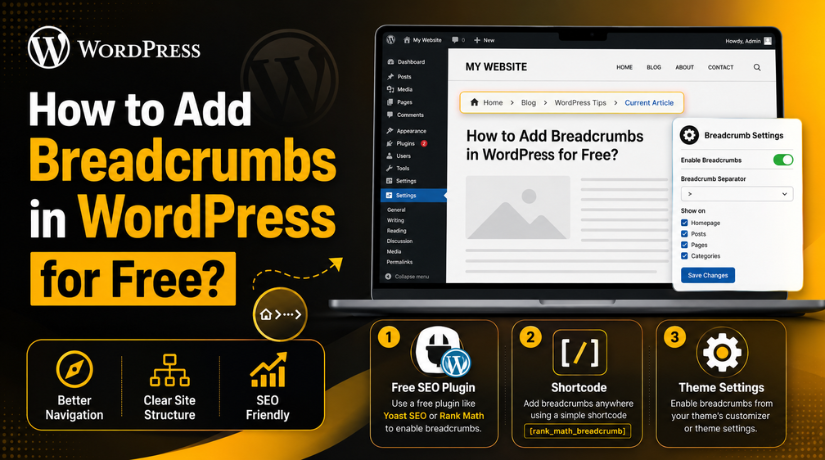
How to Add Breadcrumbs in WordPress for Free?
Introduction
Many WordPress visitors do not start from your homepage. Google may direct them to a blog article, service page, or product page. When this happens, they need a clear way to understand your website structure. Breadcrumbs help them do that with ease.
You don’t need a commercial program to add breadcrumbs to WordPress. Many free plugins and themes offer simple breadcrumb options. They can be used to display a clear route from the homepage to the current page.
Breadcrumbs are small, but they improve the browsing experience. They facilitate visitors’ rapid return to relevant pages. They also make your website look more organized and professional.
For a USA-based WordPress blog or business website, this is important. Visitors expect fast, simple, and clear navigation. Breadcrumbs support that goal without making the design heavy.
What Are Breadcrumbs in WordPress?
Small navigation links on a page are called breadcrumbs. They typically show up close to the top of the content area. They show the path between the homepage and current page.
A simple breadcrumb path may look like this:
Home > Blog > WordPress Tips > Current Article
This type of breadcrumb navigation WordPress setup helps users know their location. It also lets them move back to a parent page quickly.
For example, a visitor reading a WordPress guide can return to the blog category. A service page visitor can move back to the main service section. A WooCommerce customer can return to a product category easily.
Breadcrumbs are useful for:
- Blog websites with many categories
- Business websites with service pages
- WooCommerce stores with product categories
- Learning websites with multiple guide sections
- Support websites with step-by-step articles
They are not a replacement for your main menu. They work as an extra navigation path. This makes the website easier to use.
Why Breadcrumbs Matter for WordPress Websites
They Improve User Navigation
Breadcrumbs help users move through your website faster. Visitors do not need to press the browser back button. They can simply click a category or parent page.
This is useful when users visit from search results. They can understand your site layout within seconds.
They Improve Website Structure
Breadcrumbs show how your pages connect with each other. They make categories, parent pages, and child pages clearer.
This makes your content layout easier for both users and search engines to interpret.
They Support Better SEO Understanding
Structure is used by search engines to comprehend the content of websites. Breadcrumbs give them another clear signal about page hierarchy.
This can support better crawling and stronger content organization.
They Reduce Visitor Confusion
A confused visitor may leave the website quickly. Breadcrumbs reduce that problem by showing a simple path.
Best Free Ways to Add Breadcrumbs in WordPress
Adding breadcrumbs to your WordPress website may be done for free in a number of ways. The best method depends on your theme, plugin setup, and comfort level. Most beginners should start with a free plugin because it is simple and safe.
A WordPress breadcrumbs free plugin can help you add navigation paths without custom coding. Many SEO plugins already include breadcrumb settings. This means you may not need an extra breadcrumb-only plugin.
You can use these common free methods:
- Use a free SEO plugin with breadcrumb settings.
- Use a breadcrumb shortcode from a supported plugin.
- Use built-in breadcrumb settings from your active theme.
For most websites, the plugin method is the easiest choice. Blogs, company websites, and service pages all benefit from it.
Method 1: Add Breadcrumbs Using a Free SEO Plugin
A free SEO plugin is one of the easiest options. It helps you manage breadcrumbs and SEO together. This keeps your website setup cleaner and more useful.
Popular free SEO plugins may include breadcrumb features. Common options include Rank Math, Yoast SEO, and AIOSEO Lite. Each plugin has different settings, but the basic process is similar.
For people who like a straightforward setup, this approach works well. It also helps users avoid editing theme files directly.
Step 1: Install a Free SEO Plugin
Log in to your WordPress admin dashboard first. Then go to Plugins > Add New from the left menu.
Look up the name of your favorite SEO plugin. After selecting Install Now, select Activate. The plugin will update your dashboard with new settings once it is active.
Follow the setup wizard if the plugin provides one. This helps configure basic SEO settings correctly.
Step 2: Enable Breadcrumbs in Plugin Settings
After activation, open the plugin settings page. Look for a section named Breadcrumbs, General Settings, or Search Appearance. The exact name may change based on the plugin.
This is where you can learn how to enable breadcrumbs in WordPress using plugin settings. Turn on the breadcrumb option and save your changes.
Some plugins may also let you control:
- Homepage breadcrumb label
- Separator symbol
- Category display
- Post type support
- Breadcrumb schema output
Keep the settings simple at first. You can adjust them later after testing.
Step 3: Add the Breadcrumb Display Option
Some plugins enable breadcrumbs but do not display them automatically. A block, shortcode, or little theme code might need to be added.
If your theme supports the plugin, breadcrumbs may appear quickly. If not, check the plugin’s breadcrumb display instructions.
Put breadcrumbs close to the top of your page. This helps users see the path before reading content.


Step 4: Test Breadcrumbs on Important Pages
After setup, test breadcrumbs on key pages. Check blog posts, pages, categories, and service pages.
Make sure the path looks correct on desktop and mobile. Also check that each breadcrumb link opens the right page.
Testing helps you find layout issues early. It also ensures visitors get a smooth navigation experience.
Method 2: Add Breadcrumbs Using a WordPress Breadcrumb Shortcode
A shortcode is another simple way to show breadcrumbs. Many WordPress plugins provide a ready shortcode for this feature. You can place it inside a page, post, widget, or template area.
A WordPress breadcrumb shortcode is useful when your theme does not show breadcrumbs automatically. It also helps when you do not want to edit theme files. The shortcode from the plugin settings is all that is required. Next, place it where you want breadcrumbs to show up.
You have more control over placement with this strategy. You can add breadcrumbs above the main content area. You can also place them below the page title. This makes the navigation path easy to see.
Where You Can Place the Breadcrumb Shortcode
The shortcode can be used in several WordPress sections. The right area depends on your website layout.
Common shortcode placement areas include:
- Page editor
- Post editor
- Widget area
- Custom HTML block
- Shortcode block
- Theme template area, if supported
For best results, place the shortcode near the top. It should appear before the main content starts. This helps users understand the page path quickly.
Avoid placing breadcrumbs too low on the page. Visitors may miss them if they appear after long content.
Method 3: Add Breadcrumbs Through Your Theme Settings
Some WordPress themes include built-in breadcrumb settings. This is a good option when available. It lets you add breadcrumbs without installing another plugin.
Visit your WordPress dashboard to verify this selection. Then open Appearance > Customize. Some themes may also use Appearance > Theme Settings.
Look for options like:
- Breadcrumbs
- Page title settings
- Header settings
- Single post layout
- Archive layout settings
If your theme includes breadcrumbs, enable the option. After that, save your modifications and visit your website.
For those who prefer a light configuration, this approach is useful. It can reduce plugin use and keep the website simple. If you want to add breadcrumbs in WordPress quickly, theme settings may work well.
When Theme Breadcrumbs Work Best
Theme breadcrumbs work best when your theme supports them properly. They also work well when your site has a clear page structure.
However, theme options can be limited. Some themes may not support advanced breadcrumb control. A plugin provides greater flexibility in that situation.
Where Should You Place Breadcrumbs on Your Website?
Breadcrumb placement affects user experience. Breadcrumbs should be easy to notice but not distracting.
Good placement areas include:
- Below the header
- Above the page title
- Below the page title
- Above the main content
Keep the breadcrumb path clean and readable. Verify that everything functions properly on mobile screens as well.
What to Do If Breadcrumbs Are Not Showing in WordPress
Sometimes breadcrumbs may not appear after setup. This can happen because of plugin settings, theme limits, cache, or incorrect placement. If breadcrumbs not showing in WordPress is your issue, check each setting step by step.
Check If Breadcrumbs Are Enabled
First, open your plugin or theme settings. Verify that the breadcrumb option is enabled. Some plugins save settings only after you click the final save button. So, always save changes again after enabling breadcrumbs.
Clear Website Cache
Your website may still show an older page version. Empty the cache in your browser, CDN, and WordPress. Next, open a private browser window and reload the page. This helps you confirm the latest page design.
Check Theme Compatibility
Some themes do not display plugin breadcrumbs automatically. In that case, you may need a shortcode, block, or template placement. Check your plugin guide and theme layout options.
Confirm Shortcode or Code Placement
If you use a shortcode, place it in the right area. The ideal placement is above the main content. If you add it inside a hidden block, breadcrumbs will not display.
Check Plugin Conflicts
Do not use many breadcrumb tools together. Multiple SEO or breadcrumb plugins may create conflicts. Keep only one active breadcrumb source.
Best Practices for Breadcrumb Navigation in WordPress
A clean breadcrumb setup should help users, not confuse them. Keep the path short, clear, and easy to follow.
Use these best practices:
- Place breadcrumbs near the top of each page.
- Keep the breadcrumb path simple and readable.
- Avoid duplicate breadcrumb plugins.
- Match breadcrumbs with your site structure.
- Test breadcrumbs on desktop and mobile.
- Use clear category names for better navigation.
Good breadcrumbs should support your main menu. They should not replace it.
Conclusion
Adding breadcrumbs in WordPress is simple and useful. You can use a free SEO plugin, shortcode, or theme setting. Each method can improve user navigation and site structure.
Breadcrumbs help visitors understand where they are. They also help them move back to useful pages quickly. This creates a smoother browsing experience for every user.
If you need help setting up breadcrumbs or fixing display issues, 24×7 WP Support can help. Our team can check your plugin settings, theme layout, and breadcrumb placement. We can also fix display problems properly.
FAQs
Can I add breadcrumbs in WordPress for free?
Yes. You can use a free plugin, shortcode, or theme option.
Do breadcrumbs help WordPress SEO?
Yes. Breadcrumbs help search engines in comprehending the structure of your website.
Why are my breadcrumbs not showing?
They may be disabled, cached, hidden, or blocked by your theme.
Can I add breadcrumbs without coding?
Yes. Many free plugins and themes support no-code breadcrumb setup.
Where should breadcrumbs appear?
Put them either above the main material or below the header.

Brian is a WordPress support specialist and content contributor at 24×7 WP Support. He writes practical, easy-to-follow guides on WordPress troubleshooting, WooCommerce issues, plugin and theme errors, website security, migrations, performance optimization, and integrations. With a focus on solving real website problems, Brian helps business owners, bloggers, and online store managers keep their WordPress sites running smoothly.
