
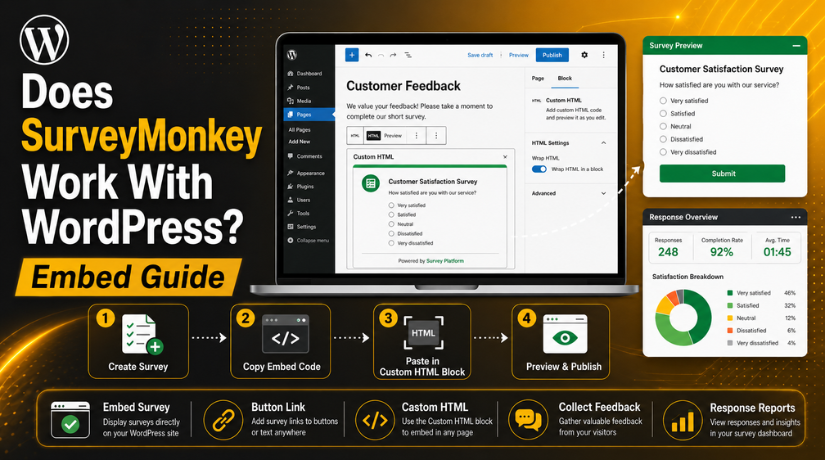
Does SurveyMonkey Work With WordPress? Embed Guide
Introduction: Can You Use SurveyMonkey With WordPress?
Yes, SurveyMonkey works with WordPress without complex technical setup. You can add surveys to pages, posts, landing pages, and support pages. This makes it useful for collecting real visitor feedback. Many website owners use surveys to understand customer needs better.
A SurveyMonkey WordPress embed lets visitors answer questions directly on your website. They do not need to leave your WordPress page. This creates a smoother user experience and improves survey completion chances. You can also share the survey as a simple link. Both options work well, based on your page goal.
SurveyMonkey is useful for many website needs, such as:
- Customer feedback after using a service
- Product experience surveys
- Event registration feedback
- Website improvement questions
- Support satisfaction surveys
- Market research for business decisions
For WordPress users, the main benefit is simple setup. You create the survey inside SurveyMonkey first. Then, you place it on your WordPress site. The survey can appear inside your page content. It can also open through a button or text link.
This guide focuses on the proper embed method. It helps users understand how SurveyMonkey connects with WordPress.
How SurveyMonkey Works With WordPress
SurveyMonkey and WordPress work together in a simple way. SurveyMonkey creates, stores, and manages the survey form. WordPress only displays that survey to your website visitors. This means your WordPress site does not handle survey data directly.
A SurveyMonkey WordPress integration works through sharing options. SurveyMonkey gives you a link or embed code. You can place that code inside a WordPress page or post. Once added, the survey becomes visible to your visitors.
This setup is helpful for non-technical website owners. You do not need to build a custom survey system. You also do not need advanced coding skills. Most users can add the survey using WordPress blocks.
SurveyMonkey keeps the responses inside your SurveyMonkey account. You can check answers, reports, and survey results there. This keeps your WordPress website clean and easier to manage.
For business websites, this setup saves time and effort. You can collect feedback while keeping your site simple. It also helps you improve services based on real user answers.
Best Ways to Add a SurveyMonkey Survey to WordPress
There are different ways to add a SurveyMonkey survey to WordPress. The right method depends on your page layout and goal. Some users want the survey visible on the same page. Others prefer sending visitors to a separate survey page.
The most common methods are simple and user-friendly. You do not need advanced coding for basic setup.
Add the Survey as an Embedded Form
This is the best method for a smooth user experience. The survey appears directly inside your WordPress page or post. Visitors can answer questions without leaving your website. This helps keep users engaged with your content.
You can use this method on service pages, feedback pages, or landing pages. It works well when you want fast responses from visitors.
Add the Survey as a Button Link
You can also add the survey as a button link. When visitors click the button, they open the SurveyMonkey survey. This method is useful when the survey is long. It also works well when your page has limited space.
A clear button can improve clicks and responses. Use simple button text like “Take Our Survey.”
Add the Survey Link Inside Page Content
You can place the survey link inside normal page content. This works well for blogs, guides, and support articles. You can add a short message before the link. Tell users why their feedback matters.
This is a simple way to add SurveyMonkey survey to WordPress without changing page design.
Step-by-Step Guide to Embed SurveyMonkey in WordPress
You can embed SurveyMonkey in WordPress using the correct embed code. Follow each step carefully to avoid display issues.
Step 1: Create or Open Your Survey in SurveyMonkey
First, log in to your SurveyMonkey account. Create a new survey or open an existing one. Check all questions before adding it to WordPress. Make sure the survey is clear, short, and ready.
Step 2: Find the Survey Sharing or Collector Option
Next, go to the survey sharing or collector section. SurveyMonkey gives different options to collect responses. Choose the option that supports website embedding. This option usually provides an embed code for your site.
Step 3: Copy the Embed Code
Now copy the full embed code from SurveyMonkey. Do not remove any part of the code. A missing line can stop the survey from loading. This code is also called SurveyMonkey embed code WordPress users need for display.
Step 4: Open the WordPress Page or Post
Open your WordPress dashboard and choose the page or post. Select the exact place where the survey should appear. Try to place it where visitors can notice it easily.


Step 5: Add a Custom HTML Block
In the WordPress block editor, add a Custom HTML block. Do not paste the code inside a paragraph block. The Custom HTML block supports embed code better.
Step 6: Paste, Preview, and Publish
Paste the SurveyMonkey code inside the HTML block. Then preview the page before publishing changes. Check the survey on desktop and mobile. If everything looks correct, update or publish the page.
Where Should You Place the Survey on Your WordPress Site?
Survey placement can affect how many users complete your survey. A well-placed survey feels natural and easy to access. A poorly placed survey may get ignored by visitors.
Place the survey where users already show interest. This helps you collect better and more useful answers. The survey should not disturb the reading experience. It should support the page goal clearly.
Here are the best places to add your survey:
- After a blog post: Ask readers for topic feedback.
- On a service page: Learn what visitors need before contacting you.
- On a product page: Collect feedback about product interest.
- On a landing page: Ask simple lead-related questions.
- On a thank-you page: Collect feedback after user action.
- On a support page: Measure customer satisfaction and service quality.
For best results, add a short message before the survey. Tell users why their feedback is useful. Keep the message simple and clear. For example, you can ask users to share their opinion. This builds trust and improves response rates.
Also, avoid placing the survey too far down the page. Many users may not scroll to the bottom. Place it near useful content or after a clear call-to-action.
Common Reasons SurveyMonkey Embed May Not Work in WordPress
Sometimes, users face display issues after adding the survey code. The survey may not load, resize, or appear properly. This is usually a setup or compatibility issue. The SurveyMonkey embed not working WordPress issue can happen for several reasons.
The Embed Code Was Added in the Wrong Block
SurveyMonkey code should go inside a Custom HTML block. If you paste it into a normal paragraph block, it may break. WordPress may show the code as text instead.
WordPress Removed Part of the Code
Some WordPress roles have limited code access. WordPress may remove iframe or script code for safety. This can stop the survey from showing correctly.
A Security Plugin Blocks the Embed
Security plugins may block third-party scripts or iframe content. This can happen when the plugin settings are strict. The survey may stay blank or fail to load.
Cache or Optimization Settings Affect the Script
Caching tools can delay or combine JavaScript files. This may stop SurveyMonkey scripts from loading on time. Minify or delay settings can also affect embeds.
Theme CSS Affects the Survey Layout
Some themes may change spacing, width, or mobile display. The survey may look too small or misaligned. Testing on desktop and mobile helps catch these issues.
Is Embedding SurveyMonkey in WordPress Better Than Using a Form Plugin?
Embedding SurveyMonkey in WordPress works best for detailed surveys. It is useful when you need feedback, reports, and response tracking. SurveyMonkey gives you ready survey tools inside one platform. You can create questions, collect answers, and review results easily.
A normal WordPress form plugin works better for simple website forms. These forms are useful for contact requests, quotes, or bookings. They may not offer strong survey reports or deep feedback tools.
SurveyMonkey is a better choice when you need:
- Customer feedback surveys
- Product research questions
- Service satisfaction forms
- Event feedback forms
- Website experience surveys
- Simple response reports
A SurveyMonkey WordPress integration keeps the survey process clean. WordPress displays the survey, while SurveyMonkey stores the responses. This setup helps website owners save time and avoid custom development.
Best Practices Before Publishing the Survey
Before publishing the survey, test everything carefully. A small issue can affect user responses. Your survey should look clean and work smoothly on every device.
Follow these best practices before making the survey live:
- Test the survey on desktop and mobile screens.
- Keep the survey short, simple, and focused.
- Add a short message before the survey.
- Tell users why their feedback matters.
- Place the survey where users can notice it.
- Avoid adding many forms on one page.
- Check if responses are saved correctly.
- Review the page after publishing updates.
Also, check your page speed after adding the survey. Some third-party embeds may affect loading time. A fast page gives users a better experience.
Conclusion
SurveyMonkey works well with WordPress when added correctly. You can embed it, link it, or use a button. The best method depends on your page goal.
A SurveyMonkey WordPress embed is helpful for collecting direct feedback. Most display issues happen due to code placement, cache settings, security rules, or theme layout.
If your SurveyMonkey survey does not display correctly, 24×7 WP Support can help. Our team can check the embed code, page setup, plugin conflicts, and theme layout. This helps your survey work smoothly on your WordPress website.
FAQs
1. Does SurveyMonkey work with WordPress?
Yes, SurveyMonkey works with WordPress. You can add surveys to pages, posts, landing pages, and support pages. WordPress displays the survey, while SurveyMonkey manages the questions, responses, and reports.
2. How do I embed SurveyMonkey in WordPress?
You can embed SurveyMonkey in WordPress using the survey embed code. Copy the code from SurveyMonkey. Then paste it into a Custom HTML block inside your WordPress page or post. Preview the page before publishing it.
3. Can I add a SurveyMonkey survey without coding?
Yes, you can add a SurveyMonkey survey without advanced coding. You only need to copy and paste the embed code. You can also add the survey as a simple link or button.
4. Why is my SurveyMonkey embed not working in WordPress?
This can happen due to wrong code placement, cache settings, security plugins, or theme layout issues. Make sure you paste the code inside a Custom HTML block. Also, check if any plugin blocks third-party scripts.
5. Is SurveyMonkey better than a WordPress form plugin?
SurveyMonkey is better for surveys, feedback, and response reports. WordPress form plugins are better for contact forms, quote forms, and simple bookings. The best choice depends on your website goal.
Related posts:

Brian is a WordPress support specialist and content contributor at 24×7 WP Support. He writes practical, easy-to-follow guides on WordPress troubleshooting, WooCommerce issues, plugin and theme errors, website security, migrations, performance optimization, and integrations. With a focus on solving real website problems, Brian helps business owners, bloggers, and online store managers keep their WordPress sites running smoothly.
